Customer-Supplier Member Information
Members have a screen for adding, updating and member information. Member information page is the page that contains comprehensive and detailed information about the corporate member. Member information is located at the top right of the corporate member's detail.
Path: > ERP > Sales-Distribution > Customer-Supplier > Account Detail > Member Information

The screen that opens contains general information about the corporate member. On the right side of the screen, there are the following sections:
1-Account Statement: Displays the current account statement from the beginning of the current fiscal year to the current date. (The system takes this information from the finance and accounting modules and displays it on the screen.)
2-Financial Summary: It contains the debt/credit, risk and working information of the corporate member from the beginning of the fiscal year to the current date.
3-BSC: Financial information about the account can be accessed, graphical representation of account-related transactions such as invoice orders can be seen by selecting the date range.
4-Financial Summary: Unlike the second field, the financial summary is briefly displayed as debit/credit/balance in this field.
5-Documents: Document related to the member. You can add it or associate it with an existing document in your digital archive. This document may be an agreement regarding the corporate member, financial situation or employment document of the member.
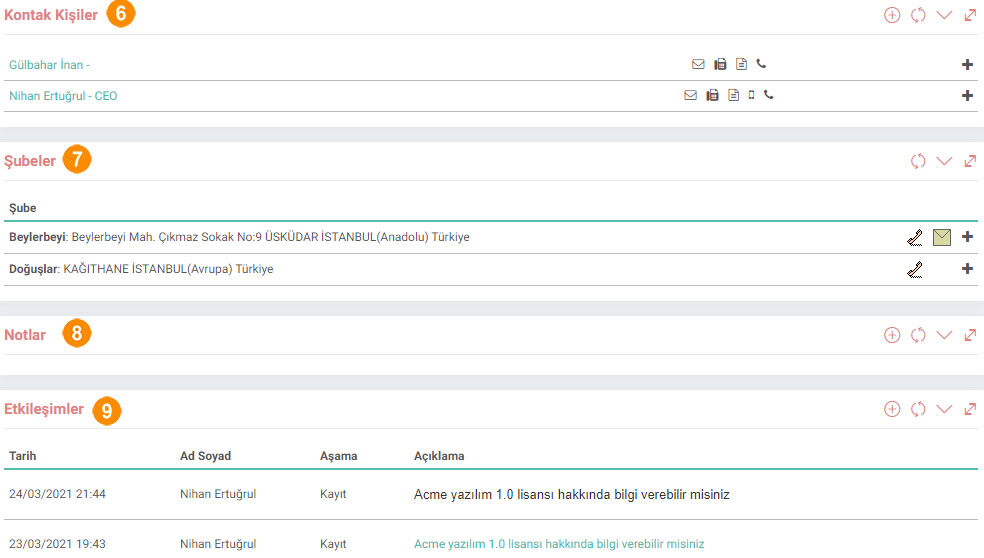
6-Contact Persons: From this field, you can define the contact persons related to the current account and check the defined contacts.
7-Branch: The branches of the company and their information are included in the Branches field.
8-Notes: Special and warning notes can be added regarding the account. If you do not want this note to be viewed by other users in the system, the private box should be selected. If you want to see a warning note in any field where the corporate account is selected, the warning box must be selected. You can update the notes you added. To do this, simply click on the link of the relevant note. After making the changes/updates you want on the screen that opens, click the "Update" button.
9-Interactions: This section contains the client's interactions. Obtaining customer information about companies' customers, meeting customer requests and expectations, etc. Establishing a relationship with these reasons is achieved through two-way interactions.
10-Campaign: Marketing policies organized at certain periods in order to gain new customers or increase the sales of existing customer groups can be made through campaign management. The client's campaign information is displayed in this field.
In addition to all these fields on this page, you can also view the following information about the member;
Correspondence
Trainings
Events
Meetings/Visits
Opportunities
Offers
Orders
Instalment Sales
Invoices
Service Applications
Call Center Applications
Subscriber
Execution Tracking
Guaranteed Products
Projects
Works
Feedback
14.3.5. Customer-Supplier Import
In order for companies to carry out production and sales and use the ERP module, they need to transfer customer and supplier information to the system. Since processing these manually would be a difficult process, especially for large-scale companies, these processes have been systematized within a certain format within Workcube.
Corporate Accounts
It offers the opportunity to see and manage all information about a corporate member together. Customer, supplier etc. It is used as the management center for business, communication and relations with all companies and institutions with which we have commercial relations.
2.2.1.7. B.S.C.
BSC (Balanced Scorecard) is a performance measure report used to identify, improve and control various functions of a business and their resulting outputs. Balanced Scorecard considers non-financial data as well as financial data and presents items that are not included in balance sheets or income-expense statements in the report.
2.2.1.1. Customer-Supplier Parametric Definitions
Customer is the consumer of the product or service. The producers of raw materials and products that companies or individuals will use to sell products and services are called suppliers. You can check your registered business network from the Customer-Supplier module.
2.2.1.3. Customer-Supplier XML Settings
Customer is the consumer of the product or service. The producers of raw materials and products that companies or individuals will use to sell products and services are called suppliers. You can check your registered business network from the Customer-Supplier module.