Visit Book
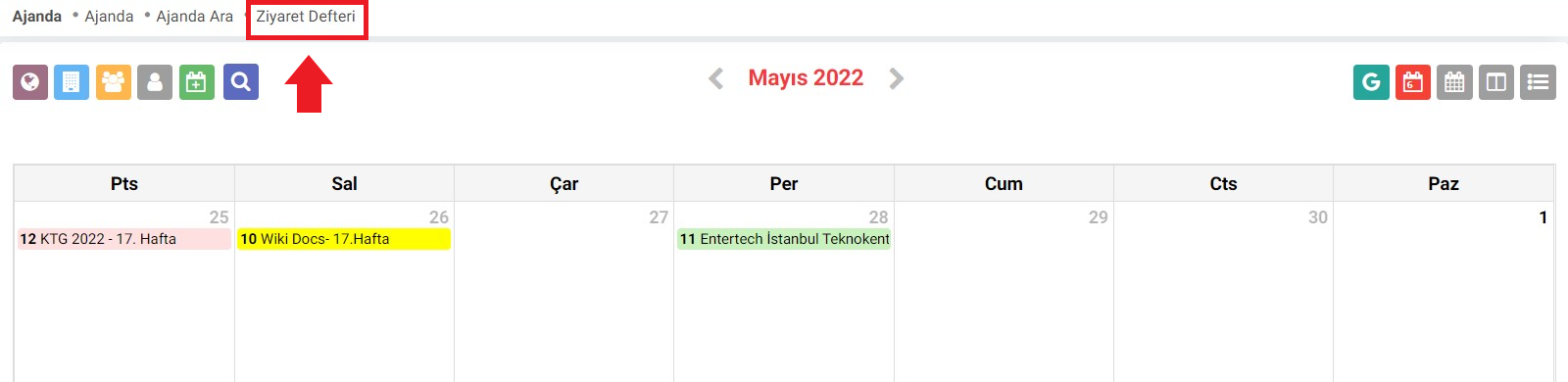

- This box is for the employee who records the visitor's details. Filtering is done here to list the desired results.
- This section is the date range section that can be used to search for visitors between certain dates.
- This is the area where the number of visitors to be listed is specified.
- By using the search button, a listing is made in accordance with the relevant conditions.
- It is used to create a new visitor record.
- When listing is made, you can use the "plus" icon here to record a new visitor.
New Record
To add a new visitor, you can create a new visitor record by clicking on the "plus" icons above. The registration screen that opens will be as follows. You can complete the registration by filling in the relevant fields with the visitor and visited employee information.
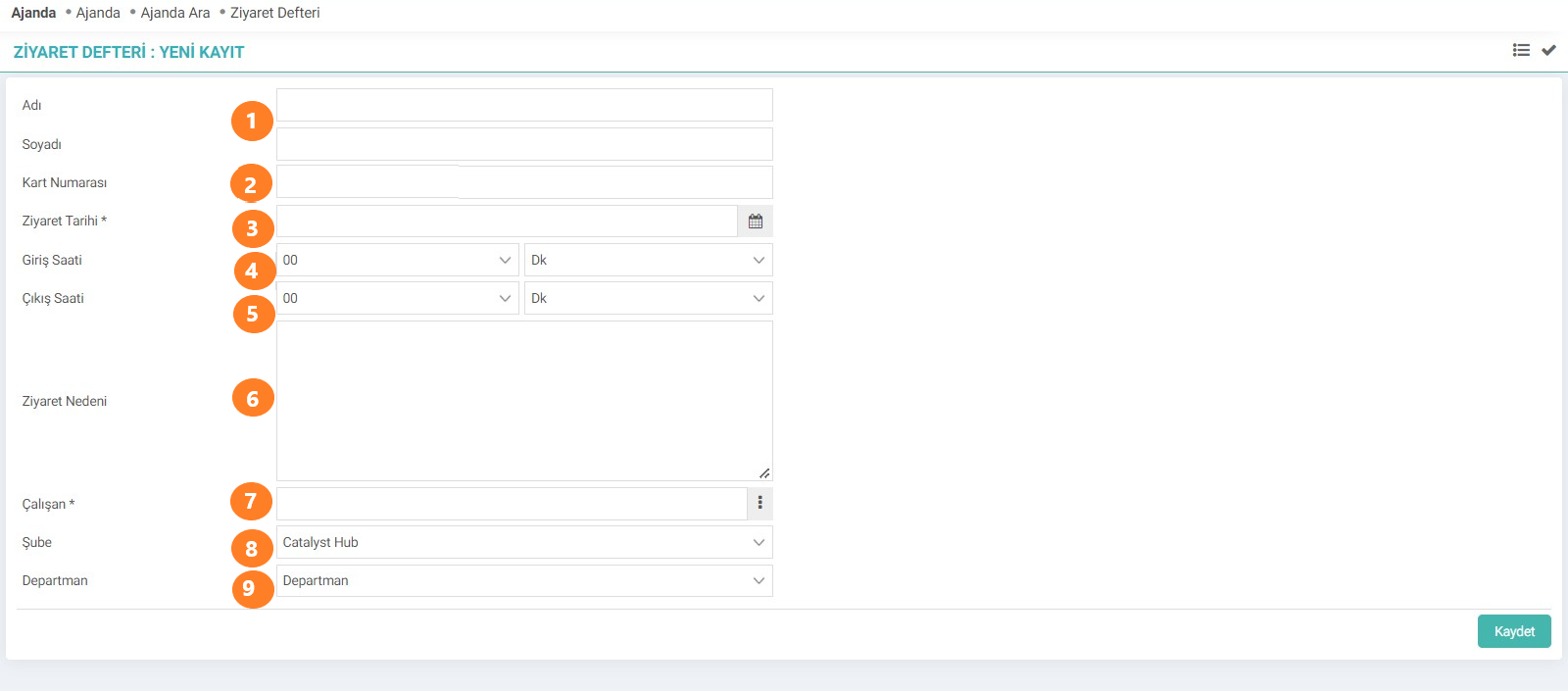
- Visitor Name/Surname information is written in this field.
- The card number on the visitor card given to the visitor at the beginning of the visit, if any, is entered in this field.
- The date of the visit is entered here.
- The start time of the visit is entered in this field.
- The end of the visit, that is, the visitor's departure time, is entered in this field.
- The visitor's reason for visit is filled in this field.
- The visited employee is selected from this field.
- The branch to which the visited employee is affiliated is selected from this field.
- The department information of the visited employee is entered in this field.
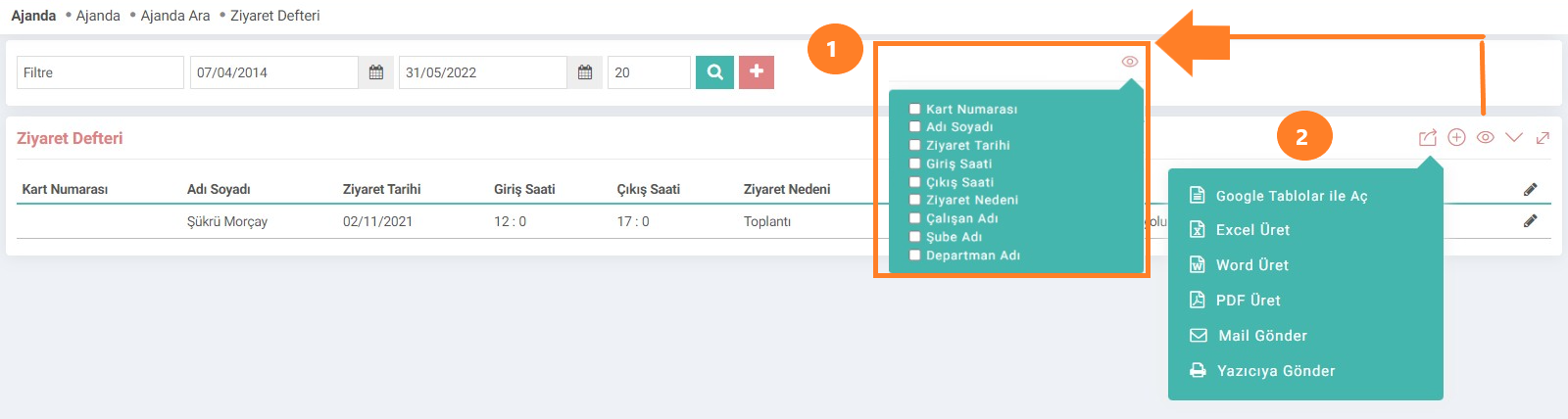
When listing is done with certain date ranges, as in the image below, the listing screen will appear. You can select the fields you want to be included in the listing using the section numbered 1 on the right of the listing screen. Fields you do not select will not be included in the listing results. You can export the listing results you obtain as you wish with the export button shown at number 2. For example; You can open it with Google Tables, produce an Excel or Word file, use it as PDF, send the listing results by e-mail or print them out by sending them to the printer. You can also update any record in the listing results by clicking on the pencil button at the far right of the record.
branch_from_active_company Şube Seçimi Aktif Şirkete Göre Çalışsın
Feedback
Visitor Book Date Area
Added/Edited Function: The "Visit Date" format on the Intranet > Agenda > Visit Book registration and update pages has been improved to D/M/Y (Day/Month/Year).
Visitor Book Employee Requirement Removed
The obligation to select employee information when recording documents in the Visit Book has been removed.