Product Category Management
It ensures that all products purchased and sold by the business are categorized and managed by the related company and responsible persons. Workcube allows you to categorize your products by specifying a category for them.
Path: ERP > Sales-Distribution > Product and Inventories > Product Category Management
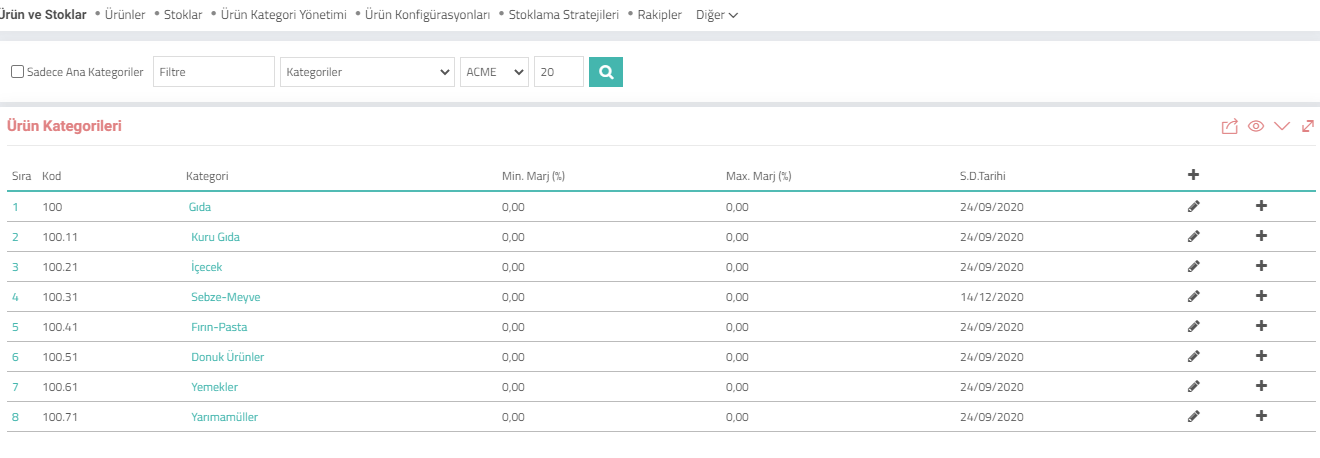
An unlimited number of product categories and subcategories can be registered. You can view product categories as a list on the Product Category Management page.
IMPORTANT: Especially changes in product category definitions should be made carefully so as not to cause disruptions in the product category hierarchy.
NOTE: If you do not want to display subcategories when listing product categories, you should search by checking the "Only Main Categories" box.
Product Category Definitions
Products cannot be registered to the system without a category definition. Category and subcategory definitions must be made for all products purchased and sold. Product categories; You can define it on the Product Category Management page. If the category is associated with a product, the delete button will not appear and cannot be deleted for the integrity of the records.
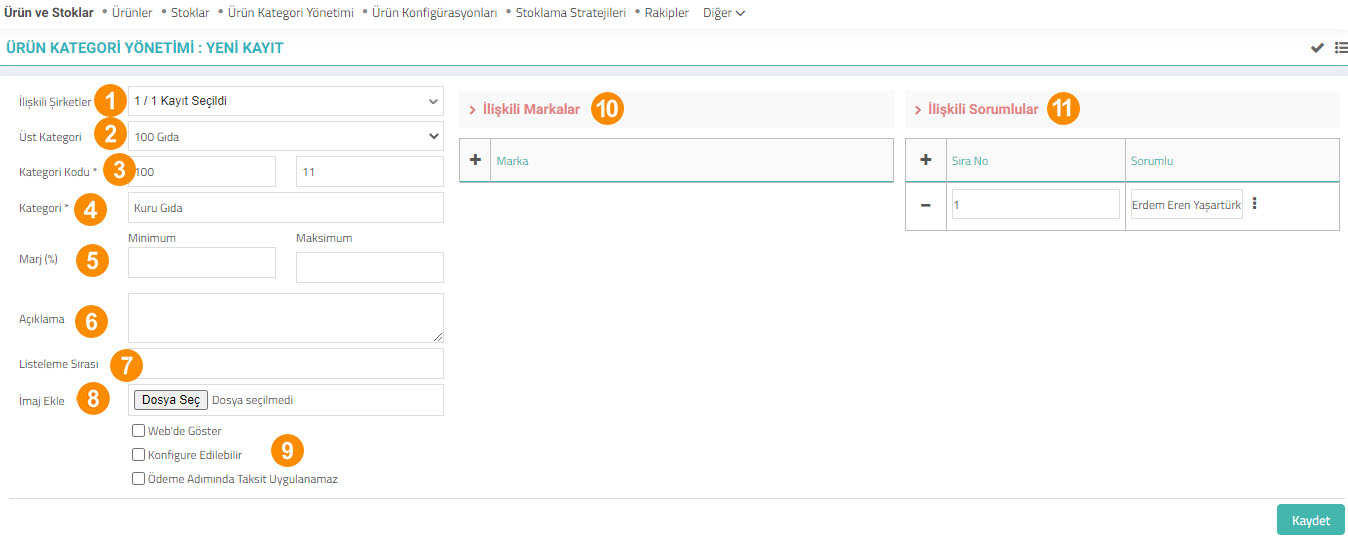
- Related Companies: The category added from this field can be associated with defined companies. The added product category and the products related to this category can only be displayed in the periods of the associated companies.
- Parent Category: This field is where the parent category that includes the category you will add is selected. All categories registered in the Workcube system are listed with their hierarchical order. In order for the category hierarchy to be processed correctly, the parent categories must be selected correctly. There is no need to select a category from this field for only main category records.
- Category Code: The code to be entered in this field is combined with the code of the selected parent category and listed hierarchically in the system. As soon as the parent category is selected in the left box in this area, the code of the relevant parent category is automatically displayed. The code for this category is written in the right box. For example; While the food category's code is 100, when code 11 is defined for the newly added Dry Food category, the code of the "Dry Food" category becomes 100.11.
- Category: The category name to be added to this field is defined. For example; If a hierarchical categorization will be made as Food > Dry Food > Pulses > Bulgur, each category should be defined separately and their names should be written accordingly.
- Margin: The lowest and highest margin (or discount) rates that will be valid for the defined category are entered in this field. When the "Calculate from Product Category Margin" option is selected in price list definitions, this field is used to calculate the list price based on these margins defined in the category the product is included in.
- Description: If there is any explanation to be added regarding the product category, it is defined here.
- Listing Order: This feature is valid for sites designed and managed by Workcube. The listing order for the defined category is written and this order determines the listing order of the category on B2B and B2C sites.
- Add Image: Images in various formats such as jpg and png are added for the defined category. These images can be used on B2B and B2C sites.
- The "Show on Web" box allows the category to be displayed on B2B, B2C sites. If you want the products in the added category to be customizable, check the "Configurable" box.
- Associated Brands: Brands that want to be associated with the category are selected from this field. For example; If we sell bulgur with x, y, z brands in the bulgur category, we can add these brands to the category definition.
- Related Responsibilities: Persons responsible for this area are defined.
After specifying the necessary information, click the "Save" button. The category name you added will be displayed in the list just below its parent category and will be available for all product transactions and records.
Product Category Update
Updates can be made in the registered product category. To do this, it is sufficient to click on the name of the category in the category list and go to its details.
Some definitions can be made on the product category detail page that do not appear during the addition. You can access these areas by scrolling down the page.
Warning: After any additions or changes made in each section, you must click the Save button at the bottom of that section.
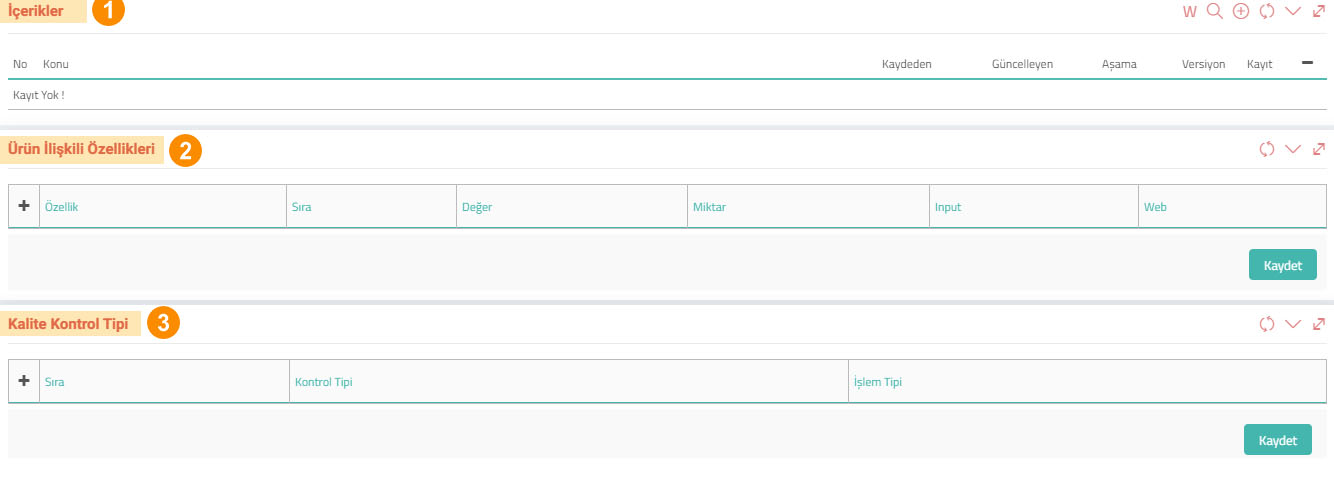
1-Content
This field is used to add content related to the product category. You can associate the product category with a wiki by clicking on the W icon, associate a previously saved content with the category with the magnifying glass icon, or add new content from the "+" button.
2-Product Related Features
The features associated with the products in the product category are defined in the "Product Related Features" field. Product feature definitions are used to define different features and variations (color, size, smell, etc.) about products. When you click "+" , you can select predefined features or define new features from the screen that opens.
When you add a product belonging to this category, its features come automatically.
.jpg)
To add a new feature definition by clicking "+" on the New Feature selection screen You will see a screen like the one below.
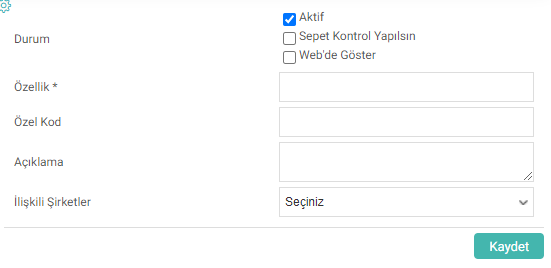
On this screen;
- If the "Active" box is not checked, the recorded feature cannot be displayed in the buying and selling transactions made with the product.
- "Cart Control When the "Let it be done" box is checked, among the products sold on the partner portal, products with cart-controlled features but different variations cannot be placed in the same shopping cart. For example; Let's consider two products with language features. Let's assume that the variation of one of these products is in English and the variation of the other is in Turkish. Although the features of these products are the same, they cannot be included in the same shopping cart because their variations are different.
3-Quality Control Types
Quality control type is selected for the category defined in this field. The quality control process follows the order in the sequence information entered into the system. Quality control types are defined on page ERP > Manufacturing > Production Design > Quality Control Categories . Click "+" to add a quality control type. When you click on this icon, a line will be added to the bottom where you can specify the quality processes related to this product category. Add sequence information for quality control type. (The quality control process will follow this order.)
4-Quality Control Parameters
In this field, batch size, model numbers and acceptance/rejection statuses at control levels are defined.
5-Member Inspection Levels
If a particular member has a different control application, it can be specified in this field. For example; If the EU Health Member receives the products with a quality control certificate, this can be stated in this field. Before editing this page, inspection levels must be defined.
To define inspection levels,Control Panel > System > Parameters > Inspection Levels is followed.
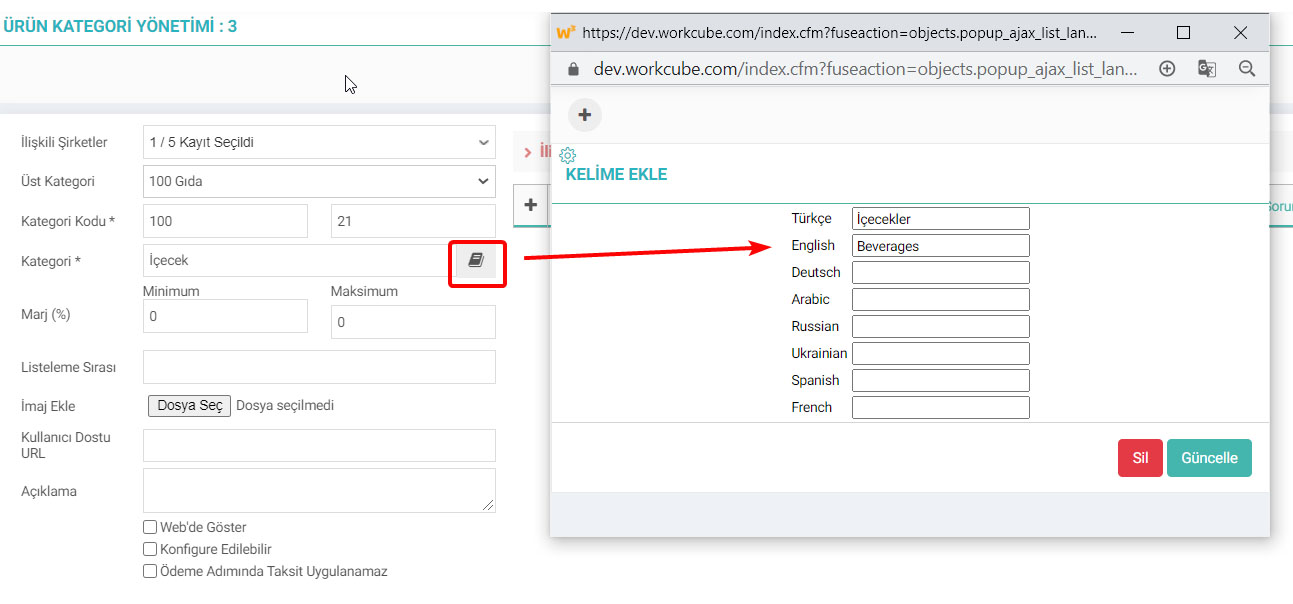
Language Definitions in Product Category
It is possible to define the Product Category name in different languages. When these definitions are made, for example, the user using the system in the English interface sees the Category name with the name written in the English field.