Step by Step Implementation
Step by Step Implementation screens show the necessary implementation steps for a complete Workcube implementation according to the project scope; It is a guide used to complete the implementation in the appropriate order by classifying it on the basis of solutions, business families and modules.
Path: Control Panel > BPM > Step by Step Implementation
Step by Step Implementation
Implementation steps required for a complete Workcube implementation; It is a guide used to complete the implementation in the appropriate order by classifying it on the basis of solutions, business families, modules and business functions.
The stage of the implementation can be viewed, and it can be determined which data is defined in which modules. It facilitates the implementation processes and enables the stages to be followed on a single screen, and provides a numerical and percentage completion rate of the project's current stage.
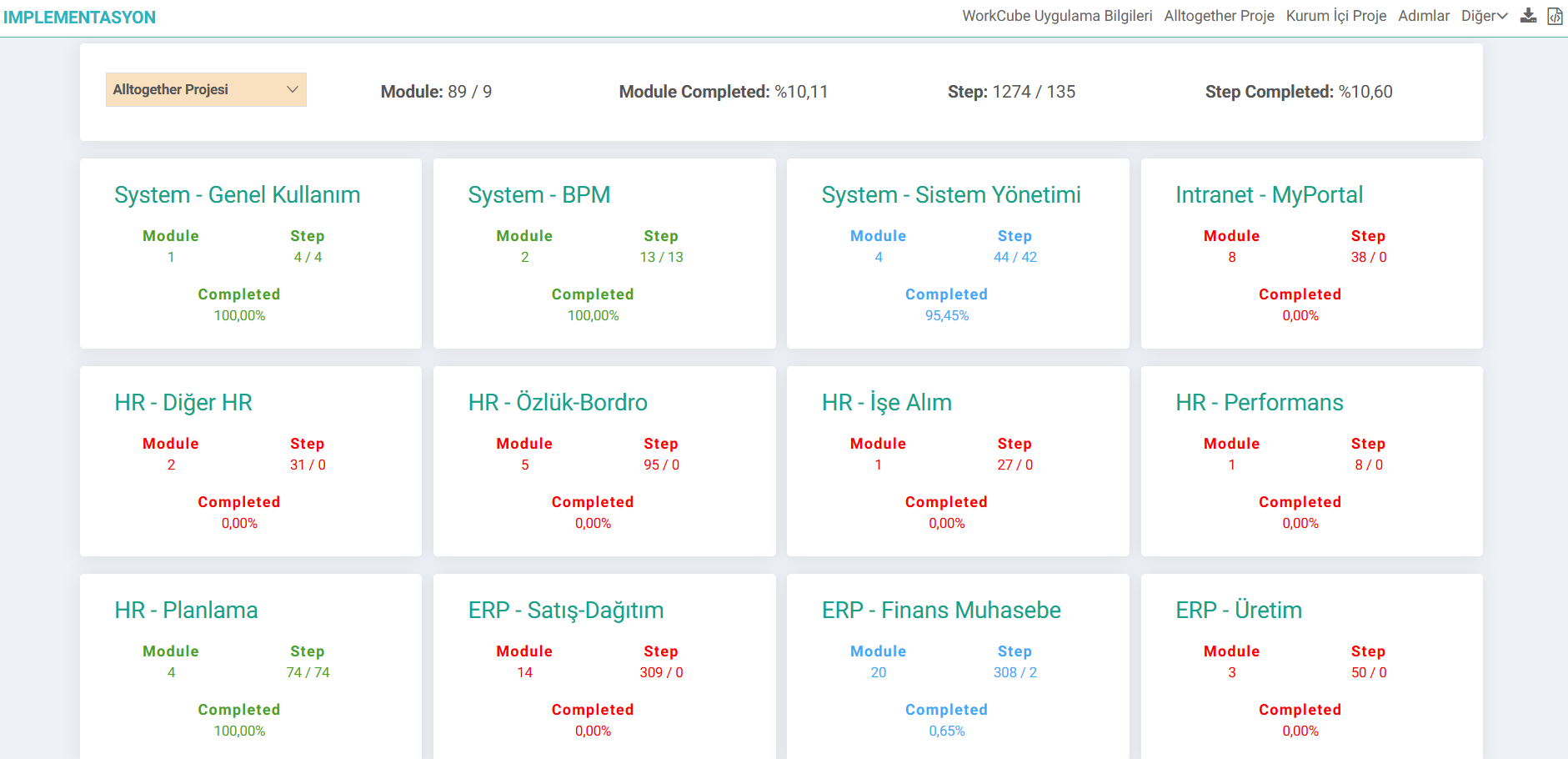
- Project: The relevant project is selected. For detailed information, you can read the document "Step by Step Implementation on Project Basis".
- Module: Indicates how many Modules are connected to Workcube Job Families and how many of them have been implemented. For example; In the image, there is information that 9 of the 89 modules have been implemented and are ready for use.
- Module Completed: It is a percentage representation of the implementation phase of the modules.
- Step:As the name suggests, in Step by Step Implementation, the progress is made by defining the steps defined for the modules, that is, by implementing them. For example; It can be seen that all Workcube modules can be implemented with a total of 1274 steps and 135 of 1274 steps have been completed.
- Step Completed:The percentage of completion of module implementation steps is shown.
Headings such as System - General Use, System - BPM, System - System Management represent Work Families. The sequence on the screen is arranged according to a logical order required for implementation.
- Red text color indicates that no steps have been completed yet in the modules.
- Bluetext color indicates that some stages have been completed in the relevant modules, but the implementation has not been completed yet.
- Green text color indicates that the entire implementation of the relevant module and job family is It indicates that the stages have been completed.
Job Family Details
When you click on the relevant job family, you can go to the details of the job family. For example; The module information in the ERP - Sales-Distribution job family detail indicates that there are 14 modules in this job family. Likewise, the information that there are 309 steps in total for these 14 modules is also shown. The percentage completion rate of the implementation of this job family is also shown on the far right of the job family box.
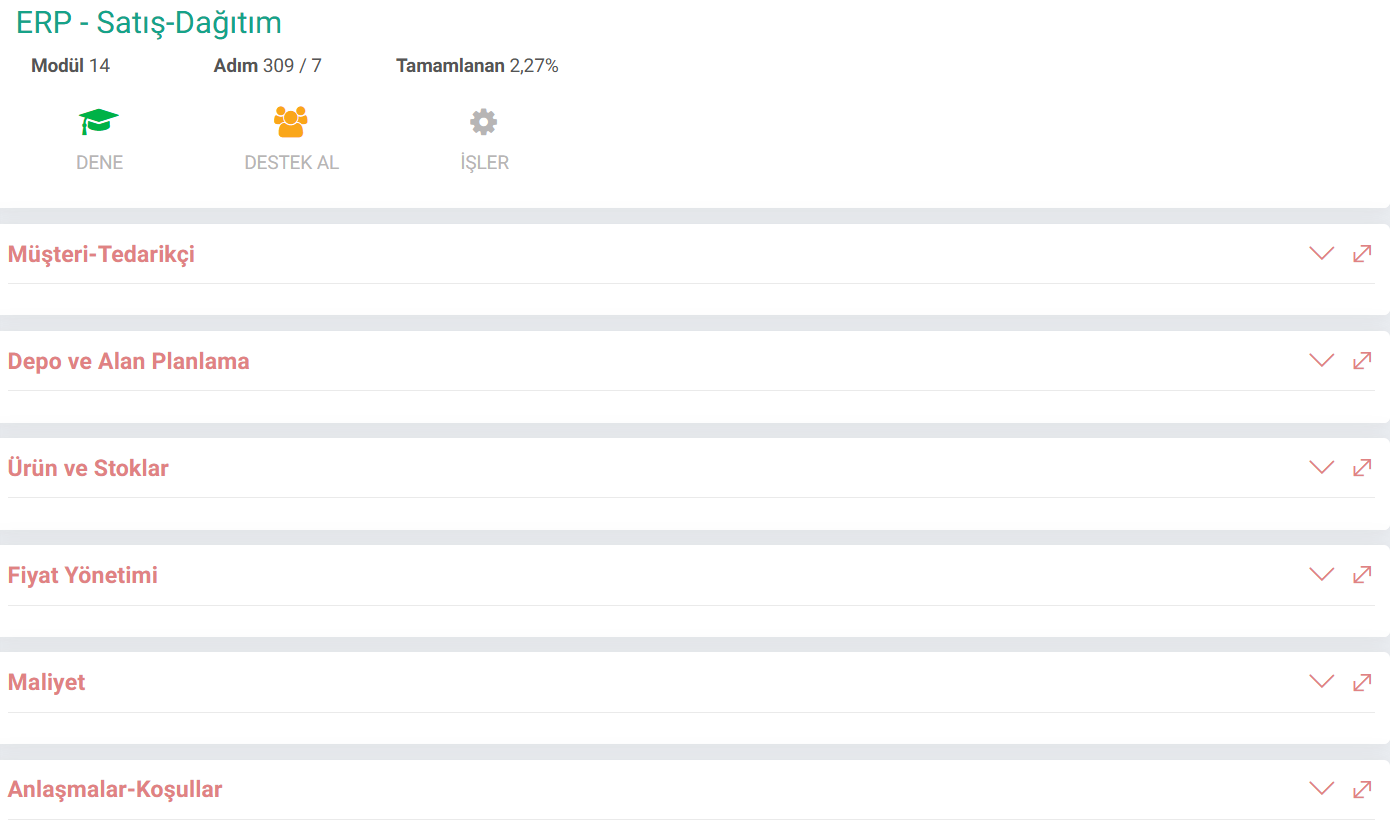
- Try: Redirects to a ready-made environment where you can examine the relevant module and create sample records.
- Get Support: Redirects to the screen for creating a support application.
- Jobs: Redirects to alltogether.workcube.com. Job, project and support applications created for the relevant job family can be followed.
When the Job Function in the Job Family is clicked, the steps to be implemented are opened. How to implement a module implementation and how to monitor progress can be followed step by step using implementation screens. As can be seen in the image, there are 45 steps for the implementation of the Customer-Supplier module. These steps are designed in a logical order. Before commissioning the module, parameters, processes, xml settings and page designer settings must be made. Subsequently, the data, if any, should be transferred to the system.
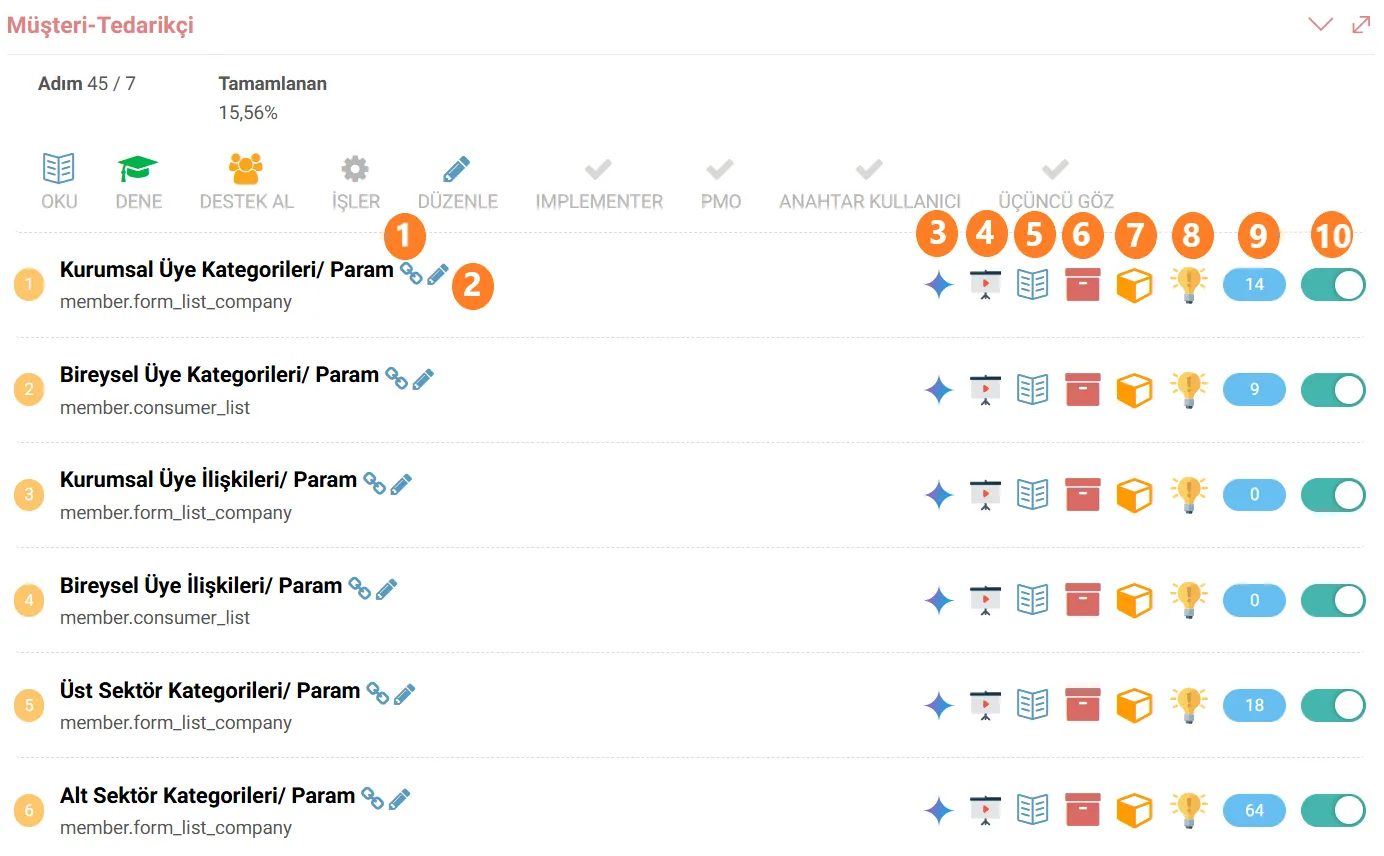
- Work Object: Indicates which WO will be defined to complete the relevant step. Clicking on the link icon takes you directly to the definition page for this step. For example; When the link icon next to Corporate Member Categories is clicked, it will direct you to the Corporate Member Categories page under Parameters. If it is not known on which page the relevant step will be defined, you can go to the page directly with the link.
- Edit: If the page path reached via the link has changed, it will be directed to the Step by Step Implementation Design page by pressing edit. Relevant changes can be made from here.
- WAI: Allows artificial intelligence-supported implementation. For example; If it is not known how to define Corporate Member Categories, WAI may be asked to make suggestions.
- Video: When the video link is clicked, the video containing how to make this definition can be accessed. If there is no video link, it means that the link has not been established from the relevant wo detail.
- Wiki: It allows you to be directed to a wiki article associated with the relevant step. If you do not have information about the relevant step, you can access the content and get information about the relevant step by clicking on the Wiki and video icons.
- WBP - Best Practices:If there is a best practice template for the relevant step, it will be listed.
- WO Detail: Redirects to the Work Object detail of the screen to be defined.
- WorkTips:Lists the defined types related to the step. In addition to the wiki and video content, brief guiding information about the relevant step can be accessed through tips.
- Number of Records: Indicates how many records there are on the system regarding the step. For example; Let's take the 1st step, "Corporate Member Categories". The number 14 in the blue area indicates that a total of 14 categories have been defined in the system.
- Completion:When all definitions related to the relevant step are completed, they are marked and the step is completed. As the steps are completed, the stage is marked and progress is made. It is important to move the stages to the completed stage in order to monitor the implementation progress. When marked, the job family affects the number and percentage of module and step definitions.
- Step Type: Indicates the type of the relevant stage. The types of steps that are likely to be encountered in the implementation screens are as follows;
- Param: It means that the relevant step involves defining a parameter. The relevant step will direct you to the relevant parameter under Control Panel > System > Parameters.
- Master Data: It means that the relevant step includes defining a master data. For example; Charts of Accounts, Budget Categories, Corporate Accounts, Individual Accounts are Master Data.
- Process Cat: It means that the relevant step involves defining a transaction category. In Process Cat type steps, the name of the process category to be defined is specified in the step.
- Process Template: The relevant step indicates that a process definition must be made for the implemented page. For example; A process definition must be made to add Customer-Suppliers to the system. Clicking on the link icon takes you directly to the processes definition screen. Processes can be defined using fuseaction links in the Relationship Work Object.
- Output Template: It means that a print template must be defined in the relevant step. It leads directly to Woc Documentation (In-system printer documentation). Pages without a print template are not added as steps. In other words, a print template must be defined for each step you see in the Output Template type on the Step by Step implementation screens.
- Page Designer: In Page Designer type steps, both the placement of the elements on the page and the basket definitions on pages containing baskets must be made.
- XML Settings: If the relevant page contains XML settings, the step is of XML type. Pages without XML setting options are not added as steps. In other words, each page where you see an XML step on the Step by Step implementation screens has XML setting options. Tip: The functions of the pages change as a result of the XML settings made, so it is recommended to examine the XML settings during implementation.
Attention!: The module and step sequences on the Step by Step Implementation screens are the recommended order. Many modules in Workcube are interrelated. During the implementation, you may encounter many interconnected module implementation stages. In the Step by Step implementation, it can be seen that a step occurs more than once. The reason for this is that implementation can be started from different modules.
Feedback
implementesyon için iyi bir egitim oldu..