Sales Offers
A sales offer is a written and official document prepared by a seller to offer certain goods or services to a potential or existing customer within certain conditions, prices and terms. It is not yet an invoice or contract; It constitutes one of the first and most important steps of the commercial agreement.
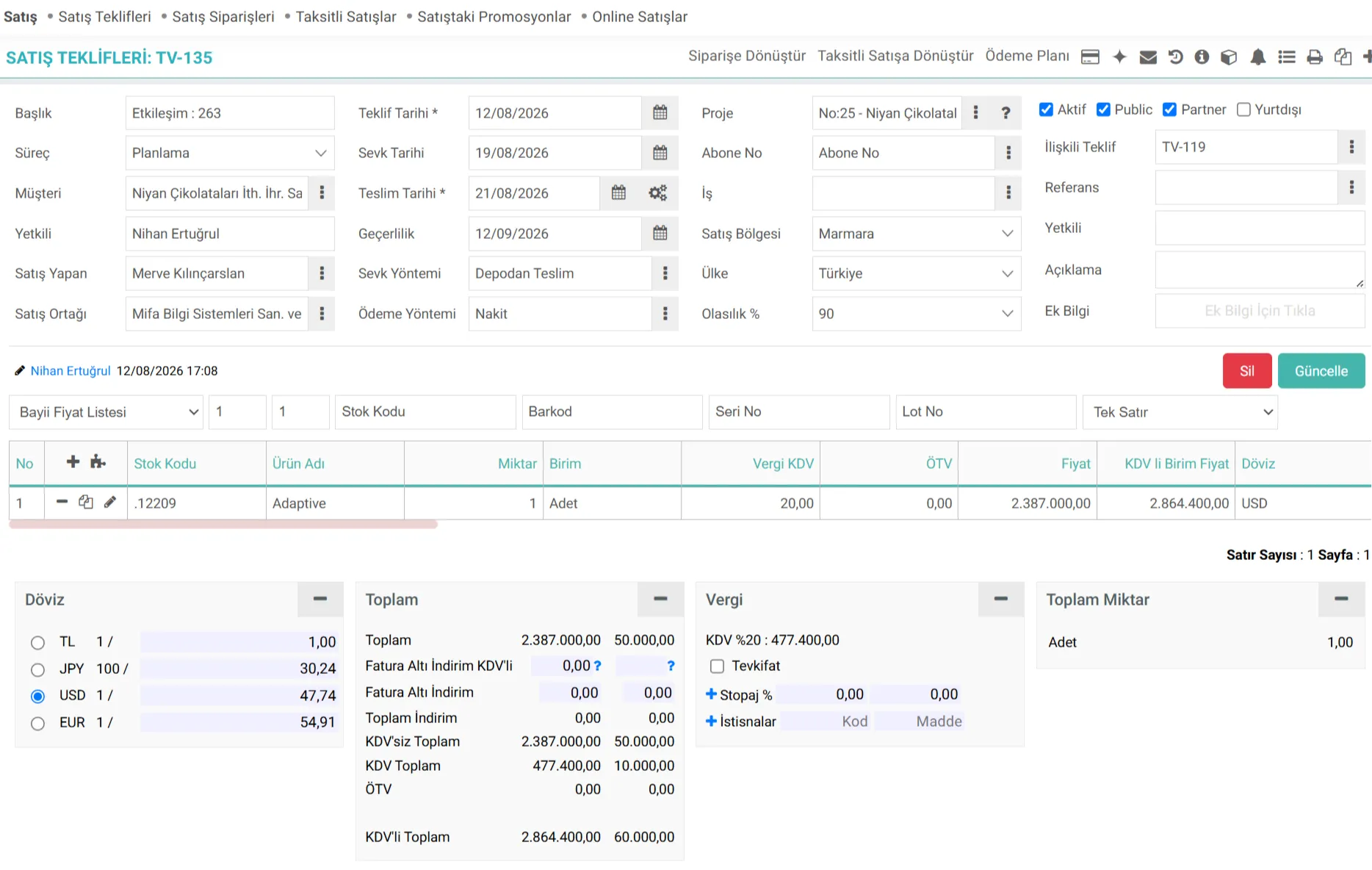
What is Workcube Sales Quote Management?
Workcube Sales Quote Management is an end-to-end ERP/CRM module business object that digitalizes the proposal preparation, pricing, revision and approval processes, which are one of the most critical stages of a business's sales cycle. Offers prepared in the offer module may consist of sections such as a home page, main offer page, price quotas, sales tools, and answers to the questions of the customer to whom the offer is made. An unlimited number of additional pages can be added to proposals. By using pre-prepared templates for offers, it is ensured that offers are always prepared in line with the corporate identity. Payment plans specific to offers can be prepared. The sales history of the customer to whom the offer was made can be easily accessed. Follow-ups, events and documents related to offers are recorded and tracked centrally.
In Workcube's modular and holistic architecture, Sales Offer Management works fully integrated with the following modules:
- CRM: Working in integration with Opportunities, Campaigns and Customer Analysis, you can turn opportunities into official offers with a single click.
- SD (Supply Chain & Stock):Provides real-time integration with current stock, warehouse locations, product features and price lists thanks to the product popup.
- Production: In orders requiring special production, cost analysis is carried out by associating product specifications (Spec) and recipes directly from the quote line.
The Importance of Sales Proposal Management for a Business
Managing sales proposals quickly, error-free and in accordance with corporate standards provides great advantages to businesses at operational, financial and strategic levels:
- Quick Turnaround and Time Saving: Ready templates, automatic pricing and basket management, professional offers are created and delivered to the customer within minutes.
- Version and Revision Control:As a result of negotiations with the customer, changing offer conditions are tracked with revision numbers (e.g. OFFER-01-01) and the offer history and negotiation process are recorded.
- Exchange Rate Risk Management:The business is protected against currency fluctuations thanks to the ability to prepare offers in alternative foreign currencies and the fixing features.
Process Flow / Life Cycle in Workcube
The life cycle of a sales offer from the beginning in the Workcube system until it turns into an order or contract is in the process flow table below. summarized:
Stage | Module / Process Document | Description |
|---|---|---|
1. Demand & Opportunity Entry | Opportunity Management | The request from the customer or the opportunity created by the sales team is recorded. Once the process begins, the opportunity is prepared to be converted into an offer. |
2. Preparing an Offer | Add a New Offer | Current account information is selected. Products, quantities, delivery dates and special price are added. |
3. Financial Detailing | Tax & Payment | General discounts or discounts, if any, and payment methods are determined. Exchange rates are fixed or updated. |
4. Approval Process (Workflow) | Workflow & Approval Mechanism | Within the specified limits and rules, the offer falls to the approval of the relevant sales manager or finance department. |
5. Presentation to the Customer | Offer Sending | The approved offer is sent to the customer via e-mail via the system with a corporate PDF design and the submission is logged. |
6. Revision (If Necessary) | Quotation Revision | If the customer requests revision, a new version is created by copying or revising the existing quote. The old version is disabled. |
7. Conversion to Order | Sales Orders | The accepted offer is transferred to the order with the "Convert to Order" or "Convert to Installment Sale" function with a single click and the process is completed. |
What Should Be Considered When Managing Sales Offer Transactions?
A. Current Risk Limits and Open Account Control
The offer stage is the safest control point before the goods or services are shipped to the customer. Past term debt status of the current account, protested promissory note/check records or whether the risk limit has been exceeded must be analyzed while preparing the offer.
- Operational Risk: Bidding a high-debt or over-limited client without a confirmation check increases collection risks.
- Best Practice: Use the current account analysis tools on the proposal screen and require an advance payment method or letter of guarantee for risky clients. run.
Workcube Tip: By using the "Guarantees" box on the offer detail screen (detail_offer_form.cfm), you can instantly check the customer's current collateral status and protect your financial security.
B. Foreign Currency Bids and Exchange Rate Fixing Rules
It is common to submit bids in foreign currency, especially in long-term projects or products with high import input. However, exchange rate fluctuations that may occur during the validity period of the offer may cause losses to the business.
- Operational Risk: Failure to calculate the exchange rate differences between the exchange rate on the offer date and the order/invoice date or not making a clear exchange rate fixing agreement will result in financial losses.
- Best Practice: Price in foreign currency when bidding and shorten the bid validity period. hold.
C. Legal Legislations, Withholding and Withholding Management
It is a legal obligation to apply withholding or withholding tax when issuing invoices in the service sector, construction and certain manufacturing branches. This situation must be defined correctly at the proposal stage.
- Operational Risk: If the amount presented without withholding in the offer has to be deducted with withholding at the invoicing stage, reconciliation problems with the customer will occur.
Workcube Tip: By activating the revision tracking feature, you can historically archive your changing proposals in line with legal tax changes or customer demands with new revision numbers without deleting old versions.
D. Production and Special Configuration Product Offers
Standard price lists are insufficient when making offers for products containing customer-specific dimensions, colors, materials or designs, other than standard stock cards.
- Operational Risk: Quotes given with incorrect or incomplete technical specifications lead to additional costs and therefore losses during the production phase.
- Best Practice: When adding line-based products the specs along with the product i.e. use variations . Make a pricing in full compliance with the production recipe (Spec) by specifying the technical details of the product in the quote line.
E. Competitor Analysis and Probability of Winning a Bid
The bids submitted should be analyzed not only on price basis but also within the framework of market dynamics.
- Operational Risk: Failure to track why bids are lost (high price, lead time, competitor advantage, etc.) prevents the improvement of sales strategies.
- Best Practice: Competitors' prices and alternative terms offered by filling out the "Competitors" tab in the bid card save; thus create a valuable market database for future offers.
Offer Details
- The prepared offers keep a history. You can track bid changes in the history area.
- If you are creating a production-based offer, you can make a deadline calculation depending on the XML settings.
- You can use templates created in Google Docs with Google Integration in sales offers.
- If there is detailed information that you have previously prepared on the offer detail page, terms of service, instructions, etc. You can pre-set these as templates and send them along with the proposal by adding an additional page each time you send a proposal.

Satış Teklifleri için kullanılır. Buradan ekstra olacak bilgiler var ise (görsel, link vb.) tanımlanır. Tekliflerde ek sayfada gelir ve şablona da yansır.
Ek bilgiler, ekranlar üzerinde yapılan kayıtlara ait, o kayda ilişkin detay ya da spesifik olarak eklenmesi gereken bilgiler için kullanılan bir fonksiyondur.
Şirketin İşleyişine ve verilen hizmete göre girilen parametrik tanımdır.
Teklifler bir giriş sayfası, ana teklif sayfası, fiyat kotaları, satış araçları, teklif verilen müşterinin sorularına cevaplar gibi bölümlerden oluşabilir. Tekliflere sınırsız sayıda ek sayfa eklenebilir.
Teklifler bir giriş sayfası, ana teklif sayfası, fiyat kotaları, satış araçları, teklif verilen müşterinin sorularına cevaplar gibi bölümlerden oluşabilir. Tekliflere sınırsız sayıda ek sayfa eklenebilir.
Teklifler bir giriş sayfası, ana teklif sayfası, fiyat kotaları, satış araçları, teklif verilen müşterinin sorularına cevaplar gibi bölümlerden oluşabilir. Tekliflere sınırsız sayıda ek sayfa eklenebilir.
İş süreçlerinin tasarım ve akışlarını oluşturur.
Kaydedilen belgelerin çıktılarının alınması için kullanılır. Standart şablonlar seçilebilir ya da özel şablonlar eklenebilir, ayrıca şablonlar yetkiye bağlanabilir.
is_show_sales_emp Satış Çalışanı Seçili Gelsin
x_control_ims Mikro Bölge Koduna Göre Listeleme
xml_offer_revision Revizyon Bilgisi
x_show_order_price KDVsiz Toplam
x_show_other_money_value KDVsiz Döviz Toplam
xml_probability Olasılık Alanı Gösterilsin
x_multiple_filters Filtre alanları ayrılsın mı?
xml_stock_code Stok Kodu Gelsin mı?
xml_sales_cari Satış Ortağı filtresi firma bazlı çalışsın mı?
Feedback
Sales Offers - GTip No
Added Function: ERP > Sales-Distribution > Sales > "GTIP NO" field has been added to the Sales offers basket template. GTIP NO data entered in the conversion from sales quote to order process has been moved.
Sales Quotes - Saved by Filter
Added/Edited Function: The saver filter has been added to the ERP > Sales-Distribution > Sales > Sales Offers list and BI > Report > Standard Reports > Detailed Offer Report.
Benefit: In this way, separate reporting has been made possible in case there are different employees making and recording sales.
Payment Link
Payment Link icon has been added to the tab menu on screens with sales characters such as subscription, offer, order and registration transactions.
By creating a collection portal or a collection page with Workcube Protein, the transaction amount is sent to the customer via e-mail or SMS with a secure token.
The customer reaches the payment screen directly by clicking. Collection is made via credit card payment options.
Sales Offer Withholding and Withholding Tax
The function of defining Withholding and Withholding Rates in Sales Proposals has been added.