Team Planning
The Shipment Teams page is the page where you can define the teams formed by the employees who will take part in the shipments.
Path:ERP > Sales-Distribution > Shipping-Logistics > Shipping Teams
What can we do on the Team Planning screen?
- Unlimited team planning for shipments
- Ability to associate the team with the defined vehicle
- Ability to specify previous km and next km date information for the team vehicle
- Adding a description for the team
- Ability to associate the team with the personnel or member defined on a line basis
Filtering on this screen You can list registered teams using the fields.
To plan a new shipping team, click on the "+" icon on the page. You will see the "Shipment Team Planning" screen.

- Process: It allows you to specify which stage the Team-Tool is in, and also allows unauthorized users to not be able to perform Team Planning.
- Region: Teams are separated according to certain regions. Specify the region where the shipment team will work from this field
- Date: Specify the date on which the created team will perform the shipment. The date of the team is important in order to make shipment planning via Shipment-Logistics Orders.
- Vehicle: Select the vehicle that the shipment team will use. To select the tool, click on the icon on the right side of this area, and a list of tools will appear. Click on the link of the relevant vehicle.
- Vehicle Previous Mileage Date: This is the date on which the vehicle's mileage information, which is displayed before it is given to the shipping team, is recorded. If it is specified in the vehicle detail, it will automatically appear on this page.
- Description: You can write a description about the team in this field.
- Vehicle Previous KM: This field automatically comes from the last recorded KM information in the selected vehicle's detail. If it is blank, you can define KM information by going to the details of the relevant vehicle on the Motor Vehicles page.
- Vehicle Last KM Date: Specify the date on which the mileage information displayed when the vehicle was received from the shipping team was recorded. You can use the icon next to this field to specify the date.
- Vehicle Last Mileage: Specify the mileage information recorded when the vehicle was received from the shipping team.
You can specify team members in the Personnel field. To do this, click on the “+” icon at the beginning of the line. A new row will be added to the Personnel field.
- To specify the personnel, click on the icon on the right side of this field and you will see the list of employees.
- Click on the link for the relevant employee.
- Enter personnel working hours.
- Enter staff meal information.
- Type the Sunday shift information.
In the Member Relationship field, select which company this team will be shipped to.
To select the company, click on the icon on the right side of this field, click on the link of the relevant member from the list of members that appears and click on the "Save" button.
Note: You can select personnel in the team from Control Panel > System > Page Settings > XML Settings You can enter the Company IDs that will be required. You can make more than one definition. The entered Ids must be separated by commas and must be numerical values.
The shipment team will be displayed in the list. To update the Shipment Team Plan record, click the "Update" icon in the relevant row in the list. The team update page will appear. On this screen, change/update the information you want and click the "Update" button.
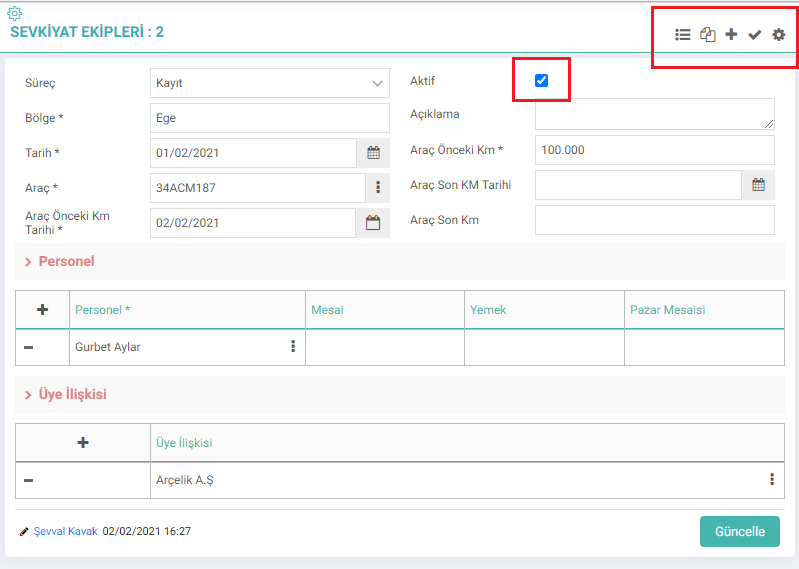
You can also perform the following operations with the help of the icons on this screen.;
Listing: This icon directs you to the Team Planning page.
Copying: Using this icon, you can copy the record you are on the update page.
Adding: You can add a new Shipment Team with the help of this icon.
Saving: You can save with this icon.
Settings: When you click on this icon, the Page Designer screen will appear. You can check your page layout from this screen.
Team Planning - Shipment-Logistics Orders Relationship
When "Shipment Basis" is listed on the Shipment-Logistics Orders screen, orders are as follows: will be listed.

The shipment teams we plan can be selected in the Team-Vehicle information field at the end of the line.
Note:The date specified in the listing must be the same as the date selected in the Shipping Teams. Otherwise, vehicle information will not be visible.
After listing, a shipment plan can be created for the selected product(s) by clicking the "Create Shipment Plan" button at the bottom right.

İş süreçlerinin tasarım ve akışlarını oluşturur.
Sevkiyatlarda hangi aracın kullanılacağını belirlenmesi ve görev alacak çalışanların oluşturulması için kullanılır.
x_required_personel_company Ekipte Personel Seçiminin Zorunlu Olacağı Şirket Idleri