KM Control Management
Mileage records of motor vehicles within the company and vehicle allocation records are made from this module.
With KM Control, you can easily control the mileage of company vehicles, easily find out which employee has driven how much mileage, and easily find out who the company vehicles are allocated to.
Note:Before using the Mileage Control Module. First, all parametric definitions to be used within the company regarding Mileage Control must be made under the heading of Physical Assets in the Control Panel > System > Parameters tab.
KM Control
Path: PAM > Assets > Motor Vehicle Management > KM Records
Companies use this module to control the KM usage of company vehicles.
KM records are recorded periodically by the companies within the specified periods. When recording KM used outside working hours, the "Out of Hours" box on the registration page is checked. When the KM registration page is first opened, previously added records are listed at the bottom of the page and a new registration page opens at the top.
Making a KM Record
Path: PAM > Assets > Motor Vehicle. Management > KM Records
This is the page where the KM information of the vehicles is recorded. As a result of the entered records, the KM information of the vehicles can be tracked.

For out-of-hours use, check the "Out-of-hours" box when registering PF.
After filling in the required fields, click the "Save" button.
KM Record Search
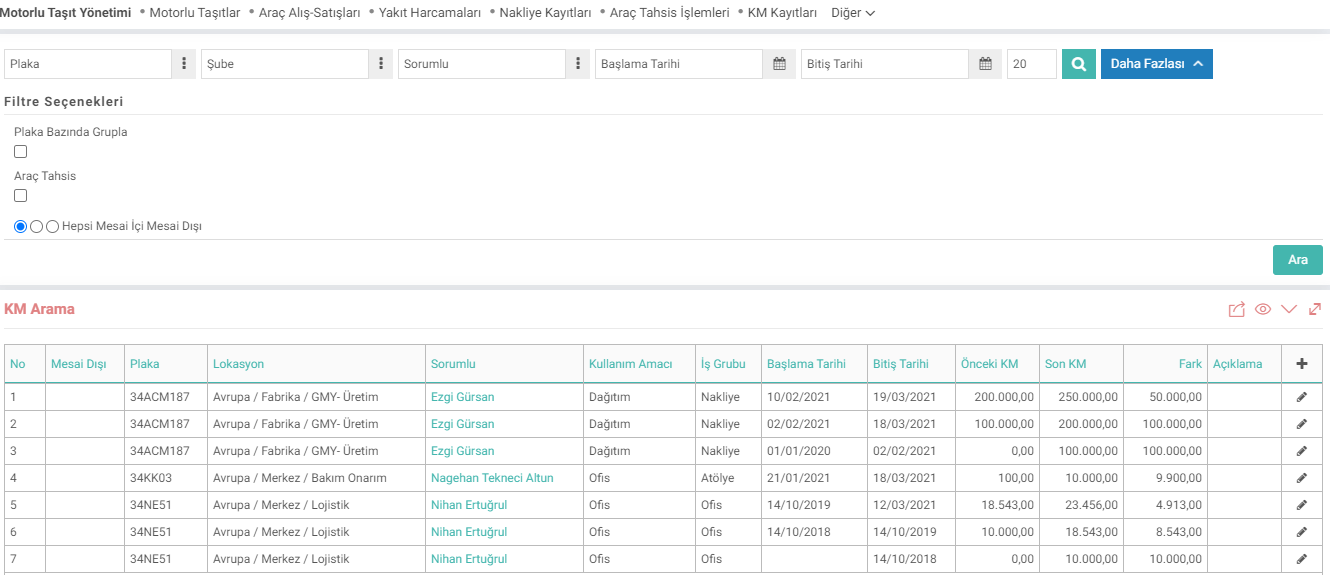
This is the page used to access the recorded KM information of vehicles.
With the selection you make from this field, you can choose to filter KM Records, All, Working Hours You can filter by making a distinction such as Outside or During Hours , and you can view the km records made on a license plate basis with the Group by License Plate selection.
After filtering, the records appear at the bottom of the page as "No", "Out of Hours", "Plate", “Location”, “Responsible”, “Purpose of Use”, “Business Group”, “StartDate”, “End Date”, “Previous KM", "Last KM", "Difference", "Description" are listed with fields.
Vehicle Allocation Record
Path: PAM > Assets > Motor Vehicle Management > Vehicle Allocation Record
This is the page where the vehicles allocated to employees are recorded. Vehicle allocation operations can be carried out for employees with the help of this page.

You can allocate the vehicle belonging to your branch to an employee in another branch or to an employee in your own branch. If it is allocated for a project, you can choose from the project popup and add people who will take part in the project and use the tool from the participants field.
Type: For Allocation Type Define under Control Panel > System > Parameters > Physical Assets > Allocation Reason You can..
Vehicle Allocation Search
Path: PAM > Assets > Motor Vehicle Management > Vehicle Allocation Transactions
Vehicle allocation records saved in the system It can be filtered, listed and its details accessed.

After searching, records that meet the search criteria are listed at the bottom of the page. To make a search;
Plate This field allows us to list the vehicle allocation records for the car with the license plate number we selected. To include the tool in filtering, you can click on the icon to the right of the field and select it from the drop-down list. You can search by the name of
Assigned Branch. In order to include the Allocated branch name in the search, you must click on the icon to the right of the field and select the Branch Name from the list that opens.
Allocated You can search by person name. To include the name of the Allocator in the search, you can click on the icon to the right of the field and select from the drop-down list. With the selection you make from this field, you can filter the Vehicle Allocation Records by making a distinction such as All , Out of Hours or During Hours .
Start Date You must write the date of allocation of the vehicle. You can select it by clicking on the icon on the right side of the field. You must also make the necessary selections in the hour and minute fields next to the date field.
End Date You must enter the end date of the allocation. You can select it by clicking on the icon on the right side of the field. You should also make the necessary selections in the hour and minute fields.
After filling in the fields we want to filter, you should click on the "Search" button to search.
xml_usage_purpose_id Kullanım Amacı Gelsin mi?
xml_assetp_group İş Grubu Gelsin mi?
xml_department_id Departman Gelsin mi?
xml_position_cat_id Pozisyon Tipi Gelsin mi?