e-Bildir
KDV-1, KDV-2 ve Muhtasar Beyannamelerinin e-Beyan entegrasyonuna veya BDP programına bildirimlerinin yapılmasını sağlayan bir eklentidir. Beyannameler, web servis aracılığıyla doğrudan yeni e-Beyan sistemine aktarılır. Sistem matrah ve vergi hesaplamalarını otomatik kontrol ettikten sonra tahakkuk hesaplanır ve onaylama işlemi tamamlanır. e-Bildir ekranlarından GİB'e gönderilen beyannamenin yanı sıra SGK sistemine de SGK İşe Giriş-Çıkış bildirimleri şube bazlı olarak yapılabilmesine olanak sağlar.
Yol: HR - İK > Özlük-Bordro > Bildirgeler > e-Bildir
E-Bildir Genel Parametreler
e-Bildir özelliklerini kullanabilmek için öncelikle e-Beyan entegrasyon tanımlarının, muhasebeci tanımlarının ve Şube SGK tanımlarının yapılması gerekmektedir. Parametrik tanımlar şirket bazlı yapılır. Hangi şirketlerde kullanılacak ise o şirket ve döneme geçiş yapılarak tanımlama yapılması gerekir.
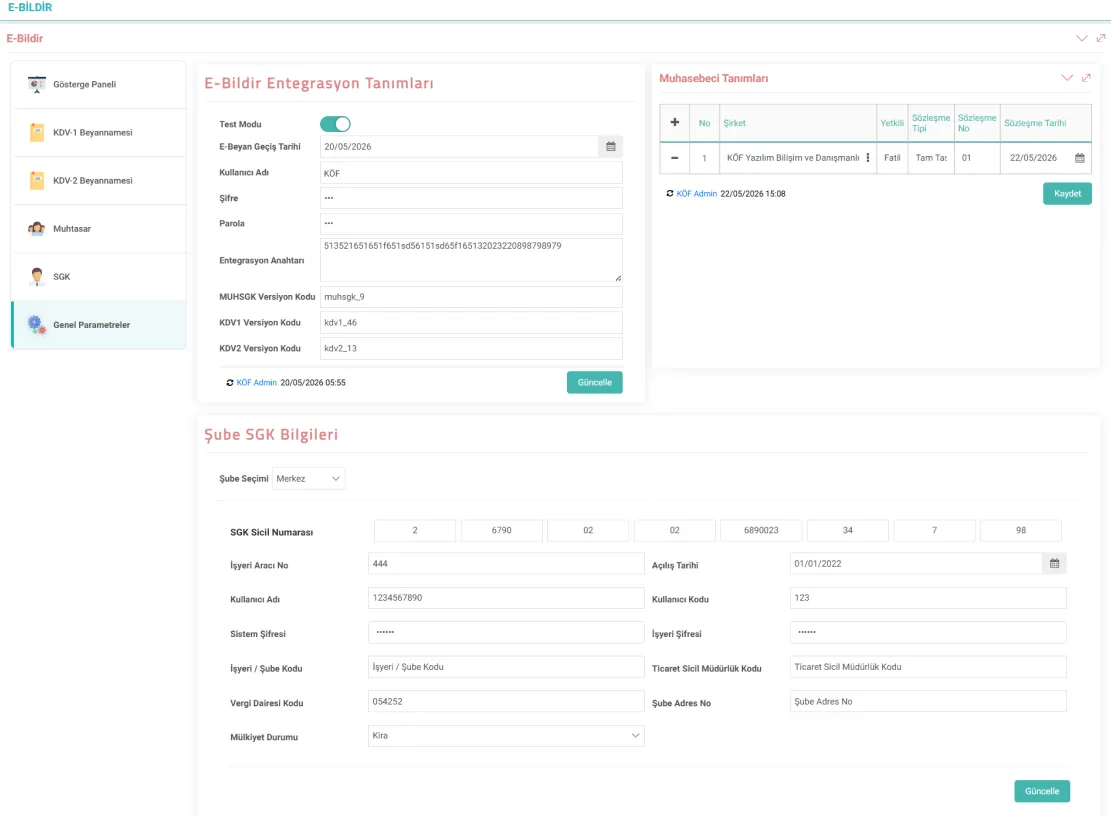
e-Bildir Entegrasyon Tanımları
Firmanın e-Beyan Portalı içerisindeki firma ve entegrasyon bilgilerinin tanımlanacağı alandır.
- Test Modu: Canlı ortama geçmeden önce test bilgileri ile sistem üzerinde detaylı testlerin yapılabilmesini olanak sağlar.
- E-Beyan Geçiş Tarihi: Firmanın dijital beyan sürecinin aktif olduğu tarihtir.
- Kullanıcı Adı: Firmanın e-Beyan portal girişi için kullandığı kullanıcı adı bilgisi tanımlanır.
- Şifre: Firmanın e-Beyan portal girişi için kullandığı şifre bilgisi tanımlanır.
- Parola: Firmanın e-Beyan portal girişi için kullandığı şifre bilgisi tanımlanır.
- Entegrasyon Anahtarı: Firma tarafına entegrasyon sürecinde e-Beyan portalı içerisinde verilen entegrasyon anahtarı tanımlanır.
- MUHSGK Versiyon Kodu: Muhtasar SGK XML versiyon kodu tanımlanır.
- KDV-1 Versiyon Kodu: KDV-1 XML versiyon kodu tanımlanır.
- KDV-2 Versiyon Kodu: KDV-2 XML versiyon kodu tanımlanır.
Muhasebeci Tanımları
e-Beyan sistemi için muhasebeci tanımları girilir. Muhasebeciyi seçebilmek için Kurumsal/Bireysel Hesap olarak sisteme kaydedilmiş olması gerekmektedir. Tanımlanan muhasebecinin TC Kimlik numarası, Vergi Numarası, Dahili Telefon Numarası gibi bilgiler eksiksiz doldurulmalıdır.
- Şirket: Kurumsal/Bireysel Hesap listesinden ilgili Mali Müşavir seçilir.
- Yetkili: Seçilen kurumsal hesap içerisinde tanımlı olan yetkili kişi bilgisi otomatik olarak gelir.
- Sözleşme Tipi: Muhasebeci tanımlamasındaki sözleşme tipi bu alana yazılır.
- Sözleşme No: Muhasebeci sözleşme numarası bu alana yazılır.
- Sözleşme Tarihi: Muhasebeci sözleşme tarihi bu alana tanımlanır.
İpucu: e-Defter entegrasyonu var ise e-defter de tanımlanan muhasebeci bilgileri buraya otomatik olarak gelecektir.
Şube SGK Bilgileri
Workcube içerisinde tanımlanmış olan “Şube” bilgileri içerisinden entegrasyona tabii şube seçimi ve seçilen şube bilgilerinin görüntülenebileceği, güncellenebileceği alandır.
- Şube Seçimi: Workcube üzerinde tanımlanmış olan şubeler burada görüntülenebilir ve seçilebilir. Entegrasyon işlemi yapılacak olan şubelerin bu alanda bilgileri görüntülenebilir ve güncellenebilir.
- SGK Sicil Numarası: Seçilen şubenin Workcube üzerindeki şube tanımlamaları içerisinden gelecek bilgidir. Şube SGK Sicil Numarası bu alanda görüntülenebilir ve güncellenebilir.
- İşyeri Aracı No: İşyeri aracı numarası bu alana yazılır.
- Açılış Tarihi: Şube açılış tarihi bu alana tanımlanır.
- Kullanıcı Adı ve Kullanıcı Kodu: Şubenin SGK portalındaki kullanıcı adı ve kullanıcı kodu bilgisi yazılır.
- Sistem ve İş Yeri Şifresi: Şubenin SGK portalında kullanmakta olduğu şifre bilgileri yazılır.
KDV-1 ve KDV-2 Beyannamesi
Tanımlar yapıldıktan sonra KDV-1 ve KDV-2 Beyannamesi sekmelerinde Şirket ve dönem yılı bulunduğunuz şirket ve dönemi alarak otomatik getir. Beyan verilecek ilgili ay seçilir ve Beyan oluştur tıklanarak Şirketin Workcube üzerinde mevcut akışında oluşan veriler ile beyan verileri oluşur, e-Beyan portalına gönderilir.
Bu sayfadan ayrıca daha önce gönderilmiş ve onaylanmış olunan beyanların PDF ve XML'lerine ulaşılabilir.
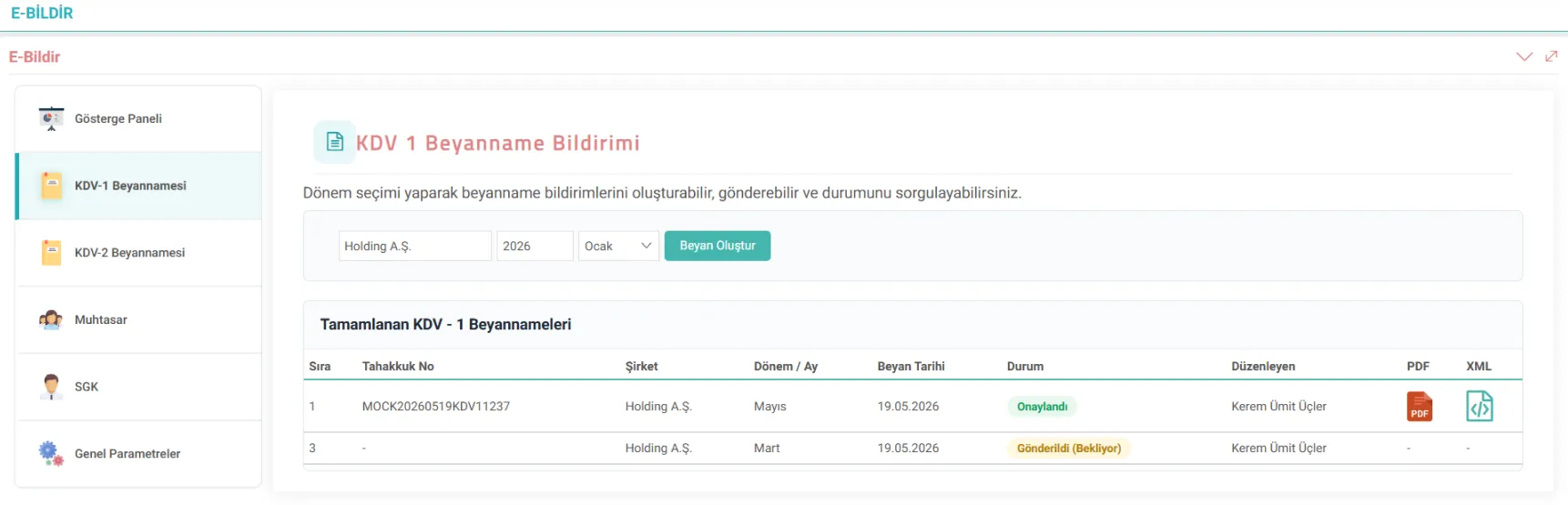
- Tahakkuk No: Oluşturulan beyannamenin onaylanmasının ardından oluşan tahakkuk numarası bu alanda yazmaktadır.
- Şirket: Beyan işlemi gerçekleştirilen şirket adı bu alanda yazmaktadır.
- Dönem / Ay: Oluşturulan beyannamelerin ay bilgisi bu alanda yazmaktadır.
- Beyan Tarihi: Oluşturulan beyannamelerin oluşturulma tarihleri bu alanda yazmaktadır.
- Durum: Gönderilmiş olan beyannamenin statüsü gözlemlenebilmektedir.
- Düzenleyen: Oluşturulan beyannameyi düzenleyen kullanıcı bilgisini içermektedir.
- PDF ve XML: Satır bazlı listelenen beyanları PDF formatında indirmeyi sağlayan butonları içermektedir.
Muhtasar Beyanname Bildirimi
Tanımlar yapıldıktan sonra Muhtasar Beyanname sekmesinde Şirket ve dönem yılı bulunduğunuz şirket ve dönemi alarak otomatik gelir. Beyan verilecek ilgili şube, ay ve iş grubu (İşçi, Memur, Serbest Çalışan) seçilir ve Beyan oluştur tıklanarak Şirketin Workcube üzerinde mevcut akışında oluşan veriler ile beyan verileri oluşur, e-Beyan portalına gönderilir.
Bu sayfadan ayrıca daha önce gönderilmiş ve onaylanmış olunan beyanların PDF ve XML'lerine ulaşılabilir.
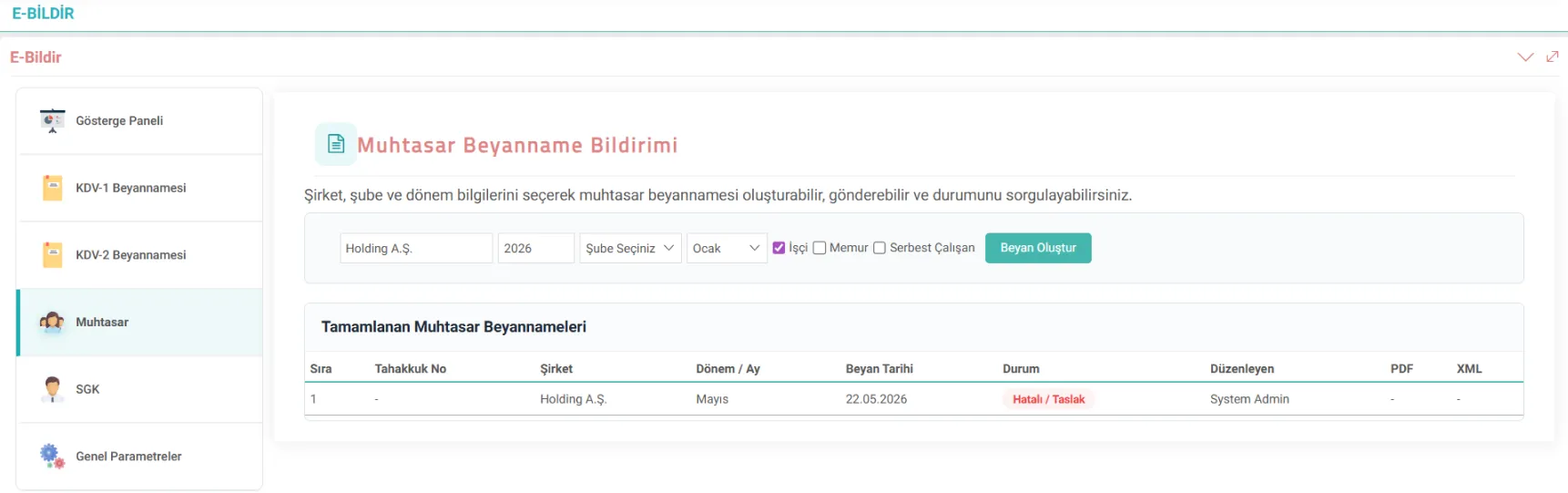
- Tahakkuk No: Oluşturulan beyannamenin onaylanmasının ardından oluşan tahakkuk numarası bu alanda yazmaktadır.
- Şirket: Beyan işlemi gerçekleştirilen şirket adı bu alanda yazmaktadır.
- Dönem / Ay: Oluşturulan beyannamelerin ay bilgisi bu alanda yazmaktadır.
- Beyan Tarihi: Oluşturulan beyannamelerin oluşturulma tarihleri bu alanda yazmaktadır.
- Durum: Gönderilmiş olan beyannamenin statüsü gözlemlenebilmektedir.
- Düzenleyen: Oluşturulan beyannameyi düzenleyen kullanıcı bilgisini içermektedir.
- PDF ve XML: Satır bazlı listelenen beyanları PDF formatında indirmeyi sağlayan butonları içermektedir.
SGK İşe Giriş - İşten Çıkış Bildirimi
Şube bazlı SGK İşe giriş ve İşten Çıkış bildirimleri yapılabilmesi için öncelikle SGK Portal ve "Şube SGK Bilgileri" sayfasında E-Bildirge şifre bilgileri girilmelidir. Şirket ve dönem yılı bulunduğunuz şirket ve dönemi alarak otomatik gelir. Buradan ilgili şube ay seçimi yapılarak giriş veya çıkış işlemleri yapılır.
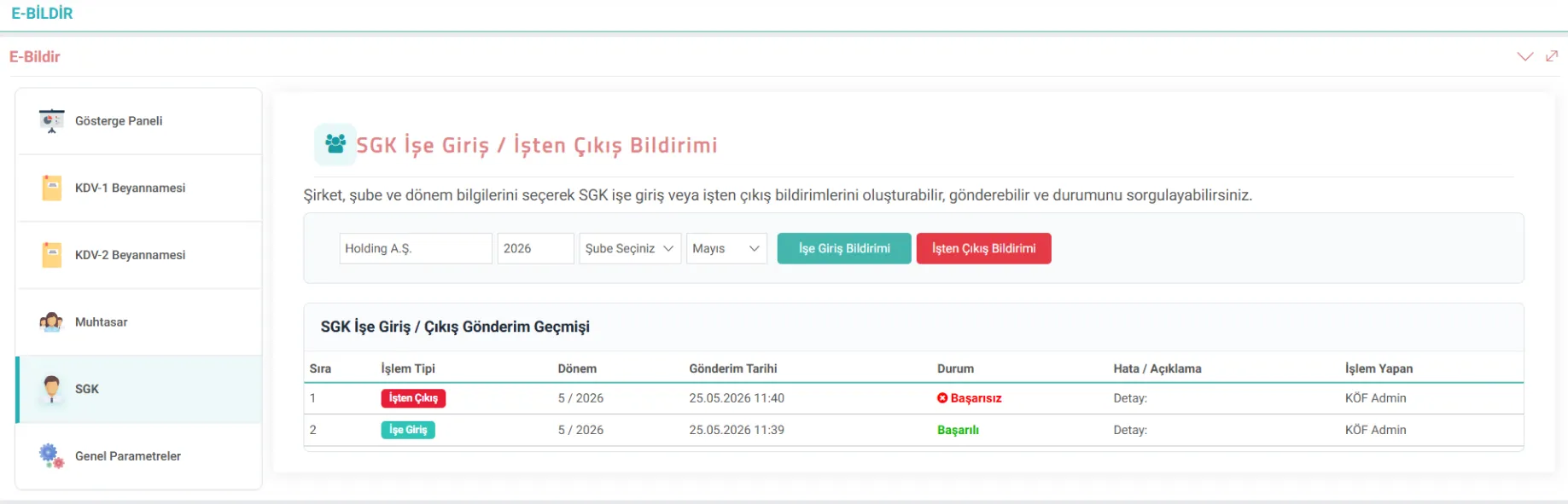
İşe Giriş veya İşten Çıkış Bildirimlerinde öncelikle açılan pop-up içerisinde işe giriş/işten çıkış bildirimi yapılmak istenen personeller listenin solunda bulunan checkboxlar ile seçilir ve “İşleme Devam Et” butonu tıklanır.
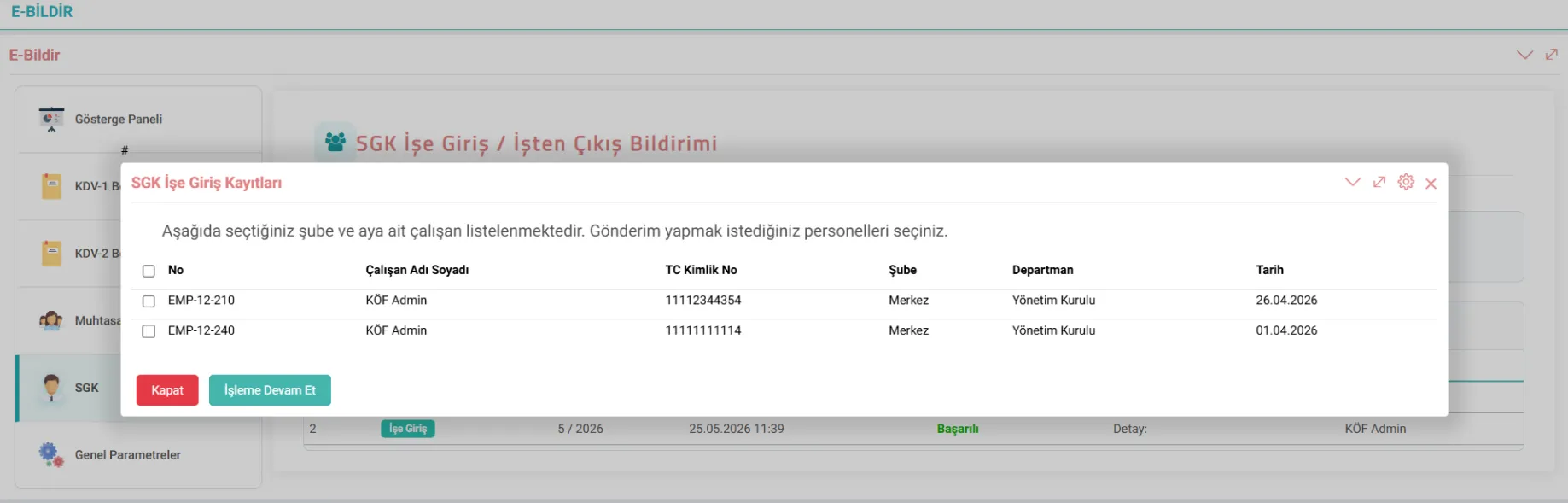
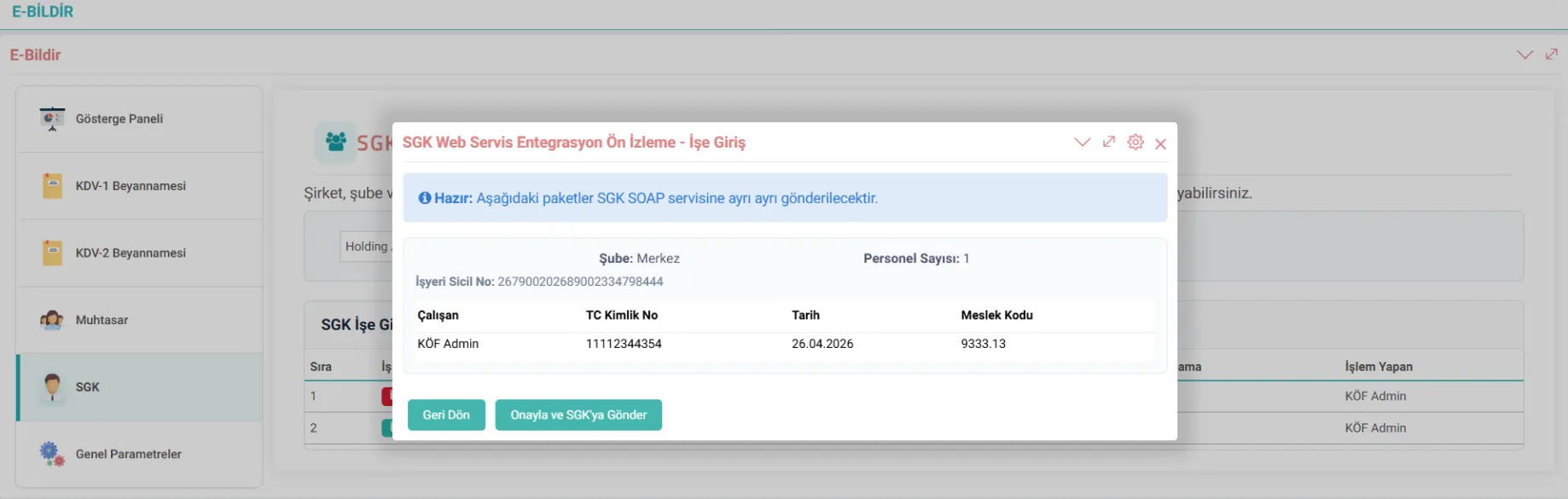
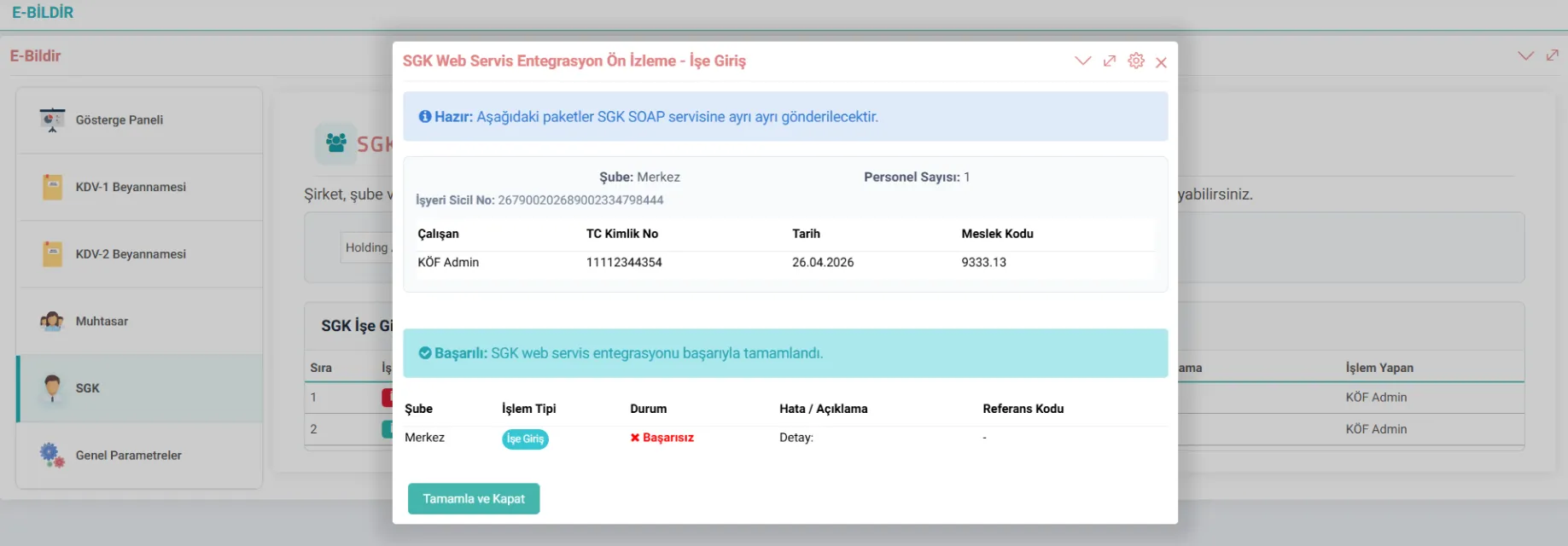
Giriş bildiriminde veya çıkış bildiriminde çalışana dair eksik tanımlama mevcut ise uyarı verecek ve işleme devam etmeyecektir. Herhangi bir eksik olmaması durumunda onaylama işleminin gerçekleştirileceği pop-up açılır, yapılan son kontrollerin ardından “Onayla ve SGK’ya Gönder” butonuna tıklanır.
e-Bildir Gösterge Paneli
e-Bildir özellikleri genel durum göstergelerini barındıran dashboard sayfasıdır.
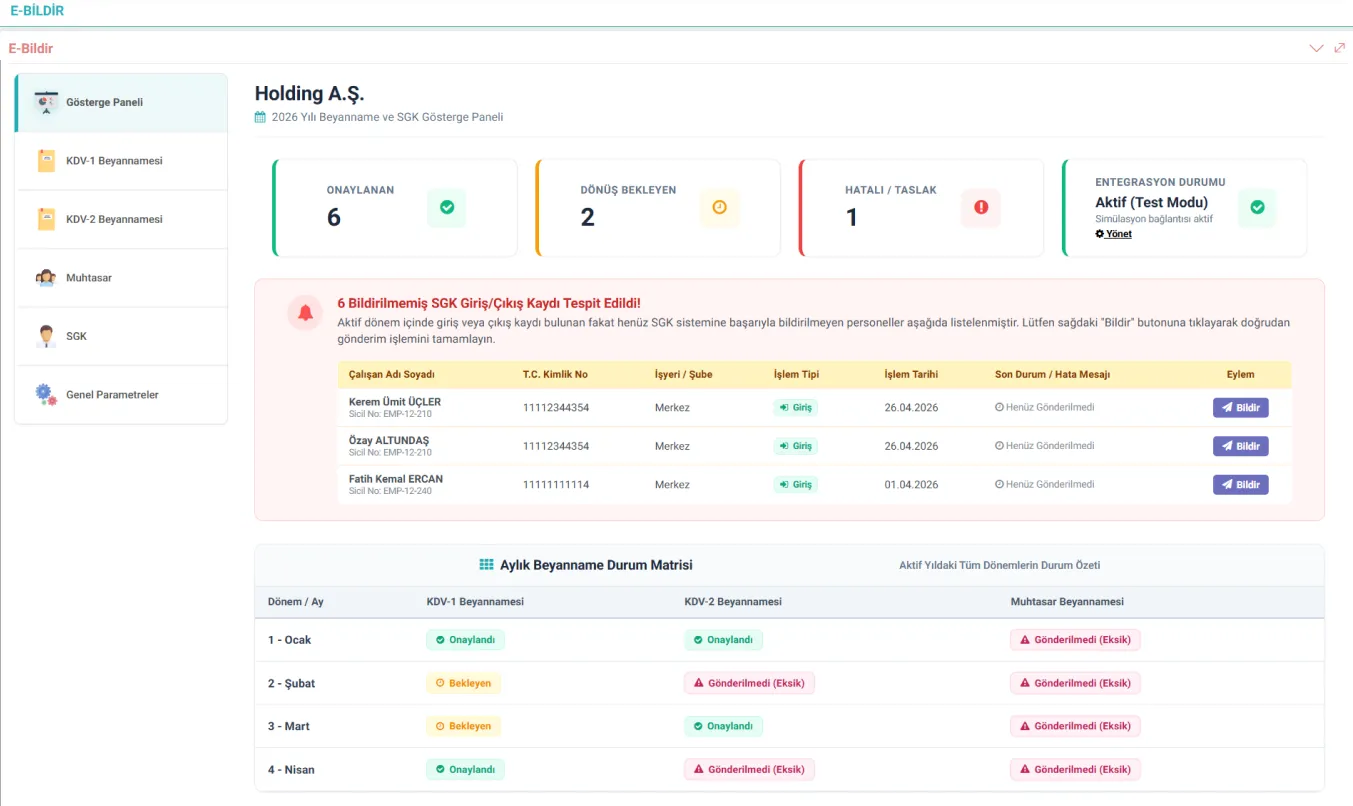
- Onaylanan başlığı altında onaylanan beyan sayısı.
- Dönüş Bekleyen başlığı altında portaldan statü dönüşü beklenen beyan sayısı.
- Hatalı / Taslak başlığı altında hatalı gönderim durumu olan beyan sayısı.
- Aktif dönem içerisinde giriş veya çıkış kaydı sistemde görünen fakat henüz SGK sistemine gönderilmeyen kayıtlar ayrıca listelenir. Gösterge Paneli üzerinden Bildir butonu ile doğrudan bildirim işlemi yapılabilir.
- Aylık Beyanname Durum Matrisi tablosunda tamamlanmış olan beyan işlemleri ve durumları takip edilebilir.