ChatFlow
This is the screen where Workcube users and visitors communicate by messaging and receive notifications.
Path: Top Menu > Message > ChatFlow

When you click on the smile icon in the image in the top menu, the active people in the system will be displayed, and the chat records will be displayed in the conversation icon.
On the Workflow page on the Chatflow screen, you will receive warnings and notifications depending on your authority. is displayed. For detailed information, you can read our "Warnings and Approvals" article.
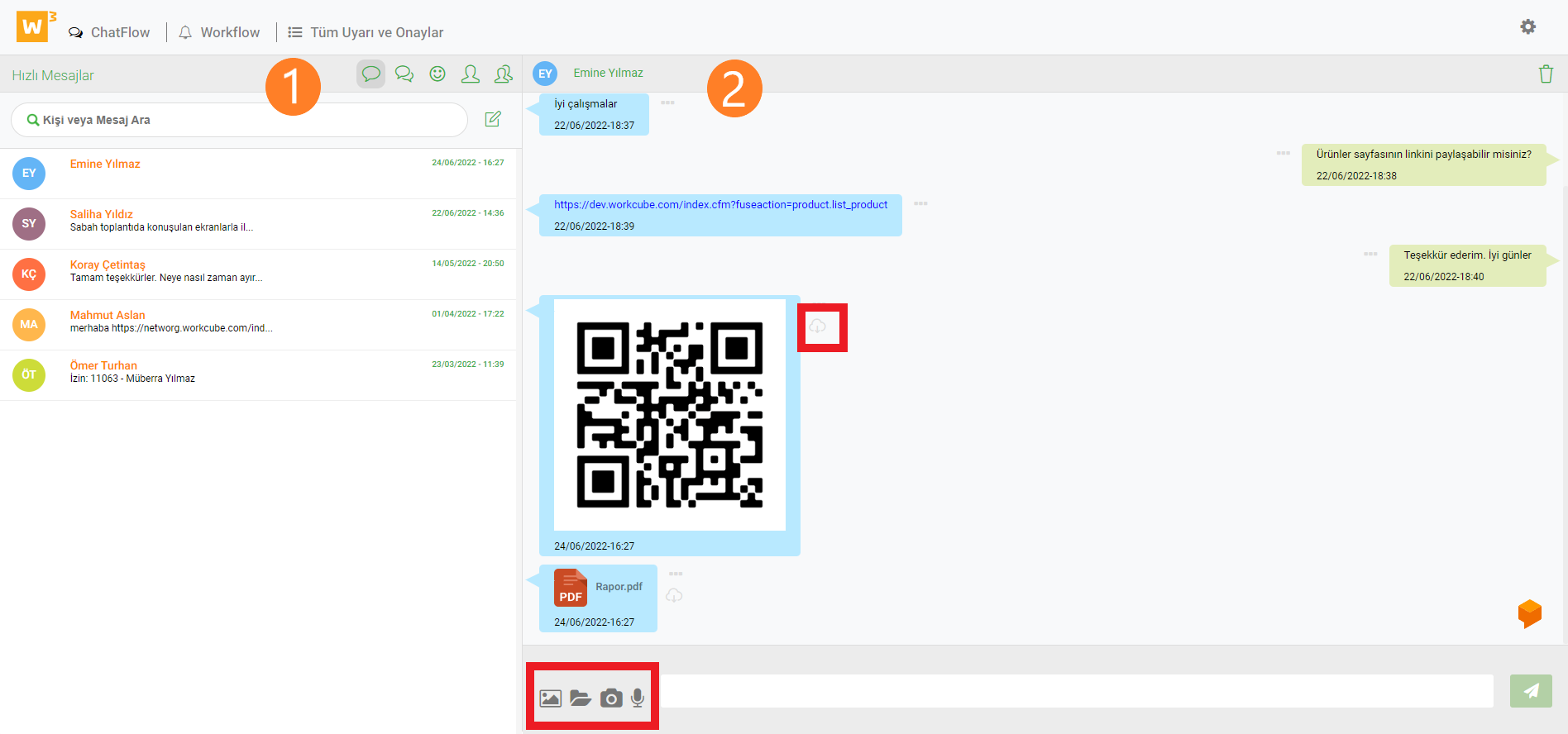
1. In this section, you can see online users and which page they are working on, and remove them from the system if desired. Correspondence with users is provided. Users, quick messages, group calls and visitors can be reached with the help of icons.
2. In the message area, photos, files, voice recordings and snapshots can be sent. When the file and image icons are clicked, the sending process is completed by adding the documents and images to be sent to the screen that opens. Downloading is carried out by clicking on the cloud icon next to the incoming images and documents.
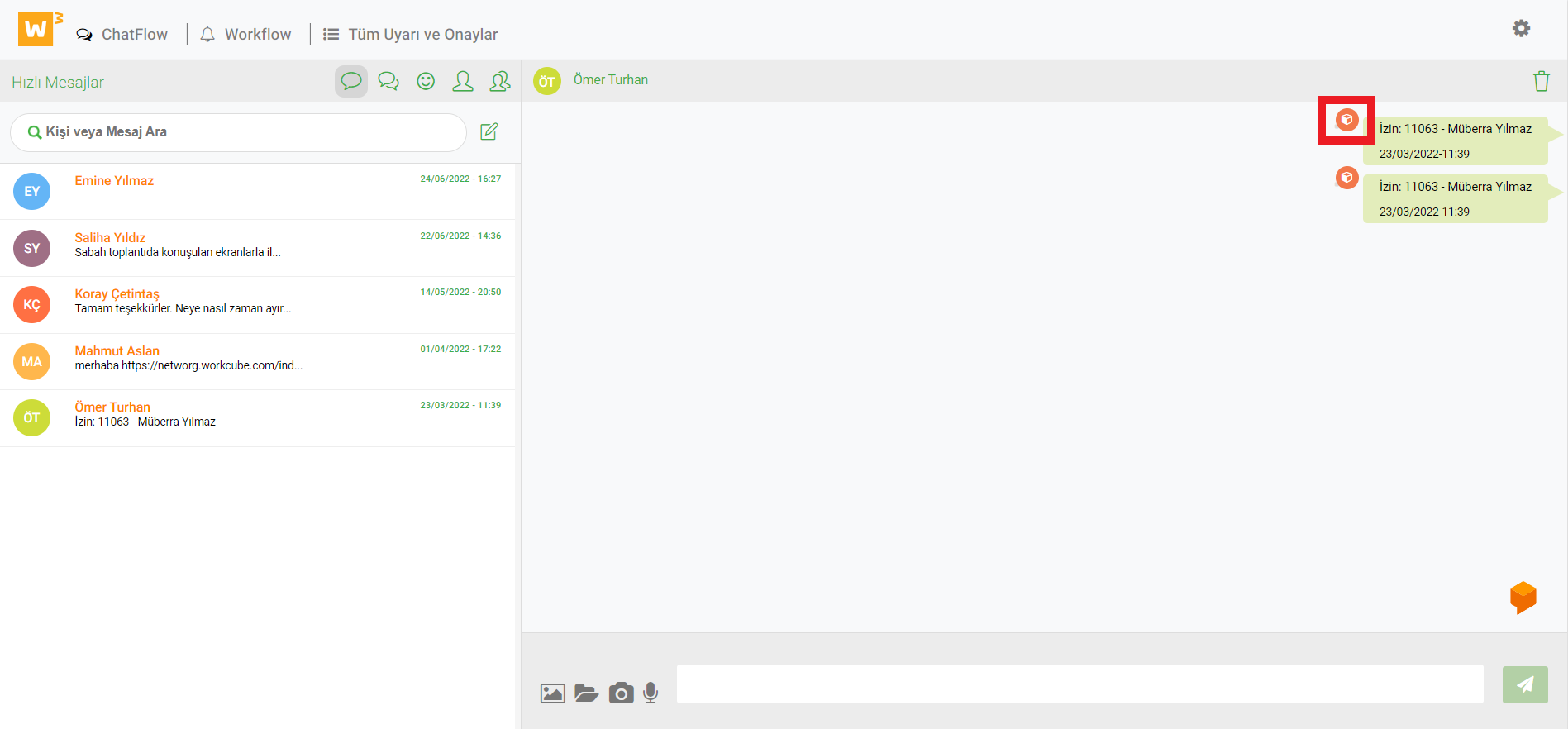
Clicking on the process detail icon next to the messages sent about the process goes to the process detail.
The process and stages organize the document records. The preparation, approval and rejection mechanisms of documents process-stage selection box appears. On the other hand, operations are carried out according to stages. Workflow records are created. Notification is created via e-mail or in-system online notification or Chatflow.
Feedback
Favorites - Responsive
The favorites on the Chatflow screen are no longer visible on mobile.