Events
Businesses aim to increase brand awareness and sales by organizing events such as conferences, launches, stores and fairs. Events and organizations can be managed, participants can be viewed and contacted through an online platform.
Path: CRM > Sales and Marketing > Marketing > Event
Event Creation
Comments and feedback regarding the event are very important. Questions, feedback, etc. with Event Management. Efforts are made to ensure that the next event is perfect by obtaining detailed information.
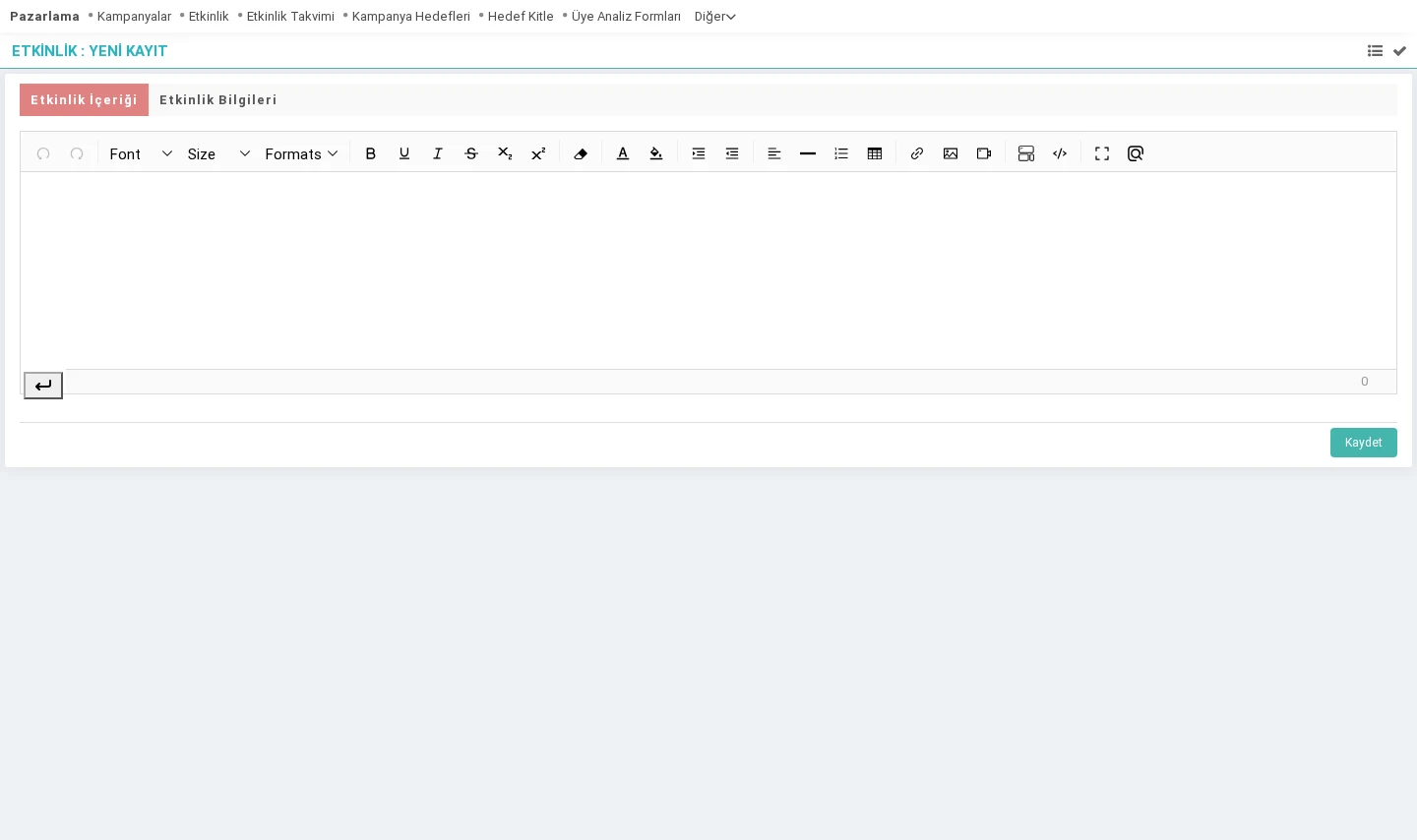
On the new event registration screen, the event content tab appears first. Here, information such as the content and purpose of the event is entered.

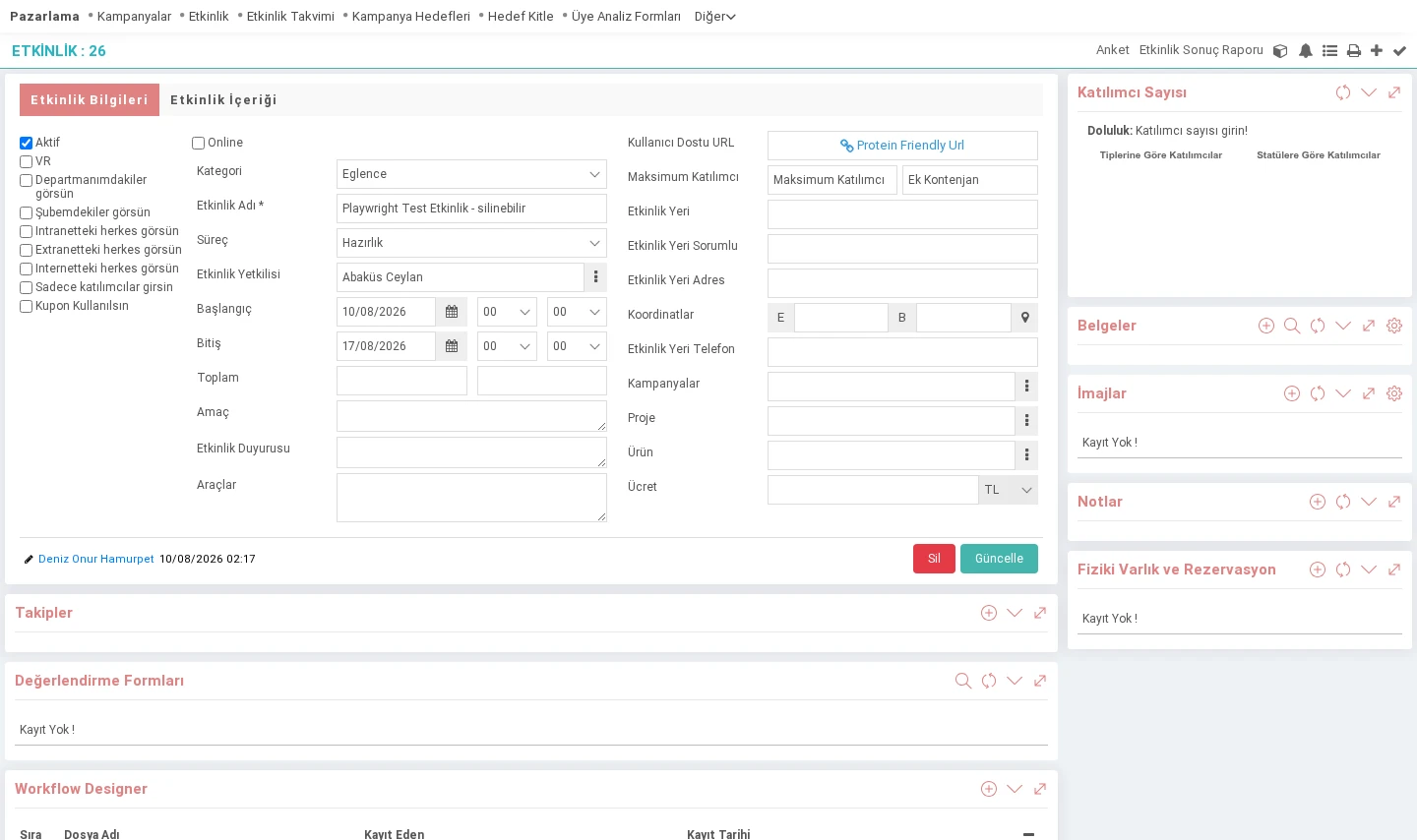
After the event content is written, go to the "Event Information" tab and fill in the relevant fields.
With the help of the boxes on the left, information such as whether the event will be held over the internet or who should see the event is arranged. When the online box is selected, a field opens where you can enter the address link where the event will be held.

- Category: The event addressed by each event may be different from each other, this distinction is made by selecting the event category.
- Event Name: The event name is entered from this field.
- Process: At what stage the event is.
- Event Official: The official who will deal with the event, answer questions during the event and organize it is selected.
- Start/End: The event start and end date and time are determined. When the event dates are determined, it will be recorded as an event in the agenda.
- Total: How long the event will last in total is determined in hours and minutes.
- Purpose: The purpose of the event can be briefly mentioned.
- Event Announcement: Write a summary of the created event and use it as the main title in the announcements. can be published.
- Tools: Tools to be used, projector, powerpoint, etc. additions can be made
- User-Friendly URL: A name is determined to be displayed in the address bar for sites managed on Workcube.
- Maximum Participants: The first field indicates the maximum participant and the second field indicates the additional quota.
- Event Location: The place where the event will be held.
- Event Venue Responsible: The person who takes care of the venue where the event will be held is entered.
- Event Venue Address: Enter the event address.
- Event Venue Phone: Enter the event venue phone number.
- Campaign: If the event is related to a campaign, select the campaign from this field.
- Project: If the activity is related to a project, the project is selected from this field. Control regarding the project obligation and project dates can be made from the xml settings.
- Product: If the event will be held for a fee, the relevant product is selected here. For example; This product may be an event participation fee.
- Fee: If there is a fee such as an entrance fee for the event, the amount is entered.
Event Detail XML Settings
- Make the Project Mandatory
Event detail prevents saving without selecting the project. - Should Project Dates Be Taken into Account?
If the project is selected, it enables control of the project's dates and event dates. If the date of the project is not within the event date, it does not allow transaction. - Project occupancy rate status ids.
The id values entered here are taken as final records. Generally IDs 3 and 4 are entered.
Calculation: (Exact Number of Registration / Maximum Participants + Additional Quota) x 100
ID 1: Request
ID 2: Reserved
ID 3: Fee Paid
ID 4: Free Registration
ID 5: Red - QR Code Print Width(px) and Height(px)
If QR Code will be used in event entries after the participant list is created, width and height according to the relevant machine
Event Detail Page

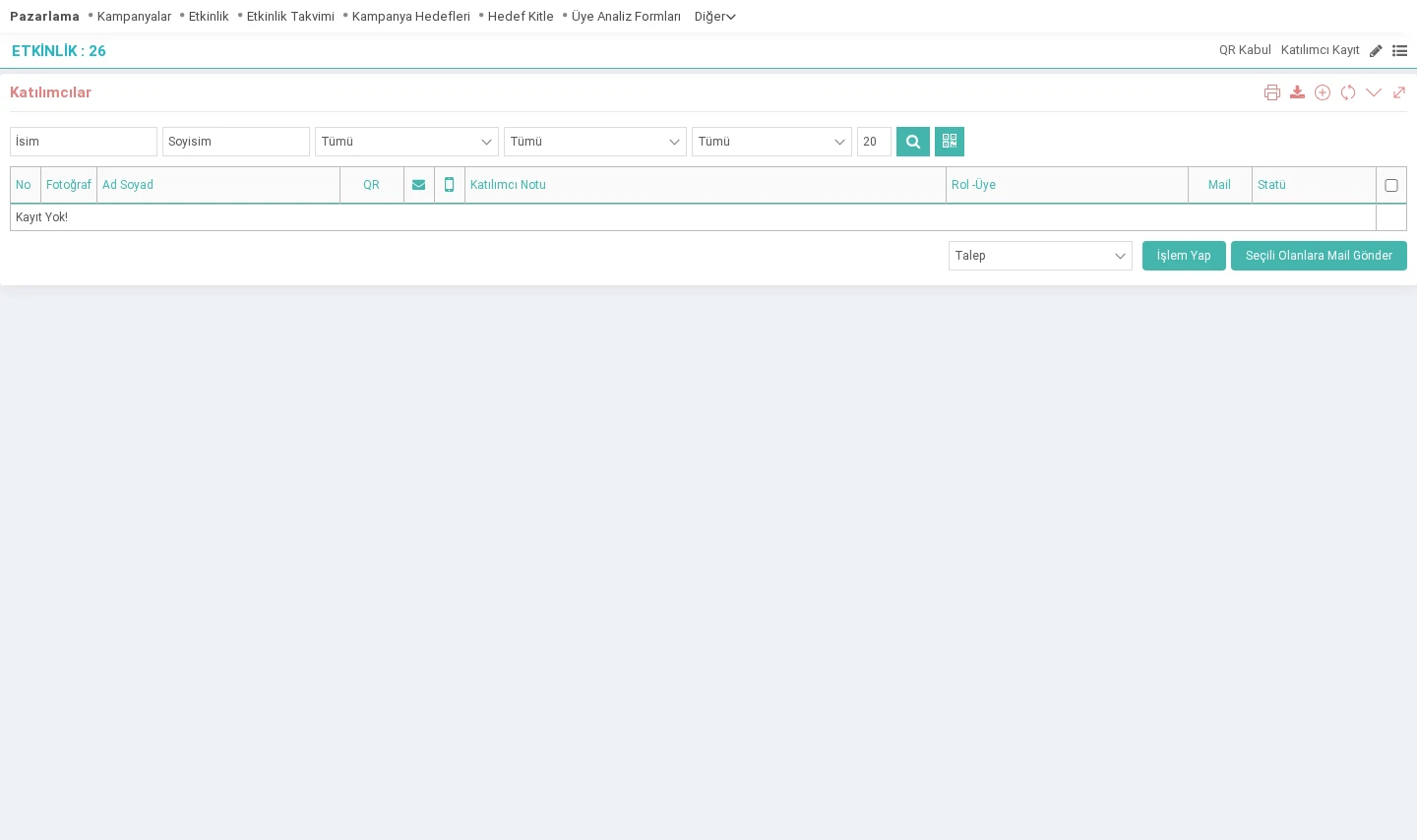
- Participants: People who will participate in the event are added and their status is determined at the end of the list. By checking the boxes next to the people, the appropriate status (Request, Reserved - (Pending), Fee Paid, Free Registration - (Final Registration), Reject - (Not Accepted)) is selected and recorded with the action button.
- Follow-ups: If there are follow-up notes regarding the event, they are entered here.
- Evaluation Forms:An evaluation form is associated with the prepared one in order to measure the success of the campaign after the campaign.
- Workflow Designer:If there is a flow for the campaign, it can be designed.
- Event Result Report:After the event is completed, the event is completed. Detailed information about how it went can be entered in the event result report.
Event Calendar
Path: CRM > Sales and Marketing > Marketing > Event Calendar
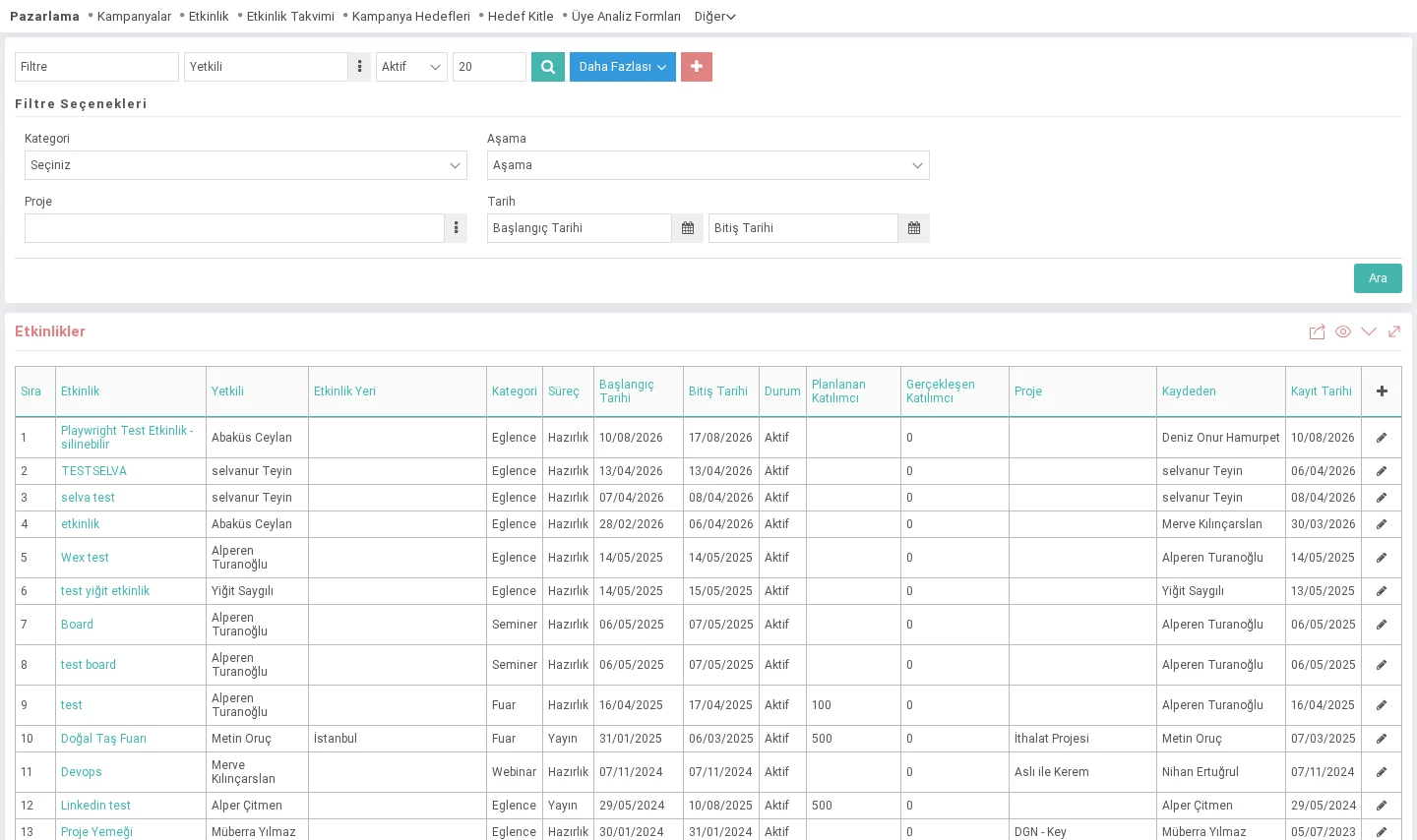
Created events “Event Calendar” page. Event official, category, etc. The calendar can also be searched with filters. Events can be viewed weekly, monthly and yearly. The green mark next to the activities indicates the start date, and the red mark indicates the end date of the event.

Eventler

Yapılacak olan etkinliklerin sınıflandırılması için kullanılır.
Pazarlama kampanyaları kapsamında gerçekleştirilecek seminer, fuar, lansman gibi etkinlikleri planlanmasına ve yönetilmesini sağlar. Etkinlikler sisteme tanımlanır, takvim üzerinde takip edilir, ilgili pazarlama kampanyaları ve ürünlerle ilişkilendirilebilir.
Kaydedilen belgelerin çıktılarının alınması için kullanılır. Standart şablonlar seçilebilir ya da özel şablonlar eklenebilir, ayrıca şablonlar yetkiye bağlanabilir.
İş süreçlerinin tasarım ve akışlarını oluşturur.
xml_project_required Proje Zorunlu Olsun mu?
xml_project_date_control Proje Tarihleri Dikkate Alınsın Mı?
xml_project_fullness_rate Proje doluluk oranı statü id'leri.
xml_print_page_width QR Code Print Genişlik(px)
xml_print_page_height QR Code Print Yükseklik(px)