Shipment-Logistics Orders
Products and services are valuable when they are transported to the point they need to go exactly and on time. Shipment-Logistics manages processes from the first point to the end consumer and recycling. Shipment-Logistics Orders is the screen used by warehouse managers. They can control, ship and deliver goods that need to be stored or shipped based on orders.
Path: ERP > Sales-Distribution > Shipping-Logistics > Shipping-Logistics Orders
Purchase/Sales orders, Purchase/Sales delivery notes, shipping requests that have reached the shipping stageShipping-Logistics Orders" page.
The "Ship", "Ship" icons located at the end of the documents are used to carry out the actual shipment of the products sold or purchased from this page and to record the purchase or sale in the stock module.

The system automatically sends you to the purchase or sale in accordance with the relevant order record. It directs you to the sales delivery note adding screen.
Filtering on the Shipment-Logistics Orders Page
To filter on this page, you must fill in the relevant fields on the page as per your request.
Fields on the page;

1-Filter: You can search by typing the order or order number in this field.
2-Reference Number: You can use it to list orders according to the reference information added on the transaction screens (purchase/sales) made with the product.
3-Company and Branch: If you manage more than one company on Workcube or proceed through a branch-based structure, you can manage other companies and branches on a single screen.
4-Shipment Method: It enables certain shipping methods to be sent with bulk shipment, especially when planning shipment.
5-Stage: You can also filter and report documents ready for shipment or orders with under/over delivery.
6-Process: Can be used to list orders by process (Process steps may vary by company).
7-You can choose from this field to list orders on a document basis, line basis or planning basis.
Listing on a line basis allows you to break down your relevant orders and ship or invoice them.
Shipment If you list them on a basis, you can create a dispatch plan by selecting your team-vehicles.
8-Sales Special Design: You can prioritize your transactions according to the special definition you have used in the details of your orders.
9-Sales Region: It is used to list orders according to a specific sales region.
10-Region: You can list orders by region from this field.
11-Province: You can list orders by province from this field.
12-District: You can list orders by district from this field.
13-Registered by: This field is used to display orders according to the registrant information.
14-Subscriber Number: Allows you to list your consignment delivery notes related to subscribers.
15-Project: Project-related orders (product This field is used to list the relevant project in transactions.
14-Current Account: This field is used to list the orders linked to the current account.
17-Warehouse: It allows warehouse managers to carry out their transactions on a warehouse basis.
18-Category: Product It is used to list orders by category.
19-Receiver: It is used to list orders by recipient information.
20-Product: It is used to list orders by product. To select the relevant product, click on the icon next to this field and click on the link for the relevant product.
21-Spec: It is used to list orders according to product specifications. To select the relevant product, click on the icon next to this field and click on the link for the relevant product.
22-Brand: Used to list orders by product brand. To select the relevant brand, click on the icon next to this field and click on the link for the relevant brand.
23-Model: Used to list orders according to product model. To select the relevant model, click on the icon next to this field and click on the link for the relevant model.
24-Recording Date: Lists orders according to the date range in which the relevant document is recorded
25-Transaction Date: Lists orders according to the transaction date range selected in the document
26-Plan Date: Used to list orders according to a specific plan date range.
27-Transaction Type: Used to list orders according to a certain transaction type.
Not Shipped: This box must be checked to list orders for products that have not been shipped.
Problematic Records: Lists the sales orders recorded as problematic in the shipment results.
After entering the necessary definitions in the fields, click the “SEARCH” button.

From the left to the right:
1- By clicking this icon, you will be directed to the Purchase/Sales Delivery Notes to perform the "Shipment", "Ship" operations.
2- By clicking on this icon, you will be directed to the Purchase/Sales Delivery Notes to issue a purchase invoice.Purchase Invoice New You will be directed to the "Registration" page.
3- Using this icon, you will be directed to the Serial and Lot transactions page for the relevant product to create a warranty serial number.
4- You can perform printing by clicking on this icon.
You can complete the packaging process by checking the box at the end of the line for your transactions that have not been packaged. you can do it. If you click on the "Packaging" button after selecting the box, it will direct you to the "Packing and Shipments New Registration" page.
For bulk packaging, when you select the relevant boxes and click on the "Bulk Pack" button, the system will direct you to the "Bulk Shipments New Registration" page.
With these transactions, you can place a shipment order and issue a sales invoice by listing the products for which a sales order has been created on this screen.
Note: On the Shipment-Logistics Orders screenShipment When listing "Base", the orders will be listed as follows.
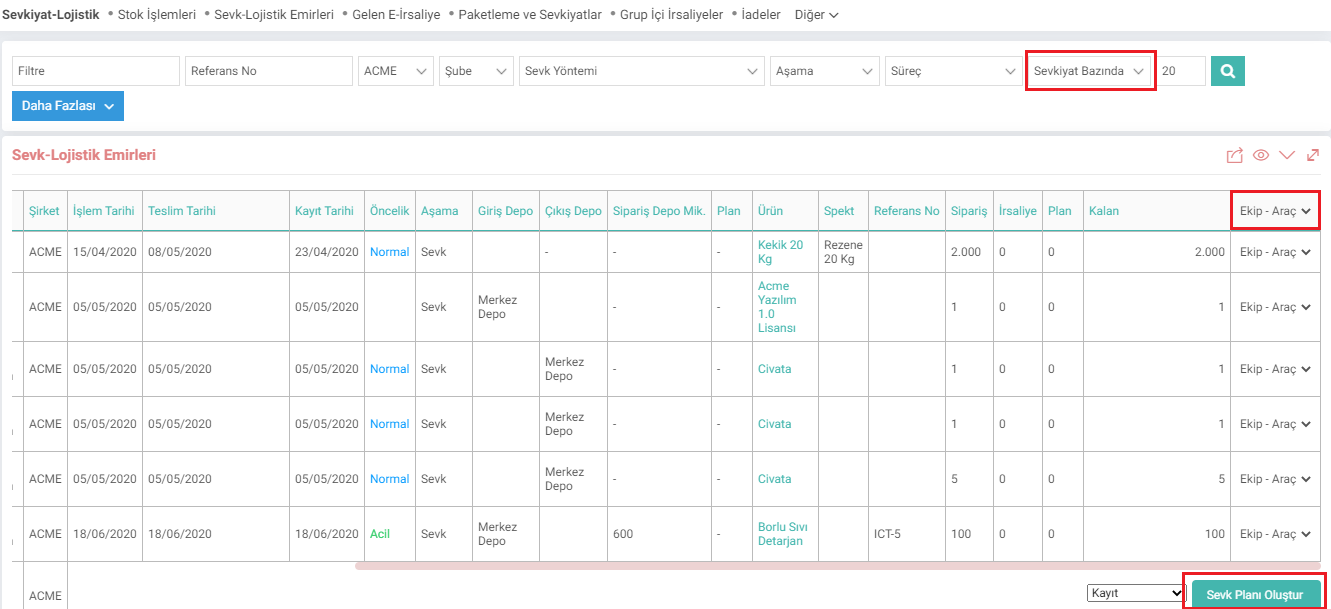
- In order to display team/vehicle information, you must specify this information in team planning. For detailed information, you can review the “Team Planning” document.
- After the listing is made, a shipment plan can be created for the selected product(s) by selecting from the field at the bottom right.

Sevk aşamasına gelmiş satınalma/satış siparişleri, alış/satış irsaliyeleri, sevk talepleri “Sevk-Lojistik Emirleri” sayfasında listelenir ve depo sorumları tarafından yönlendirmeleri yapılır.
Sevk aşamasına gelmiş satınalma/satış siparişleri, alış/satış irsaliyeleri, sevk talepleri “Sevk-Lojistik Emirleri” sayfasında listelenir ve depo sorumları tarafından yönlendirmeleri yapılır.
x_is_date_diff_documentdate İşlem Tarihi Aralığı 7 Günden Fazla Olamaz
x_is_startdate_diff_period_documentdate İşlem Başlangıç Tarihi Önceki Dönem Başı Olsun
x_is_finishdate_diff_period_documentdate İşlem Bitiş Tarihi Dönem Sonu Olsun
x_is_date_diff Teslim Tarih Aralığı 7 Günden Fazla Olamaz
x_is_startdate_diff_period Teslim Başlangıç Tarihi Önceki Dönem Başı Olsun
x_is_finishdate_diff_period Teslim Bitiş Tarihi Dönem Sonu Olsun
x_currency_is_ship Aşama Sevk Seçili Gelsin
x_show_surplus_delivery Fazla Teslimat Bilgileri Gelsin
x_show_production_currency Üretim Bilgileri Gelsin
x_show_open_currency Açık Sipariş Satırları Gelsin
x_equipment_planning_info Emirler Listesi Planlama Bazında Görünsün
x_equipment_planning_relation_member Ekip Planlamada Cari Bazında İlişki Kurulsun
x_department_search Depo Filtresi Satır Bazında Arasın
x_is_location_info Lokasyonlar Görünsün
x_is_row_amount Satır Bazında Listelemede Miktar Görünsün
x_is_row_unit Satır Bazında Listelemede Birim Görünsün
x_is_row_detail Satır Bazında Listelemede Satır Açıklaması Görünsün
x_show_product_cat_list Listede Görünecek Ürünlerin Kategori Idleri
x_deliverdate_hide_company Teslim Tarihi Görünmeyecek Şirket Idleri
x_productiondate_hide_company İş Emri Tarihi Görünmeyecek Şirket Idleri
x_show_list_order_row_id Listede Sipariş Aşama ID (ORDER_ROW_ID) si Gösterilsin
xml_order_currency_id Onaylanmış Sipariş Aşama Id