Dashboard Welcome
With Workcube Dashboard Welcome, you can view all employee advance requests, overtime, leave and health expense requests on the screen and create new records.
Path: Top Menu > Profile Card > Dashboard
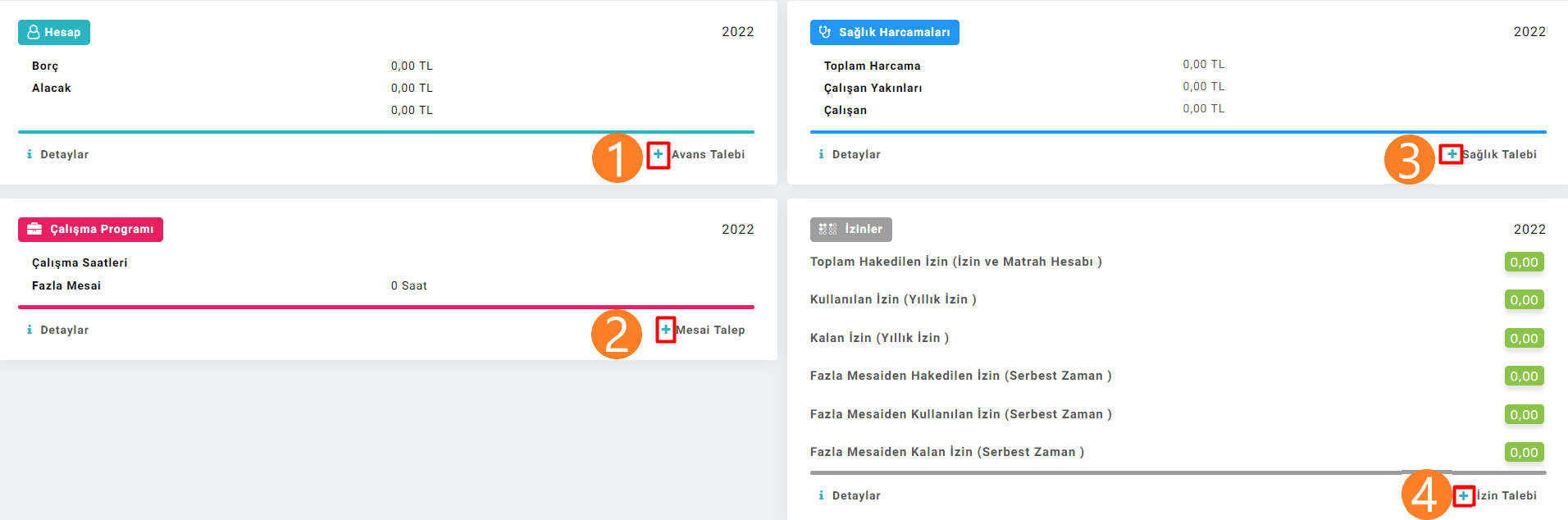
1. Account
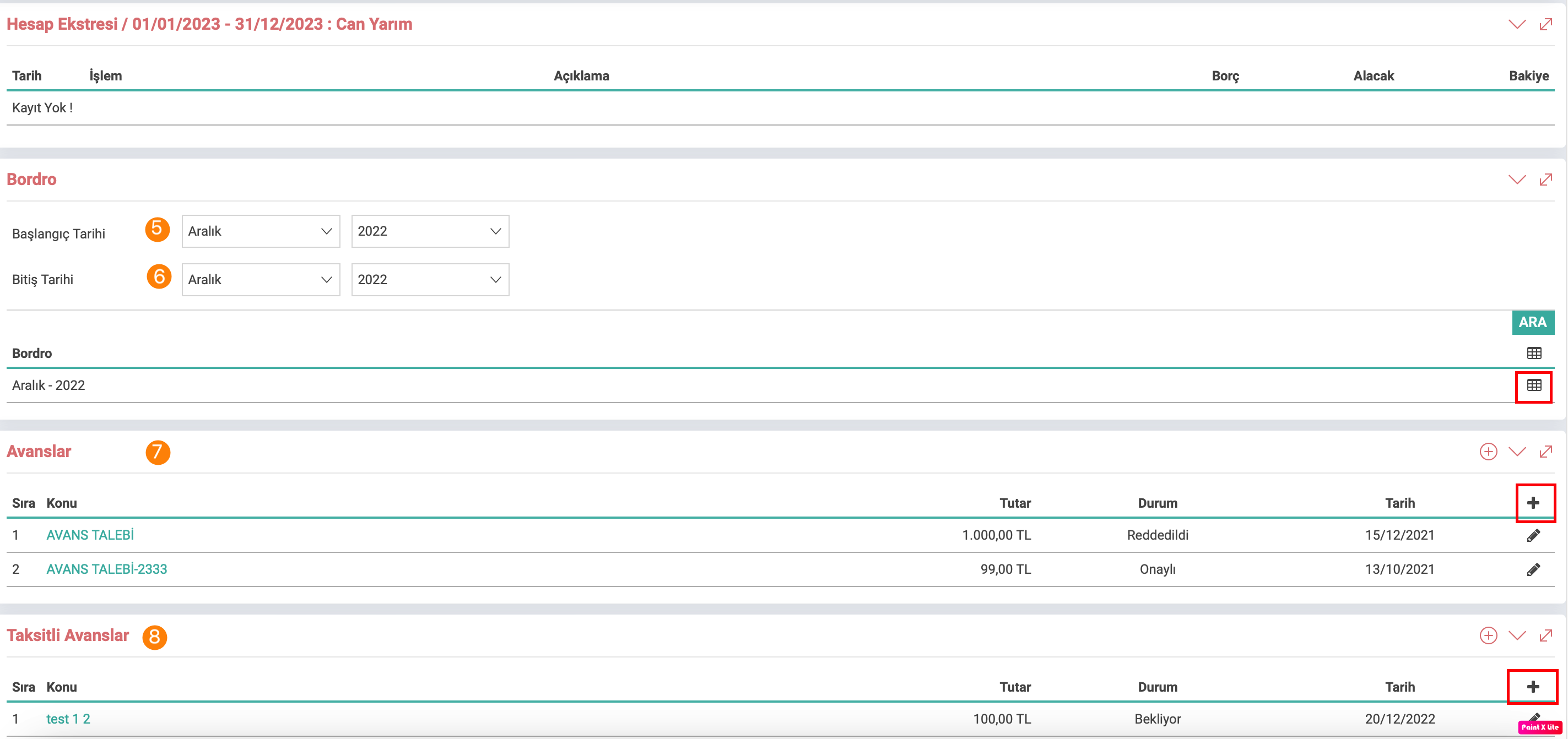
Start-End Date: The date range for which you want to receive payroll is selected. To view the payroll, the starting and ending months must first be selected. After the relevant transaction, you can view your payroll by clicking on the icon corresponding to the month.
Advances: This is the field to request an advance and edit existing advance requests.
Instalment Advances: To request an advance in installmentsand to edit existing installment advance requests.
The purpose of use of the relevant screen is to enable the employee to view the payroll outputs of the months specified by the employee in the payroll field, and to view the applications made in the past period by applying for advances and installment advances.
Attention:To view the payrolls, you must lock the payrolls on the tally screen.
Advance Request Registration Screen
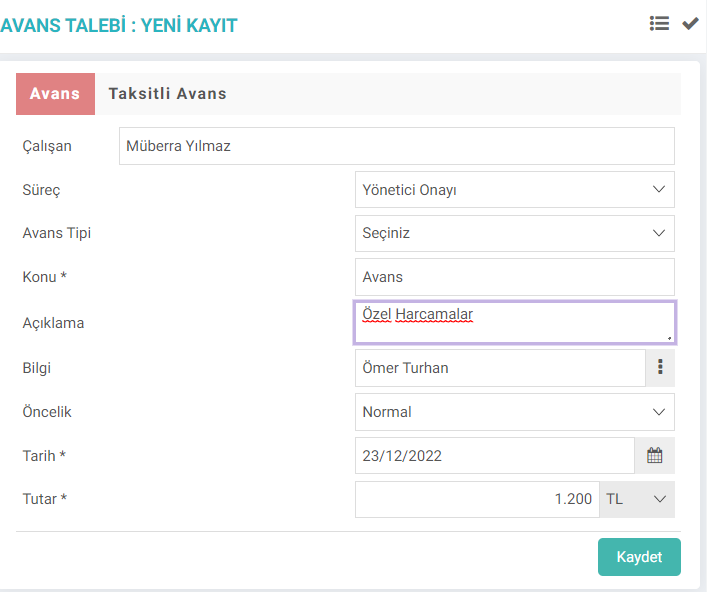
Attention: On the registration screen, the employee field appears automatically and an advance request cannot be created for another employee.
The stage of the advance request is determined by selecting the process. Subject is a required field. The reason for the request can be entered in the description section.
The person to be informed is selected. The urgency of the request is determined in the priority field.
Saving is done by entering the date and requested amount information.
Note:Requests can be tracked on the Workflow screen.
2. Work Schedule
It carries out the control and recording of employee shifts in the work schedule area.
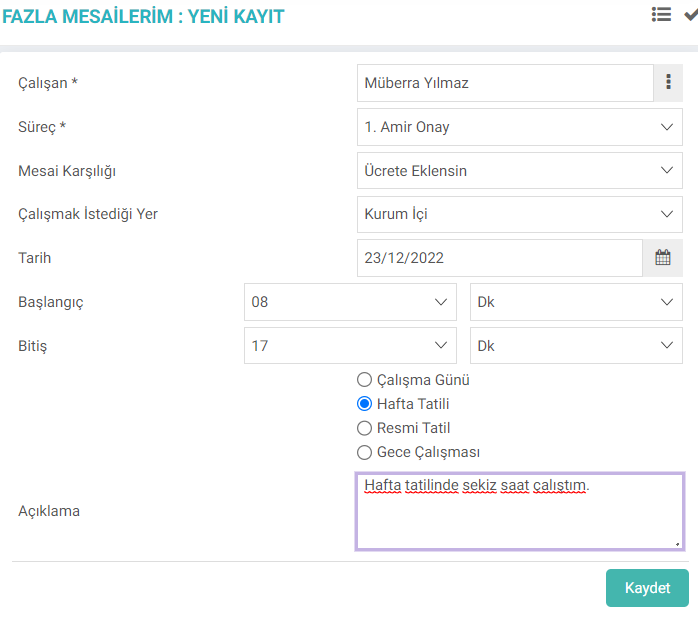
The weekly working hours are 45 hours under the conditions determined by the labor law. Work exceeding this time period is recorded as overtime.
Employee selection, process and overtime compensation are selected.
It is recorded by entering date and time zone information.
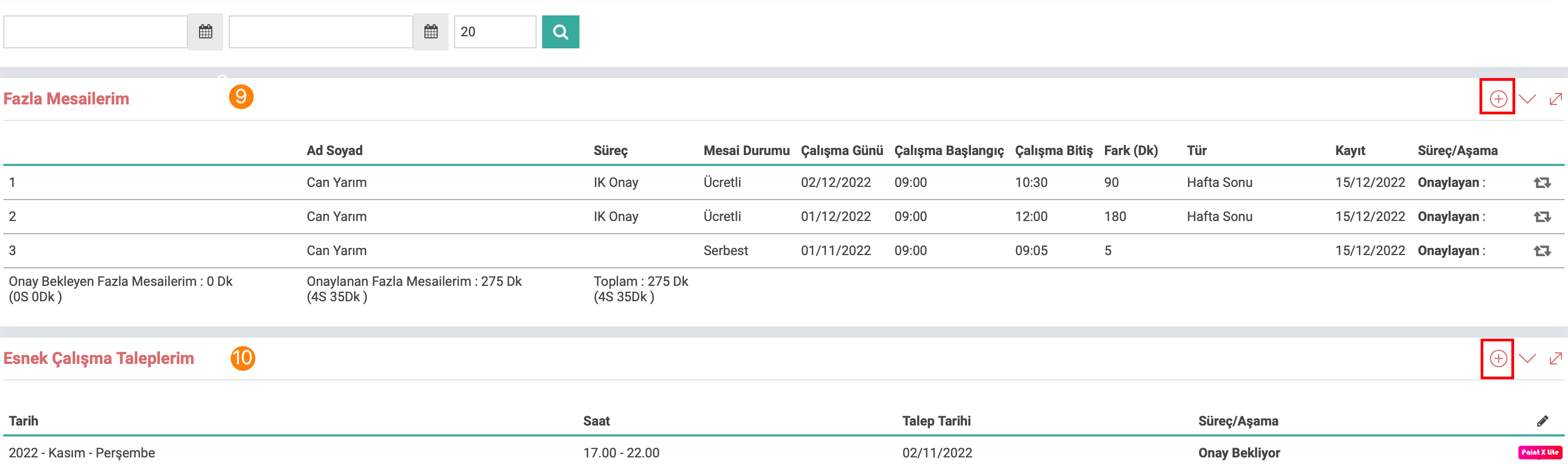
More My Overtime: Request for overtime is the area.
3. Health Expenses
Displays the health expenses requested by the employee. Go to the new request screen with the plus icon.
Registration Screen
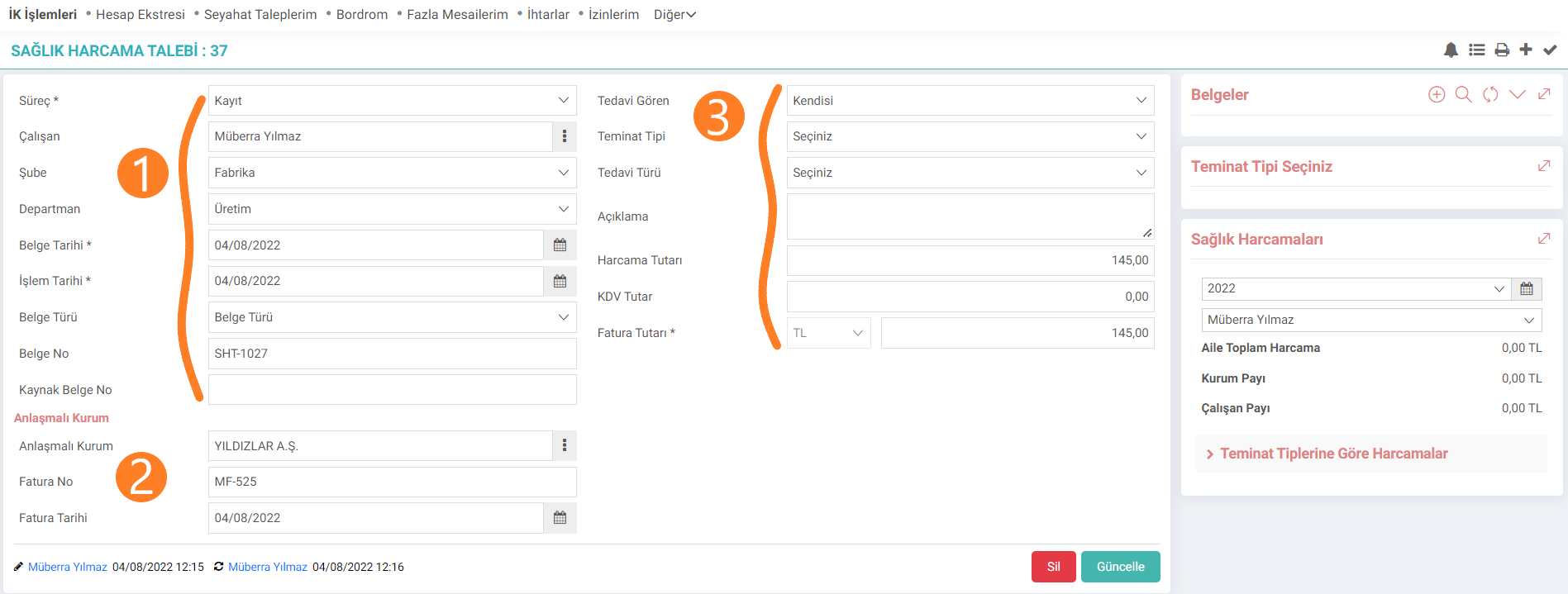
The employee can request health expenses for himself or his family.
- The stage of the request is selected, the requesting employee is selected, the branch and department he works in are selected. The date the document was created and the processing date are selected with the calendar icon. The system automatically gives the document number. It can be changed manually.
- If an invoice has been issued on behalf of the company for health expenses, the relevant company selection, invoice number and date information are entered.
- The employee chooses whether the expense will be made for himself or his relatives. Brief information about the reason for the request can be given in the description section. The expense amount must be entered. Invoice amount is a required field. Amount information, including VAT, is entered.

Attention: When you click on the details in the health expenditure field, a detailed list of the health expenses incurred by the person is displayed. used.
4. Leaves
In the Leaves field, the employee sees the leave requests and a new leave request is added with the plus icon.
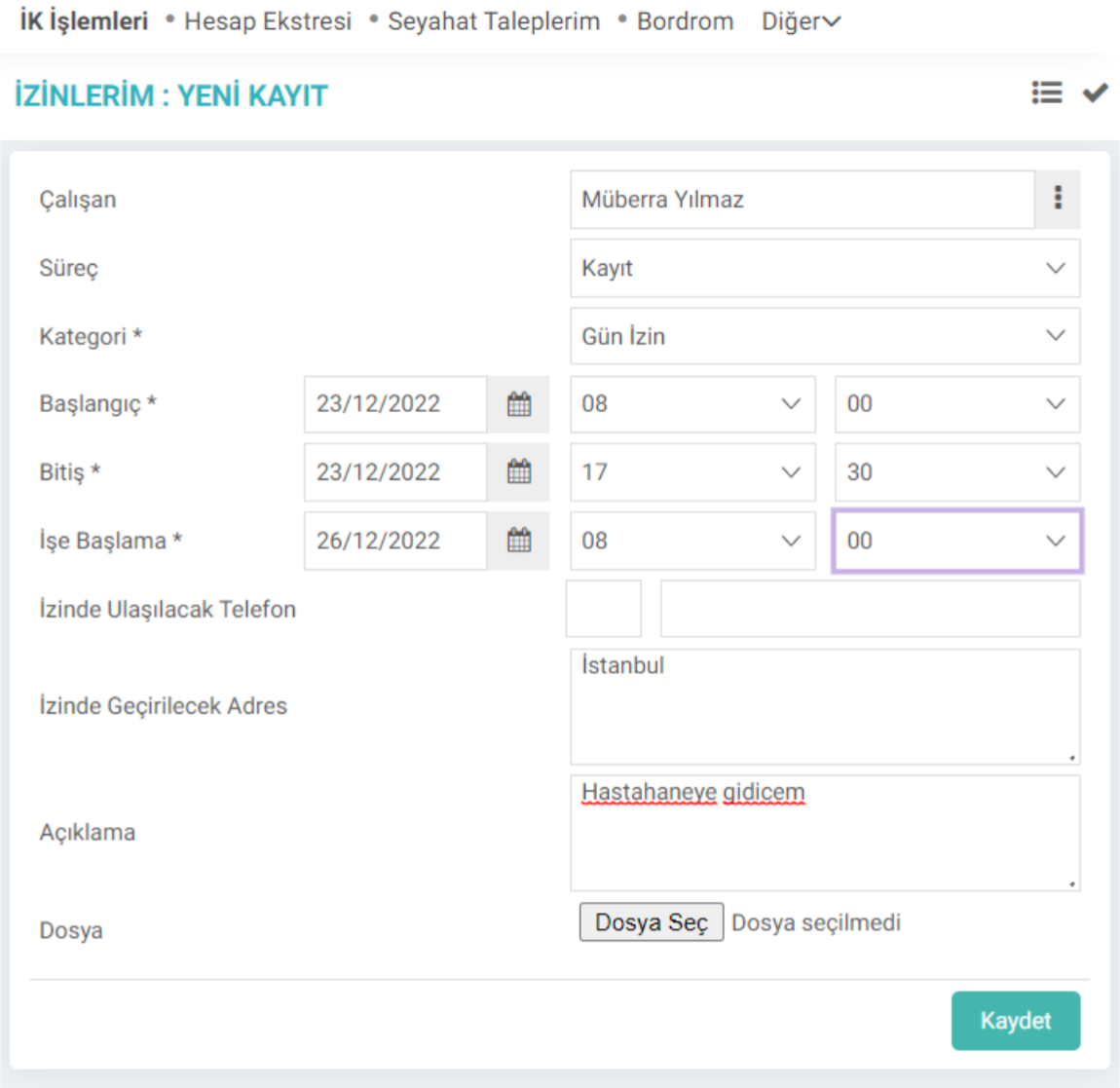
The employee requesting the leave is selected and the stage of the request is selected.
Leaves are divided into categories. The relevant category is selected. Recommendation: You can read our article called "Leave and Excuse Categories" to get detailed information about adding and updating categories.
The date information is selected depending on how many days of leave you want to request. The start date field is a mandatory field. The telephone number information the employee can reach while on leave is entered. Brief information about the reason for which the permission will be requested can be entered in the description field. If there is a relevant document can be added.


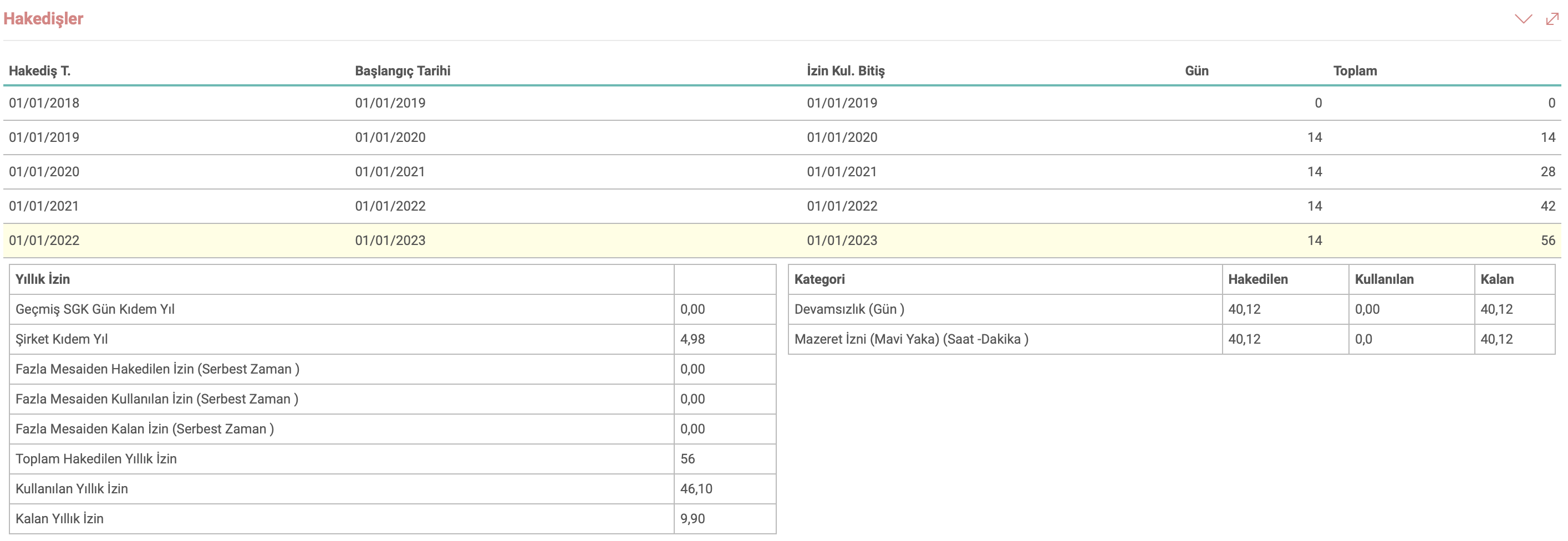

Attention: Details area usage Its purpose is to display the employee's annual leave entitlement, used and remaining annual leave balances.