Payrolling
Payrolling is the process of employers paying employees for a concrete or abstract action in exchange for labor for the work they do.
In order to initiate the payroll process, Payroll Rules must be defined, your employees' wage cards must be opened and the necessary definitions must be made. For detailed information, you can review the "Payroll Rules" and "Human Resources Initiation" documents.
Since you can manage all your Human Resources processes with the W3 HR module, payroll is actually an output of all the transactions you make during the month. All data that will be subject to payroll is processed into the system by the Human Resources unit throughout the month, and at the end of the month, there is no need for much processing for payroll.
For example; The day information, which is the most important data for creating the scorecard, goes through a process throughout the month, starting with the leave requests entered by the employees through Self-Service transactions and ending with HR approval, and at the same time, the scorecard data is created.
If the process of entering all payroll data for the relevant month has been completed, you must first run the payrolls of your branches on the payroll screen in order to proceed with the payroll process.
Path: HR > Personnel-Payroll > Payroll and Scorecard > Scoreboard
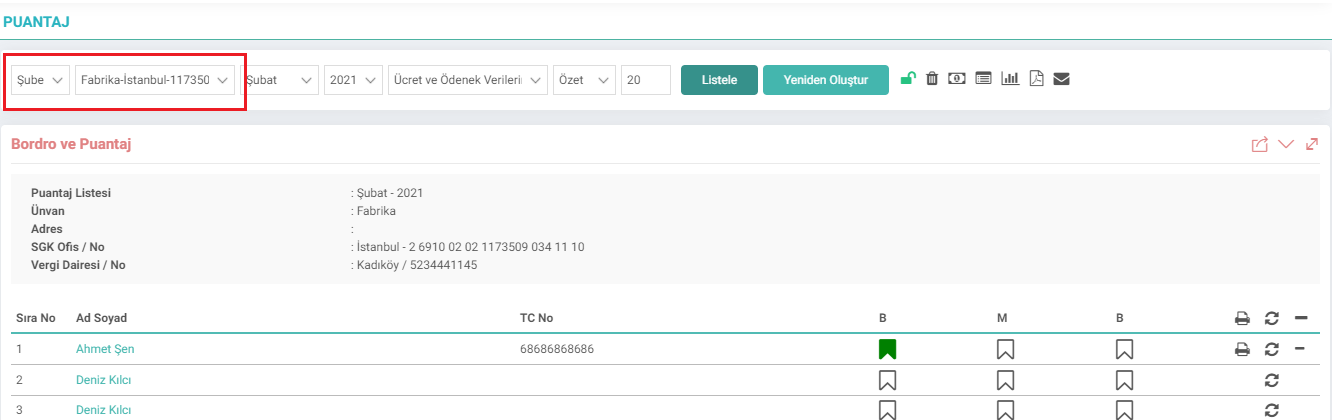
From this screen The payrolls of your branches are run for the relevant month respectively. For detailed information about the use of the screen, you can review the Puntain Sequential Transactions document.
Note: If there is a missing definition (salary, employee group, parameter selection, etc.) for any of your employees while creating the scorecard, the tally process stops with that employee and the scorecards of the employees coming after this employee will not be created. You need to run the branch tally again by completing the relevant deficiency.
Note: You can create payroll through the branch as well as create person tally. To do this, you must select "Person" in the "Branch" field, as seen in the screenshot below, and select the person whose tally you want to create in the side field.
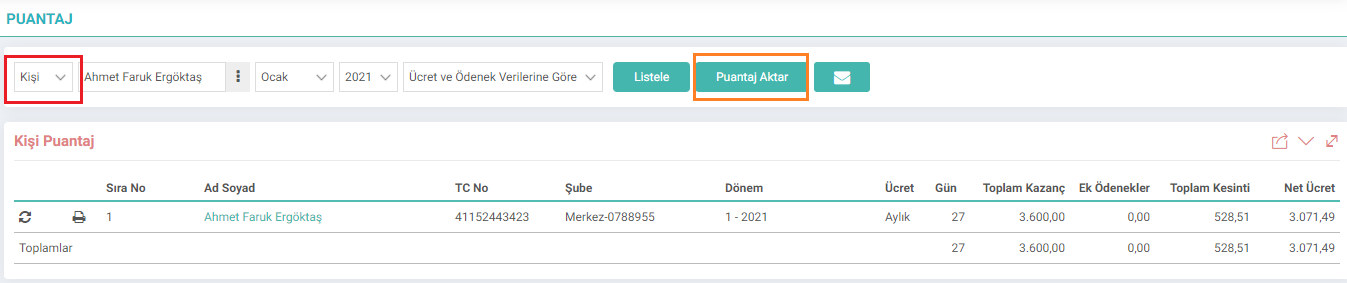
You can recreate the person score with the “Transfer Score” button.
Note: If you encounter the warning "The Relevant Branch Has a Post-Dated Payroll Record" when you want to create a branch tally, you need to list the post-dated payroll records of this branch and delete these tallies. Since payroll progresses with cumulative figures, tally cannot be created without deleting prospective data. If no update has been made to the data (deleted month) after the prospective record is deleted, the same data will be processed when you run the tally again.
Type: If you have made changes to the data of a single employee after running the branch tally and you do not want to run the branch tally again, you can recreate the tally of only that person with the "Recalculate" icon at the end of the line containing the relevant person.
Note: If there are items such as additional allowances or deductions in the data you have changed and their definitions under the payroll rules have been updated, this additional allowance/deduction must be re-added to the employee's wage card and the old definition must be removed. The additional allowance/deduction previously defined for the employee will not receive subsequent updates.
Type: To access the details of the calculation made on a per-person basis, simply click on the "Print" icon at the end of the line where the employee is located. Through this icon, you can see the tally template and calculation details, which are among the standard templates of the system.
If desired, tally templates can be developed specifically for customers and only the desired lines can be displayed.
Target Locking
After the scorecards of all branches are created completely, the tally must first be locked in order to complete the transactions of the relevant month. To lock the scorecard, simply click on the "Lock Scorecard" icon. Then this icon will change from open lock to closed lock. If you click on the icon again, you can unlock the scorecard.
When the scorecard is locked, the deletion icon will also be removed. Deletion cannot be done without unlocking the scorecard.


Transactions that can be performed on the tally page after the locking process;
Adding Wage Receipt: When you click on the “Add Wage Receipt” icon, a page will open for you to add the wage receipts for the progress payments of all personnel in the branch.

In addition, Cost Center and Expense Items must be selected for each employee.
These fields are defined in the Accounting Code field on the employees' wage cards.
When the recording process is performed after checking the Points Total Amount and Receipt Total Amounts, the wage receipts for the relevant month are recorded for the employees' current employees. Employees can check their current accounts from the Self-Service Transactions > HR Transactions > Account Statement area.