Library
The Library section within the intranet is a section where you can digitally add books, magazines and similar assets in your company and reserve them for use. Thanks to the library, you store auxiliary content that will contribute to your company's culture.
Path: Intranet > Library
When we come to the library page, we are first greeted by the listing screen. On this screen, we can parse the recorded assets with various filter options. We can list the assets in the content we are looking for with the filter options of department, reservation status, author, publisher and barcode number.
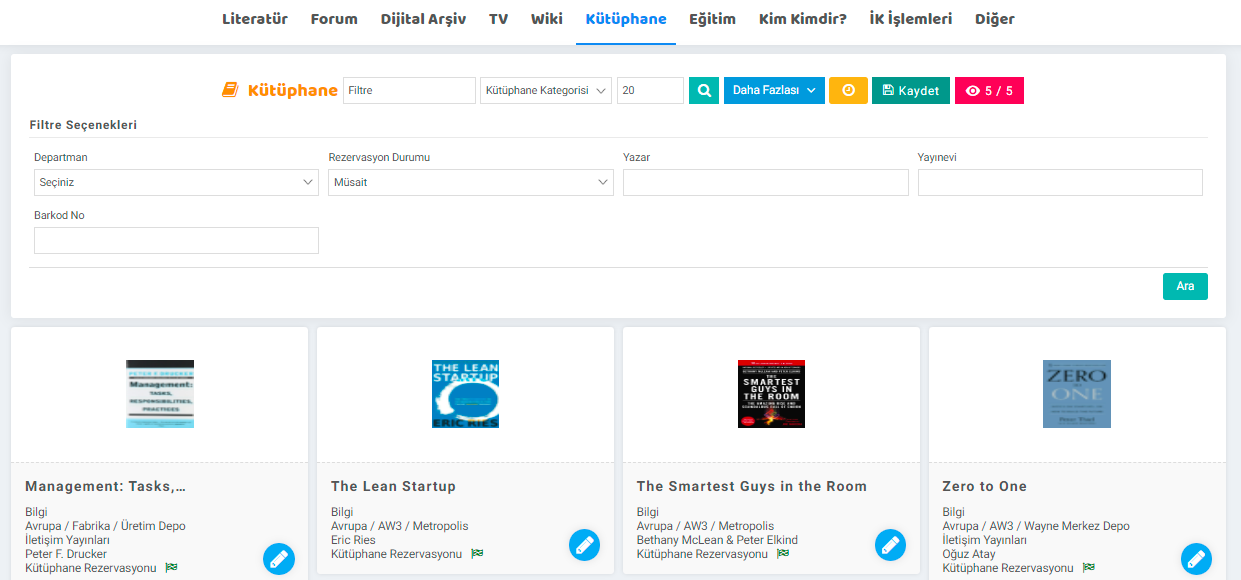
- Department: All assets registered on a department are displayed here with the department option.
- Reservation Status: The most in the library section. Thanks to the reservation status, which is one of the critical stages, it can be learned whether an asset is available for reservation.
- Author: Assets can be separated by author.
- Publisher: Search can be made according to the selected publishing house.
- Barcode Number: Searching with the barcode number given to the asset.
Saving Assets to the Library and Reservation
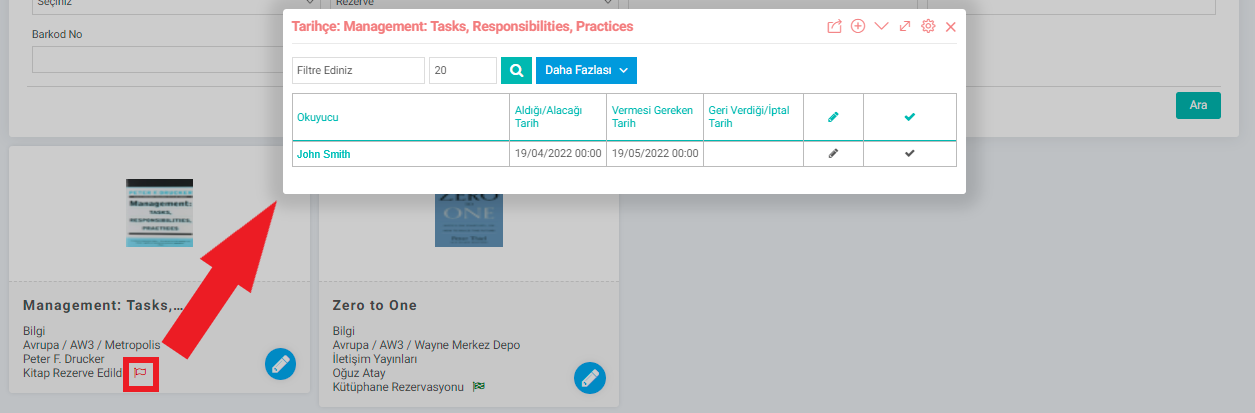
You can view all reserved assets with the Reservations button. Details about who bought which asset, when, and when they will return it can be found here. Click on the red icon to record that the asset has been delivered. You can also reserve the asset with the "Flag" icon in the details of the assets you list. The reservation definitions here are parametric definitions, these settings can be made on the "Reservation Status" screen under "Physical Assets" on the parameters screen.
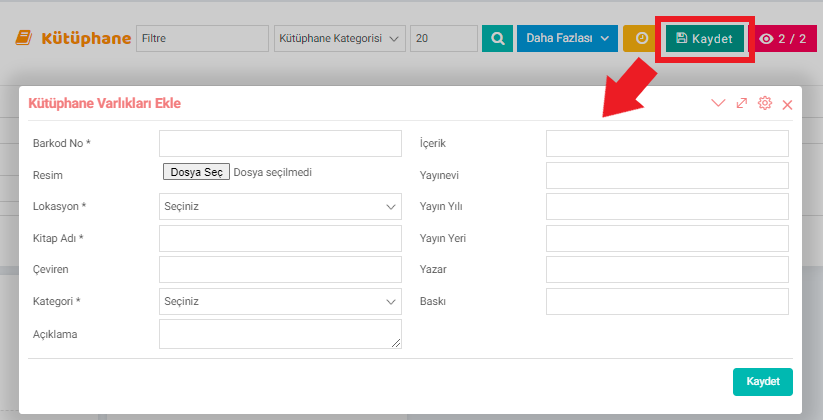
You can save assets to the library with the Save button. Mandatory fields to be entered here are barcode number, location, book name and category. If desired, the image, translator, description, content, publishing house, publication year, place of publication, author and edition of the asset to be added can be entered. You can update the information of the asset by clicking on the pencil icon next to the asset on the listing screen.