Digital Archive Management
Digital archive is a system of securely storing, classifying, indexing and making accessible in electronic environment all kinds of data such as documents, documents, images, audio and video produced in physical or born-digital format.
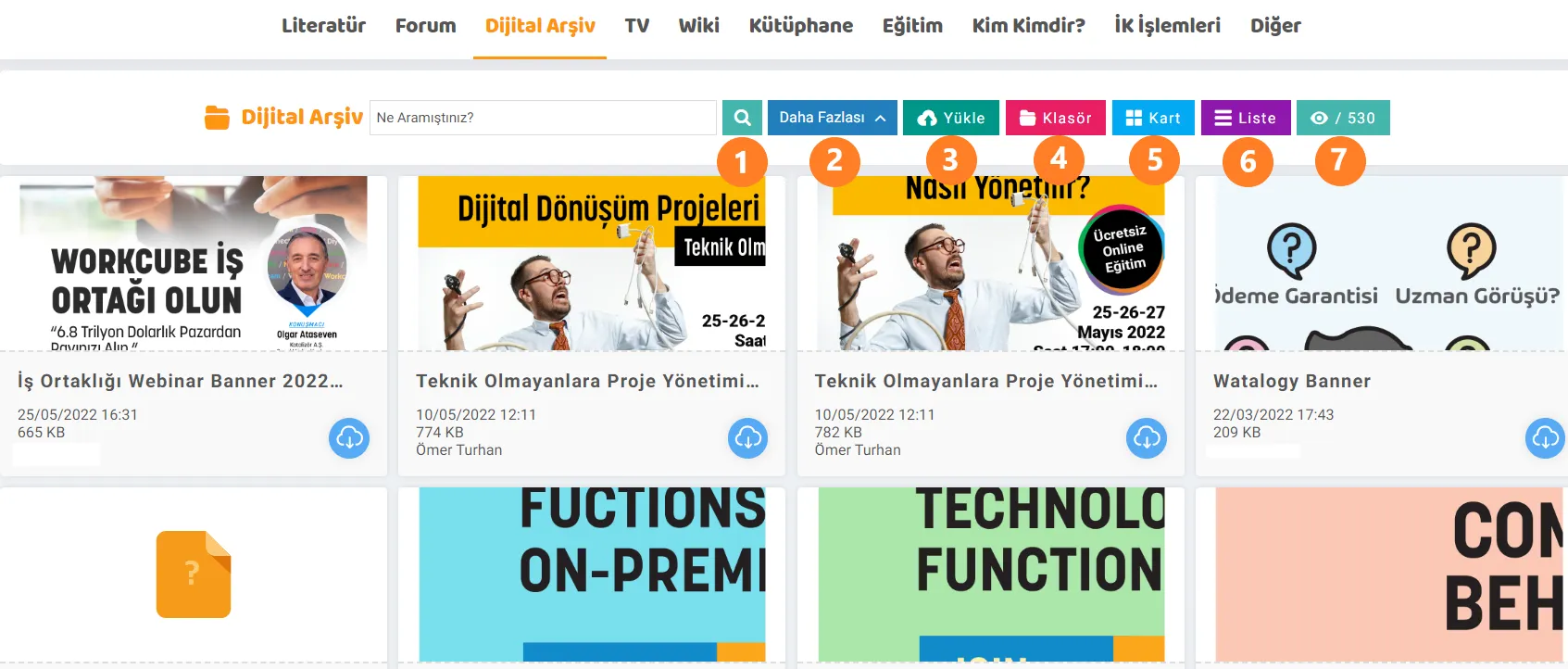
What is Workcube Digital Archive Management?
Digital Assets is a module within the comprehensive CMS that enables institutions to securely store, categorize and manage all their operational, financial, legal and technical documents in a digital environment. System; While it can store physical files (PDF, CAD Drawings, Images, Videos) directly on the server, it offers a hybrid archive structure by working fully integrated with cloud services such as Google Drive and Workspace via API.
In the Workcube ecosystem, this module; It has seamless integration with CRM, PMS (Project Plans and Progress Payment Documents) and Finance/Accounting modules. A document uploaded to any business function (WO) is automatically saved in the Digital Archive and listed in the transaction history of the associated business function.
The Importance of Digital Archive Management for a Business
- Central Corporate Memory: Storing all company-wide documents with a hierarchical folder structure on a central and secure server instead of personal computers.
- ISO and VUK Compliance: Legal risks are minimized by defining validity start and end dates for legal documents, contracts and quality documents.
- Revision Control: While old versions of changed documents are automatically archived, it is guaranteed that only the latest revised document is used in current processes.
- Role Based and Portal Compatible. Authorization: Documents; Unauthorized access is prevented by authorization on the basis of department, position category, authorization group, digital asset group or external portals (Partner, Public, Career portals).
- Cloud Storage Integration: Thanks to the Google Drive API connection, large-sized documents are stored in the cloud without consuming local disk space and are authorized via Workcube.
Process Flow / Life Cycle in Workcube
The life cycle of digital assets, from their entry into the system to the archiving or deletion stage, is managed with the following process steps:
Stage | Module / Display | Operation / Document | Description |
|---|---|---|---|
1. Infrastructure and Classification | CMS / Archive Settings | Category and Type Definition | Archive folder tree is created and document types are defined from the content and document types field. |
2. Data Entry and Upload | Digital Asset / Upload | Physical File or Drive Link | File is uploaded by drag-and-drop or Google Drive folder via API are matched. |
3. Association and Approval | Digital Asset Update | Project, Product and Process Assignment | The document is linked to the relevant Project, Product or Customer card. The approval flow is initiated by process stages (Draft, Approved, etc.). |
4. Distribution and Notification | Digital Asset Detail | E-Mail Recipient & CC Notification | Automatic e-mail notification to relevant personnel or business partners that the document has been uploaded sent. |
5. Revision Management | Revision | New Version / Revision Entry | When the document is updated, the system moves the old record to the archive history and sets the revision number value as a |
What Should Be Considered When Managing Digital Archive Operations?
A. Revision Tracking in ISO and Quality Standards
The use of outdated documents in businesses leads to operational errors and non-conformances in quality audits. When uploading a new revision to Workcube, the old file name of the document should be preserved and the version number should be updated in the database. In filters, the 'Do not Fetch Revisions' option must be kept on by default.
B. 'Private Document' Management Focused on KVKK and Privacy
The accessibility of salary contracts, financial reports and documents containing personal data by all employees creates a legal risk. In such documents, the 'Special Document' parameter must be activated. Additionally, documents should be vertically authorized through authority groups and position categories.
C. Google Drive Integration and Quota Management
To reduce local server disk costs, large-sized CAD drawings or video documents should be managed with Google Drive integration. In addition to Google integration, a link can be added as a link or the file size can be limited in the company flow parameter/document type fields.
Digital Archive Management System Functions and Screen Architecture
The table below, Digital Asset screen and related explains the operational functions of the critical data fields in the forms in the system:
Screen Area / Parameter | Sample Data Examined | Function in the System and Importance |
|---|---|---|
Document Number | SZ-2023-0089 | It is the unique code of the document. It produces a unique number template for document tracking and physical archive matching. |
Category | Contract/Customer/Invoice | Determines the location of the document in the vertical hierarchy. Manages the physical directory and default authorization template on the file server. |
Document Type | Confidentiality Agreement | Determines the legal or operational class of the document. It is the filtering criterion in data-based quick searches. |
Private Document | Yes | When checked, only the personnel who saved the document and the admin can see it; It is hidden from other users. |
Do not Fetch Revisions | Active | Reduce duplicate or incorrect document usage by hiding old revisions in the search list. |
DPL (Drawing Part List) | Active/Passive | Associating technical and engineering drawings with parts lists and including them in production revision processes |
Portal Access Permissions | Partner Portal, Public Portal | Control automatic publication or hiding of the document on the dealer portal (extranet) or public sites (internet). |
Viewing/Listing | SZ-2023-0089 | It can be listed in different formats depending on the Card or Folder selection. The eye icon in the filter area shows the content count. |

Workcube'e eklenen dijital varlıkları sınıflandırmak için kullanılır.
Eklenen dijital belgeler doküman tipleri ile ilişkilendirilerek dokümanlara erişecek kullanıcılar gruplandırılır. Bu sayede doküman veya doküman tipi bazında yetki kontrolleri yapılmış olur.
Sisteme yüklenen dijital varlığın hangi dosya formatında olduğu bu sayfada yapılan parametre tanımlamasına göre seçilir. Format eklerken maksimum dosya boyutu da eklenebilir.
Eklenen dijital belgeler doküman tipleri ile ilişkilendirilerek dokümanlara erişecek kullanıcılar gruplandırılır. Bu sayede doküman veya doküman tipi bazında yetki kontrolleri yapılmış olur.
Görüntüler, videolar, ses dosyaları ve belgeler gibi dijital varlıkların depolanmasını, düzenlenmesini, paylaşılmasını ve yönetilmesini sağlar.
İş süreçlerinin tasarım ve akışlarını oluşturur.
x_google_refresh_token_mail Google Refresh Token Mail
Feedback
Digital Assets - Page Designer
Edited Function: CMS > Digital Archive > Improvements have been made in the Page Designer search form tab according to the more options in the digital assets listing business function.
Contents and Google CDN
If the contents are published on the internet, you can make the websites created with Protein run faster by sending the borders you added in the HTML editor to the CDN.
First of all, you should start by purchasing the Google CDN service and integrating this service into your Workcube. You can receive service from experienced Workcube experts during the integration process.
Google Cloud and CDN Bucket
Google Cloud can be used to add CDN - Content Delivery Network to Workcube. This feature sends images and videos added to the digital archive a copy of the document to the CDN bucket if the "sharing on the internet" box is selected. On sites built with protein, images and videos can be distributed via CDN. Using CDN on medium and large-scale B2B, B2C or websites for different purposes increases the performance and security of Workcube servers. You must have a Google Cloud account for CDN Bucket integration.
Workshare with html2canvas
Added/Edited Function:Creating a pdf on Workshare with html2canvas and encrypting this created pdf has been introduced.
Usage: After filling in all fields on Workshare, click Get Snap. It creates a pdf and file path to the worksnap file located under Documents. Access code and password must be entered before creating a file with Snap. If you click Share, the password and link information will be sent via e-mail. The pdf detail is displayed with the incoming password information. For detailed information, you can review the "Workshare with HTML2canvas" wiki document.
Protein - Corporate Member Documents
With this widget, Protein B2B customers and suppliers can upload self-service documents such as Trade Registry Gazette, Tax Certificate, Signature Certificate.