Who is Who?
With the Who is Who page, you can access the contact information of company employees, customers, business partners and suppliers in your company's communication network. This page provides communication and job sharing.
Path: Intranet > MyPortal > Literature > Who is Who?
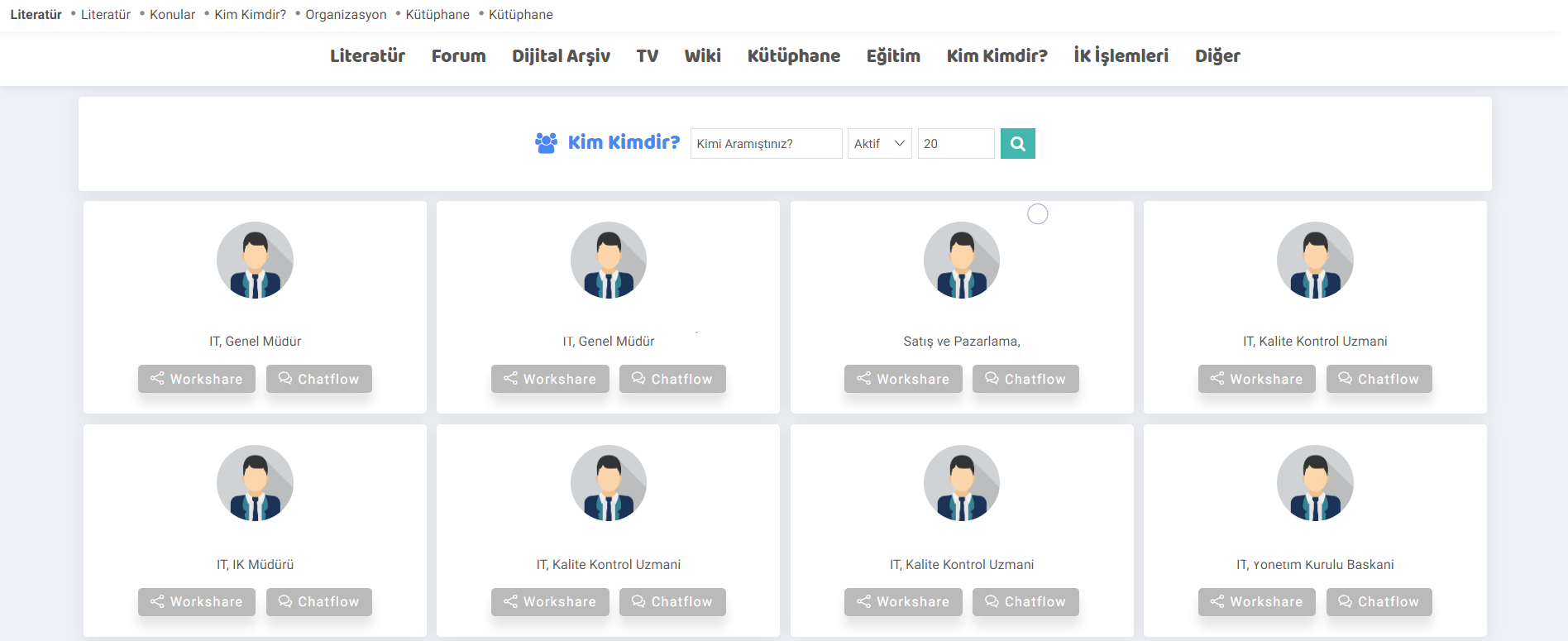
Attention: The information of the people we have saved on the Employees screen appears on the Who's Who screen. You can read the document called "Employees" to get detailed information about registering employees to the system.
Direct messaging is provided via the Chatflow screen. Recommendation: You can read the "Chatflow" document to get detailed information about the screen.
Workshare screen is the manual notification creation screen. You can also create a personalized notification and save it in the agenda.
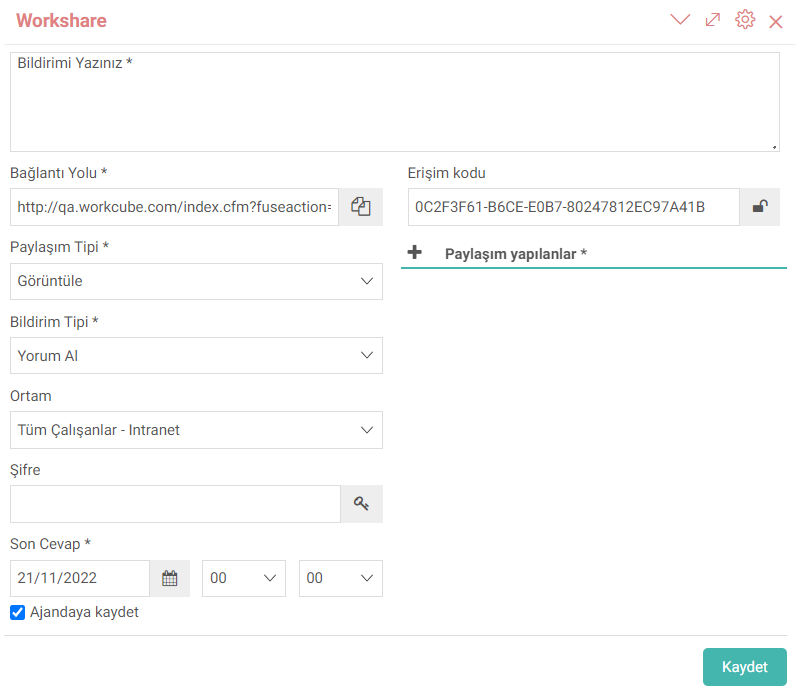
- The path to the page on which you created the notification is automatically sent to the system.
- If the sharing type requires the person to be notified to be updated, the Update option can be selected. If the View option is selected, for example, the Update and Delete buttons will not be seen on the notification screen.
- If the Get Comment option is selected in the Notification type field, only the Comment button will be visible to the person who is notified. If the Request Confirmation option is selected, the approval and rejection buttons become active.
- Who can perform these operations in the environment area is selected in this area.
- The password can be generated by clicking the password button more than once.
- The system gives the access code automatically, it cannot be entered manually. Note: Access code allows sending the Workflow notification with an encrypted code. It adds an automatically generated code to the end of the notification link and blocks page access to links that do not send this code.
- The person or people to be notified is selected in the Shared areas.
- The notification is displayed on the workflow screen.
- The password is sent to the person via e-mail.
Note: You can read our article "Warnings and Approvals" to get information about the Workflow screen.
Person Details
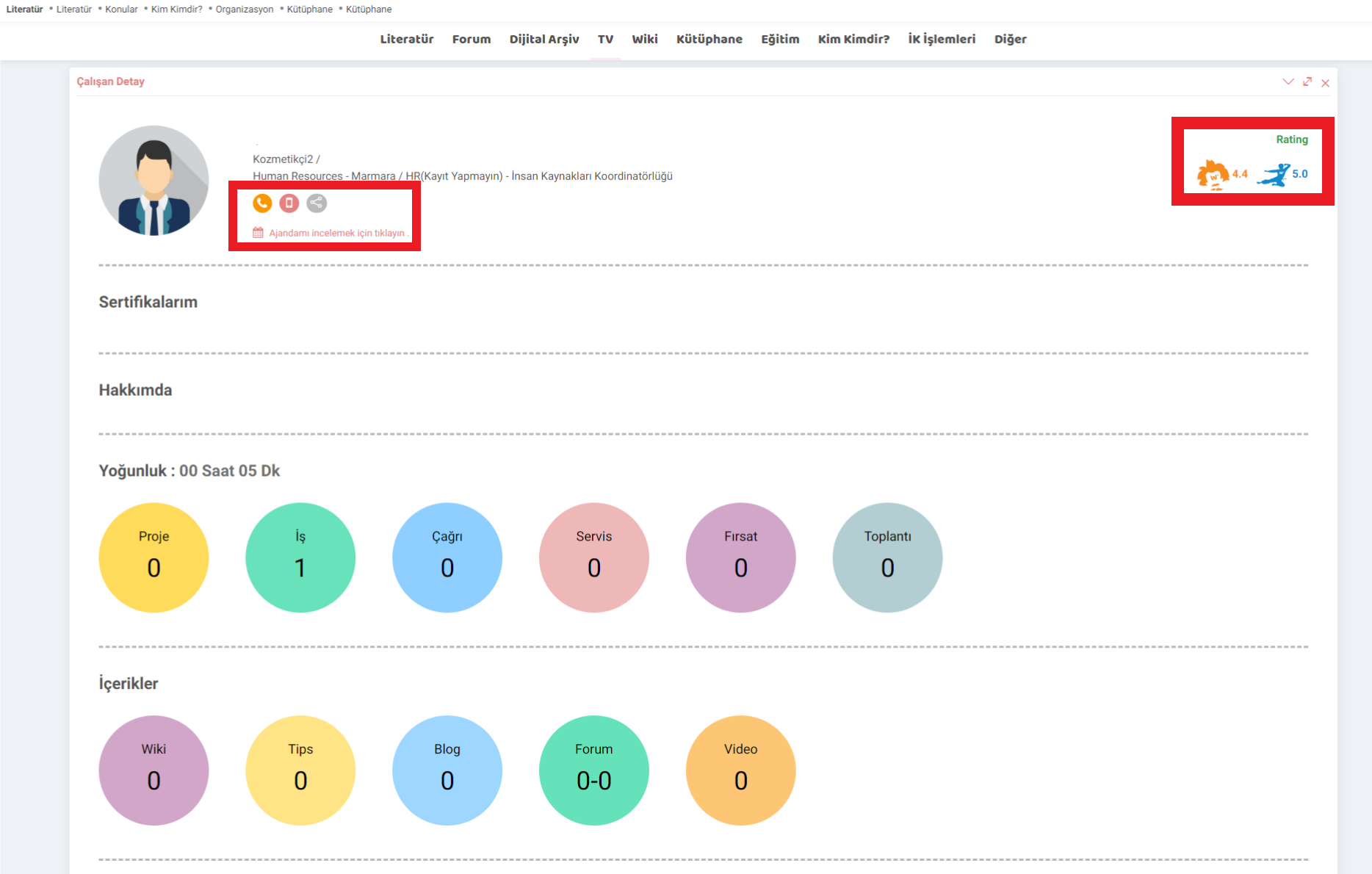
Contact can be established with the contact icons in the contact details.
The number of jobs the person has worked on, projects, the number of content he has written, certificates he has, etc. details are displayed.
By clicking on the agenda, work intensity is displayed.
The person's Einstein score and Bruce Lee score are displayed. Einstein score is analysis score and Bruce Lee score is speed score.
xml_process_stage Yayınlanan İçerik Süreç
xml_mail E-Posta Görüntülensin mi?
xml_wiki_cat_id Wiki Kategori Id
xml_blog_cat_id Blog Kategori Id