Imported Goods Entry

Fields on this screen;
- Transaction Type:Select the transaction type for the imported goods entry you prepared from this field. (These fields can be multiplied parametrically. To add additional transactions, BPM > Transaction Categories)
- Delivery Note No: Delivery Note No field is used to write the number of the document entered. This field must be filled.
- Shipment Method: Used to select the shipping method. Select the shipping method for the purchase record by clicking on the icon on the right side of this field.
NOTE: Shipment methods are defined in the Settings module. Only system administrators have permission to use the settings module. - Import Invoice: When you write the invoice number of the imported product in this field and click on the icon, the relevant invoice will appear.
On this screen, click on the box in the line of the relevant product(s) Click on the "Add Import Entry" button. The relevant product(s) will be added to the product basket. - Date: The date field refers to the date on which the imported goods entry was prepared. The date the recording was made is displayed here. If the date of the record belongs to another date, enter the date using the icon next to the field. To select the date, specify the desired date by using the calendar icon on the right side of this field.
- Actual Shipment Date: This field represents the date of product delivery. The date the recording was made is displayed here. If the actual delivery date belongs to another date, specify the date using the icon next to the field. This field must be filled.
Attention!: In the import goods entry process, the import invoice is called and the costs are made based on the imported goods entry. In cost transactions, hours as well as days are taken into account. Therefore, the day and hour entered must be before the import invoice. Otherwise, the cost will not increase. - Reference Number:The document number of the previous process is displayed in this field.
- Output Warehouse:It will appear automatically when the invoice information is added. (If you have issued an invoice for the product but the product has not yet entered your warehouse (customs warehouse), you can select the relevant warehouse from this field.)
- Entry Warehouse: Used to indicate which warehouse your imported product will be located in. To specify the warehouse information, click on the three-dot icon on the right side of this field and click on the link of the relevant warehouse from the list of warehouses that appears.
- Project: This field is used to select the project in which your imported product will be used. Click on the three dots icon on the right side of the field and click on the link of the relevant project from the list of projects that appears. The “?” on the right side of this field. When you click on the icon, you can access the project summary information.
Product Basket
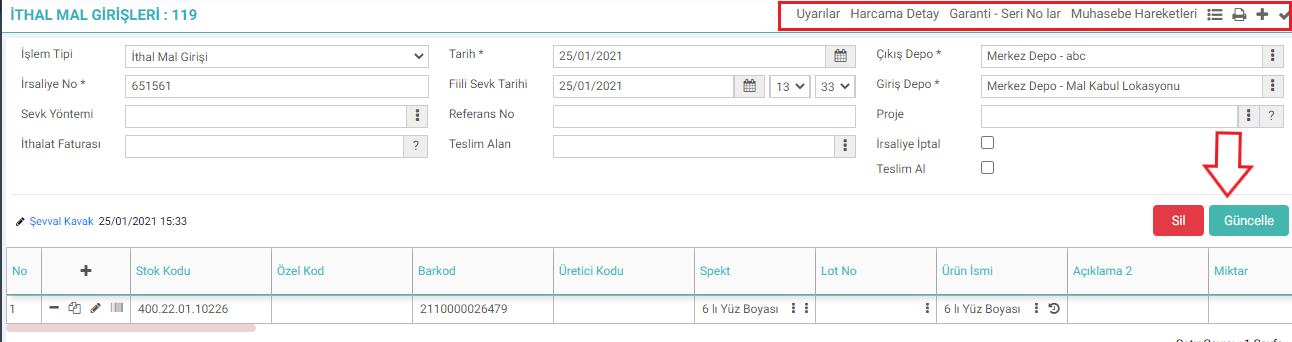
- Warnings: You can view the added confirmations and warnings regarding the receipt.
- Expenditure Detail: In this field, you can add expense detail information regarding the import goods entry process.
- Guarantee Serial Numbers:By clicking this link, you can access the “Series and Lot Transactions” screen.
- Accounting Transactions: Accounting transactions are checked for the transaction selected from this field.

Stoklara girecek olan ürün, ithal edilen bir ürün ise stok kayıtları ve muhasebe kayıtları için giriş kaydı İthal Mal Girişi ile yapılır.
Stoklara girecek olan ürün, ithal edilen bir ürün ise stok kayıtları ve muhasebe kayıtları için giriş kaydı İthal Mal Girişi ile yapılır.
Stoklara girecek olan ürün, ithal edilen bir ürün ise stok kayıtları ve muhasebe kayıtları için giriş kaydı İthal Mal Girişi ile yapılır.
Bu sayfanin cf_big_list_search'ü olusturulmustur.
Kaydedilen belgelerin çıktılarının alınması için kullanılır. Standart şablonlar seçilebilir ya da özel şablonlar eklenebilir, ayrıca şablonlar yetkiye bağlanabilir.
xml_serialno_control Seri No Kontrolü Zorunlu Olsun mu?
Feedback
Imported Goods Entry
The situation of not being able to record Imported Goods Entry in the 2024 period for an import invoice belonging to the 2023 period has been corrected.