Internal Demands
Within the organization, your employees can create internal demand for the products and services they need. To create internal demand, click on the “+” icon on the listing screen.
Path: ERP > Sales-Distribution > Purchasing > Internal Requests

2-Title: Subject title for internal demand
3-Requester: In the requester section, information about the user viewing this screen will automatically appear. If the requester is different, you can change it from the popup.
4-To: Select the user who will evaluate the request in this field. User information in this field can also be specified from the XML setting. Write the position ID of the user you want to come as the default with the "User to be the default user from the To field"
7-Priority: Specify the priority status of your domestic demand.
8-Process: Indicate at what stage the domestic demand is in this field.
9-Reference: In the reference field, if the domestic demand is created on a screen (For example, from the material requirement table on the production order screen), the relevant record number on this screen. (ÜE-74) is displayed.
10-Delivery Date: Specify the delivery date for the products you request in the delivery date field.
11-Service: If the product you have requested is related to a service application, specify the relevant service application in this field.
12-Explanation: Explanation/detailed information about the internal request.
13-Entry Warehouse: Indicate in which warehouse you will keep the product you have requested when you receive it in the Entry warehouse area.
14-Entry Project: If the product you have requested will be used for a project, specify the relevant project in this field.
15-Exit Project: If the requested product has already been purchased in stocks for a different project. By selecting an exit project, you can exit that project and enter a new project.
16-Exit Warehouse: If the requested product is in stock, it can be entered to a different location by selecting the output warehouse.
The use of the basket area is as follows;
To add products to the basket, click on the "+" icon at the beginning of the basket row. A list of products will appear. From here, select the products one by one by clicking on their units. You can also add products to the basket by typing the stock code, barcode or serial number and pressing the "enter" key.
You can change the quantities manually. Then click the "Save" button.
For detailed information about basket usage, you can review the Basket Settings and Usage document.
On this screen, you can click the "Update" button to change/update the information you want or click the "Delete" button to delete the internal request. You can also perform the following operations with the help of the icons in the upper right corner of this screen.
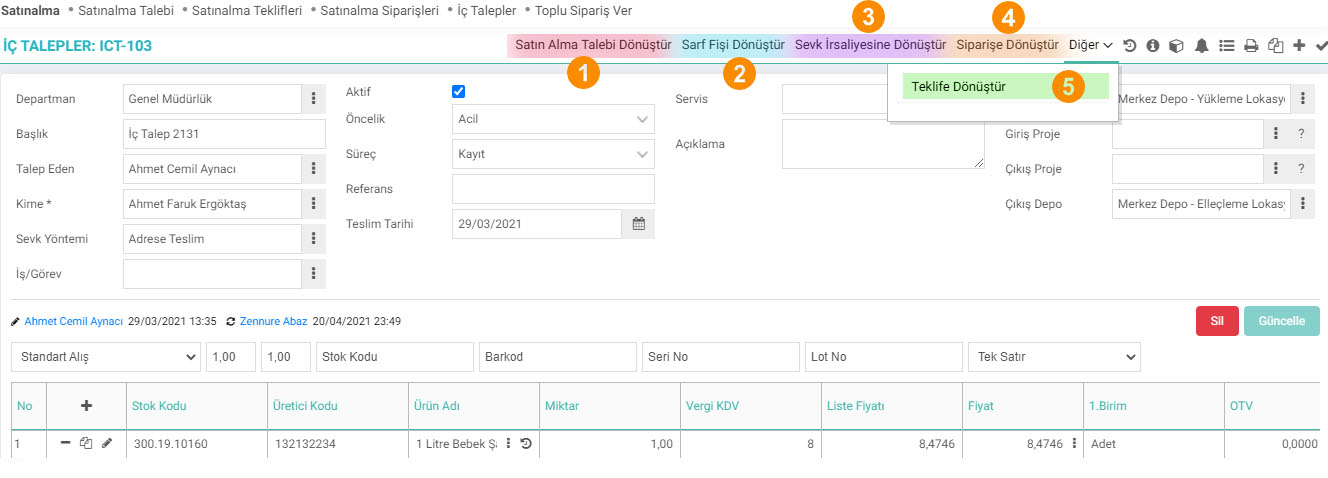
- Convert Purchase Request: You can click on this link to convert the internal request you are on the update screen into a purchase request. You can review the Purchase Request document for detailed information.
- Convert Consumption Receipt: You can click on this link to convert the products you have requested into a consumption receipt.
- Convert to Shipment Note: On the update screen, you can click this link to convert the internal request into a shipment note. For detailed information, you can review the Inter-Warehouse Delivery Note document.
- Convert to Order: On the update screen, you can click on this link to convert the internal request you are on to an order.
- Convert to Offer: You can click on this link to convert the internal request you are on the update screen into a quote. .
Domestic Demand Details: When you click on this icon, you can view the relevant documents/notes or add documents/notes, and also access the internal demand meeting report.
With the help of other links, you can view additional information of the internal demand, relevant warnings and perform operations such as printing, saving and copying.
Creating Internal Request via Data Transfer
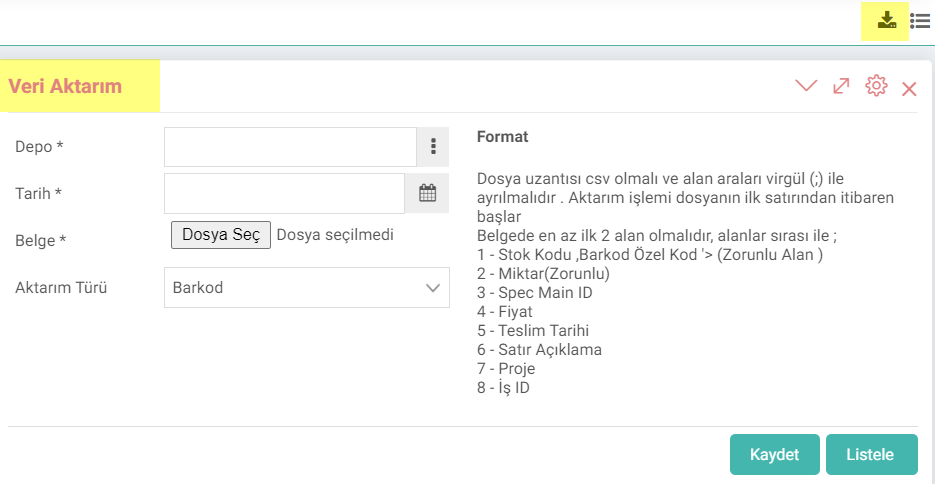
Document: In this field, select the document that contains the product information. The format of your document must be as stated above.
Transfer Type: Make the relevant selection according to the code in your document (stock code, barcode or special code).
After specifying the necessary information, when you click the "Save" button, you will be directed to the order adding page. You can proceed to order after detailed selections.
When you click on the “List” button, you can list the products in the document you have added. You can also turn it into an order after listing it.

Ek bilgiler, ekranlar üzerinde yapılan kayıtlara ait, o kayda ilişkin detay ya da spesifik olarak eklenmesi gereken bilgiler için kullanılan bir fonksiyondur.
Çalışanlar ihtiyacı olduğu ürünler için iç talep açabilir ya da proje bazlı işletmeler proje malzeme ihtiyaçlarını da bu sayfa üzerinden yönetebilir. Üretim yapan işletmeler de malzeme ihtiyaçlarını buradan yönetebilirler.
Çalışanlar ihtiyacı olduğu ürünler için iç talep açabilir ya da proje bazlı işletmeler proje malzeme ihtiyaçlarını da bu sayfa üzerinden yönetebilir. Üretim yapan işletmeler de malzeme ihtiyaçlarını buradan yönetebilirler.
Çalışanlar ihtiyacı olduğu ürünler için iç talep açabilir ya da proje bazlı işletmeler proje malzeme ihtiyaçlarını da bu sayfa üzerinden yönetebilir. Üretim yapan işletmeler de malzeme ihtiyaçlarını buradan yönetebilirler.
İş süreçlerinin tasarım ve akışlarını oluşturur.
Kaydedilen belgelerin çıktılarının alınması için kullanılır. Standart şablonlar seçilebilir ya da özel şablonlar eklenebilir, ayrıca şablonlar yetkiye bağlanabilir.
x_show_authorized_stage Filtrede ve Listede Sadece Yetkili Olunan Süreçler Gelsin
x_row_stage Satır bazında listelendiğinde süreç gösterilsin mi?
x_list_is_from_employee_id Talep Eden Alanında Sistemdeki Kullanıcı Gelsin
x_is_show_spec Satır Bazında Filtrelendiğinde Spec Adı Göster
x_list_deliverdate_row Satır Bazında Filtrelendiğinde Satır Teslim Tarihi Göster
x_is_show_unit Satır Bazında Filtrelendiğinde Ürün Birimlerini Göster
x_is_statu Satır ve Belge Bazında Listelenirken Durum Sütunu Gelsin
x_is_work Satır ve Belge Bazında Listelenirken İş Sütunu Gelsin
x_show_project_in Giriş Depo / Proje Filtresi Görüntülensin Mi ?
x_show_project_out Çıkış Depo / Proje Filtresi Görüntülensin Mi ?
x_basket_row_add_definition Satır Bazında Listeleme Yapıldığında Ek Tanımlar Gelsin
x_to_position Satır Bazında Talebi Yapan Gelsin
x_order_list Projeye ve Ürün Kategorisine Göre Sıralama Filtresi Görünsün
x_deliverdate Satır Bazında Tedarik Tarih Filtresi Görünsün
x_order_by Sıralama Tipi
xml_purchase_demand_button Satın Alma Talebi Oluştur Seçeneği Gelsin mi?
xml_production_demand_button Üretim Talebi Oluştur Seçeneği Gelsin Mi?
xml_sarf_fis_button Sarf Fişi Oluştur Seçeneği Gelsin mi?
xml_purch_order_button Satınalma Siparişi Oluştur Seçeneği Gelsin mi?
xml_purch_offer_button Satınalma Teklifi Oluştur Seçeneği Gelsin mi?
x_kalan_hesap Kalan Hesabı
x_list_is_from_department Departman Alanında Sistemdeki Kullanıcının Departmanı Gelsin
xml_purch_order_process_code Satır bazında işlem yapılabilir süreç aşamaları
Feedback
Domestic Demand Filtering
Edited Function: The situation that caused no results to appear when listing was made by filtering on a planning basis on the ERP > Sales-Distribution > Purchasing > Internal Requests listing page was resolved.
Basket Product Description
Edited Function: When selecting the "12-Price List Stock List" basket in the ERP > Sales-Distribution > Purchasing > Internal Requests and Purchase Orders business functions, Product description 2 information is reflected in the basket line.
Internal Requests Basket Settings
Edited Function:The situation where the basket bottom total fields could not be removed from the basket settings on the ERP > Sales-Distribution > Purchasing > Internal demands page has been fixed.
Self Service Operations company regulation
Edited Function: Arrangements were made in the wo detail of the Self-service operations > Other Transactions > Internal Requests business function. In this way, the linking of internal requests workflows, which are managed with a process structure in more than one company, has been improved.
Domestic Demand related transactions
Edited Function:ERP > Sales-Distribution > Purchasing > Internal Requests > Arrangements were made regarding the related processes function located in the internal demand detail and connected to XML.
Benefit: In this way, the process flows of internal requests entered not only from the internal demand list but also from self-service transactions were made visible.
Internal Request and Purchase Request Process Column
Added/Edited Function: When listed on a row basis in the ERP > Sales-Distribution > Purchasing and Internal Demand listing pages, the process column is displayed depending on the xml setting.
Usage: If "Show the process when listed on a row basis?" is selected as "Yes" in the listing xml settings, the process column will be opened.
Benefit: By enabling the process/stages shown on a document basis to be displayed on a row basis, the status of the relevant document can be tracked in row-based transactions.
Internal Demands
Added/Edited Function: The Requester column has been added to the ERP > Sales-Distribution > Purchasing > Internal Requests business function listing page.
What needs to be done for use: In the xml settings on the list page, "Let the Requester Come by Row" must be selected as "Yes".
Benefit: In this way, the requester and to whom columns are displayed together in one place on the my list page
Internal Request Listing
Added/Edited Function: In the ERP > Sales-Distribution > Purchasing > Internal demands business function, a product category column has been added to the line-by-line listing option on the Listing page.
Usage: When the search result is listed on the line-based internal demand listing page, access to the relevant information is provided in the category column in the table.
Benefit: Products in different categories at the procurement stage but purchased from the same supplier. By making a selection in the line, order or stock documents can be created. In this way, it makes it easier for users who do not have sufficient product technical knowledge to move on to the ordering stage by providing control over the category, even if they do not know the product details.
Domestic Demand Meeting Report
Edited Function:The situation that caused incorrect calculation in the remaining amount column of the Domestic demand meeting report, which is navigated through the row after filtering on the ERP > Sales-Distribution > Purchasing > Domestic Demands listing page, has been edited.