General Usage and Basic Settings
Workcube is 100% web based. It is used on internet browsers. There is no need for the user to install any applications. Workcube software works like a website. Users access and use the application easily using the username and password given to them. Users have different authorization levels. The first user always accesses the system with the Administrator role and enables other users to access the system by making some settings and definitions and giving them permissions to access the system.
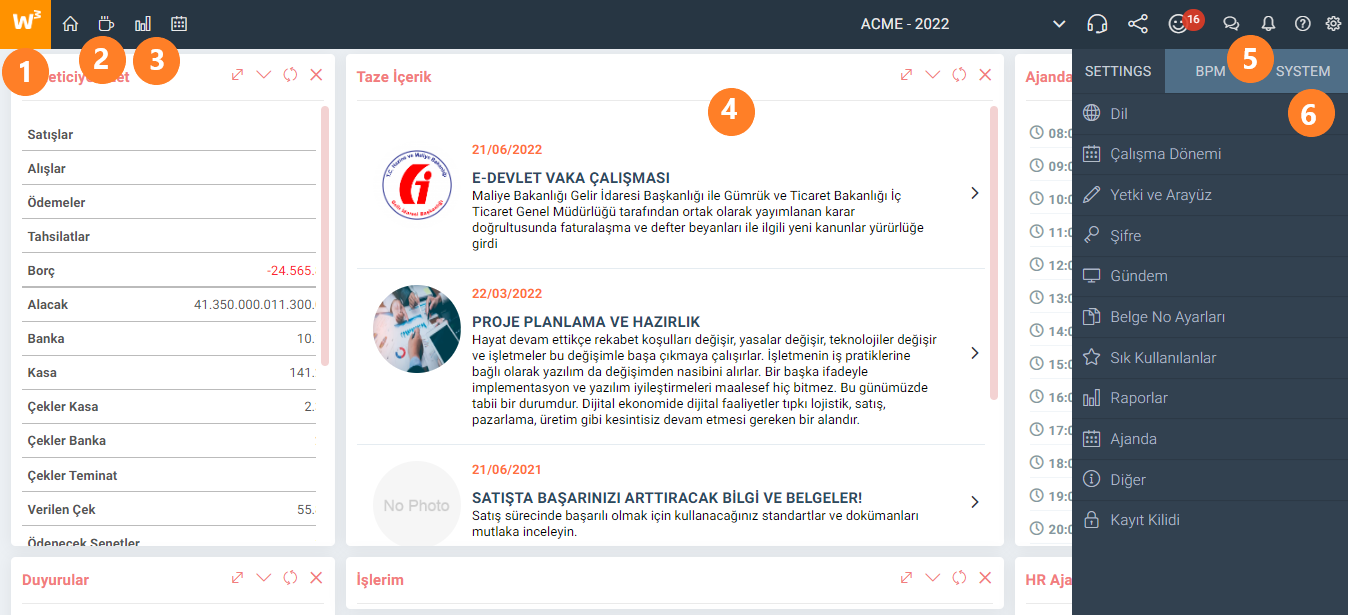
As can be seen in the picture above, the Workcube screen consists of 6 sections.
- Grouped Functions – Solutions/Families/Modules/Work Objects
- Intranet and Personalized Home Page
- Reports – Analytics Tools
- Body where All Functions work – Page
- Communication Tools
- System Management and Personal Settings
Entering Workcube
Open the web browser on your computer, tablet or smartphone that you use to enter Workcube. Type the web address provided by the system administrator into the address field in the browser. You will see a login screen as follows.
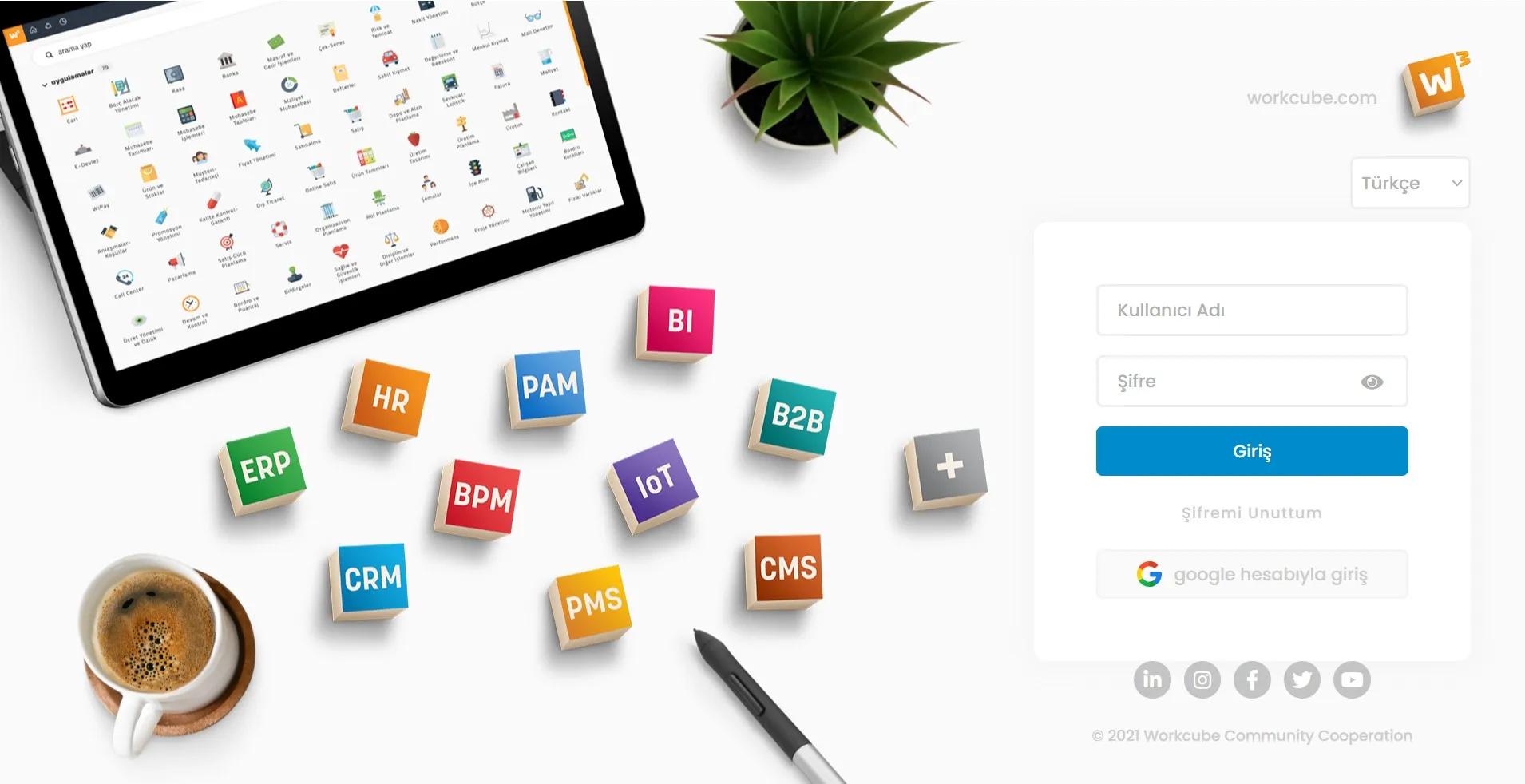
Type your username and password that your System Administrator has given you specifically and click the "Login" button. If you have a user in the system and your Gmail password is defined for this user, you can also log in with a Google account.
When you log in, the Agenda page, that is, your personal home page, will appear. You can change the username or password later by clicking Control Panel > Settings > Password tab. The password should not be shared with anyone. Sharing passwords poses risks for you and your business! If you forget your password, you can request a new password to your confirmed e-mail address by clicking the "Forgot My Password" link.
Home Page
Workcube welcomes you with your special home page. Users can view agenda, jobs, mails, orders, offers, etc. They can decide which of all the content they have access to within Workcube to see on their home pages. In this way, they can create their own agenda and follow the information summaries in the Widget-Box on their home page.
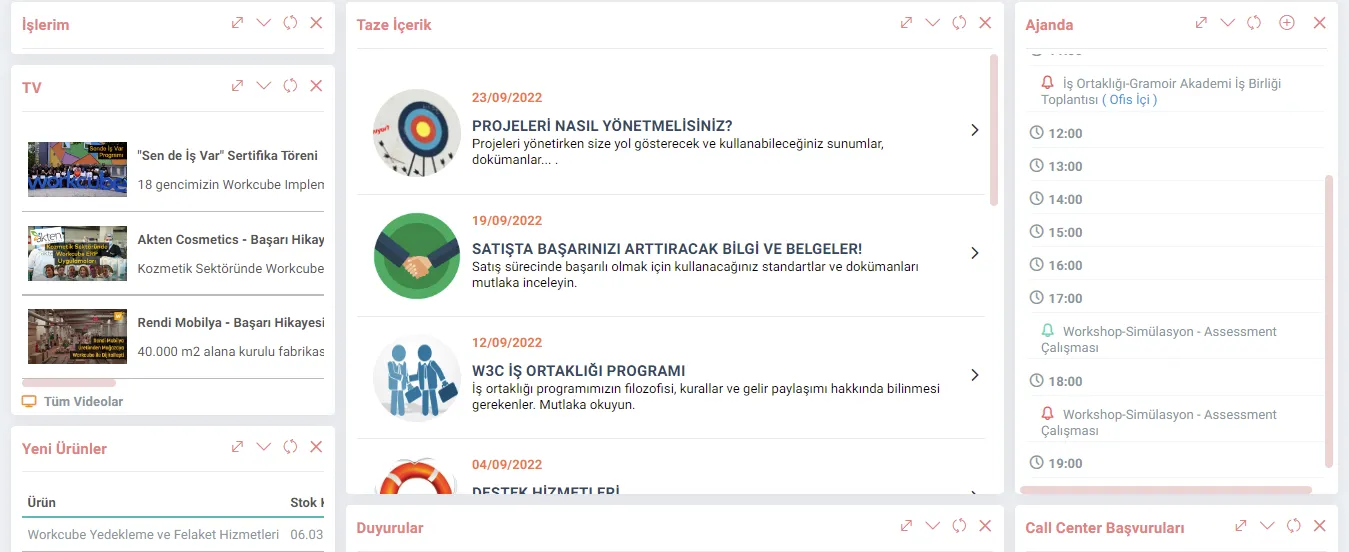
You can determine which fields are included or not by clicking the Control Panel > Settings > Agenda tab. You can also design the page as you wish using the drag and drop method on the agenda page.
To access your personal home page while in other modules or pages, you can click "Home Page-Agenda" next to the W3 logo in the upper left corner of the screen.
Access to Basic Business Functions and Authorizations
Workcube business functions are on the screen depending on user privileges. It is listed under menu .
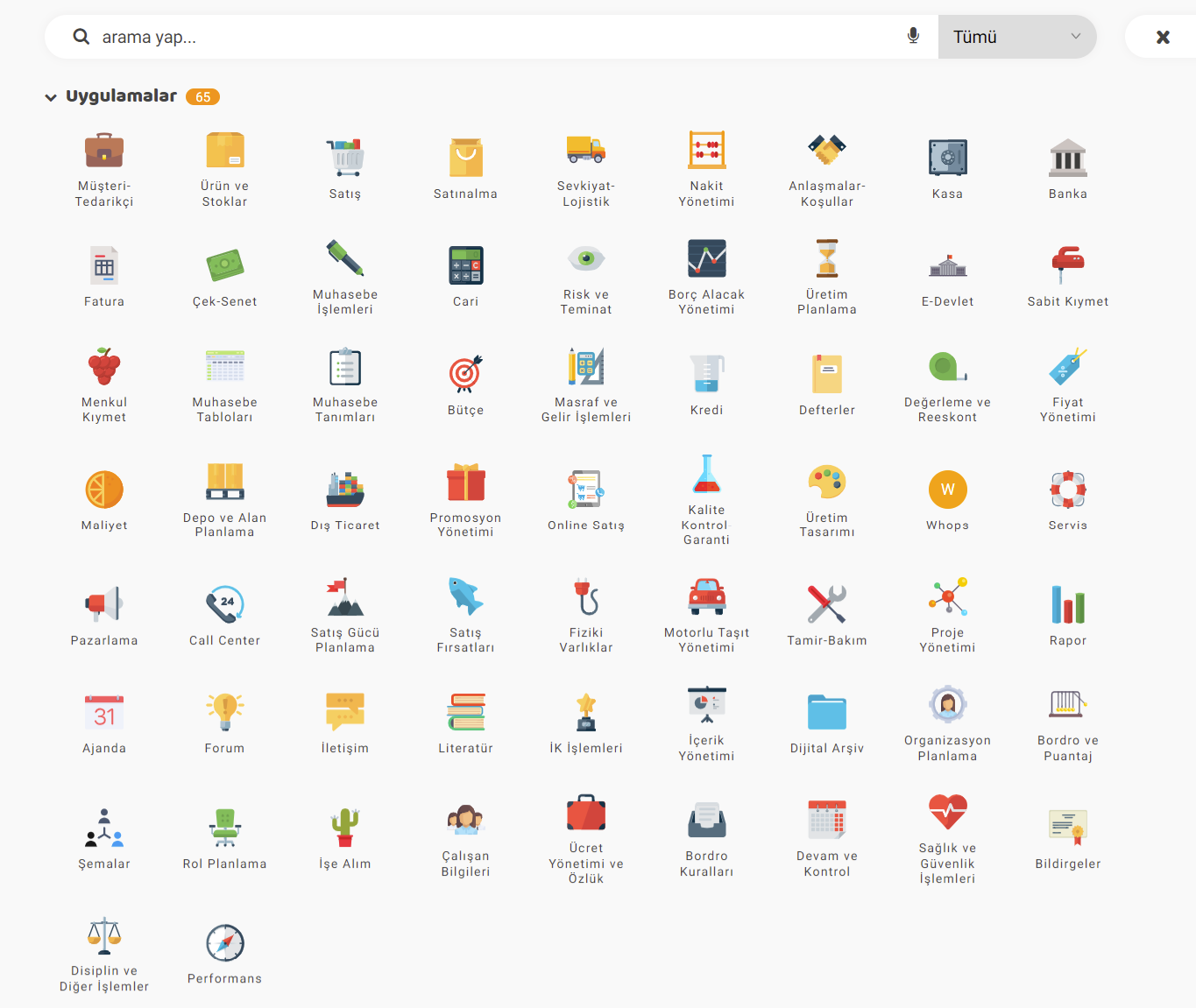
Workcube Business functions are grouped hierarchically as follows. > Solutions - Solutions In other words, business objects form modules, modules form business families, and business families form solutions. For example; There is a structure as ERP (Solution) > Finance & Accounting (Business Family) > Bank (Module) > Remittance (Business Function). Basically, this grouping is structured as "logic". Technically, a business function can be placed in another module if desired. Thanks to this feature, Workcube offers businesses or business partners who develop vertical solutions and create best practices the opportunity to create their own menu. These arrangements are made only by system administrators under Control Panel > System > Dev Tools > Menu Designer Users access the function they need by entering the menu in line with the permissions given to them, or they access the business functions by searching for a key word. |
Providing access to the right business functions to users with the right authorities in Workcube depends on the correct setting of Menu Management and Authorization Groups.
Recommendation
Strategic framework studies complete. In particular, Basic Workflow and QPIC-R canvases form the authorization basis of Workcube business functions. In Workcube, user also means employee. Employees are authorized according to their roles / positions. Each employee in which role accesses the system according to their role. Therefore, in order to use and authorize Workcube correctly, you should pay attention to organizational planning.
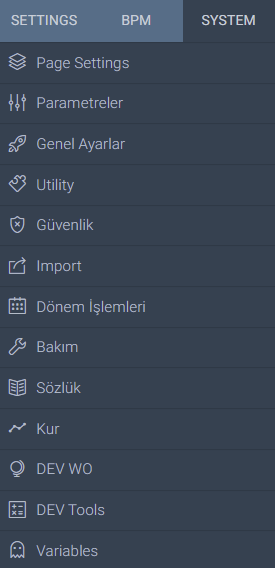 | Settings – Control Panel When you click on the Workcube control panel button, three tabs appear. Settings: Personal settings There are many links under the System Management and General Settings tab. These tabs and links are only visible to users authorized by the Admin-System General Manager. |

Sisteme güvenli giriş yapılabilmesi için istenilen algoritma da şifre belirleme ve yenileme işlemleri için kullanılır.
Önceden tanımlanmış ya da özelleştirilmiş otomatik çalışması istenen rapor vb. komutların tanımlandığı iş fonksiyonudur.
is_one_day Eğitim Tarih Aralığı Bir Gün Olsun
is_all_employee Doğum Günlerinde Tüm Çalışanlar Gelsin
is_daily_birthday Doğum Günleri Günlük Gelsin
is_first_content_pic Taze İçerikte Resim Gösterilsin
xml_is_my_members Üyelerim Linki Üye Modülü Yetkisine Baksın?
xml_is_salaried Kesilecek Faturalarda Ücretsiz Servis İrsaliyeleri
x_select_izin Uyarı Sayfasında İzin Kayıtları Gelsin mi?
x_select_avans Uyarı Sayfasında Avans Kayıtları Gelsin mi?
x_select_ajanda Uyarı Sayfasında Ajanda Kayıtları Gelsin mi?
x_select_order Satış Siparişleri
x_hr_agenda HR Ajandada Kullanılacak Mülakat ID
xml_show_offtime_days İzne Ayrılacaklar Kaç Gün Önceden Gösterilsin
x_show_visit_analyse_form Ajanda Ziyaret Formu Popup Olarak Açılsın
x_select_emp Talep Sayfalarında Çalışan Seçilebilsin mi?
xml_list_work İş Listesi Sıralaması
x_show_work_complete İşlerim de Kalan Zaman Yüzdesi Gelsin mi?
xml_work_cc Bilgi Verileceklerde İş Listesine Gelsin mi?
xml_multiple_comp Ajandada Çoklu Şirket Seçeneğine Göre Arama Yapsın mi?
xml_rel_pos İlişkili Çalışan İzin-Avans Talebi Yapabilsin mi?
xml_birthdate_permission Doğum günleri gündeme eklenebilsin mi?
xml_offtime_permission İzinler gündeme eklenebilsin mi?
x_control_ims Mikro Bölge Koduna Göre Listeleme Yapılsın mı?
x_control_rate_user Kur Bilgileri Kontrol Edilecek ve Uyarılacak Çalışan Idleri
x_control_rate_day Kur Bilgileri Kontrol Edilecek Gün Bilgisi
x_cognitive_menu_link_count Cognitive Menü Döndürülecek Bağlantı Sayısı
Feedback
Bu içerik tatmin edici değil.
Exchange rate warning on the Home Page
Added/Edited Function: The following xmls have been added to the home page page settings.
- Employee IDs whose Exchange Rate Information Will Be Checked and Warned
- Day Information for which the Exchange Rate Information Will Be Checked
What needs to be done for use: The relevant xml settings must be filled. If there is more than one user in the employee ID field, it must be entered with a comma. Since XML settings are made on a company basis, these XML definitions must be made for all companies to be used. Separate employee or different day information can be entered for each company.
Usage:When the employee ID and day information is entered, a warning will appear if exchange rate information is not available on the checked days. Warnings continue to appear on the home page until exchange rate information is defined according to the currencies defined in the relevant company.
Benefit: Thanks to this control, users will be warned if exchange rate information is not available for any reason, and incorrect transactions are prevented with the warning in foreign currency transactions.
A Beginner's Guide
Added/Edited Function:The "Guide for Beginners" box has been added to the Control Panel > Settings > Agenda settings.
What needs to be done for use: The relevant box must be opened from the Agenda page.
Benefit: With this guide, users can examine which documents they should read and the implementation steps before starting to use Workcube. Workcube was made easier to learn.
Ability to clean user browsers after Pull or Upgrade.
Added/Edited Function: When using Workcube, cookies, JS files and data stored in the browser are kept. After the upgrade, this data, called cache deletion, must be deleted. If the user has been upgraded after the last login date, he/she will receive a warning to reload the domain-website with the first login to the system after that date. If you click on reload, the site data is cleared and sent back to the user login page.
Benefit:In this way, if the caches are not deleted, a warning is given and the cache is automatically deleted.
Notes
The error received during the registration process in the notes box on the home page has been fixed.
Saturday option added for Weekend Day.
Control Panel > Settings >Saturday option added to Weekdays in Agenda
ENG
Added Saturday option to Weekdays in Dashboard > Settings > Agenda