Purchase Orders
Purchase Order is an official and binding document showing that a business undertakes to purchase the raw materials, semi-finished goods, commercial goods, services or fixtures it needs from its supplier for a certain quantity, price, payment condition and delivery date. After the purchase offer received from the supplier is approved, this document is created by the purchasing department and forwarded to the supplier. When the supplier accepts the order, the document becomes a binding contract between the two parties.
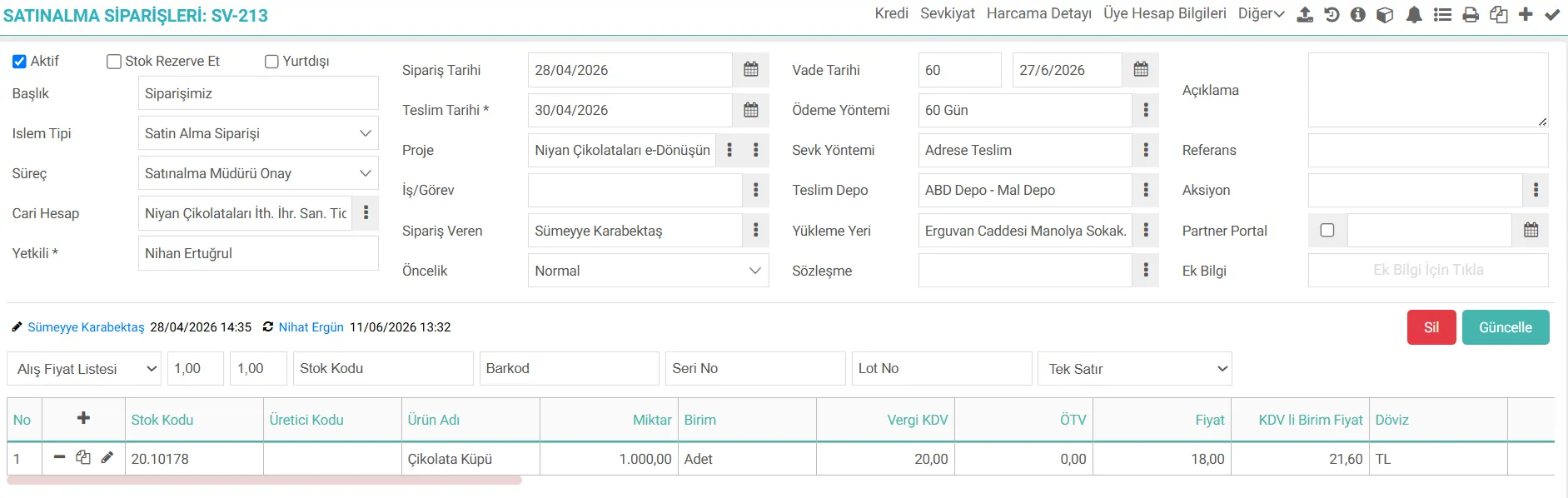
What are Workcube Purchase Orders?
It is a central business object that enables businesses to manage supplier relationships, material and service purchases in accordance with operational, financial and logistics standards. This object establishes a perfect data bridge between SD, CRM (Customer Relations), Warehouse/Stock Management, and Finance-Accounting modules in Workcube's end-to-end integrated architecture.
In Workcube architecture, purchase orders can be created directly from scratch, or they can be produced automatically by being fed from approved internal demands, supplier offers, or Project Material Requirements Plan screens. From the moment the order is approved, all basic data required for the warehouse acceptance processes and financial debiting processes of the relevant products are dynamically flowed through the order table.
The Importance of Purchase Orders Management for a Business
Accurate and complete management of purchase orders has a critical role in all operational and financial processes of the business:
Cost and Budget Control: Purchase orders enable the control of in-company budgets and the reflection of unrealized but committed debts in the finance/cash flow reports.
Supply and Stock Planning Compliance: Production planning and stock management tracks the quantities and dates of the products to be received through purchase orders. In this way, the risks of zero stock, going negative or excess stock accumulation are prevented.
Supplier Performance Management: Suppliers' on-time delivery rate, price stability and quantity deviations are analyzed through purchase order data.
Process Integration and Traceability: Purchase order; It connects the request, offer, delivery note, invoice and payment stages end-to-end. By performing two-way or three-way matching (Order - Delivery Note - Invoice), incorrect invoicing and duplicate payments are prevented.
Legal and Operational Assurance: The order document records the terms of the commercial agreement made with the supplier, providing a legal basis in case of possible disputes.
Process Flow / Life Cycle in Workcube
The entire life cycle of a purchase order from its inception in the system to its accounting is summarized in the flow chart below:
Stage | Related Module / Document | Description |
|---|---|---|
1. Creating Request | Internal Request / Project Materials | Departments or project managers enter the materials they need into the system. Approved requisitions fall to the purchasing unit. |
2. Collecting Offers | Purchase Offer | Prices and delivery conditions are collected from suppliers. The most suitable offer is approved by comparison on the system. |
3. Conversion to Order | Purchase Order | The approved offer or internal request is converted into an order document by adding supplier current account, payment plan and exchange rate information. |
4. Budget and Risk Control | Budget Compliance Control | The system compares the order amount with the relevant accounting period budget. If the limit is exceeded, it activates the approval mechanism. |
5. Approval and Delivery to Supplier | Process Phase | After the order is approved by the manager, it is sent to the supplier as PDF/E-Mail via WOC. |
6. Actual Acceptance (Delivery Note) | Purchase Delivery Note / Stock Acceptance | When the products arrive at the warehouse, a delivery note record is entered. Quantities on order lines are updated according to the delivery status "Short" or "Excess". |
7. Invoicing and Closing | Purchase Invoice | Lines that are dispatched or ordered directly are invoiced. The order status automatically changes to "Closed" (Manual/System). |
What Should You Pay Attention to When Managing Purchase Order Transactions?
To avoid incorrect stock records, incorrect cost calculations or financial disputes in the system, pay attention to the following points during order entry. should be:
A. Current (Supplier) Information and Working Conditions
Some agreements are made with the Supplier before purchasing. Supplier-Risk Limits are entered in line with these agreements. It is important to enter information such as payment terms, maturity, currency and exchange rate information in the Supplier-Risk information in order to progress the process correctly.
B. Product / Service and Quantity Details
Stock codes and product variants (color, size, specifications) must be verified to prevent wrong product selection. Since a product can be managed with more than one unit (Piece, KG, Parcel, etc.), the unit price multiplier must be compatible.
C. Price, Discount and Tax Conditions
Contract and List Price Compliance: It should be checked that product prices are transferred correctly from the defined supplier price list or active framework contract. Purchase discounts applied (item based or bottom discount) must be processed as the correct rate/amount. The compliance of additional taxes such as product-based VAT rates, withholding situations or SCT with the legislation and the agreement should be verified.
D. Delivery Date, Warehouse and Logistics Information
The exact date when the product is expected to enter the warehouse must be entered in the Delivery Date field. This date directly affects production and sales planning. Additionally, if desired, depending on the XML settings, the due date calculation can be made based on the entered delivery date. The correct warehouse/location where goods will be accepted must be selected. Especially if you are purchasing for a project or working on a branch basis, the branch and project areas must be full.
E. Approval Processes and Related Documents
If the order is opened based on a purchase requisition, internal demand or offer, the relevant document must be systematically linked to the order. Thus, process traceability is maintained. It must be ensured that the approval steps (Department Manager, Purchasing Manager, Finance, etc.) in accordance with the internal authority matrix via Workflow are completed and the order reaches the "Approved" status. Unapproved orders should not be transferred to the goods acceptance stage. Technical specifications, supplier offer forms or special notes should be added to the order detail.
Purchase Order Details
- Reserve Stock: Check this box to reserve the products you have specified in the order record from the existing stock. Thus, in the stock reservation information for this product, it will be displayed that it is reserved for the amount of your order.
- Credit: When a large amount of purchase is made, if a loan has been taken for this purchase, you can enter it directly on the page and associate which document the loan is for.
- Shipment: You can add the shipment information from the company you are purchasing from, so that you can record the way and how the goods arrived.
- Expenditure Detail: You can enter the expenses incurred for the relevant purchase order and link them to the budget.
- Member Account Information: You can directly access the supplier's information such as branch, bank, financial summary and approve/reject the order based on this information.
- Order Details: When you click on this icon, you can view or add documents related to the order, perform budget compliance checks, and view the financial summary. You can also access the order fulfillment report and order stock report from the order detail.

Ek bilgiler, ekranlar üzerinde yapılan kayıtlara ait, o kayda ilişkin detay ya da spesifik olarak eklenmesi gereken bilgiler için kullanılan bir fonksiyondur.
Tedarikçi cari hesap kontrolü, ürün stok kontrolü, satın alma indirim hesapları vb. işlemler ile birlikte verilen siparişler kaydedilir.
Tedarikçi cari hesap kontrolü, ürün stok kontrolü, satın alma indirim hesapları vb. işlemler ile birlikte verilen siparişler kaydedilir.
Tedarikçi cari hesap kontrolü, ürün stok kontrolü, satın alma indirim hesapları vb. işlemler ile birlikte verilen siparişler kaydedilir.
İş süreçlerinin tasarım ve akışlarını oluşturur.
Bu sayfanin cf_big_list_search'ü olusturulmustur.
Kaydedilen belgelerin çıktılarının alınması için kullanılır. Standart şablonlar seçilebilir ya da özel şablonlar eklenebilir, ayrıca şablonlar yetkiye bağlanabilir.
xml_dsp_ship_amount_info_ İrsaliyeleşen Miktar Bilgisi Gösterilsin
xml_dsp_record_emp_info_ Listede Kaydeden Gösterilsin
xml_dsp_project_info_ Listede Proje Bilgisi Gösterilsin
xml_dsp_process_info_ Listede Süreç Bilgisi Gösterilsin
xml_dsp_partner_info_ Listede Yetkili Bilgisi Gösterilsin
xml_dsp_row_other_money_ Ürün Dövizli Birim Fiyatı Gösterilsin
xml_dps_price_from_row_amount_ Ürün Sevk Miktarına Göre Tutar Hesaplaması Yapılsın
xml_show_branch Şube Gösterilsin
xml_zone_list Bölgeye Göre Filtreleme
xml_ref_no Referans No Bilgisi Gösterilsin
xml_deliver_date Teslim Tarihine Göre Filtreleme
xml_show_paymethod Ödeme Yöntemi Gösterilsin
xml_depart_loc Sadece Depoya Göre Filtreleme
Feedback
Purchase Order - Payment Plan
Added Function: "Automatic Update Payment Plan" has been added to the XML settings on the ERP > Sales-Distribution > Purchasing > Purchase Order page. When the XML setting is selected Yes, the existing payment plan is deleted. When No is selected, a warning is given when an update is requested. When you click OK on the incoming warning, it deletes it, and when you click on Cancel, it updates the payment plan without deleting it.
Benefit: In this way, payment plans in purchase orders are kept up-to-date.
Purchase Order Basket Settings
Added/Edited Function: Manufacturer code has been added to the ERP > Sales-Distribution > Purchase Orders basket.
What to do for use: Go to Page Designer while on the purchase order screen. It is updated by selecting the manufacturer column field in the basket settings.
Benefit: It is now possible to track the products supplied via the manufacturer code on pages such as internal demand and purchase request and transfer them to the order pages with the manufacturer code.
Purchase Orders Dispatch quantity display on a document basis
Added/Edited Function:"Show Delivery Note Quantity Information" has been added to the xml settings in the ERP > Sales-Distribution > Purchasing > Purchase Orders list.
What needs to be done for use: Xml must be selected as yes. When listed on a document basis, the lines that are dispatched in order items are shown as total quantity in the stage column. When listed on a row basis, the delivery note and remaining amount columns appear and a separate row-based display is provided.
Benefit: Ease of use has been achieved by displaying the dispatched orders and remaining quantities directly on the listing page.
Evaluation Forms
Evaluation forms widget area has been added to the purchase order document detail page. Evaluation forms created with the form generator can be used in this area.
workshare
Notifications and approvals made with Workshare were made visible on the warnings screen of the relevant page, as a whole. 13px; font-style: normal; font-variant-ligatures: normal; font-variant-caps: normal; font-weight: 400; letter-spacing: normal; orphans: 2; text-align: left; text-indent: 0px; text-transform: none; widows: 2; word-spacing: 0px; -webkit-text-stroke-width: 0px; white-space: normal; background-color: rgb(255, 255, 255); text-decoration-style: initial; display: inline !important; float: none;">otifications screen of the notifications and approvals in processes are displayed.
Purchase Orders
The notification message received on the purchase orders registration and update screens has been fixed.