Call Center Applications
Call center is the department that evaluates and resolves complaints, suggestions and requests coming to businesses and forwards them to the relevant units.
Path:CRM > Service-Garanti > Call Center > Call Center Applications
Call Center scope It is a large page. It varies depending on the sector and your usage.
Let's assume that you are a Technical Service; After reviewing the incoming call record, it can distinguish whether it is a usage aid or an error. If there is a problem, you can turn this call into a service request and direct it to the relevant unit.
If you have run a campaign, you can receive the returns through the Call Center and create opportunities based on the call.
Workcube allows Call Center employees to quickly manage customer, service, warranty and support accounts, etc. It offers a special interface that allows users to access information, save sales opportunities, take orders, answer questions and problems, record errors/problems, and develop cross and vertical sales.
Note: Before all operations, all parametric definitions related to the Call Center must be made in Control Panel > System > Parameters. You can review the Call Center Page Settings and Call Center Parametric Definitions documents.
Application Listing
You can list the applications by using the filtering fields on the Call Center Applications page. If you click the "More" button, the filtering options will expand.
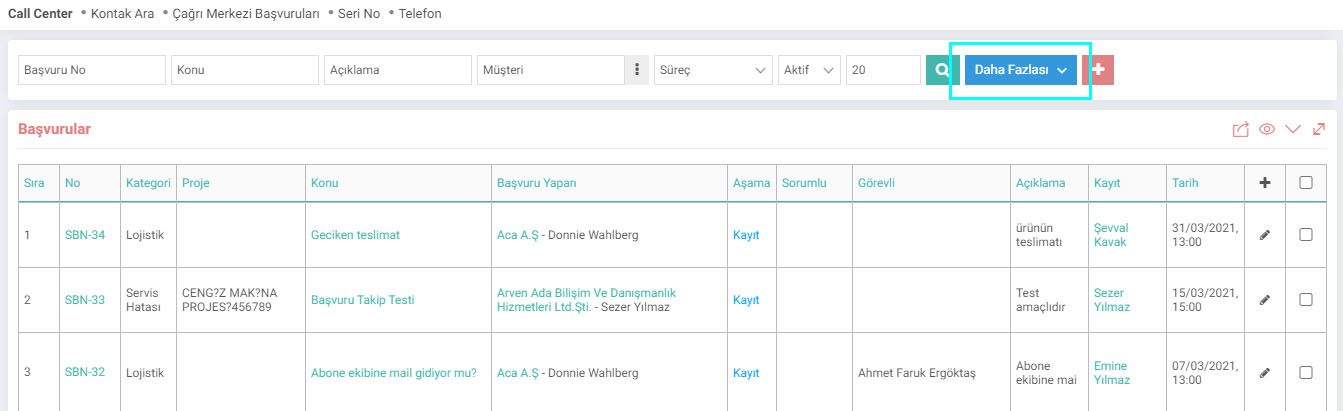
You can go to application details by clicking on the application number or subject. You can click the "+" icon to add a new reference, and click the "Update" icon at the end of the line to update the application.

You can download and print the application in excel, word, pdf, send an e-mail, and send it to the Workcube Output Center by selecting the box at the end of the applications and clicking on the marked icon.
Saving the Application
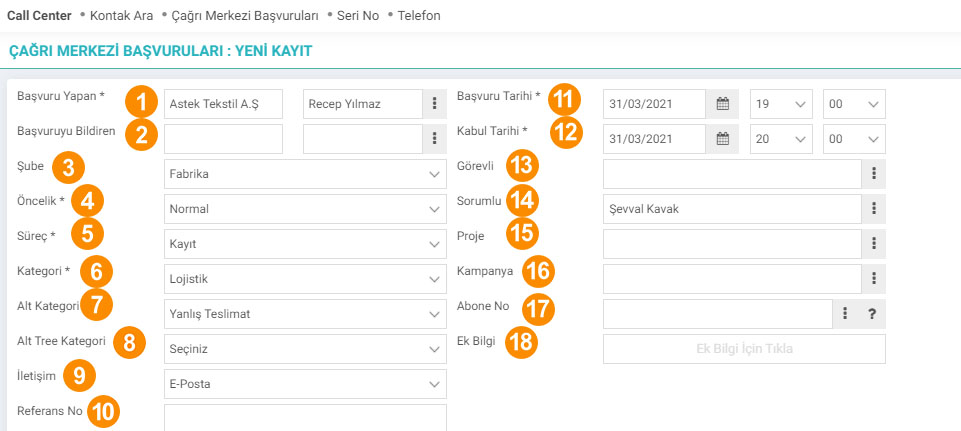
1-Applicant: The current applicant is selected.
2-Notifier of the Application: If the notifying person is different from the current one, this field
3-Branch: The branch from which the application is submitted is selected.
4-Priority: The urgency of the application is determined.
5-Process: We can understand at what stage the application is from here. For example; Open, request received, information provided, etc.
6-Category: The category of the application is selected.
7-Sub Category: The subcategory of the selected category is determined for the application.
8-Subtree Category: If the selected subcategory is defined, the subtree category is selected.
9-Contact: The communication method to be used throughout the application process is selected.
10-Reference No: Reference number can be added.
11-Application Date: It is assigned as the date of registration.
12-Acceptance. Date: It is assigned as the date when the registration took place.
13-Assigned: Assigned is the defined area.
14-Responsible: If the region is defined in the details of the selected client, the person responsible for that region becomes responsible.
15-Project: If the application is related to a project, the project is selected.
16-Campaign: If the application is related to a campaign, the campaign is selected.
17-Subscriber Number: Subscriber number is selected.
18-Additional Information: Additional information can be defined regarding the application. Additional information is managed on the Control Panel > System > Parameters > Additional Information page.
After filling in the relevant fields, the details of the application are written in the text box at the bottom;

Application Detail/Update;
Incoming applications are listed on the "Applications" page. To update the application, you can click on the "Update" icon at the end of the line. You will see the application detail page.
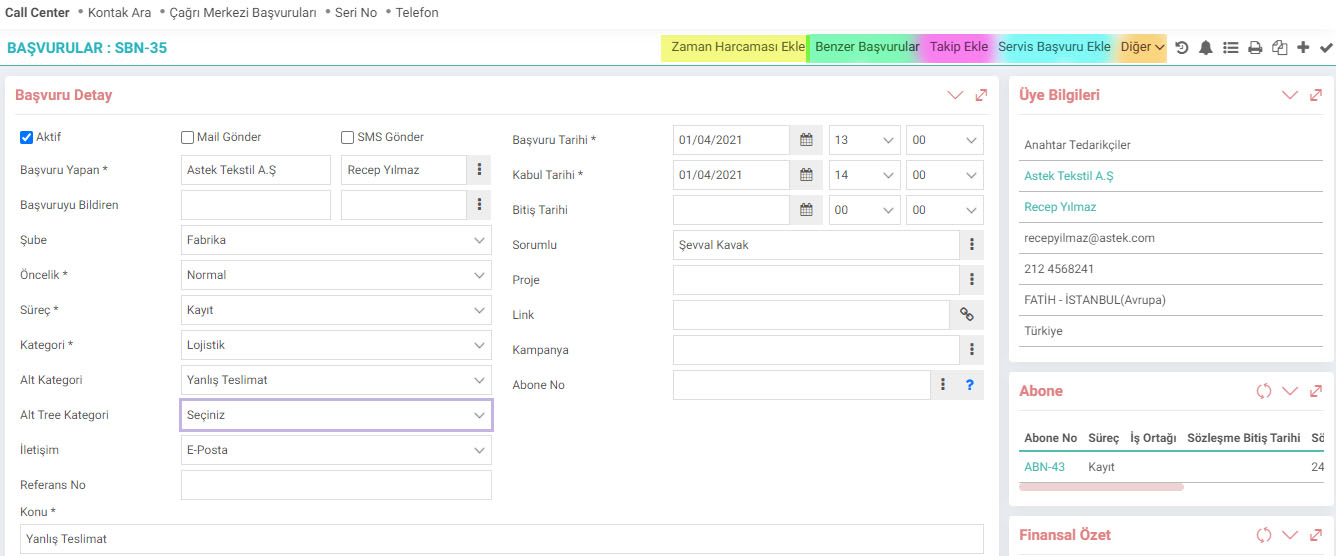
With the help of the links on the top right, you can do the following;
Add Time Expense;
If you enter a time expenditure, the concubine in the application assigns a time expenditure record to the subscriber and the project. In this way, you can see the time spent on the customer.
Similar Applications;
When you click on the similar applications link, you can see calls that are similar to the application from the popup that opens. (Returns calls similar to the subject name.)
Add Follow-Up;
Follow-up notes regarding the status of the application are entered in this field. The entered tracking notes are displayed at the bottom of the page.
Add Service Application;
This link directs you to the “Service Application New Registration” screen. You can open a service record from here.
Add Opportunity;
An opportunity record can be created regarding the application by clicking on the Other > Add Opportunity link. The added opportunities are located in the "Related Opportunities" section at the bottom right of the page.
On the right side of the page, there is "Member Information" of the member who made the application. Right below it, there are "Subscriber Information" and "Financial Summary" fields.
In the Documents section, you can associate the call with a document in the Digital Assets by clicking on the "search" icon, or by clicking on the "+" icon, you will be directed to the Digital Archive to add a new document.
Added opportunities are displayed in the Related Opportunities section.

The bottom part of the page shows the follow-ups and work related to the application;
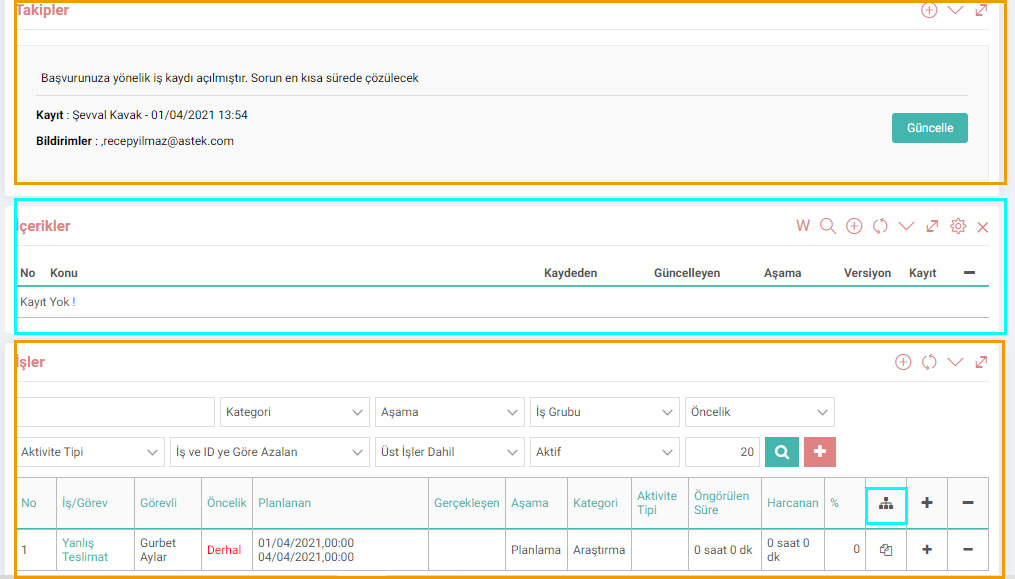
Follow-ups;
You can view the follow-up notes entered for the application from this area. You can enter a new follow-up by clicking on the “+” icon.
Content;
You can associate the application with a content by clicking on the “Search” icon, or if you want to add a new content, you can click on the “+” icon.
Jobs;
From this area, you can open a job record regarding the application and observe the status of the opened job record. Click on the marked icon to associate it with a previously opened job record.
Call Center Dashboard
Path: CRM > Service-Warranty > Call Center > Call Center Dashboard
Call Center Dashboard is a panel containing indicators regarding applications. It answers the following questions within the selected date range;
How many applications were received at which stages?
How many applications were received in which categories?
Who is the member who made the most applications?
The project that received the most applications Which one?
Who is responsible for the applications?
How much time is spent on the applications?


Ek bilgiler, ekranlar üzerinde yapılan kayıtlara ait, o kayda ilişkin detay ya da spesifik olarak eklenmesi gereken bilgiler için kullanılan bir fonksiyondur.
Çağrı Merkezi başvurularında kırılım kullanarak sınıflandırmak yapmak için kullanılır. Öncelikle şikayet alt kategorileri tanımlanmalıdır.
Çağrı Merkezi başvurularında kırılım kullanarak sınıflandırmak yapmak için kullanılır. Öncelikle şikayet kategorileri tanımlanmalıdır.
Çağrı merkezi başvurularında ilgili başvuruyu sınıflandırmak için kullanılır.
Belge şablonları bilgi kayıt, ekleme, cevap ve takip notlarının hızlı, kolay ve standart kalitede girilmesini sağlamak amacıyla kullanılır.
İşlerin önem düzeyine göre sınıflandırılması için tanımlanır.
Call Center çalışanlarının hızlı biçimde müşteri, servis, garanti ve destek hesapları vb. bilgilere ulaşmalarına, satış fırsatı kaydetmelerine, sipariş almalarına, soru ve problemleri cevaplamalarına, hata/sorunları kayıt altına almalarına, çapraz ve dikey satış geliştirmelerine imkan tanıyan özel bir arayüz sunar.
Call Center çalışanlarının hızlı biçimde müşteri, servis, garanti ve destek hesapları vb. bilgilere ulaşmalarına, satış fırsatı kaydetmelerine, sipariş almalarına, soru ve problemleri cevaplamalarına, hata/sorunları kayıt altına almalarına, çapraz ve dikey satış geliştirmelerine imkan tanıyan özel bir arayüz sunar.
İş süreçlerinin tasarım ve akışlarını oluşturur.
Kaydedilen belgelerin çıktılarının alınması için kullanılır. Standart şablonlar seçilebilir ya da özel şablonlar eklenebilir, ayrıca şablonlar yetkiye bağlanabilir.
x_show_authorized_stage Filtrede ve Listede Sadece Yetkili Olunan Süreçler Gelsin
xml_is_our_company Listede Sadece Kendi Şirketine Ait Başvurular Görünsün
xml_subscription_team Abone ekibi dışında kimse çağrılara ulaşmasın
xml_branch_ids Çağrıların tamamını görebilen şube ID'lerini giriniz
Feedback
WorkcubeSupport – Zeichenbeschränkung
Bearbeitete Funktion: Die Warnung zur Zeichenbeschränkung, die fälschlicherweise in Texten mit weniger als 1.000 Zeichen im 1.000 Zeichen langen Betrefffeld des Supportanfrage-Antragsformulars ausgelöst wurde, wurde behoben.
Anrufphase
Beim Versuch, den im Netzwerk geschlossenen Anruf insgesamt zu aktivieren, wurde die Warnung „Dieser Anruf wurde geschlossen, erstellen Sie eine neue Anwendung“ ausgegeben.