Repair-Maintenance Plans and Results
Repair-Maintenance Plans and Results allow you to make and manage regular maintenance plans for your physical assets. It allows you to easily view and monitor your maintenance plans from the maintenance calendar.
With these pages, you can create maintenance plans and easily enter maintenance results through the maintenance plans and maintenance calendar you have created.
You can make maintenance plans for physical assets, motor vehicles and IT assets within the company through this module, and you can also view them monthly, weekly and daily from the maintenance calendar.
Note: Before using Maintenance Management, it is necessary to make all parametric definitions to be used within the company regarding the Physical Assets in the Control Panel > System > Parameters.
Listing Maintenance Plans
Path: PAM > Assets > Repair-Maintenance > Repair-Maintenance Plans
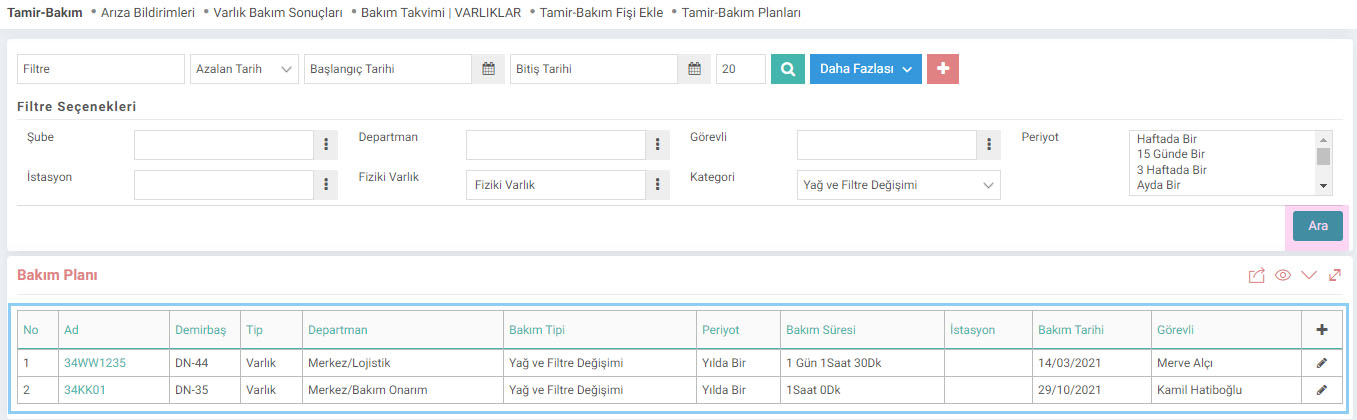
Start Date: Maintenance plans whose registration date is on the date you write here and after this date are listed.
End Date: Maintenance plans whose registration date is on and before the date you enter here are listed.
Period: You can search by entering the information on how often this maintenance is performed in the Period field.
Adding a New Maintenance Plan
Click the “+” button on the Maintenance Plan page to save a maintenance plan. The Add Maintenance Plan page will appear.

1-Click the icon next to the Assets field and select the asset to which you will add a maintenance plan from the drop-down list.
Note: In Control Panel > System > Page Settings , in XML settings, the "Add Maintenance to Entities?" option is marked as "All". If you do not want maintenance to be added to all assets, you can change this option to "IT Assets", "Physical Tools" or "Tools".
2-Maintenance Type You must select one of the maintenance types defined for the assets. Maintenance Types are defined on the Parameters > Maintenance Types page.
3-Record the date of maintenance in the Date field.
4-You must select the person responsible for the maintenance in the Personnel field.
5-Period Duration The period of the maintenance is selected from the field.
6-The km period in which the maintenance will be carried out is entered in the Period / Km field.
7-The day, hour and minute information on which the maintenance will last is determined in the Duration field.
8-You can enter the station where maintenance will be performed in the Station field.
9-You can add a maintenance plan process to the Process field.
10-An explanation about the maintenance plan in the Description field.
After filling in the fields, complete the registration process by clicking the "Save" button.
Updating Maintenance Plan
To make any changes and update the maintenance plan, click the "Update" icon to the right of the maintenance records.

After saving the maintenance plan, the screen will appear as above. You can enter and view maintenance results from this page.
Maintenance Results
The maintenance results page is used to add the results of related maintenance. When the page is first opened, it opens as a filtering page.
Path: PAM > Assets > Repair-Maintenance > Asset Maintenance Results
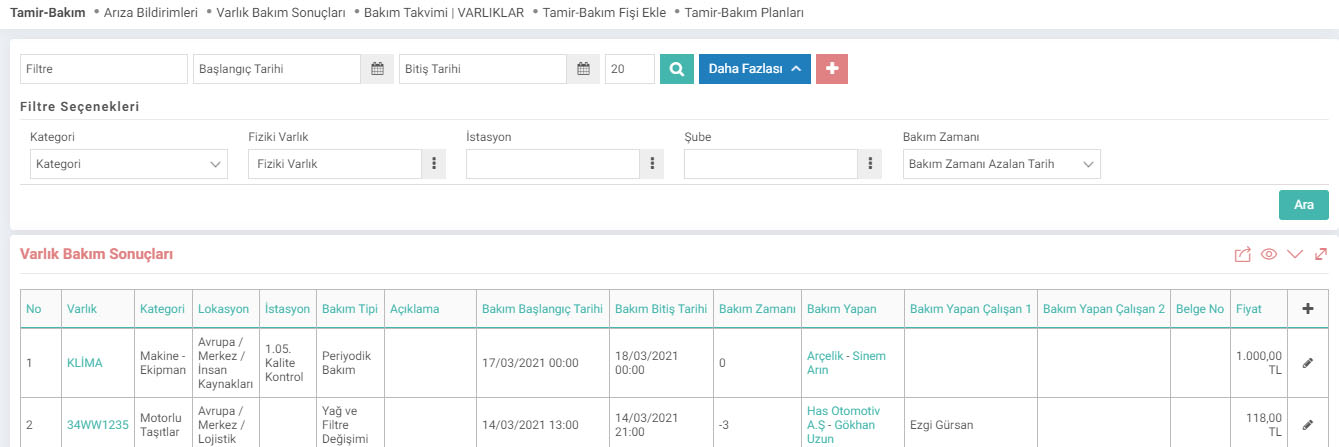
Maintenance Time field Maintenance End Date Shows the difference between and Maintenance Start Date .
If you want to see how much time has passed since the last maintenance, you must select "Maintenance Time on the List Page Bring Difference Between Maintenance End Date and Today's Day" to yes in the XML settings on the page.
New Adding Maintenance Result
To add maintenance result, click the "+" icon on the list page. The Add New Maintenance Result screen will appear.

The Maintenance Transaction Type field is used for the asset maintenance type. If "Legal Maintenance" is selected, the maintenance performed means that the legal maintenance process of the asset has been completed. Maintenance types come according to Legal and Regular Maintenance. At the same time, if Legal Maintenance is selected, the "Policy Number" field will appear to be filled in.
Type: You can determine the Legal/Normal maintenance transaction type in the definition made under Control Panel > System > Parameters > Maintenance Type .
Insurance The Payment field is used to indicate whether the maintenance performed is an insurance payment.
The Maintenance Item field is located at the bottom of the maintenance result page. To add a Maintenance Item, you must click on the "+" icon on the right side of the fields.
Maintenance Result Update Page
To access the “Maintenance Result Update” page, click on the “Update” icon to the right of the records on the page where the Maintenance Results are listed.
The asset being maintained via the Maintenance Result Update Page. If there are components, they are listed. At the same time, documentation can be added after the maintenance result is completed.

Yapılacak bakımların sınıflandırılmasını sağlar.
Belge tipi/türü kavramı temel olarak Workcube üzerinde yapılan herhangi bir kaydın dayandığı kaynak belgeleri sınıflandırmak ve izlemek için kullanılır.
Yapılan bakımlarda yapılan işlemlerin sonuçlarını girmek için kullanılır.
Kaydedilen belgelerin çıktılarının alınması için kullanılır. Standart şablonlar seçilebilir ya da özel şablonlar eklenebilir, ayrıca şablonlar yetkiye bağlanabilir.
İş süreçlerinin tasarım ve akışlarını oluşturur.
xml_required_document_type Belge Tipi
xml_show_care_process_type_and_document_no Bakım İşlem Tipleri ve Belge No/ Poliçe No Gelsin
xml_add_station_info İstasyon Bilgisi Gelsin
xml_show_project Proje Gelsin
xml_show_care_employee Bakım Yapan Çalışan Gelsin
xml_show_care_employee2 Bakım Yapan Çalışan 2 Gelsin
xml_show_tax_expense Kdvli Toplam Tutar Gelsin
xml_show_is_guaranty Sigorta Ödeme Bilgileri Gelsin
xml_show_care_rows Bakım Kalemleri Gelsin
xml_datediff_finish_and_now Liste Sayfasında Bakım Zamanına Bakım Bitiş Tarihi ile Bugünün Farkını Getir