Phone
CRM › Call Center › Call Center
Web Phone
CRM › Call Center › Call Center
Search Contact
CRM › Call Center › Call Center
Call Center Applications
CRM › Call Center › Call Center
Call Center Report
CRM › Call Center › Call Center
Call Center Dashboard
CRM › Call Center › Call Center
Complaint Categories Collective Authority
CRM › Call Center › Call Center
Complaint Categories
CRM › Call Center › Call Center
Complaint Sub Categories
CRM › Call Center › Call Center
Complaint Sub-Tree Categories
CRM › Call Center › Call Center
Interaction Categories
CRM › Call Center › Call Center
Product Return - Reject Categories
CRM › Call Center › Call Center
Product Return Categories
CRM › Call Center › Call Center
Sales Regions
CRM › Sales and Marketing › Sales Force Management
Sales Teams
CRM › Sales and Marketing › Sales Force Management
Non-Sale Targets
CRM › Sales and Marketing › Sales Force Management
Sales Quotas and Premiums
CRM › Sales and Marketing › Sales Force Management
Annual Revenue Targets
CRM › Sales and Marketing › Sales Force Management
Visit Results
CRM › Sales and Marketing › Sales Opportunities
Interactions
CRM › Sales and Marketing › Sales Opportunities
Visit
CRM › Sales and Marketing › Sales Opportunities
Opportunities
CRM › Sales and Marketing › Sales Opportunities
BSC Report
CRM › Sales and Marketing › Sales Opportunities
Detailed Opportunity Report
CRM › Sales and Marketing › Sales Opportunities
CRM Dashboard
CRM › Sales and Marketing › Sales Opportunities
Opportunity Density
CRM › Sales and Marketing › Sales Opportunities
Reasons to choose competitor
CRM › Sales and Marketing › Sales Opportunities
Visit Reasons
CRM › Sales and Marketing › Sales Opportunities
Opportunity Categories
CRM › Sales and Marketing › Sales Opportunities
Visit Stages
CRM › Sales and Marketing › Sales Opportunities
Opportunity Stages
CRM › Sales and Marketing › Sales Opportunities
Probability Rate
CRM › Sales and Marketing › Sales Opportunities
Visit Result
CRM › Sales and Marketing › Sales Opportunities
Visit Category
CRM › Sales and Marketing › Sales Opportunities
SendGrid - Undelivered Emails
CRM › Sales and Marketing › Marketing
Campaigns
CRM › Sales and Marketing › Marketing
Events
CRM › Sales and Marketing › Marketing
Event Calendar
CRM › Sales and Marketing › Marketing
Campaign Targets
CRM › Sales and Marketing › Marketing
Target Groups
CRM › Sales and Marketing › Marketing
Account Analysis Forms
CRM › Sales and Marketing › Marketing
Surveys
CRM › Sales and Marketing › Marketing
Posts
CRM › Sales and Marketing › Marketing
E-Mail List
CRM › Sales and Marketing › Marketing
List Manager
CRM › Sales and Marketing › Marketing
Mail List Import
CRM › Sales and Marketing › Marketing
Campaign Team Roles
CRM › Sales and Marketing › Marketing
Campaign Categories
CRM › Sales and Marketing › Marketing
Campaign Sub Categories
CRM › Sales and Marketing › Marketing
Mail List Categories
CRM › Sales and Marketing › Marketing
Event Categories
CRM › Sales and Marketing › Marketing
CRM Agenda
CRM › Sales and Marketing › Contacts
Warranty and Product Tracking
CRM › Services & Warranties › Services
Service Applications
CRM › Services & Warranties › Services
Service Operations
CRM › Services & Warranties › Services
Service Delivery Note
CRM › Services & Warranties › Services
Maintenance Plans
CRM › Services & Warranties › Services
Service Maintenance Results
CRM › Services & Warranties › Services
Service Schedule
CRM › Services & Warranties › Services
Service Work Groups
CRM › Services & Warranties › Services
Detailed Service Analysis Report
CRM › Services & Warranties › Services
Service Maintenance Categories
CRM › Services & Warranties › Services
Activities
CRM › Services & Warranties › Services
Application Categories
CRM › Services & Warranties › Services
Failure Codes
CRM › Services & Warranties › Services
Service Sub Status
CRM › Services & Warranties › Services
Support Categories
CRM › Services & Warranties › Services
Service Special Definition
CRM › Services & Warranties › Services
Accessory
CRM › Services & Warranties › Services
Physical Damage
CRM › Services & Warranties › Services
Warranty Period
CRM › Services & Warranties › Services
Application Subcategories
CRM › Services & Warranties › Services
Application Sub-Tree Categories
CRM › Services & Warranties › Services
Product Service Operations
CRM › Services & Warranties › Services
Organization Region
HR › Planning › Organization Planning
Top Level Units
HR › Planning › Organization Planning
Companies
HR › Planning › Organization Planning
Branch Offices
HR › Planning › Organization Planning
Departments
HR › Planning › Organization Planning
Work Groups
HR › Planning › Organization Planning
Organization Planning
HR › Planning › Organization Planning
Organization Simulator
HR › Planning › Organization Planning
HR Dashboard
HR › Planning › Organization Planning
Department Transfer
HR › Planning › Organization Planning
Branch Office Transfer
HR › Planning › Organization Planning
Copy Branch Office
HR › Planning › Organization Planning
Branch Offices
HR › Planning › Organization Planning
Departments
HR › Planning › Organization Planning
Top Level Units
HR › Planning › Organization Planning
Branch Office Types
HR › Planning › Organization Planning
Work Group Types
HR › Planning › Organization Planning
Department Categories
HR › Planning › Organization Planning
Department Types
HR › Planning › Organization Planning
Roles-Positions
HR › Planning › Role Planning
Supervisors and Backups
HR › Planning › Role Planning
Job Definitions
HR › Planning › Role Planning
Permanent Staff
HR › Planning › Role Planning
Permanent Staff Vacancies/Excess
HR › Planning › Role Planning
Promotion and Rotation Requests
HR › Planning › Role Planning
Employees Eligible for Qualifications
HR › Planning › Role Planning
Competencies
HR › Planning › Role Planning
Mandates
HR › Planning › Role Planning
Mass Position Change
HR › Planning › Role Planning
Position Transfer
HR › Planning › Role Planning
Import: Position Change
HR › Planning › Role Planning
Title Transfer
HR › Planning › Role Planning
Position Types Transfer
HR › Planning › Role Planning
Permanent Staff Revenue Transfer
HR › Planning › Role Planning
Permanent Staff Cost Transfer
HR › Planning › Role Planning
Organizational Levels
HR › Planning › Role Planning
Transfer Position Tasks
HR › Planning › Role Planning
Mass Position Change
HR › Planning › Role Planning
Functions - Units
HR › Planning › Role Planning
In-house Reasons
HR › Planning › Role Planning
Organizational Levels
HR › Planning › Role Planning
Service Classes
HR › Planning › Role Planning
Service Titles
HR › Planning › Role Planning
Position Names
HR › Planning › Role Planning
Position Types
HR › Planning › Role Planning
Titles
HR › Planning › Role Planning
Employees
HR › Planning › Employee Information
Detailed Employee Analysis Report
HR › Planning › Employee Information
Family Status Decleration Report
HR › Planning › Employee Information
Education and Experience Report
HR › Planning › Employee Information
Survey Report
HR › Planning › Employee Information
Detailed Survey Report
HR › Planning › Employee Information
HR Agenda
HR › Planning › Employee Information
Pleven MFA Settings
HR › Planning › Employee Information
Employee Transfer
HR › Planning › Employee Information
Employee Bank Information Transfer
HR › Planning › Employee Information
Employee Relative Transfer
HR › Planning › Employee Information
Import: Employee Trainings Info
HR › Planning › Employee Information
Contact Person
HR › Planning › Employee Information
Employee supervisor transfer
HR › Planning › Employee Information
Edit Employee Password
HR › Planning › Employee Information
Universities
HR › Planning › Employee Information
High School Departments
HR › Planning › Employee Information
Identity Card Categories
HR › Planning › Employee Information
Knowledge Level
HR › Planning › Employee Information
Languages
HR › Planning › Employee Information
Undergraduate Departments
HR › Planning › Employee Information
Hobbies
HR › Planning › Employee Information
Competency Certificate Category
HR › Planning › Employee Information
Levels of Education
HR › Planning › Employee Information
Computer Knowledge
HR › Planning › Employee Information
Reference Types
HR › Planning › Employee Information
Work Type
HR › Planning › Employee Information
Foreign Language Documents
HR › Planning › Employee Information
Foreign Language Allowance Indicator Number
HR › Planning › Employee Information
Group Presidency
HR › Planning › Organizational Charts
Organizational Chart
HR › Planning › Organizational Charts
Organization General Scheme
HR › Planning › Organizational Charts
Organization Business Group - Schema
HR › Planning › Organizational Charts
Resume
HR › Recruitment › Recruitment
Search CV Application
HR › Recruitment › Recruitment
HR Job Postings
HR › Recruitment › Recruitment
HR Applications
HR › Recruitment › Recruitment
Selection Lists
HR › Recruitment › Recruitment
Personnel Requests
HR › Recruitment › Recruitment
Designation Promotional Forms
HR › Recruitment › Recruitment
Appointments – Promotions
HR › Recruitment › Recruitment
Orientation Trainings
HR › Recruitment › Recruitment
Evaluation Form Approval
HR › Recruitment › Recruitment
Candidates Assessment Report
HR › Recruitment › Recruitment
CV Report
HR › Recruitment › Recruitment
CV Report
HR › Recruitment › Recruitment
CV Transfer
HR › Recruitment › Recruitment
CV Evaluation Categories
HR › Recruitment › Recruitment
CV Branch Categories
HR › Recruitment › Recruitment
Advert Groups
HR › Recruitment › Recruitment
CV Source
HR › Recruitment › Recruitment
Timekeeping Import Trasactions
HR › Personnel-Payroll › Payroll
Payroll
HR › Personnel-Payroll › Payroll
Create Employment Declaration File
HR › Personnel-Payroll › Payroll
Create Output Declaration File
HR › Personnel-Payroll › Payroll
Create Employment Agency Declaration File
HR › Personnel-Payroll › Payroll
Payroll
HR › Personnel-Payroll › Payroll
Timekeeping
HR › Personnel-Payroll › Payroll
Salaries - Allowances
HR › Personnel-Payroll › Payroll
Job Entry - Exit
HR › Personnel-Payroll › Payroll
Employee Summary Sheet
HR › Personnel-Payroll › Payroll
Complementary - Dynamic Output
HR › Personnel-Payroll › Payroll
Leaves
HR › Personnel-Payroll › Payroll
Additional Allowances
HR › Personnel-Payroll › Payroll
Deductions
HR › Personnel-Payroll › Payroll
Tax Exemptions
HR › Personnel-Payroll › Payroll
Executions for Debts
HR › Personnel-Payroll › Payroll
Payroll Disapprovals
HR › Personnel-Payroll › Payroll
Employee Account Statement
HR › Personnel-Payroll › Payroll
Bank Payment Orders
HR › Personnel-Payroll › Payroll
Leave Reconciliation
HR › Personnel-Payroll › Payroll
Import Transactions
HR › Personnel-Payroll › Payroll
Individual Pension System - Automation
HR › Personnel-Payroll › Payroll
Travel Allowances
HR › Personnel-Payroll › Payroll
Overtime Report
HR › Personnel-Payroll › Payroll
Additional Allowance Report
HR › Personnel-Payroll › Payroll
Automatic IPS Report
HR › Personnel-Payroll › Payroll
Employee Salary Transfer
HR › Personnel-Payroll › Payroll
Work Hours Import
HR › Personnel-Payroll › Payroll
Employee Social Security Carryforward Transfer
HR › Personnel-Payroll › Payroll
Cumulative Tax Base Transfer
HR › Personnel-Payroll › Payroll
Employee Leave Days for Prior Period
HR › Personnel-Payroll › Payroll
Import: Employment
HR › Personnel-Payroll › Payroll
Import: Employee Profession Code
HR › Personnel-Payroll › Payroll
Monthly Average Net Salary Transfer
HR › Personnel-Payroll › Payroll
Remote Work Transfer
HR › Personnel-Payroll › Payroll
Minimum Wage Cumulative Tax Base
HR › Personnel-Payroll › Payroll
E-Account Transfers
HR › Personnel-Payroll › Payroll
Current Account Types
HR › Personnel-Payroll › Payroll
Travel Allowance Rules
HR › Personnel-Payroll › Payroll
Travel Allowance Parameters
HR › Personnel-Payroll › Payroll
Individual Pension System - Rates
HR › Personnel-Payroll › Payroll
Project Allowance Account
HR › Personnel-Payroll › Salary Management and Personnel Affairs
Salaries - Allowance Information | Display
HR › Personnel-Payroll › Salary Management and Personnel Affairs
Overtimes
HR › Personnel-Payroll › Salary Management and Personnel Affairs
Deductions
HR › Personnel-Payroll › Salary Management and Personnel Affairs
Leaves and Seniority
HR › Personnel-Payroll › Salary Management and Personnel Affairs
Advance Requests
HR › Personnel-Payroll › Salary Management and Personnel Affairs
Installment Advance Requests
HR › Personnel-Payroll › Salary Management and Personnel Affairs
Employee Entry-Exit
HR › Personnel-Payroll › Salary Management and Personnel Affairs
Employee Summary Sheet
HR › Personnel-Payroll › Salary Management and Personnel Affairs
Collective Salary Adjustments
HR › Personnel-Payroll › Salary Management and Personnel Affairs
Seniority Details
HR › Personnel-Payroll › Salary Management and Personnel Affairs
Travel Requests
HR › Personnel-Payroll › Salary Management and Personnel Affairs
Detailed Salary Analysis
HR › Personnel-Payroll › Salary Management and Personnel Affairs
Permission - Severance - Notice Pay Report
HR › Personnel-Payroll › Salary Management and Personnel Affairs
Salary Management Report
HR › Personnel-Payroll › Salary Management and Personnel Affairs
Execution Process Report
HR › Personnel-Payroll › Salary Management and Personnel Affairs
R&D tax statement/declaration report
HR › Personnel-Payroll › Salary Management and Personnel Affairs
Workplace Summary Sheet
HR › Personnel-Payroll › Salary Management and Personnel Affairs
Execution Process Report
HR › Personnel-Payroll › Salary Management and Personnel Affairs
Leave and Excuse Categories
HR › Personnel-Payroll › Salary Management and Personnel Affairs
Payroll Flow Parameters
HR › Personnel-Payroll › Payroll Rules
Wage Rules
HR › Personnel-Payroll › Payroll Rules
Additional Allowance Definitions
HR › Personnel-Payroll › Payroll Rules
Deduction Definitions
HR › Personnel-Payroll › Payroll Rules
Tax Exception Definitions
HR › Personnel-Payroll › Payroll Rules
Leave Period
HR › Personnel-Payroll › Payroll Rules
Banks | HR
HR › Personnel-Payroll › Payroll Rules
Bank Branch Offices | HR
HR › Personnel-Payroll › Payroll Rules
Employee Groups
HR › Personnel-Payroll › Payroll Rules
Employee Accounting Definitions | HR
HR › Personnel-Payroll › Payroll Rules
Accounting Account Groups
HR › Personnel-Payroll › Payroll Rules
Project Accounting and Budget Allocation Ratios
HR › Personnel-Payroll › Payroll Rules
Expense Item Categories
HR › Personnel-Payroll › Payroll Rules
Expense Items
HR › Personnel-Payroll › Payroll Rules
Expense Center
HR › Personnel-Payroll › Payroll Rules
Foreign Currency Equivalents
HR › Personnel-Payroll › Payroll Rules
Branch Office Social Security Details Report
HR › Personnel-Payroll › Payroll Rules
Wage Rules
HR › Personnel-Payroll › Payroll Rules
Profession Codes
HR › Personnel-Payroll › Payroll Rules
Tax Statement/Declaration
HR › Personnel-Payroll › Declarations
SSI Monthly Declaration
HR › Personnel-Payroll › Declarations
E-Declaration
HR › Personnel-Payroll › Declarations
SSI Monthly Declaration
HR › Personnel-Payroll › Declarations
SSI E-Declaration XML Files
HR › Personnel-Payroll › Declarations
Social Security Missing Day Decleration (Appx.10)
HR › Personnel-Payroll › Declarations
Social Security Missing Day Decleration (Appx.10)
HR › Personnel-Payroll › Declarations
Statement of Employment
HR › Personnel-Payroll › Declarations
Statement of Employment
HR › Personnel-Payroll › Declarations
Employee Termination Declaration (SSI)
HR › Personnel-Payroll › Declarations
Employee Termination Declaration (SSI)
HR › Personnel-Payroll › Declarations
Employee Exit List
HR › Personnel-Payroll › Declarations
Employee Exit List
HR › Personnel-Payroll › Declarations
Employee Declaration List
HR › Personnel-Payroll › Declarations
Employee Declaration List
HR › Personnel-Payroll › Declarations
SSI Superindentent Declaration
HR › Personnel-Payroll › Declarations
SSI Superindentent Declaration
HR › Personnel-Payroll › Declarations
Workplace Declaration
HR › Personnel-Payroll › Declarations
Workplace Declaration
HR › Personnel-Payroll › Declarations
Batch Time Spending
HR › Personnel-Payroll › Attendance and Control
Shifts
HR › Personnel-Payroll › Attendance and Control
Shift Calculation
HR › Personnel-Payroll › Attendance and Control
Overtime
HR › Personnel-Payroll › Attendance and Control
EATS List
HR › Personnel-Payroll › Attendance and Control
EATS Status
HR › Personnel-Payroll › Attendance and Control
Branch Office Based EATS
HR › Personnel-Payroll › Attendance and Control
Import EATS
HR › Personnel-Payroll › Attendance and Control
Daily EATS
HR › Personnel-Payroll › Attendance and Control
EATS Notifications
HR › Personnel-Payroll › Attendance and Control
Subcontractor EATS Status
HR › Personnel-Payroll › Attendance and Control
Shift Definitions
HR › Personnel-Payroll › Attendance and Control
Subcontractor EATS List
HR › Personnel-Payroll › Attendance and Control
Attendance Check and Work Schedule
HR › Personnel-Payroll › Attendance and Control
EATS - Paid Works
HR › Personnel-Payroll › Attendance and Control
Workcube Login-logout Time Control
HR › Personnel-Payroll › Attendance and Control
Leave Report
HR › Personnel-Payroll › Attendance and Control
Free Time Report
HR › Personnel-Payroll › Attendance and Control
Flexible Working Report
HR › Personnel-Payroll › Attendance and Control
Employee Attendance Report
HR › Personnel-Payroll › Attendance and Control
Shift Import
HR › Personnel-Payroll › Attendance and Control
Mail Alerts
HR › Personnel-Payroll › Attendance and Control
Overtime Types
HR › Personnel-Payroll › Attendance and Control
Work Hours
HR › Personnel-Payroll › Attendance and Control
Health Expenditure Receipts
HR › Other HR Actions › Medical and Social Security Transactions
Health Expense
HR › Other HR Actions › Medical and Social Security Transactions
Health Documents
HR › Other HR Actions › Medical and Social Security Transactions
Workplace Health Inspections
HR › Other HR Actions › Medical and Social Security Transactions
Workplace Audit Procedures
HR › Other HR Actions › Medical and Social Security Transactions
Accident and Visit
HR › Other HR Actions › Medical and Social Security Transactions
Employee Relatives Medical Visits
HR › Other HR Actions › Medical and Social Security Transactions
Health Invoices Control Report
HR › Other HR Actions › Medical and Social Security Transactions
Health Reconciliation Report
HR › Other HR Actions › Medical and Social Security Transactions
Detailed Health Report
HR › Other HR Actions › Medical and Social Security Transactions
Health Coverage Limits Report
HR › Other HR Actions › Medical and Social Security Transactions
Vaccination Report
HR › Other HR Actions › Medical and Social Security Transactions
Health Operations Dashboard
HR › Other HR Actions › Medical and Social Security Transactions
Complaint Prices Import
HR › Other HR Actions › Medical and Social Security Transactions
Examination Type
HR › Other HR Actions › Medical and Social Security Transactions
Health Assurance Types
HR › Other HR Actions › Medical and Social Security Transactions
Limb Definitions
HR › Other HR Actions › Medical and Social Security Transactions
Treatment Categories
HR › Other HR Actions › Medical and Social Security Transactions
Healthcare Price Protocols
HR › Other HR Actions › Medical and Social Security Transactions
Work Accident Types
HR › Other HR Actions › Medical and Social Security Transactions
Treatment Types
HR › Other HR Actions › Medical and Social Security Transactions
Medicines and Medical Supplies
HR › Other HR Actions › Medical and Social Security Transactions
Work Accident Safety Articles
HR › Other HR Actions › Medical and Social Security Transactions
Disciplinary Actions
HR › Other HR Actions › Disciplinary and Other Actions
Event Report
HR › Other HR Actions › Disciplinary and Other Actions
Debit Processes | HR
HR › Other HR Actions › Disciplinary and Other Actions
Awards
HR › Other HR Actions › Disciplinary and Other Actions
Discipline and Award Report
HR › Other HR Actions › Disciplinary and Other Actions
Discipline and Award Report
HR › Other HR Actions › Disciplinary and Other Actions
Disciplinary Action Types
HR › Other HR Actions › Disciplinary and Other Actions
Award Types
HR › Other HR Actions › Disciplinary and Other Actions
Targets
HR › Performance Management › Performance Management
Performance Evaluations
HR › Performance Management › Performance Management
Target Competency Evaluation Records
HR › Performance Management › Performance Management
Assessment & Evaluation Forms
HR › Performance Management › Performance Management
Employee Activity Report
HR › Performance Management › Performance Management
Performance Assesment based on Departments
HR › Performance Management › Performance Management
Performance Report
HR › Performance Management › Performance Management
Targets Report
HR › Performance Management › Performance Management
Performance Form Results
HR › Performance Management › Performance Management
Employee Performance Report
HR › Performance Management › Performance Management
Evaluation Forms Report
HR › Performance Management › Performance Management
Target Import Transactions
HR › Performance Management › Performance Management
Performance Categories
HR › Performance Management › Performance Management
Evaluation Form Types
HR › Performance Management › Performance Management
Assessment Weights
HR › Performance Management › Performance Management
Target Categories
HR › Performance Management › Performance Management
Financial Statement Definition
ERP › Finance Accounting › Accounting Definitions
Account Plan
ERP › Finance Accounting › Accounting Definitions
Income Statement Closure Definitions
ERP › Finance Accounting › Accounting Definitions
Balance Sheet Form Definitions
ERP › Finance Accounting › Accounting Definitions
Income Statement Form Definitions
ERP › Finance Accounting › Accounting Definitions
Employee Accounting Definitions
ERP › Finance Accounting › Accounting Definitions
Fund Flow Table Definitions
ERP › Finance Accounting › Accounting Definitions
Receipt Concolidation Transaction Group
ERP › Finance Accounting › Accounting Definitions
Cash Flow Statement Form Definitions
ERP › Finance Accounting › Accounting Definitions
Cost of Sales Statement Definitions
ERP › Finance Accounting › Accounting Definitions
Product Accounting Codes
ERP › Finance Accounting › Accounting Definitions
Index Definitions Import
ERP › Finance Accounting › Accounting Definitions
Select Batch Accounting Code
ERP › Finance Accounting › Accounting Definitions
Account Type Transfer
ERP › Finance Accounting › Accounting Definitions
Inflation Product Collective Accounting Code Edit
ERP › Finance Accounting › Accounting Definitions
Receipt Numbers
ERP › Finance Accounting › Accounting Definitions
Edit Receipt Numbers
ERP › Finance Accounting › Accounting Definitions
Reflection Accounts Closing Definitions
ERP › Finance Accounting › Accounting Definitions
Based on Account Type
ERP › Finance Accounting › Accounting Transactions
Inflation Adjustment - Accounting Records Checklist
ERP › Finance Accounting › Accounting Transactions
Accounting Receipts
ERP › Finance Accounting › Accounting Transactions
Offsetting Receipt
ERP › Finance Accounting › Accounting Transactions
Collection Receipt
ERP › Finance Accounting › Accounting Transactions
Payment Receipt
ERP › Finance Accounting › Accounting Transactions
Transfer Receipt
ERP › Finance Accounting › Accounting Transactions
Receipt Consolidation
ERP › Finance Accounting › Accounting Transactions
Income Account Closures
ERP › Finance Accounting › Accounting Transactions
Exchange Rate Details
ERP › Finance Accounting › Accounting Transactions
Accounting Receipt Import
ERP › Finance Accounting › Accounting Transactions
5 Dimension Transaction
ERP › Finance Accounting › Accounting Transactions
Inflation Adjustment - Accounting Records
ERP › Finance Accounting › Accounting Transactions
Inflation Adjustment - Fixed Assets
ERP › Finance Accounting › Accounting Transactions
Inflation Correction - Stocks
ERP › Finance Accounting › Accounting Transactions
VAT Report by Months
ERP › Finance Accounting › Accounting Transactions
Stamp Tax Declaration Preparation Report
ERP › Finance Accounting › Accounting Transactions
Finance Agenda
ERP › Finance Accounting › Accounting Transactions
Stamp Tax Declaration Preparation Report
ERP › Finance Accounting › Accounting Transactions
Members Accounting Codes Import
ERP › Finance Accounting › Accounting Transactions
Chart of Accounts Transfer
ERP › Finance Accounting › Accounting Transactions
Account Transfer
ERP › Finance Accounting › Accounting Transactions
Currencies
ERP › Finance Accounting › Accounting Transactions
SCT Rate
ERP › Finance Accounting › Accounting Transactions
VAT Rates
ERP › Finance Accounting › Accounting Transactions
Withholding Rates
ERP › Finance Accounting › Accounting Transactions
Withholding Ratios
ERP › Finance Accounting › Accounting Transactions
Special Consumption Tax (SCT) Rate
ERP › Finance Accounting › Accounting Transactions
BITT Rate
ERP › Finance Accounting › Accounting Transactions
Tax Types
ERP › Finance Accounting › Accounting Transactions
Accommodation Tax Rate
ERP › Finance Accounting › Accounting Transactions
Index Definitions
ERP › Finance Accounting › Accounting Transactions
Inflation Index Definitions
ERP › Finance Accounting › Accounting Transactions
Accrual Planning
ERP › Finance Accounting › Budget
Accrual Plans Transfer
ERP › Finance Accounting › Budget
Magic Budgeter
ERP › Finance Accounting › Budget
Budget Transfer Request
ERP › Finance Accounting › Budget
Budgets
ERP › Finance Accounting › Budget
Planning Receipts
ERP › Finance Accounting › Budget
Accrual Transactions
ERP › Finance Accounting › Budget
Expense/Revenue Templates
ERP › Finance Accounting › Budget
Expense & Income Centers
ERP › Finance Accounting › Budget
Detailed Expense Analysis Report
ERP › Finance Accounting › Budget
Detailed Revenue Analysis Report
ERP › Finance Accounting › Budget
Budget Dashboard
ERP › Finance Accounting › Budget
Budget Item Transfer
ERP › Finance Accounting › Budget
Planning and Accrual Transfer
ERP › Finance Accounting › Budget
Budget categories transfer
ERP › Finance Accounting › Budget
Budget Categories
ERP › Finance Accounting › Budget
Budget Items
ERP › Finance Accounting › Budget
Budget Distribution
ERP › Finance Accounting › Budget
Provision Transactions
ERP › Finance Accounting › Bank
Group Provision Returns
ERP › Finance Accounting › Bank
WoDiBa Bank Account Detail
ERP › Finance Accounting › Bank
WoDiBa POS Account Detail
ERP › Finance Accounting › Bank
WoDiBa POS Actions
ERP › Finance Accounting › Bank
Bank Transactions
ERP › Finance Accounting › Bank
Bank Accounts
ERP › Finance Accounting › Bank
Cash Deposit
ERP › Finance Accounting › Bank
Incoming Money Transfer
ERP › Finance Accounting › Bank
Outgoing Money Transfer
ERP › Finance Accounting › Bank
Foreign Exchange Buy/Sale Transaction
ERP › Finance Accounting › Bank
Bank Instructions
ERP › Finance Accounting › Bank
Credit Card Collections
ERP › Finance Accounting › Bank
Payments by Credit Card
ERP › Finance Accounting › Bank
Credit Card Account Transfer
ERP › Finance Accounting › Bank
Withdrawal
ERP › Finance Accounting › Bank
Automatic Payment Transactions
ERP › Finance Accounting › Bank
Automatic Payment Transactions Returns
ERP › Finance Accounting › Bank
Deposit into Term Deposit Account
ERP › Finance Accounting › Bank
Term Deposit Yield List
ERP › Finance Accounting › Bank
Credit Cards
ERP › Finance Accounting › Bank
Exchange Valuation Transactions | Bank
ERP › Finance Accounting › Bank
Banks
ERP › Finance Accounting › Bank
WoDiBa Bank Actions
ERP › Finance Accounting › Bank
Account Opening
ERP › Finance Accounting › Bank
Kredi Kartı Borcu Ödeme Ekle
ERP › Finance Accounting › Bank
Batch Transfer
ERP › Finance Accounting › Bank
Bank Branch Office Transfer
ERP › Finance Accounting › Bank
Bank Account Transfer
ERP › Finance Accounting › Bank
Payment Card Types
ERP › Finance Accounting › Bank
Banks
ERP › Finance Accounting › Bank
Cancellation Reason
ERP › Finance Accounting › Bank
WoDiBa Bank Process Type Definitions
ERP › Finance Accounting › Bank
Bank Types
ERP › Finance Accounting › Bank
Bank Branch Offices
ERP › Finance Accounting › Bank
Point Of Sale (POS) Definitions
ERP › Finance Accounting › Bank
Automatic Virtual Pos Rules
ERP › Finance Accounting › Bank
Credit Card Payment / Collection Method
ERP › Finance Accounting › Bank
Virtual POS Definitions
ERP › Finance Accounting › Bank
WoDiBa API Definitions
ERP › Finance Accounting › Bank
WoDiBa Update Bank Balances
ERP › Finance Accounting › Bank
WoDiBa Update Bank Actions
ERP › Finance Accounting › Bank
WoDiBa Save Bank Actions to System
ERP › Finance Accounting › Bank
WoDiBa Bank Transaction Types Service
ERP › Finance Accounting › Bank
Cash Account Transactions
ERP › Finance Accounting › Cash
Cash payment
ERP › Finance Accounting › Cash
Cash Accounts
ERP › Finance Accounting › Cash
Collection
ERP › Finance Accounting › Cash
Foreign Currency Purchase/Sale – Transfer
ERP › Finance Accounting › Cash
Exchange Rate Valuation
ERP › Finance Accounting › Cash
Cash Account Opening
ERP › Finance Accounting › Cash
Check Transactions
ERP › Finance Accounting › Checks & Notes
Check List
ERP › Finance Accounting › Checks & Notes
Note Transactions
ERP › Finance Accounting › Checks & Notes
Note List
ERP › Finance Accounting › Checks & Notes
Check Entry Register
ERP › Finance Accounting › Checks & Notes
Check Exit Register - Collection
ERP › Finance Accounting › Checks & Notes
Check Exit Register -Endorsed
ERP › Finance Accounting › Checks & Notes
Check Exit Register -Bank
ERP › Finance Accounting › Checks & Notes
Check Exit Register-Bank Guarantee
ERP › Finance Accounting › Checks & Notes
Check Exit Register - Return
ERP › Finance Accounting › Checks & Notes
Check Entry Register - Return
ERP › Finance Accounting › Checks & Notes
Check Entry Register -Bank Return
ERP › Finance Accounting › Checks & Notes
Check Transfer
ERP › Finance Accounting › Checks & Notes
Note Exit Register
ERP › Finance Accounting › Checks & Notes
Note Entry Register
ERP › Finance Accounting › Checks & Notes
Note Collection
ERP › Finance Accounting › Checks & Notes
Note Exit Register -Bank
ERP › Finance Accounting › Checks & Notes
Note Exit Register - Bank Guarantee
ERP › Finance Accounting › Checks & Notes
Finance- Note Exit Register(Collection)
ERP › Finance Accounting › Checks & Notes
Note Return Exit Register
ERP › Finance Accounting › Checks & Notes
Returned Notes Entry Register
ERP › Finance Accounting › Checks & Notes
Returned Notes Entry Register -Bank
ERP › Finance Accounting › Checks & Notes
Note Transfer
ERP › Finance Accounting › Checks & Notes
Batch Check Entry Transactions
ERP › Finance Accounting › Checks & Notes
Batch Note Entry Transactions
ERP › Finance Accounting › Checks & Notes
Check / Note Import
ERP › Finance Accounting › Checks & Notes
Expense - Revenue Receipts
ERP › Finance Accounting › Expense & Income Transactions
Income Receipt
ERP › Finance Accounting › Expense & Income Transactions
Expense Receipt
ERP › Finance Accounting › Expense & Income Transactions
Expense Requests
ERP › Finance Accounting › Expense & Income Transactions
Expenses
ERP › Finance Accounting › Expense & Income Transactions
Incomes
ERP › Finance Accounting › Expense & Income Transactions
Workpay Payment
ERP › Finance Accounting › Current
Current Account Statement
ERP › Finance Accounting › Current
Debt/Credit Breakdown
ERP › Finance Accounting › Current
Current Transactions
ERP › Finance Accounting › Current
Current Account Transfer
ERP › Finance Accounting › Current
Add Receipt
ERP › Finance Accounting › Current
Exchange Valuation Transactions | Current
ERP › Finance Accounting › Current
Current Account Opening
ERP › Finance Accounting › Current
Reconciliation
ERP › Finance Accounting › Debt/Receivable Management
Wodiba Money Transfer Packages
ERP › Finance Accounting › Debt/Receivable Management
Payment Performance (Debt Aging)
ERP › Finance Accounting › Debt/Receivable Management
Invoice Closing Transactions
ERP › Finance Accounting › Debt/Receivable Management
Payment Orders
ERP › Finance Accounting › Debt/Receivable Management
Payment Requests
ERP › Finance Accounting › Debt/Receivable Management
Delay Interest Transactions
ERP › Finance Accounting › Debt/Receivable Management
Total Payment Performance
ERP › Finance Accounting › Debt/Receivable Management
Report of Applied Debit/Credit Late Payment Interests According to Months
ERP › Finance Accounting › Debt/Receivable Management
Collection analysis by months
ERP › Finance Accounting › Debt/Receivable Management
Report of Applied Debit/Credit Late Payment Interests According to Months
ERP › Finance Accounting › Debt/Receivable Management
Delay Interest Rates
ERP › Finance Accounting › Debt/Receivable Management
Payment Methods
ERP › Finance Accounting › Debt/Receivable Management
Real World Asset Tokenization
ERP › Finance Accounting › Cash Management
Cash Flow
ERP › Finance Accounting › Cash Management
Revenue and Expense Estimations
ERP › Finance Accounting › Cash Management
Collection Forecast Analysis Report
ERP › Finance Accounting › Cash Management
Scenario Definitions
ERP › Finance Accounting › Cash Management
Current Account Statement
ERP › Finance Accounting › Risk & Assurance
Customer- Supplier Risk Limits
ERP › Finance Accounting › Risk & Assurance
Blocking Operations
ERP › Finance Accounting › Risk & Assurance
Operating Conditions
ERP › Finance Accounting › Risk & Assurance
Execution Proceedings
ERP › Finance Accounting › Risk & Assurance
Collaterals
ERP › Finance Accounting › Risk & Assurance
Member Risk Details Transfer
ERP › Finance Accounting › Risk & Assurance
DDS Transfer
ERP › Finance Accounting › Risk & Assurance
Coverage Transfer
ERP › Finance Accounting › Risk & Assurance
Collateral Categories
ERP › Finance Accounting › Risk & Assurance
Reasons for Blacklisting
ERP › Finance Accounting › Risk & Assurance
Credits
ERP › Finance Accounting › Credit
Limits
ERP › Finance Accounting › Credit
Advanced Credit Analysis
ERP › Finance Accounting › Credit
Direct Debit System Analysis
ERP › Finance Accounting › Credit
Credit Types
ERP › Finance Accounting › Credit
Securities Yield List
ERP › Finance Accounting › Securities
Securities Value Increase and Decrease
ERP › Finance Accounting › Securities
Securities
ERP › Finance Accounting › Securities
Securities Purchases
ERP › Finance Accounting › Securities
Securities Sales
ERP › Finance Accounting › Securities
Securities Transactions
ERP › Finance Accounting › Securities
Securities Current Value Transfer
ERP › Finance Accounting › Securities
Securities Transfer
ERP › Finance Accounting › Securities
Securities Types
ERP › Finance Accounting › Securities
Maintenance and Repair Expenditures that Provide Value Increase-Decrease
ERP › Finance Accounting › Fixed Asset
Fixed Asset Value Increase and Decrease Transactions
ERP › Finance Accounting › Fixed Asset
Fixed Assets
ERP › Finance Accounting › Fixed Asset
Fixed-Asset Transactions
ERP › Finance Accounting › Fixed Asset
Fixed-Asset Purchase
ERP › Finance Accounting › Fixed Asset
Fixed-Asset Sale
ERP › Finance Accounting › Fixed Asset
Inventory to Fixed-Asset Conversion Receipt
ERP › Finance Accounting › Fixed Asset
Fixed Asset Inventory Return Receipt
ERP › Finance Accounting › Fixed Asset
Depreciation and Valuation
ERP › Finance Accounting › Fixed Asset
Fixed Asset Period Carryforward Transactions
ERP › Finance Accounting › Fixed Asset
Fixed Assets Transfer
ERP › Finance Accounting › Fixed Asset
Fixed Assets Categories
ERP › Finance Accounting › Fixed Asset
Work Center Costs by Production Workmanship
ERP › Finance Accounting › Cost Accounting
Work Center Costs by Production Workmanship
ERP › Finance Accounting › Cost Accounting
Accounting of Production Results
ERP › Finance Accounting › Cost Accounting
Cost Accounting of Sold Goods
ERP › Finance Accounting › Cost Accounting
Exchange Valuation Transactions | Account
ERP › Finance Accounting › Valuation & Rediscount
Rediscount Transactions
ERP › Finance Accounting › Valuation & Rediscount
Check Collection and Endorsement Exchange Rate Differences
ERP › Finance Accounting › Valuation & Rediscount
Trial Balance
ERP › Finance Accounting › Accounting Tables
Balance Sheet
ERP › Finance Accounting › Accounting Tables
Income Table
ERP › Finance Accounting › Accounting Tables
Funds Flow Statement
ERP › Finance Accounting › Accounting Tables
Cash Flow Table
ERP › Finance Accounting › Accounting Tables
Cost of Good Sold Statement
ERP › Finance Accounting › Accounting Tables
Trial Balance - Archive
ERP › Finance Accounting › Accounting Tables
Balance Sheet - Archive
ERP › Finance Accounting › Accounting Tables
Income Table - Archive
ERP › Finance Accounting › Accounting Tables
Fund Flow Table - Archive
ERP › Finance Accounting › Accounting Tables
Cash Flow Table - Archive
ERP › Finance Accounting › Accounting Tables
Statement of Cost of Goods Sold - Archive
ERP › Finance Accounting › Accounting Tables
Trial Balance Report
ERP › Finance Accounting › Accounting Tables
E-Inventory Ledger Integration Definitions
ERP › Finance Accounting › E-Government
Incoming E-Invoice
ERP › Finance Accounting › E-Government
eLedger
ERP › Finance Accounting › E-Government
E-Ledger Integration Definitions
ERP › Finance Accounting › E-Government
eInvoice Integration Definitions
ERP › Finance Accounting › E-Government
E-Archive Invoice Integration Definitions
ERP › Finance Accounting › E-Government
E-self-employment receipts integration definitions
ERP › Finance Accounting › E-Government
E-Invoice - Outgoing Invoice Status Check
ERP › Finance Accounting › E-Government
Outgoing E-Delivery Note Status Control Report
ERP › Finance Accounting › E-Government
E-Invoice Taxpayer Transfer
ERP › Finance Accounting › E-Government
E-Invoice Taxpayer Transfer
ERP › Finance Accounting › E-Government
Incoming E-Delivery Note
ERP › Finance Accounting › E-Government
E-Government Dashboard
ERP › Finance Accounting › E-Government
E-Delivery Note Taxpayer Transfer
ERP › Finance Accounting › E-Government
Accountant Definitions
ERP › Finance Accounting › E-Government
E-Delivery Note Integration Definitions
ERP › Finance Accounting › E-Government
E-producer receipts integration definitions
ERP › Finance Accounting › E-Government
E-Invoice
ERP › Finance Accounting › E-Government
Adding Incoming E-Invoices to the System
ERP › Finance Accounting › E-Government
Adding Incoming e-Delivery Notes to the System
ERP › Finance Accounting › E-Government
Querying Sent E-Invoice Statuses
ERP › Finance Accounting › E-Government
E-Invoice Taxpayer Transfer
ERP › Finance Accounting › E-Government
General Journal
ERP › Finance Accounting › Books
Subsidiary Ledger
ERP › Finance Accounting › Books
General Ledger
ERP › Finance Accounting › Books
General Ledger Report
ERP › Finance Accounting › Books
Subsidiary Ledger Report
ERP › Finance Accounting › Books
General Journal Report
ERP › Finance Accounting › Books
Magic Accounter
ERP › Finance Accounting › Audit
Financial Statements
ERP › Finance Accounting › Audit
Audit Copy
ERP › Finance Accounting › Audit
Magic Auditor
ERP › Finance Accounting › Audit
Accounting Operation Compare
ERP › Finance Accounting › Audit
RN-NS Reports
ERP › Finance Accounting › Audit
Prepaid Expenses Audit Report
ERP › Finance Accounting › Audit
CAB (Current - Accounting -Budget) Control Report
ERP › Finance Accounting › Audit
Accounting Receipts not including Receivables or Payables
ERP › Finance Accounting › Audit
Accounts with Transactions but not Listed in the Account Plan
ERP › Finance Accounting › Audit
Non-transaction Current Movements
ERP › Finance Accounting › Audit
Account Control Report
ERP › Finance Accounting › Audit
Non-Transaction Accounting Receipts
ERP › Finance Accounting › Audit
Transfer SCT Rate
ERP › Finance Accounting › Audit
Account
ERP › Sales and Distribution › Customers & Suppliers
Contacts
ERP › Sales and Distribution › Customers & Suppliers
Wallet-Card
ERP › Sales and Distribution › Customers & Suppliers
Detailed Member Analysis Report
ERP › Sales and Distribution › Customers & Suppliers
Member Accounting Codes
ERP › Sales and Distribution › Customers & Suppliers
Member Management
ERP › Sales and Distribution › Customers & Suppliers
Tax Identification Number Inquiry
ERP › Sales and Distribution › Customers & Suppliers
Account Contacts
ERP › Sales and Distribution › Customers & Suppliers
Account Transfer
ERP › Sales and Distribution › Customers & Suppliers
Account Contacts Transfer
ERP › Sales and Distribution › Customers & Suppliers
Account Branch Office Transfer
ERP › Sales and Distribution › Customers & Suppliers
Contact Transfer
ERP › Sales and Distribution › Customers & Suppliers
Member Relationship Types
ERP › Sales and Distribution › Customers & Suppliers
Account relationship start types
ERP › Sales and Distribution › Customers & Suppliers
Departments
ERP › Sales and Distribution › Customers & Suppliers
Competencies
ERP › Sales and Distribution › Customers & Suppliers
Tasks
ERP › Sales and Distribution › Customers & Suppliers
Account Categories
ERP › Sales and Distribution › Customers & Suppliers
Company Staff Status
ERP › Sales and Distribution › Customers & Suppliers
Number of Company Staff
ERP › Sales and Distribution › Customers & Suppliers
Contact Categories
ERP › Sales and Distribution › Customers & Suppliers
Customer Value
ERP › Sales and Distribution › Customers & Suppliers
Income Levels
ERP › Sales and Distribution › Customers & Suppliers
Members Special Definitions
ERP › Sales and Distribution › Customers & Suppliers
Profession Types
ERP › Sales and Distribution › Customers & Suppliers
Card Change Types
ERP › Sales and Distribution › Customers & Suppliers
Member Question Definitions
ERP › Sales and Distribution › Customers & Suppliers
Company Type
ERP › Sales and Distribution › Customers & Suppliers
Main Sector Categories
ERP › Sales and Distribution › Customers & Suppliers
Sub-sector categories
ERP › Sales and Distribution › Customers & Suppliers
Contact Relationships
ERP › Sales and Distribution › Customers & Suppliers
Account Relationship
ERP › Sales and Distribution › Customers & Suppliers
Kart No Ekleme
ERP › Sales and Distribution › Customers & Suppliers
Beginning of Period / Carryforward Stock-taking
ERP › Sales and Distribution › Warehouse & Space Planning
Warehousing Spaces
ERP › Sales and Distribution › Warehouse & Space Planning
Shelves
ERP › Sales and Distribution › Warehouse & Space Planning
Category Space Plans
ERP › Sales and Distribution › Warehouse & Space Planning
Serial Transfer
ERP › Sales and Distribution › Warehouse & Space Planning
Serial Transfer from Local Series
ERP › Sales and Distribution › Warehouse & Space Planning
Transfer Shelf
ERP › Sales and Distribution › Warehouse & Space Planning
Stock-taking Resetting
ERP › Sales and Distribution › Warehouse & Space Planning
Shelf Category
ERP › Sales and Distribution › Warehouse & Space Planning
Measurement Parameters
ERP › Sales and Distribution › Warehouse & Space Planning
Showcase
ERP › Sales and Distribution › Online Sales
Showcase Types
ERP › Sales and Distribution › Online Sales
Creating Combined Documents and Receipts
ERP › Sales and Distribution › Products & Stocks
Stock-taking Comparison
ERP › Sales and Distribution › Products & Stocks
Products
ERP › Sales and Distribution › Products & Stocks
Inventories
ERP › Sales and Distribution › Products & Stocks
Product Configurations
ERP › Sales and Distribution › Products & Stocks
Competitors
ERP › Sales and Distribution › Products & Stocks
Product Target Market
ERP › Sales and Distribution › Products & Stocks
Watalogy Products
ERP › Sales and Distribution › Products & Stocks
Product Comments
ERP › Sales and Distribution › Products & Stocks
DPL List
ERP › Sales and Distribution › Products & Stocks
Label
ERP › Sales and Distribution › Products & Stocks
Model
ERP › Sales and Distribution › Products & Stocks
Customer - Supplier Stock Code
ERP › Sales and Distribution › Products & Stocks
Product TPD Report
ERP › Sales and Distribution › Products & Stocks
Consignment Report
ERP › Sales and Distribution › Products & Stocks
Inventory Analysis
ERP › Sales and Distribution › Products & Stocks
Detailed Product Report
ERP › Sales and Distribution › Products & Stocks
Model Dashboard
ERP › Sales and Distribution › Products & Stocks
Ürün İmaj Ekle
ERP › Sales and Distribution › Products & Stocks
Ürün Birimi Ekle
ERP › Sales and Distribution › Products & Stocks
Product Transfer
ERP › Sales and Distribution › Products & Stocks
Additional Barcode Transfer
ERP › Sales and Distribution › Products & Stocks
Unit Transfer
ERP › Sales and Distribution › Products & Stocks
Member Inventory Code Transfer
ERP › Sales and Distribution › Products & Stocks
Brand transfer
ERP › Sales and Distribution › Products & Stocks
Model transfer
ERP › Sales and Distribution › Products & Stocks
Product Category Transfer
ERP › Sales and Distribution › Products & Stocks
Inventory Strategy Transfer
ERP › Sales and Distribution › Products & Stocks
Assign Collective Barcode
ERP › Sales and Distribution › Products & Stocks
Edit Product Detail
ERP › Sales and Distribution › Products & Stocks
Assign Product Manager
ERP › Sales and Distribution › Products & Stocks
PIS (Personnel Information System) Codes
ERP › Sales and Distribution › Products & Stocks
PIS Categories
ERP › Sales and Distribution › Products & Stocks
Model Category
ERP › Sales and Distribution › Products & Stocks
Product Category Management
ERP › Sales and Distribution › Products & Stocks
Sellable Inventory Principles
ERP › Sales and Distribution › Products & Stocks
Properties
ERP › Sales and Distribution › Products & Stocks
Units
ERP › Sales and Distribution › Products & Stocks
Brand
ERP › Sales and Distribution › Products & Stocks
Model
ERP › Sales and Distribution › Products & Stocks
Accounting Budget Code Groups
ERP › Sales and Distribution › Products & Stocks
Product Additional Costs
ERP › Sales and Distribution › Products & Stocks
Edit Price
ERP › Sales and Distribution › Price Management
Price Lists
ERP › Sales and Distribution › Price Management
Competitors' Prices
ERP › Sales and Distribution › Price Management
Price Recommendations
ERP › Sales and Distribution › Price Management
Competitor Price Types
ERP › Sales and Distribution › Price Management
Price Authority Definitions
ERP › Sales and Distribution › Price Management
Price Transfer
ERP › Sales and Distribution › Price Management
Product Costs
ERP › Sales and Distribution › Cost
Inventory Costs
ERP › Sales and Distribution › Cost
Product Cost and Profit Margins
ERP › Sales and Distribution › Cost
Additional Cost Detail Report
ERP › Sales and Distribution › Cost
Cost Adjustment Types
ERP › Sales and Distribution › Cost
Re-Cost
ERP › Sales and Distribution › Cost
Re-Cost
ERP › Sales and Distribution › Cost
Cost (txt)
ERP › Sales and Distribution › Cost
Re-Cost
ERP › Sales and Distribution › Cost
Progress Payment Calculation
ERP › Sales and Distribution › Agreements & Conditions
Agreements
ERP › Sales and Distribution › Agreements & Conditions
Special Prices & Discounts
ERP › Sales and Distribution › Agreements & Conditions
Product Purchase/Sale Conditions
ERP › Sales and Distribution › Agreements & Conditions
Progress payments
ERP › Sales and Distribution › Agreements & Conditions
Price Difference and Bonus Controls
ERP › Sales and Distribution › Agreements & Conditions
Genel İskonto Ekle
ERP › Sales and Distribution › Agreements & Conditions
Laboratory Operations
ERP › Sales and Distribution › Quality Control - Warranty
Quality and Test Definitions
ERP › Sales and Distribution › Quality Control - Warranty
Quality Control Activities
ERP › Sales and Distribution › Quality Control - Warranty
Nonconforming Product Report
ERP › Sales and Distribution › Quality Control - Warranty
Quality Control Definitions
ERP › Sales and Distribution › Quality Control - Warranty
Sales Proposals
ERP › Sales and Distribution › Sales
Sales Orders
ERP › Sales and Distribution › Sales
Installments Sales
ERP › Sales and Distribution › Sales
Active Promotions
ERP › Sales and Distribution › Sales
Online Sales
ERP › Sales and Distribution › Sales
Sales Summary Report
ERP › Sales and Distribution › Sales
Detailed Proposals Report
ERP › Sales and Distribution › Sales
Detailed Visit Report
ERP › Sales and Distribution › Sales
Sales Analysis - Invoice
ERP › Sales and Distribution › Sales
Sales Analysis - Order
ERP › Sales and Distribution › Sales
Sales Analysis - Delivery Note
ERP › Sales and Distribution › Sales
Sales Map
ERP › Sales and Distribution › Sales
Sipariş Al
ERP › Sales and Distribution › Sales
Order Transfer
ERP › Sales and Distribution › Sales
Special Offer Definitions
ERP › Sales and Distribution › Sales
Sales Special Definition
ERP › Sales and Distribution › Sales
Order Reserved Maintenance Code
ERP › Sales and Distribution › Sales
Purchase Request
ERP › Sales and Distribution › Purchasing
Purchase Offers
ERP › Sales and Distribution › Purchasing
Purchase Orders
ERP › Sales and Distribution › Purchasing
Internal Requests
ERP › Sales and Distribution › Purchasing
Place Bulk Order
ERP › Sales and Distribution › Purchasing
Purchase Analysis - Order
ERP › Sales and Distribution › Purchasing
Purchases Dashboard
ERP › Sales and Distribution › Purchasing
Tender Method
ERP › Sales and Distribution › Purchasing
Packages
ERP › Sales and Distribution › Shipment - Logistics
3PL In-Warehouse Transaction
ERP › Sales and Distribution › Shipment - Logistics
Map
ERP › Sales and Distribution › Shipment - Logistics
Shipment-Logistics Orders
ERP › Sales and Distribution › Shipment - Logistics
Inventory Transactions
ERP › Sales and Distribution › Shipment - Logistics
Sales Delivery Note
ERP › Sales and Distribution › Shipment - Logistics
Purchase Delivery Note
ERP › Sales and Distribution › Shipment - Logistics
Packaging and Shipments
ERP › Sales and Distribution › Shipment - Logistics
Incoming E-Delivery Note
ERP › Sales and Distribution › Shipment - Logistics
Returns
ERP › Sales and Distribution › Shipment - Logistics
Add Inter-Warehouse Transfer
ERP › Sales and Distribution › Shipment - Logistics
Add Inventory Receipt
ERP › Sales and Distribution › Shipment - Logistics
Batch Shipments
ERP › Sales and Distribution › Shipment - Logistics
Shipping Request
ERP › Sales and Distribution › Shipment - Logistics
Serial No Transactions
ERP › Sales and Distribution › Shipment - Logistics
Shipping Results
ERP › Sales and Distribution › Shipment - Logistics
Inventory Transfer Transactions
ERP › Sales and Distribution › Shipment - Logistics
Spec Transfer Transactions
ERP › Sales and Distribution › Shipment - Logistics
Stock-taking Documents
ERP › Sales and Distribution › Shipment - Logistics
Add Inventory Opening Receipt
ERP › Sales and Distribution › Shipment - Logistics
Shipment Teams
ERP › Sales and Distribution › Shipment - Logistics
Serial No.
ERP › Sales and Distribution › Shipment - Logistics
Package Types
ERP › Sales and Distribution › Shipment - Logistics
Transportation Methods
ERP › Sales and Distribution › Shipment - Logistics
Shipping-Package Prices
ERP › Sales and Distribution › Shipment - Logistics
Shipping Methods
ERP › Sales and Distribution › Shipment - Logistics
Error Status
ERP › Sales and Distribution › Shipment - Logistics
Problematic Situations
ERP › Sales and Distribution › Shipment - Logistics
Warehouse Rates
ERP › Sales and Distribution › Shipment - Logistics
Warehouse Tasks
ERP › Sales and Distribution › Shipment - Logistics
Undocumented Inventory Transactions
ERP › Sales and Distribution › Shipment - Logistics
Related Delivery Notes Report without Invoice Records
ERP › Sales and Distribution › Shipment - Logistics
Invoices
ERP › Sales and Distribution › Invoice
Invoice Issue Orders
ERP › Sales and Distribution › Invoice
Sales Invoice
ERP › Sales and Distribution › Invoice
Purchase Invoice
ERP › Sales and Distribution › Invoice
Retail Sales Invoice
ERP › Sales and Distribution › Invoice
Purchase Invoices with Withholding
ERP › Sales and Distribution › Invoice
?
ERP › Sales and Distribution › Invoice
Invoice Payment Plan Transfer
ERP › Sales and Distribution › Invoice
Purchases - Sales Cancel Categories
ERP › Sales and Distribution › Invoice
Purchase Invoice Accounting Definitions
ERP › Sales and Distribution › Invoice
Sales Invoice Accounting Definitions
ERP › Sales and Distribution › Invoice
Invoice Closing
ERP › Sales and Distribution › Invoice
Imported Goods Entries
ERP › Sales and Distribution › Foreign trade
Export Transactions
ERP › Sales and Distribution › Foreign trade
Import Transactions
ERP › Sales and Distribution › Foreign trade
Import Purchase Order Tracking Report
ERP › Sales and Distribution › Foreign trade
Import Member Purchase Order Report
ERP › Sales and Distribution › Foreign trade
Promotions
ERP › Sales and Distribution › Promotion Management
TPD (Trade Promotions & Discounts)
ERP › Sales and Distribution › Promotion Management
Shopping Coupons
ERP › Sales and Distribution › Promotion Management
Money Points Transactions
ERP › Sales and Distribution › Promotion Management
Icons
ERP › Sales and Distribution › Promotion Management
Model-Product Cost and Supply Plan
ERP › Production › Production Design
BOMs
ERP › Production › Production Design
Work Centers
ERP › Production › Production Design
Operations
ERP › Production › Production Design
Revisions
ERP › Production › Production Design
Alternative Management
ERP › Production › Production Design
Pause Types
ERP › Production › Production Design
Production Properties
ERP › Production › Production Design
Alternative Product Questions
ERP › Production › Production Design
Product Structure (BOM) Report
ERP › Production › Production Design
Product structure work center definitions transfer.
ERP › Production › Production Design
Product Structure (BOM) Transfer
ERP › Production › Production Design
Work Center Expense Center Reflection Rate Transfer
ERP › Production › Production Design
Basic Input Types
ERP › Production › Production Design
Inspection Level
ERP › Production › Production Design
Nonconformity Source
ERP › Production › Production Design
Pause Category
ERP › Production › Production Design
Quality Achievement
ERP › Production › Production Design
Production Operations
ERP › Production › Production Planning
Lot Bazli Ürün Yasam Döngüsü
ERP › Production › Production Planning
Production Requests
ERP › Production › Production Planning
Production – Orders
ERP › Production › Production Planning
Production Orders
ERP › Production › Production Planning
Work Schedules
ERP › Production › Production Planning
Production Results
ERP › Production › Production Planning
In Production
ERP › Production › Production Planning
Material Requirements
ERP › Production › Production Planning
Chart
ERP › Production › Production Planning
Production Results Report
ERP › Production › Production Planning
Production Program
ERP › Production › Production Planning
Product Expense Distribution Report
ERP › Production › Production Planning
Product Cost Report
ERP › Production › Production Planning
Production Line Personnel Numbers Report
ERP › Production › Production Planning
Quality Results
ERP › Production › Production Planning
5510 discount should be applied for retirees
ERP › Production › Production Planning
Duraklama Ekle
ERP › Production › Production Planning
Operator - Work Center
ERP › Production › Production
Results
ERP › Production › Production
Quality Operations
ERP › Production › Production
Production Inventories
ERP › Production › Production
Serial Numbers
ERP › Production › Production
Production Line Monthly Report
ERP › Production › Production
Production Agenda
ERP › Production › Production
Production Agenda
ERP › Production › Production
Gantt Chart
PMS › Project Management › Project Management
Project Material and Labor Plan
PMS › Project Management › Project Management
Mindmap
PMS › Project Management › Project Management
Projects
PMS › Project Management › Project Management
Tasks
PMS › Project Management › Project Management
Project Dashboard
PMS › Project Management › Project Management
Evaluation Sheet of Time Spending
PMS › Project Management › Project Management
Project Report
PMS › Project Management › Project Management
Time Spending Report
PMS › Project Management › Project Management
Project Dashboard
PMS › Project Management › Project Management
Time Spending Reports
PMS › Project Management › Project Management
Project Dashboard
PMS › Project Management › Project Management
WorkBoard
PMS › Project Management › Project Management
Project Connections
PMS › Project Management › Project Management
Case Study
PMS › Project Management › Project Management
Steps Data Service
PMS › Project Management › Project Management
Project Transfer
PMS › Project Management › Project Management
Priority Categories
PMS › Project Management › Project Management
Task Categories
PMS › Project Management › Project Management
Roles
PMS › Project Management › Project Management
Maintenance Record
PAM › Physical Assets › Physical Assets
Place and Tables
PAM › Physical Assets › Physical Assets
Machinery / Equipments / Buildings
PAM › Physical Assets › Physical Assets
Motor Vehicles
PAM › Physical Assets › Physical Assets
IT Assets
PAM › Physical Assets › Physical Assets
Physical Asset Debit Processes
PAM › Physical Assets › Physical Assets
Shared use
PAM › Physical Assets › Physical Assets
Physical Assets Report
PAM › Physical Assets › Physical Assets
PAM Dashboard
PAM › Physical Assets › Physical Assets
Physical Assets Import
PAM › Physical Assets › Physical Assets
Fuel Import
PAM › Physical Assets › Physical Assets
Asset Status
PAM › Physical Assets › Physical Assets
Received Support Categories
PAM › Physical Assets › Physical Assets
Reason of Allocation
PAM › Physical Assets › Physical Assets
Physical Assets Categories
PAM › Physical Assets › Physical Assets
Physical Asset Work Groups
PAM › Physical Assets › Physical Assets
Brands
PAM › Physical Assets › Physical Assets
Brand Types
PAM › Physical Assets › Physical Assets
Brand Type Categories
PAM › Physical Assets › Physical Assets
IT Work Group Types
PAM › Physical Assets › Physical Assets
Purpose of Use
PAM › Physical Assets › Physical Assets
Reservation Status
PAM › Physical Assets › Physical Assets
Physical Asset Subcategories
PAM › Physical Assets › Physical Assets
Place definitions
PAM › Physical Assets › Physical Assets
Accident Record
PAM › Physical Assets › Motor Vehicle Management
Fuel Record
PAM › Physical Assets › Motor Vehicle Management
Ticket Record
PAM › Physical Assets › Motor Vehicle Management
Fuel-Oil Password Entry
PAM › Physical Assets › Motor Vehicle Management
Vehicle Allocation Record
PAM › Physical Assets › Motor Vehicle Management
Vehicle Purchases and Sales
PAM › Physical Assets › Motor Vehicle Management
Fuel Expenses
PAM › Physical Assets › Motor Vehicle Management
Vehicle Allocation Transactions
PAM › Physical Assets › Motor Vehicle Management
KM Records
PAM › Physical Assets › Motor Vehicle Management
Accidents
PAM › Physical Assets › Motor Vehicle Management
Penalties
PAM › Physical Assets › Motor Vehicle Management
Asset Demands
PAM › Physical Assets › Motor Vehicle Management
Vehicle Purchase Request
PAM › Physical Assets › Motor Vehicle Management
Vehicle Change Request
PAM › Physical Assets › Motor Vehicle Management
Vehicle Return Request
PAM › Physical Assets › Motor Vehicle Management
Vehicle Sale Request
PAM › Physical Assets › Motor Vehicle Management
Number of Vehicles
PAM › Physical Assets › Motor Vehicle Management
Request Search
PAM › Physical Assets › Motor Vehicle Management
Price Recommendation
PAM › Physical Assets › Motor Vehicle Management
Fuel-KM search
PAM › Physical Assets › Motor Vehicle Management
Driver's License Search
PAM › Physical Assets › Motor Vehicle Management
Search Branch Office
PAM › Physical Assets › Motor Vehicle Management
Shipping Analysis
PAM › Physical Assets › Motor Vehicle Management
Fuel-Oil Passwords
PAM › Physical Assets › Motor Vehicle Management
Monthly KM Report
PAM › Physical Assets › Motor Vehicle Management
Monthly KM Report
PAM › Physical Assets › Motor Vehicle Management
Monthly Fuel Consumption Report
PAM › Physical Assets › Motor Vehicle Management
Defect Rate Types
PAM › Physical Assets › Motor Vehicle Management
Fuel Types
PAM › Physical Assets › Motor Vehicle Management
Penalty Types
PAM › Physical Assets › Motor Vehicle Management
Accident Types
PAM › Physical Assets › Motor Vehicle Management
Maintenance Schedule
PAM › Maintenance › Repair-Maintenance
Failure Notifications
PAM › Maintenance › Repair-Maintenance
Repair-Maintenance Plans
PAM › Maintenance › Repair-Maintenance
Maintenance Results
PAM › Maintenance › Repair-Maintenance
Repair-Maintenance Receipt
PAM › Maintenance › Repair-Maintenance
Maintenance Categories
PAM › Maintenance › Repair-Maintenance
Maintenance Types
PAM › Maintenance › Repair-Maintenance
Content Comments
CMS › Content › Content Management
KJ EDITOR
CMS › Content › Content Management
Content
CMS › Content › Content Management
Banner Management
CMS › Content › Content Management
Content Report
CMS › Content › Content Management
Content Dashboard
CMS › Content › Content Management
Find & Replace
CMS › Content › Content Management
CDN Maintenance Operations
CMS › Content › Content Management
Content Categories
CMS › Content › Content Management
Content Sections
CMS › Content › Content Management
Design Settings
CMS › Content › Content Management
Digital Assets
CMS › Digital Archive › Digital Archive
Digital Assets Categories
CMS › Digital Archive › Digital Archive
File Formats
CMS › Digital Archive › Digital Archive
Content and File Types
CMS › Digital Archive › Digital Archive
Invoice Transactions
SUBO › Subscription Management › Subscription Management
Subscriptions
SUBO › Subscription Management › Subscription Management
Counter Readings
SUBO › Subscription Management › Subscription Management
Tariffs
SUBO › Subscription Management › Subscription Management
Counter Loading Operations
SUBO › Subscription Management › Subscription Management
Counters
SUBO › Subscription Management › Subscription Management
Subscriber Payment Plan
SUBO › Subscription Management › Subscription Management
Subscriptions Transfer
SUBO › Subscription Management › Subscription Management
Serial Transfer
SUBO › Subscription Management › Subscription Management
Counter Types
SUBO › Subscription Management › Subscription Management
Subscription Special Definition
SUBO › Subscription Management › Subscription Management
Subscribers Cancel Categories
SUBO › Subscription Management › Subscription Management
Subscription Categories
SUBO › Subscription Management › Subscription Management
Subscribers Reference Status
SUBO › Subscription Management › Subscription Management
Payment Plan Transfer
SUBO › Subscription Management › Subscription Management
Training Calendar
LMS › Trainings › Trainings
Trainings
LMS › Trainings › Trainings
Exams
LMS › Trainings › Trainings
Employee Orientation Training Transfer
LMS › Trainings › Trainings
Training Transfer
LMS › Trainings › Trainings
Transfer of Training Participants - Attendance Report
LMS › Trainings › Trainings
Curriculum
LMS › Trainings › Training Management
Classes
LMS › Trainings › Training Management
Course
LMS › Trainings › Training Management
Exams
LMS › Trainings › Training Management
Content
LMS › Trainings › Training Management
Calendar
LMS › Trainings › Training Management
Question Bank
LMS › Trainings › Training Management
Trainers
LMS › Trainings › Training Management
Certificates
LMS › Trainings › Training Management
Training Requests
LMS › Trainings › Training Management
Homeworks
LMS › Trainings › Training Management
Exam Results
LMS › Trainings › Training Management
Question Bank Transfer
LMS › Trainings › Training Management
Exam Types
LMS › Trainings › Training Management
Certificates
LMS › Trainings › Training Management
Training Sections
LMS › Trainings › Training Management
Training Categories
LMS › Trainings › Training Management
Expense Item
LMS › Trainings › Training Management
Training Format
LMS › Trainings › Training Management
Visitor Book
Intranet › MyPortal › Calendar
Calendar
Intranet › MyPortal › Calendar
Search Calendar
Intranet › MyPortal › Calendar
Event Analysis Report
Intranet › MyPortal › Calendar
Event Category
Intranet › MyPortal › Calendar
Visit Reasons
Intranet › MyPortal › Calendar
Calendar Definitions
Intranet › MyPortal › Calendar
Forums
Intranet › MyPortal › Forum
Forbidden Words
Intranet › MyPortal › Forum
Advance Requests
Intranet › MyPortal › My Profile
Monthly Time Spendings
Intranet › MyPortal › My Profile
Dashboard Welcome
Intranet › MyPortal › My Profile
Avatar
Intranet › MyPortal › My Profile
Resume
Intranet › MyPortal › My Profile
Installment Advance Requests
Intranet › MyPortal › My Profile
My Position
Intranet › MyPortal › My Profile
My Profile
Intranet › MyPortal › My Profile
My Resume
Intranet › MyPortal › My Profile
My Notifications and Approvals
Intranet › MyPortal › My Profile
Kişisel Gündem
Intranet › MyPortal › My Profile
Time Spending Categories
Intranet › MyPortal › My Profile
Social Media
Intranet › MyPortal › My Profile
HR Transactions
Intranet › MyPortal › HR Transactions
Travel Allowance Request
Intranet › MyPortal › HR Transactions
Overtime Pending Approval
Intranet › MyPortal › HR Transactions
Flexible Work Application
Intranet › MyPortal › HR Transactions
My Shifts
Intranet › MyPortal › HR Transactions
Mandates
Intranet › MyPortal › HR Transactions
Account Statement
Intranet › MyPortal › HR Transactions
My Payroll
Intranet › MyPortal › HR Transactions
My Permissions
Intranet › MyPortal › HR Transactions
My Overtime
Intranet › MyPortal › HR Transactions
Health Expense Request
Intranet › MyPortal › HR Transactions
My Travel Requests
Intranet › MyPortal › HR Transactions
Targets I Given
Intranet › MyPortal › HR Transactions
My Training
Intranet › MyPortal › HR Transactions
My Targets
Intranet › MyPortal › HR Transactions
My Quotas
Intranet › MyPortal › HR Transactions
Visits
Intranet › MyPortal › HR Transactions
Employee Warning Notices
Intranet › MyPortal › HR Transactions
My Awards
Intranet › MyPortal › HR Transactions
Time Spendings
Intranet › MyPortal › HR Transactions
EATS Status
Intranet › MyPortal › HR Transactions
HR Job Postings | INTRANET
Intranet › MyPortal › HR Transactions
My Applications
Intranet › MyPortal › HR Transactions
My Training Requests
Intranet › MyPortal › HR Transactions
Assessment & Evaluation
Intranet › MyPortal › HR Transactions
Leaves Pending Approval
Intranet › MyPortal › HR Transactions
Intranet
Intranet › MyPortal › Other Operations
TV
Intranet › MyPortal › Other Operations
Advance Requests
Intranet › MyPortal › Other Operations
Payment Requests
Intranet › MyPortal › Other Operations
Expense Requests
Intranet › MyPortal › Other Operations
Asset Requests
Intranet › MyPortal › Other Operations
My Purchase Requests
Intranet › MyPortal › Other Operations
My Internal Requests
Intranet › MyPortal › Other Operations
Flexible Work Application
Intranet › MyPortal › Other Operations
Debits/Assets
Intranet › MyPortal › Other Operations
Budget Transfer Request
Intranet › MyPortal › Other Operations
Flexible Worktime Requests
Intranet › MyPortal › Other Operations
Travel Requests Awaiting Approval
Intranet › MyPortal › Other Operations
My Team and I
Intranet › MyPortal › Other Operations
Important Notification
Intranet › MyPortal › Literature
Library
Intranet › MyPortal › Literature
Community
Intranet › MyPortal › Literature
Forum
Intranet › MyPortal › Literature
Literature
Intranet › MyPortal › Literature
Topics
Intranet › MyPortal › Literature
Who is who?
Intranet › MyPortal › Literature
Organization
Intranet › MyPortal › Literature
Library Categories
Intranet › MyPortal › Literature
Correspondences
Intranet › MyPortal › Contact
Incoming Outgoing Documents and Cargo Transactions
Intranet › MyPortal › Contact
Address Book
Intranet › MyPortal › Contact
Google Workspace - Gmail
Intranet › MyPortal › Contact
Correspondance Templates
Intranet › MyPortal › Contact
Wiki
Intranet › MyPortal › Help
In-House Help
Intranet › MyPortal › Help
Chat
Subscription › General Usage › Objects
Invoice Costs and Expenses
Subscription › General Usage › Objects
Accounting Periods
Subscription › General Usage › Objects
Page Designer
Subscription › General Usage › Objects
Get Widget
Subscription › General Usage › Objects
Watalogy Product Categories
Subscription › General Usage › Objects
Form Data Mapping
Subscription › General Usage › Objects
SMS Templates
Subscription › General Usage › Objects
IM Categories
Subscription › General Usage › Objects
Mobile Phone Codes
Subscription › General Usage › Objects
Communication Methods
Subscription › General Usage › Objects
Inbound-Outbound Cargo Types
Subscription › General Usage › Objects
Print Center
Subscription › General Usage › Objects
Catalyst Upgrade System
Subscription › General Usage › Objects
Process Groups
Subscription › BPM › Business Process
Main Processes
Subscription › BPM › Business Process
Business Process
Subscription › BPM › Business Process
QPIC-R
Subscription › BPM › Business Process
Process Design
Subscription › BPM › Business Process
Approvals and Notifications
Subscription › BPM › Business Process
Business Family - Using of System
Subscription › BPM › Business Process
Step By Step Implementation
Subscription › BPM › Business Process
Steps
Subscription › BPM › Business Process
XML
Subscription › BPM › Business Process
Process Stage
Subscription › BPM › Business Process
Step By Step Implementation
Subscription › BPM › Business Process
Position Types Collective Transaction Authorization
Subscription › BPM › Business Process
Processes Collective Authorization
Subscription › BPM › Business Process
Transaction Categories Transfer
Subscription › BPM › Business Process
In-group Transactions
Subscription › BPM › Business Process
Add Admin
Subscription › BPM › Business Process
Approval - Notification Reply Category
Subscription › BPM › Business Process
Approval Notification Category
Subscription › BPM › Business Process
Scope
Subscription › BPM › Business Process
Update system exchange rate by the future exchange rates.
Subscription › BPM › Business Process
Background transaction
Subscription › BPM › Business Process
Password System
Subscription › BPM › User Authorization Management
Authority Groups
Subscription › BPM › User Authorization Management
Employee Authorization Definitions
Subscription › BPM › User Authorization Management
Role-Based Page Restrictions
Subscription › BPM › User Authorization Management
Record History Report
Subscription › BPM › User Authorization Management
Partner /Public Portal Log in-Log out Report
Subscription › BPM › User Authorization Management
Banned IP
Subscription › BPM › User Authorization Management
Authority Report
Subscription › BPM › User Authorization Management
Page Views Report
Subscription › BPM › User Authorization Management
Incorrect Entries
Subscription › BPM › User Authorization Management
Main Process Category
Subscription › BPM › User Authorization Management
Transaction Categories
Subscription › BPM › User Authorization Management
Locked Records
Subscription › BPM › User Authorization Management
Partner Restricted Pages
Subscription › BPM › User Authorization Management
Admin Authorization
Subscription › BPM › User Authorization Management
Digital Asset Groups
Subscription › BPM › User Authorization Management
Warnings and Approvals for Employees
Subscription › BPM › User Authorization Management
Parameters
Subscription › System Management › General Settings
Maintenance
Subscription › System Management › General Settings
Security
Subscription › System Management › General Settings
Utility
Subscription › System Management › General Settings
Survey Results
Subscription › System Management › General Settings
Plevne Transaction Classification
Subscription › System Management › General Settings
Expression Category
Subscription › System Management › General Settings
Code Category
Subscription › System Management › General Settings
Periodic Application Management
Subscription › System Management › General Settings
Plevne Dashboard
Subscription › System Management › General Settings
IAM
Subscription › System Management › General Settings
Security Pattern
Subscription › System Management › General Settings
Log Records
Subscription › System Management › General Settings
System Hardware
Subscription › System Management › General Settings
Employee Entry Restriction
Subscription › System Management › General Settings
Public Holidays
Subscription › System Management › General Settings
Basket Transfer
Subscription › System Management › General Settings
Provinces Counties
Subscription › System Management › General Settings
Neighborhoods
Subscription › System Management › General Settings
Countries
Subscription › System Management › General Settings
Additional Info
Subscription › System Management › General Settings
Page Types
Subscription › System Management › General Settings
Special Definitions
Subscription › System Management › General Settings
Security Pattern
Subscription › System Management › General Settings
MFA-Type
Subscription › System Management › General Settings
AI Library
Subscription › System Management › General Settings
Public Holidays
Subscription › System Management › General Settings
Company Flow Parameters
Subscription › System Management › General Settings
Dictionary
Subscription › System Management › General Settings
Special Languages
Subscription › System Management › General Settings
Workcube Application Info
Subscription › System Management › General Settings
Basket Additional Definitions
Subscription › System Management › General Settings
File Types
Subscription › System Management › General Settings
WOC Documents
Subscription › System Management › General Settings
Label Print Template
Subscription › System Management › General Settings
Document-Form Templates
Subscription › System Management › General Settings
Robotic Tasks
Subscription › System Management › General Settings
Document No.
Subscription › System Management › General Settings
Company Definitions
Subscription › System Management › General Settings
Printers
Subscription › System Management › General Settings
Form Generator
Subscription › System Management › General Settings
System Parameter Settings
Subscription › System Management › General Settings
Data Sources
Subscription › System Management › General Settings
WAI
Subscription › System Management › General Settings
AI CLASS
Subscription › System Management › General Settings
Show Exchange Rates in Markets
Subscription › System Management › General Settings
Workcube Upgrade
Subscription › System Management › General Settings
WBP
Subscription › System Management › General Settings
Data Services
Subscription › System Management › General Settings
Closing the Open Sessions
Subscription › System Management › General Settings
WRO
Subscription › System Management › System Maintenance
Period Transactions
Subscription › System Management › System Maintenance
Responsible Change
Subscription › System Management › System Maintenance
XML Data Transfer
Subscription › System Management › System Maintenance
Update system exchange rates according to the rates in the market
Subscription › System Management › System Maintenance
Accounting Periods
Subscription › System Management › System Maintenance
Employee Period Transfer
Subscription › System Management › System Maintenance
Accounting Period Opening Receipt
Subscription › System Management › System Maintenance
Closing Receipt
Subscription › System Management › System Maintenance
Currency Transfer
Subscription › System Management › System Maintenance
Account Period Transfer
Subscription › System Management › System Maintenance
Contact Period Transfer
Subscription › System Management › System Maintenance
VAT Rate Transfer
Subscription › System Management › System Maintenance
SCT Rate Transfer
Subscription › System Management › System Maintenance
SCT Rate Transfer
Subscription › System Management › System Maintenance
BITT Rate Transfer
Subscription › System Management › System Maintenance
Withholding Tax Rate Transfer
Subscription › System Management › System Maintenance
Product Period Transfer
Subscription › System Management › System Maintenance
Project Period Transfer
Subscription › System Management › System Maintenance
Branch Office Department Accounting Definitions Transfer
Subscription › System Management › System Maintenance
Warehouse Period Transfer
Subscription › System Management › System Maintenance
Cash Account Transfer
Subscription › System Management › System Maintenance
Budget Items - Budget Categories - Expense Centers Transfer
Subscription › System Management › System Maintenance
Employee Account Definition Transfer
Subscription › System Management › System Maintenance
Account Current Account Transfer
Subscription › System Management › System Maintenance
Contact Current Account Transfer
Subscription › System Management › System Maintenance
Employee Current Account Transfer
Subscription › System Management › System Maintenance
Check Period Transfer
Subscription › System Management › System Maintenance
Note Period Transfer
Subscription › System Management › System Maintenance
Endorsed Checks Period Transfer
Subscription › System Management › System Maintenance
Endorsed Notes Period Transfer
Subscription › System Management › System Maintenance
Bank Instructions Transfer
Subscription › System Management › System Maintenance
Inventory Carryforward Transfer
Subscription › System Management › System Maintenance
Age of Inventory Transfer
Subscription › System Management › System Maintenance
Consignment Transfer
Subscription › System Management › System Maintenance
Financial Statements
Subscription › System Management › System Maintenance
Works Centers Accounting Transfers
Subscription › System Management › System Maintenance
Additional Information Transfer
Subscription › System Management › Transfers /Imports
Import
Subscription › System Management › Transfers /Imports
Dictionary Import
Subscription › System Management › Transfers /Imports
DBS Limit Aktarım Ekle Query
Subscription › System Management › Transfers /Imports
Wholesale Food Market Invoice
Extra › AddOns › Retail
Wholesale Food Market Delivery Note
Extra › AddOns › Retail
Warehouse All Inventory Report
Extra › AddOns › Retail
Warehouse Inventory Report
Extra › AddOns › Retail
Devir Sayım Belgesi Oluştur
Extra › AddOns › Retail
MLM Promotions
Extra › AddOns › Multi Level Marketing
Promotions
Extra › AddOns › Multi Level Marketing
Block Groups
Extra › AddOns › Multi Level Marketing
Renewal Center
Extra › AddOns › Recycle
Carbon Footprint Analysis
Extra › AddOns › Recycle
Renewal Report
Extra › AddOns › Recycle
Renewal Center
Extra › AddOns › Recycle
Device Status
Extra › AddOns › Recycle
Renewal Center Sub Categories
Extra › AddOns › Recycle
Renewal Center Categories
Extra › AddOns › Recycle
Construction Projects
Extra › AddOns › Construction
Contracts
Extra › AddOns › Construction
Progress payments
Extra › AddOns › Construction
Project Types
Extra › AddOns › Construction
Revision Types
Extra › AddOns › Construction
Discipline Codes
Extra › AddOns › Construction
Deduction Types
Extra › AddOns › Construction
Responsibility Matrix Templates
Extra › AddOns › Construction
Contract Categories
Extra › AddOns › Construction
Contract Participant Roles
Extra › AddOns › Construction
Contract Custom Definitions
Extra › AddOns › Construction
Application Pool
Extra › AddOns › School
Enrollment Operations
Extra › AddOns › School
Students
Extra › AddOns › School
Parents
Extra › AddOns › School
KMH Application
Extra › AddOns › School
My Visits
Extra › AddOns › Drug CRM
XML Export
Extra › Integrations › Watalogy
Watalogy Partner Definitions
Extra › Integrations › Watalogy
Watalogy Product Categories
Extra › Integrations › Watalogy
?
POS › Retail › Extra
Clarification Text
POS › Retail › GDPR
GDPR History
POS › Retail › GDPR
Leaves
POS › Retail › GDPR
Data Responsibility and Policies
POS › Retail › GDPR
GDPReady
POS › Retail › GDPR
Data Category
POS › Retail › GDPR
Keywords
POS › Retail › GDPR
Security Measures
POS › Retail › GDPR
Security Level
POS › Retail › GDPR
Data Transfer Group
POS › Retail › GDPR
Data Processing Purpose
POS › Retail › GDPR
Data Category Type
POS › Retail › GDPR
Data Subject Group
POS › Retail › GDPR
Sites
POS › Retail › Protein
Friendly URL - Protein
POS › Retail › Protein
Design Block
POS › Retail › Protein
Protein PEP
POS › Retail › Protein
Widget
POS › Retail › Protein
Page
POS › Retail › Protein
Copy Site
POS › Retail › Protein
Sites
POS › Retail › Protein
Page Design
POS › Retail › Protein
Whops
POS › Retail › Whops
Whops
POS › Retail › Whops
Cash Deposit to Cash Register
POS › Retail › Whops
Whops Dashboard
POS › Retail › Whops
Real World Asset Tokenization
POS › Retail › Dexiba
Token Type
POS › Retail › Dexiba
Report
BI › Reporting › Report
Dashboard Welcome
BI › Reporting › Report
Standard Reports
BI › Reporting › Report
Special Reports
BI › Reporting › Report
Saved Reports
BI › Reporting › Report
Periodical Reports
BI › Reporting › Report
Rapor Kebir
BI › Reporting › Report
Current Account Activity Statement
BI › Reporting › Report
Custom Report Categories
BI › Reporting › Report
Homepage
DEV › Dev Tools › WorkDev
Database
DEV › Dev Tools › WorkDev
Process Templates
DEV › Dev Tools › WorkDev
Bitbucket Integration
DEV › Dev Tools › WorkDev
SSCode
DEV › Dev Tools › WorkDev
Robots
DEV › Dev Tools › WorkDev
?
DEV › Dev Tools › WorkDev
FTP Files Log
DEV › Dev Tools › WorkDev
Tools
DEV › Dev Tools › WorkDev
Error Reports
DEV › Dev Tools › WorkDev
Robotic Task Logs
DEV › Dev Tools › WorkDev
WO Dashboard
DEV › Dev Tools › WorkDev
Widget Dashboard
DEV › Dev Tools › WorkDev
Language Development
DEV › Dev Tools › WorkDev
DB Changes
DEV › Dev Tools › WorkDev
System Director
DEV › Dev Tools › WorkDev
WEX
DEV › Dev Tools › WorkDev
Workcube Object
DEV › Dev Tools › WorkDev
Widget
DEV › Dev Tools › WorkDev
Utilities
DEV › Dev Tools › WorkDev
Test Results
DEV › Dev Tools › WorkDev
Icons
DEV › Dev Tools › WorkDev
Step By Step Implementation
DEV › Dev Tools › WorkDev
Menu Design
DEV › Dev Tools › WorkDev
Schema Comparison
DEV › Dev Tools › WorkDev
CSS STANDARTS
DEV › Dev Tools › WorkDev
Theme
DEV › Dev Tools › WorkDev
Best Practice
DEV › Dev Tools › WorkDev
Extension
DEV › Dev Tools › WorkDev
Output Templates
DEV › Dev Tools › WorkDev
Mockup
DEV › Dev Tools › WorkDev
Data Import Library
DEV › Dev Tools › WorkDev
Patch, Pull, Upgrade
DEV › Dev Tools › WorkDev
Customized Codes
DEV › Dev Tools › WorkDev
Login with Google Account
DEV › Dev Tools › WorkDev
Workcube AI
DEV › Dev Tools › WorkDev
AI Promts
DEV › Dev Tools › WorkDev
Workcloud
DEV › Dev Tools › WorkDev
Monaco Editor
DEV › Dev Tools › WorkDev
Code Diff Editor
DEV › Dev Tools › WorkDev
?
DEV › Dev Tools › WorkDev
WEX Logs
DEV › Dev Tools › WorkDev
Adobe Firefly Login
DEV › Dev Tools › WorkDev
Sonuç bulunamadı.
Warranty and Product Tracking
Service Applications
Service Operations
Service Delivery Note
Maintenance Plans
Service Maintenance Results
Service Schedule
Service Work Groups
Detailed Service Analysis Report
Service Maintenance Categories
Activities
Application Categories
Failure Codes
Service Sub Status
Support Categories
Service Special Definition
Accessory
Physical Damage
Warranty Period
Application Subcategories
Application Sub-Tree Categories
Product Service Operations
Organization Region
Top Level Units
Companies
Branch Offices
Departments
Work Groups
Organization Planning
Organization Simulator
HR Dashboard
Department Transfer
Branch Office Transfer
Copy Branch Office
Branch Offices
Departments
Top Level Units
Branch Office Types
Work Group Types
Department Categories
Department Types
Roles-Positions
Supervisors and Backups
Job Definitions
Permanent Staff
Permanent Staff Vacancies/Excess
Promotion and Rotation Requests
Employees Eligible for Qualifications
Competencies
Mandates
Mass Position Change
Position Transfer
Import: Position Change
Title Transfer
Position Types Transfer
Permanent Staff Revenue Transfer
Permanent Staff Cost Transfer
Organizational Levels
Transfer Position Tasks
Mass Position Change
Functions - Units
In-house Reasons
Organizational Levels
Service Classes
Service Titles
Position Names
Position Types
Titles
Employees
Detailed Employee Analysis Report
Family Status Decleration Report
Education and Experience Report
Survey Report
Detailed Survey Report
HR Agenda
Pleven MFA Settings
Employee Transfer
Employee Bank Information Transfer
Employee Relative Transfer
Import: Employee Trainings Info
Contact Person
Employee supervisor transfer
Edit Employee Password
Universities
High School Departments
Identity Card Categories
Knowledge Level
Languages
Undergraduate Departments
Hobbies
Competency Certificate Category
Levels of Education
Computer Knowledge
Reference Types
Work Type
Foreign Language Documents
Foreign Language Allowance Indicator Number
Resume
Search CV Application
HR Job Postings
HR Applications
Selection Lists
Personnel Requests
Designation Promotional Forms
Appointments – Promotions
Orientation Trainings
Evaluation Form Approval
Candidates Assessment Report
CV Report
CV Report
CV Transfer
CV Evaluation Categories
CV Branch Categories
Advert Groups
CV Source
Timekeeping Import Trasactions
Payroll
Create Employment Declaration File
Create Output Declaration File
Create Employment Agency Declaration File
Payroll
Timekeeping
Salaries - Allowances
Job Entry - Exit
Employee Summary Sheet
Complementary - Dynamic Output
Leaves
Additional Allowances
Deductions
Tax Exemptions
Executions for Debts
Payroll Disapprovals
Employee Account Statement
Bank Payment Orders
Leave Reconciliation
Import Transactions
Individual Pension System - Automation
Travel Allowances
Overtime Report
Additional Allowance Report
Automatic IPS Report
Employee Salary Transfer
Work Hours Import
Employee Social Security Carryforward Transfer
Cumulative Tax Base Transfer
Employee Leave Days for Prior Period
Import: Employment
Import: Employee Profession Code
Monthly Average Net Salary Transfer
Remote Work Transfer
Minimum Wage Cumulative Tax Base
E-Account Transfers
Current Account Types
Travel Allowance Rules
Travel Allowance Parameters
Individual Pension System - Rates
Project Allowance Account
Salaries - Allowance Information | Display
Overtimes
Deductions
Leaves and Seniority
Advance Requests
Installment Advance Requests
Employee Entry-Exit
Employee Summary Sheet
Collective Salary Adjustments
Seniority Details
Travel Requests
Detailed Salary Analysis
Permission - Severance - Notice Pay Report
Salary Management Report
Execution Process Report
R&D tax statement/declaration report
Workplace Summary Sheet
Execution Process Report
Leave and Excuse Categories
Payroll Flow Parameters
Wage Rules
Additional Allowance Definitions
Deduction Definitions
Tax Exception Definitions
Leave Period
Banks | HR
Bank Branch Offices | HR
Employee Groups
Employee Accounting Definitions | HR
Accounting Account Groups
Project Accounting and Budget Allocation Ratios
Expense Item Categories
Expense Items
Expense Center
Foreign Currency Equivalents
Branch Office Social Security Details Report
Wage Rules
Profession Codes
Tax Statement/Declaration
SSI Monthly Declaration
E-Declaration
SSI Monthly Declaration
SSI E-Declaration XML Files
Social Security Missing Day Decleration (Appx.10)
Social Security Missing Day Decleration (Appx.10)
Statement of Employment
Statement of Employment
Employee Termination Declaration (SSI)
Employee Termination Declaration (SSI)
Employee Exit List
Employee Exit List
Employee Declaration List
Employee Declaration List
SSI Superindentent Declaration
SSI Superindentent Declaration
Workplace Declaration
Workplace Declaration
Batch Time Spending
Shifts
Shift Calculation
Overtime
EATS List
EATS Status
Branch Office Based EATS
Import EATS
Daily EATS
EATS Notifications
Subcontractor EATS Status
Shift Definitions
Subcontractor EATS List
Attendance Check and Work Schedule
EATS - Paid Works
Workcube Login-logout Time Control
Leave Report
Free Time Report
Flexible Working Report
Employee Attendance Report
Shift Import
Mail Alerts
Overtime Types
Work Hours
Health Expenditure Receipts
Health Expense
Health Documents
Workplace Health Inspections
Workplace Audit Procedures
Accident and Visit
Employee Relatives Medical Visits
Health Invoices Control Report
Health Reconciliation Report
Detailed Health Report
Health Coverage Limits Report
Vaccination Report
Health Operations Dashboard
Complaint Prices Import
Examination Type
Health Assurance Types
Limb Definitions
Treatment Categories
Healthcare Price Protocols
Work Accident Types
Treatment Types
Medicines and Medical Supplies
Work Accident Safety Articles
Targets
Performance Evaluations
Target Competency Evaluation Records
Assessment & Evaluation Forms
Employee Activity Report
Performance Assesment based on Departments
Performance Report
Targets Report
Performance Form Results
Employee Performance Report
Evaluation Forms Report
Target Import Transactions
Performance Categories
Evaluation Form Types
Assessment Weights
Target Categories
Financial Statement Definition
Account Plan
Income Statement Closure Definitions
Balance Sheet Form Definitions
Income Statement Form Definitions
Employee Accounting Definitions
Fund Flow Table Definitions
Receipt Concolidation Transaction Group
Cash Flow Statement Form Definitions
Cost of Sales Statement Definitions
Product Accounting Codes
Index Definitions Import
Select Batch Accounting Code
Account Type Transfer
Inflation Product Collective Accounting Code Edit
Receipt Numbers
Edit Receipt Numbers
Reflection Accounts Closing Definitions
Based on Account Type
Inflation Adjustment - Accounting Records Checklist
Accounting Receipts
Offsetting Receipt
Collection Receipt
Payment Receipt
Transfer Receipt
Receipt Consolidation
Income Account Closures
Exchange Rate Details
Accounting Receipt Import
5 Dimension Transaction
Inflation Adjustment - Accounting Records
Inflation Adjustment - Fixed Assets
Inflation Correction - Stocks
VAT Report by Months
Stamp Tax Declaration Preparation Report
Finance Agenda
Stamp Tax Declaration Preparation Report
Members Accounting Codes Import
Chart of Accounts Transfer
Account Transfer
Currencies
SCT Rate
VAT Rates
Withholding Rates
Withholding Ratios
Special Consumption Tax (SCT) Rate
BITT Rate
Tax Types
Accommodation Tax Rate
Index Definitions
Inflation Index Definitions
Accrual Planning
Accrual Plans Transfer
Magic Budgeter
Budget Transfer Request
Budgets
Planning Receipts
Accrual Transactions
Expense/Revenue Templates
Expense & Income Centers
Detailed Expense Analysis Report
Detailed Revenue Analysis Report
Budget Dashboard
Budget Item Transfer
Planning and Accrual Transfer
Budget categories transfer
Budget Categories
Budget Items
Budget Distribution
Provision Transactions
Group Provision Returns
WoDiBa Bank Account Detail
WoDiBa POS Account Detail
WoDiBa POS Actions
Bank Transactions
Bank Accounts
Cash Deposit
Incoming Money Transfer
Outgoing Money Transfer
Foreign Exchange Buy/Sale Transaction
Bank Instructions
Credit Card Collections
Payments by Credit Card
Credit Card Account Transfer
Withdrawal
Automatic Payment Transactions
Automatic Payment Transactions Returns
Deposit into Term Deposit Account
Term Deposit Yield List
Credit Cards
Exchange Valuation Transactions | Bank
Banks
WoDiBa Bank Actions
Account Opening
Kredi Kartı Borcu Ödeme Ekle
Batch Transfer
Bank Branch Office Transfer
Bank Account Transfer
Payment Card Types
Banks
Cancellation Reason
WoDiBa Bank Process Type Definitions
Bank Types
Bank Branch Offices
Point Of Sale (POS) Definitions
Automatic Virtual Pos Rules
Credit Card Payment / Collection Method
Virtual POS Definitions
WoDiBa API Definitions
WoDiBa Update Bank Balances
WoDiBa Update Bank Actions
WoDiBa Save Bank Actions to System
WoDiBa Bank Transaction Types Service
Check Transactions
Check List
Note Transactions
Note List
Check Entry Register
Check Exit Register - Collection
Check Exit Register -Endorsed
Check Exit Register -Bank
Check Exit Register-Bank Guarantee
Check Exit Register - Return
Check Entry Register - Return
Check Entry Register -Bank Return
Check Transfer
Note Exit Register
Note Entry Register
Note Collection
Note Exit Register -Bank
Note Exit Register - Bank Guarantee
Finance- Note Exit Register(Collection)
Note Return Exit Register
Returned Notes Entry Register
Returned Notes Entry Register -Bank
Note Transfer
Batch Check Entry Transactions
Batch Note Entry Transactions
Check / Note Import
Reconciliation
Wodiba Money Transfer Packages
Payment Performance (Debt Aging)
Invoice Closing Transactions
Payment Orders
Payment Requests
Delay Interest Transactions
Total Payment Performance
Report of Applied Debit/Credit Late Payment Interests According to Months
Collection analysis by months
Report of Applied Debit/Credit Late Payment Interests According to Months
Delay Interest Rates
Payment Methods
Maintenance and Repair Expenditures that Provide Value Increase-Decrease
Fixed Asset Value Increase and Decrease Transactions
Fixed Assets
Fixed-Asset Transactions
Fixed-Asset Purchase
Fixed-Asset Sale
Inventory to Fixed-Asset Conversion Receipt
Fixed Asset Inventory Return Receipt
Depreciation and Valuation
Fixed Asset Period Carryforward Transactions
Fixed Assets Transfer
Fixed Assets Categories
E-Inventory Ledger Integration Definitions
Incoming E-Invoice
eLedger
E-Ledger Integration Definitions
eInvoice Integration Definitions
E-Archive Invoice Integration Definitions
E-self-employment receipts integration definitions
E-Invoice - Outgoing Invoice Status Check
Outgoing E-Delivery Note Status Control Report
E-Invoice Taxpayer Transfer
E-Invoice Taxpayer Transfer
Incoming E-Delivery Note
E-Government Dashboard
E-Delivery Note Taxpayer Transfer
Accountant Definitions
E-Delivery Note Integration Definitions
E-producer receipts integration definitions
E-Invoice
Adding Incoming E-Invoices to the System
Adding Incoming e-Delivery Notes to the System
Querying Sent E-Invoice Statuses
E-Invoice Taxpayer Transfer
Magic Accounter
Financial Statements
Audit Copy
Magic Auditor
Accounting Operation Compare
RN-NS Reports
Prepaid Expenses Audit Report
CAB (Current - Accounting -Budget) Control Report
Accounting Receipts not including Receivables or Payables
Accounts with Transactions but not Listed in the Account Plan
Non-transaction Current Movements
Account Control Report
Non-Transaction Accounting Receipts
Transfer SCT Rate
Account
Contacts
Wallet-Card
Detailed Member Analysis Report
Member Accounting Codes
Member Management
Tax Identification Number Inquiry
Account Contacts
Account Transfer
Account Contacts Transfer
Account Branch Office Transfer
Contact Transfer
Member Relationship Types
Account relationship start types
Departments
Competencies
Tasks
Account Categories
Company Staff Status
Number of Company Staff
Contact Categories
Customer Value
Income Levels
Members Special Definitions
Profession Types
Card Change Types
Member Question Definitions
Company Type
Main Sector Categories
Sub-sector categories
Contact Relationships
Account Relationship
Kart No Ekleme
Creating Combined Documents and Receipts
Stock-taking Comparison
Products
Inventories
Product Configurations
Competitors
Product Target Market
Watalogy Products
Product Comments
DPL List
Label
Model
Customer - Supplier Stock Code
Product TPD Report
Consignment Report
Inventory Analysis
Detailed Product Report
Model Dashboard
Ürün İmaj Ekle
Ürün Birimi Ekle
Product Transfer
Additional Barcode Transfer
Unit Transfer
Member Inventory Code Transfer
Brand transfer
Model transfer
Product Category Transfer
Inventory Strategy Transfer
Assign Collective Barcode
Edit Product Detail
Assign Product Manager
PIS (Personnel Information System) Codes
PIS Categories
Model Category
Product Category Management
Sellable Inventory Principles
Properties
Units
Brand
Model
Accounting Budget Code Groups
Product Additional Costs
Sales Proposals
Sales Orders
Installments Sales
Active Promotions
Online Sales
Sales Summary Report
Detailed Proposals Report
Detailed Visit Report
Sales Analysis - Invoice
Sales Analysis - Order
Sales Analysis - Delivery Note
Sales Map
Sipariş Al
Order Transfer
Special Offer Definitions
Sales Special Definition
Order Reserved Maintenance Code
Packages
3PL In-Warehouse Transaction
Map
Shipment-Logistics Orders
Inventory Transactions
Sales Delivery Note
Purchase Delivery Note
Packaging and Shipments
Incoming E-Delivery Note
Returns
Add Inter-Warehouse Transfer
Add Inventory Receipt
Batch Shipments
Shipping Request
Serial No Transactions
Shipping Results
Inventory Transfer Transactions
Spec Transfer Transactions
Stock-taking Documents
Add Inventory Opening Receipt
Shipment Teams
Serial No.
Package Types
Transportation Methods
Shipping-Package Prices
Shipping Methods
Error Status
Problematic Situations
Warehouse Rates
Warehouse Tasks
Undocumented Inventory Transactions
Related Delivery Notes Report without Invoice Records
Model-Product Cost and Supply Plan
BOMs
Work Centers
Operations
Revisions
Alternative Management
Pause Types
Production Properties
Alternative Product Questions
Product Structure (BOM) Report
Product structure work center definitions transfer.
Product Structure (BOM) Transfer
Work Center Expense Center Reflection Rate Transfer
Basic Input Types
Inspection Level
Nonconformity Source
Pause Category
Quality Achievement
Production Operations
Lot Bazli Ürün Yasam Döngüsü
Production Requests
Production – Orders
Production Orders
Work Schedules
Production Results
In Production
Material Requirements
Chart
Production Results Report
Production Program
Product Expense Distribution Report
Product Cost Report
Production Line Personnel Numbers Report
Quality Results
5510 discount should be applied for retirees
Duraklama Ekle
Gantt Chart
Project Material and Labor Plan
Mindmap
Projects
Tasks
Project Dashboard
Evaluation Sheet of Time Spending
Project Report
Time Spending Report
Project Dashboard
Time Spending Reports
Project Dashboard
WorkBoard
Project Connections
Case Study
Steps Data Service
Project Transfer
Priority Categories
Task Categories
Roles
Maintenance Record
Place and Tables
Machinery / Equipments / Buildings
Motor Vehicles
IT Assets
Physical Asset Debit Processes
Shared use
Physical Assets Report
PAM Dashboard
Physical Assets Import
Fuel Import
Asset Status
Received Support Categories
Reason of Allocation
Physical Assets Categories
Physical Asset Work Groups
Brands
Brand Types
Brand Type Categories
IT Work Group Types
Purpose of Use
Reservation Status
Physical Asset Subcategories
Place definitions
Accident Record
Fuel Record
Ticket Record
Fuel-Oil Password Entry
Vehicle Allocation Record
Vehicle Purchases and Sales
Fuel Expenses
Vehicle Allocation Transactions
KM Records
Accidents
Penalties
Asset Demands
Vehicle Purchase Request
Vehicle Change Request
Vehicle Return Request
Vehicle Sale Request
Number of Vehicles
Request Search
Price Recommendation
Fuel-KM search
Driver's License Search
Search Branch Office
Shipping Analysis
Fuel-Oil Passwords
Monthly KM Report
Monthly KM Report
Monthly Fuel Consumption Report
Defect Rate Types
Fuel Types
Penalty Types
Accident Types
Invoice Transactions
Subscriptions
Counter Readings
Tariffs
Counter Loading Operations
Counters
Subscriber Payment Plan
Subscriptions Transfer
Serial Transfer
Counter Types
Subscription Special Definition
Subscribers Cancel Categories
Subscription Categories
Subscribers Reference Status
Payment Plan Transfer
HR Transactions
Travel Allowance Request
Overtime Pending Approval
Flexible Work Application
My Shifts
Mandates
Account Statement
My Payroll
My Permissions
My Overtime
Health Expense Request
My Travel Requests
Targets I Given
My Training
My Targets
My Quotas
Visits
Employee Warning Notices
My Awards
Time Spendings
EATS Status
HR Job Postings | INTRANET
My Applications
My Training Requests
Assessment & Evaluation
Leaves Pending Approval
Process Groups
Main Processes
Business Process
QPIC-R
Process Design
Approvals and Notifications
Business Family - Using of System
Step By Step Implementation
Steps
XML
Process Stage
Step By Step Implementation
Position Types Collective Transaction Authorization
Processes Collective Authorization
Transaction Categories Transfer
In-group Transactions
Add Admin
Approval - Notification Reply Category
Approval Notification Category
Scope
Update system exchange rate by the future exchange rates.
Background transaction
Password System
Authority Groups
Employee Authorization Definitions
Role-Based Page Restrictions
Record History Report
Partner /Public Portal Log in-Log out Report
Banned IP
Authority Report
Page Views Report
Incorrect Entries
Main Process Category
Transaction Categories
Locked Records
Partner Restricted Pages
Admin Authorization
Digital Asset Groups
Warnings and Approvals for Employees
Parameters
Maintenance
Security
Utility
Survey Results
Plevne Transaction Classification
Expression Category
Code Category
Periodic Application Management
Plevne Dashboard
IAM
Security Pattern
Log Records
System Hardware
Employee Entry Restriction
Public Holidays
Basket Transfer
Provinces Counties
Neighborhoods
Countries
Additional Info
Page Types
Special Definitions
Security Pattern
MFA-Type
AI Library
Public Holidays
Company Flow Parameters
Dictionary
Special Languages
Workcube Application Info
Basket Additional Definitions
File Types
WOC Documents
Label Print Template
Document-Form Templates
Robotic Tasks
Document No.
Company Definitions
Printers
Form Generator
System Parameter Settings
Data Sources
WAI
AI CLASS
Show Exchange Rates in Markets
Workcube Upgrade
WBP
Data Services
Closing the Open Sessions
WRO
Period Transactions
Responsible Change
XML Data Transfer
Update system exchange rates according to the rates in the market
Accounting Periods
Employee Period Transfer
Accounting Period Opening Receipt
Closing Receipt
Currency Transfer
Account Period Transfer
Contact Period Transfer
VAT Rate Transfer
SCT Rate Transfer
SCT Rate Transfer
BITT Rate Transfer
Withholding Tax Rate Transfer
Product Period Transfer
Project Period Transfer
Branch Office Department Accounting Definitions Transfer
Warehouse Period Transfer
Cash Account Transfer
Budget Items - Budget Categories - Expense Centers Transfer
Employee Account Definition Transfer
Account Current Account Transfer
Contact Current Account Transfer
Employee Current Account Transfer
Check Period Transfer
Note Period Transfer
Endorsed Checks Period Transfer
Endorsed Notes Period Transfer
Bank Instructions Transfer
Inventory Carryforward Transfer
Age of Inventory Transfer
Consignment Transfer
Financial Statements
Works Centers Accounting Transfers
Homepage
Database
Process Templates
Bitbucket Integration
SSCode
Robots
?
FTP Files Log
Tools
Error Reports
Robotic Task Logs
WO Dashboard
Widget Dashboard
Language Development
DB Changes
System Director
WEX
Workcube Object
Widget
Utilities
Test Results
Icons
Step By Step Implementation
Menu Design
Schema Comparison
CSS STANDARTS
Theme
Best Practice
Extension
Output Templates
Mockup
Data Import Library
Patch, Pull, Upgrade
Customized Codes
Login with Google Account
Workcube AI
AI Promts
Workcloud
Monaco Editor
Code Diff Editor
?
WEX Logs
Adobe Firefly Login
WAI Row Data Mapping
Mapping is divided into two: Form Data Mapping and Row Data Mapping. Thanks to the Row Data Mapping tool, you can have the columns in the baskets automatically filled with the received data via artificial intelligence.
How to Use Row Data Mapping?
For Row Data Mapping to work, you must first be on the update (upd) page of the relevant page. After logging in to the page, open the WAI Chat home page by clicking on the WAI icon in the upper right corner. Open the "Data Mapping" box by clicking the "+" icon to the right of the WAI title.
Switch to the Row Data Mapping tab. Select a table from Table, then select JS Function to run for this table. After selecting the JS Function, the input fields that can be used will be listed below.
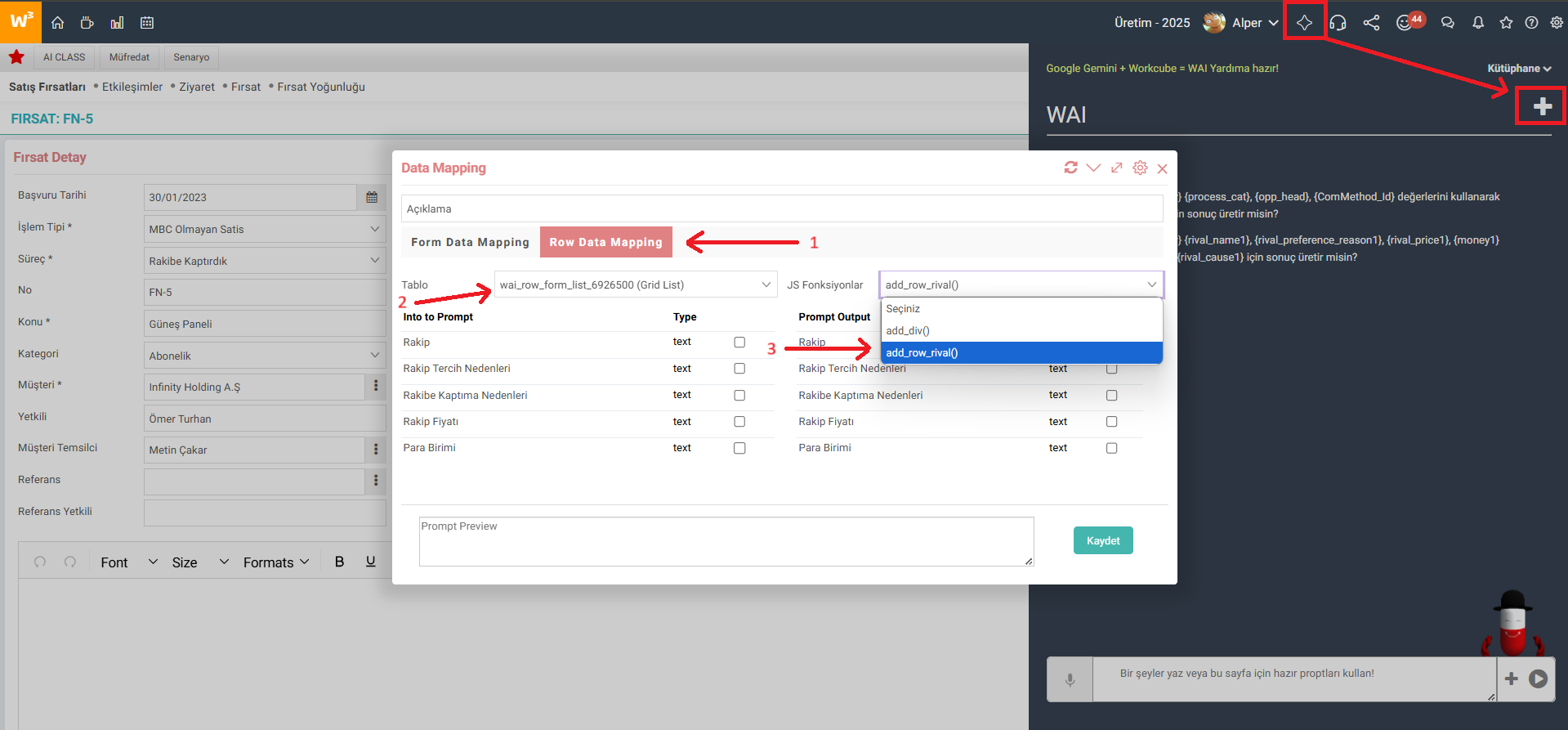
- Prompt description: At the top of the pop-up box, enter a description for the prompt to be created. This explanation will help you remember the prompt later. The information on the page is included under the description.
- Selecting the information to be used: In the "Into to Prompt" section on the left, select the values to be used in content production. Determine what information you want to produce content using here.
- Selecting the fields to use: In the "Prompt Output" section on the right, select where the generated content will be used. You can select any area on the page that you want to fill with an editor or artificial intelligence. Check the "R (required)" box for fields where you definitely want the result to return. If it is unchecked, it may not return results.
- Prompt Preview: A preview of the prompt that will be created based on the information you selected is displayed at the bottom. If you wish, you can make edits on the prompt in this field.
- After filling in all fields, save "Mapping".
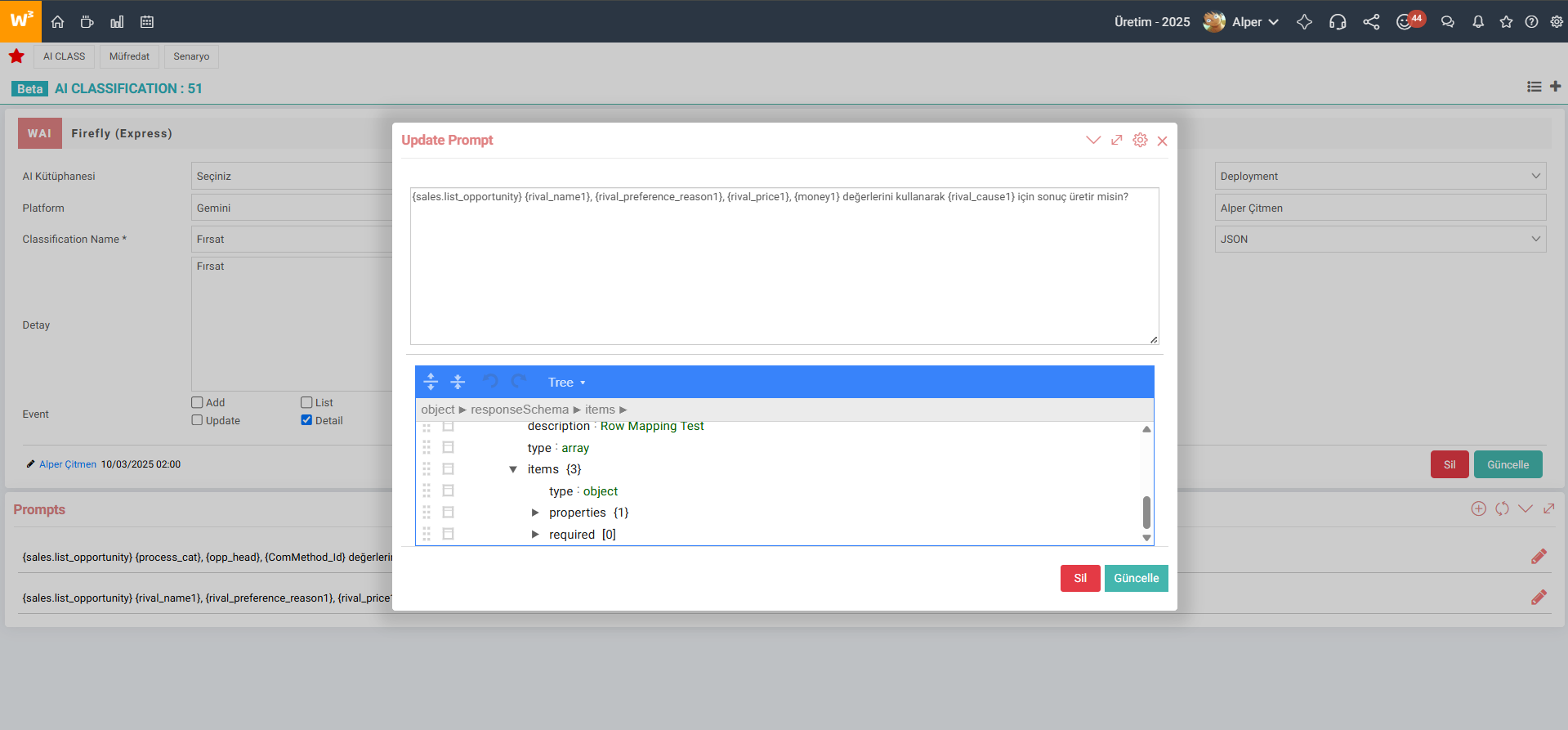
- AI Class Detail: After the registration process is completed, if there is a record for the WO processed on the AI Classification page, the newly added prompt will be added to this record. If there is no registration, a new AI Class is created and the prompt is saved here.
- When you open the AI Class detail, a JSON content consisting of the prompt created during mapping and the information used is displayed and can be edited.
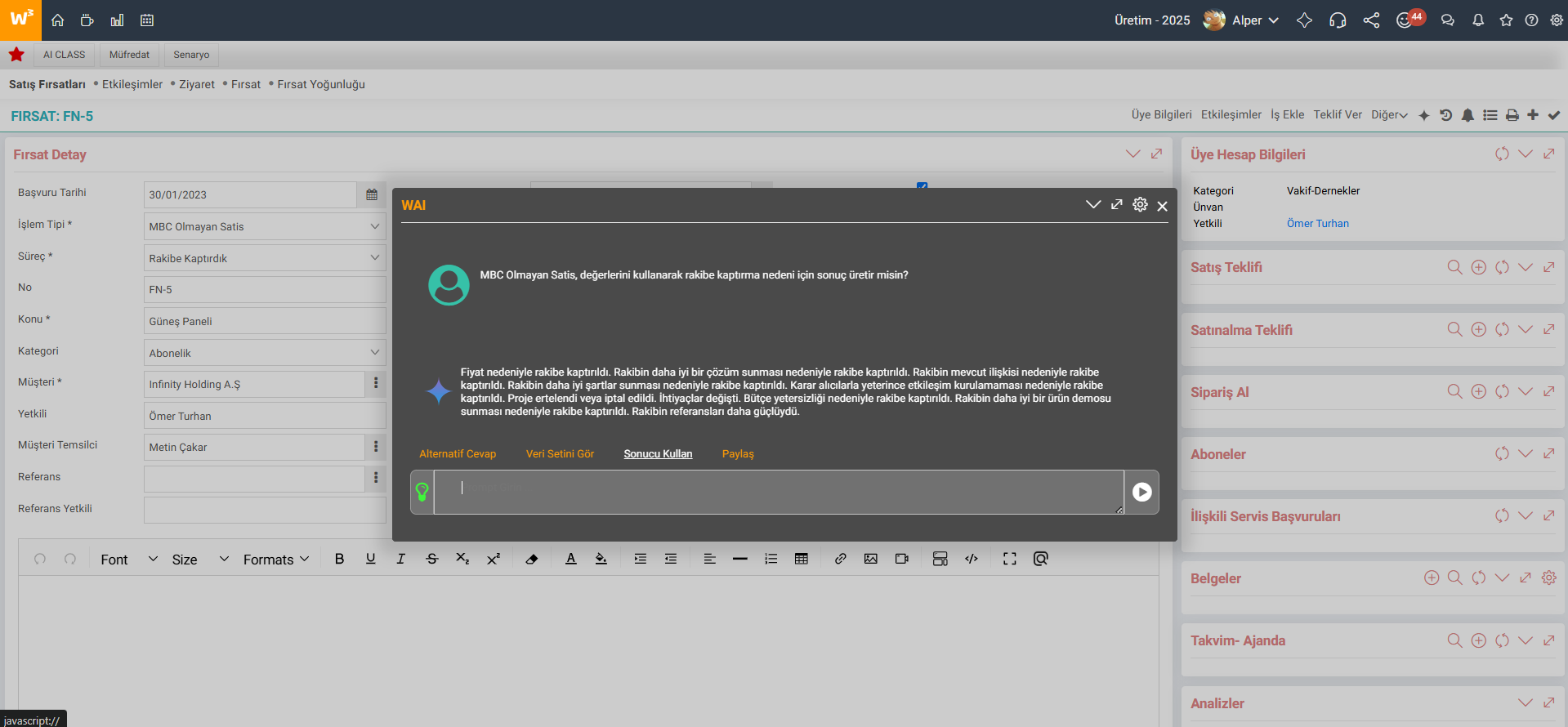
- Content Production and Use: After completing the mapping process, open the WAI box by clicking the WAI icon in the tab menu on the same page. You can produce content using the prompt you created and fill in any space you want on the page using the "Use Result" link.
Feedback
Did you find this content helpful?
About Workcube Objects
Form Data Mapping
WAI enables the columns in the baskets to be filled with the received data via artificial intelligence.
Type:
Child WO
Version: Cognitive vteta
Licence:
Standard
Author: Workcube Core