Shipment Operations - Shipments
Shipment Planning ensures effective and efficient planning, transportation, storage and tracking of the movement of all kinds of products within the supply chain from their source to the final point of consumption in order to meet customer needs.
Path: ERP > Sales-Distribution > Shipment-Logistics > Packaging and Shipments
Shipment operations include determining the exit addresses of shipments from the warehouse, creating appropriate orders from the specified addresses, stock reservation transactions and creating shipment orders. Packaging is the proper assembly of the product that is produced and ready for delivery to the customer.
Packing and Shipping The "Package Information" field opens with the Amount" field.
2-Should the insurance company come?
If you do not want to define the insurance company and official, mark it as "No".
3-Should the customs company come?
Define the customs company and official. If you do not want it, mark it as "No".
4-Should the warehouse entry date be entered?
When selected as Yes, the "Warehouse Entry Date" field will be opened.
5-Should the vehicle and vehicle authority be entered manually?
If you would like to manually enter a description in the Vehicle and Vehicle Authorization field. Mark "Yes".
6-Should the output warehouse selection be mandatory?
When selected as Yes, recording and updating operations will be prevented without selecting the output warehouse.
7-Warehouse location authority;
If all locations are selected, all locations will be selected regardless of authorization checks. can be selected.
Adding Packaging and Shipment
When you click on the "+" icon on the Packaging and Shipments screen or when you select the relevant documents on the Shipment-Logistics Orders screen and click on the "Package" button, you will see "Packaging and Shipment The "Add" screen will appear.
At the same time, on the update screen of the sales order/delivery note you created, click on the "Add Shipment" link at the top right to go to the "Add Packaging and Shipment" screen.
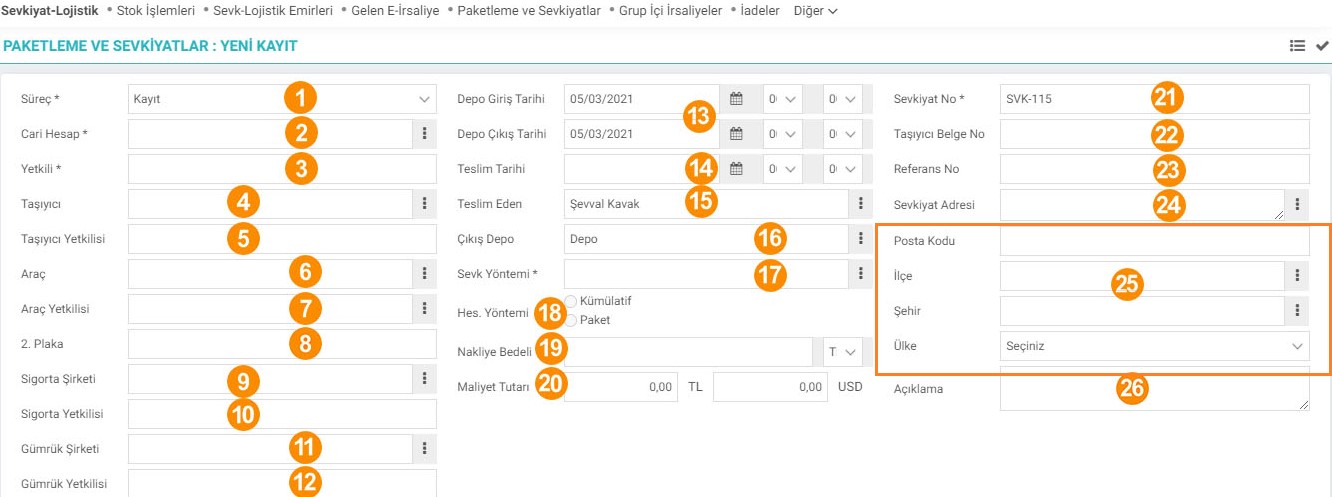
1-Process: Select the stage defined in this field. The stage may vary depending on company processes. (Preparation stage>approval, approval>transportation status, etc.)
2-Current Account: In the current account field, select the current account from which the delivery note is issued. To select the current account, click on the icon on the right side of this field, click on the link of the relevant member from the list of members that appears.
3-Authority: The defined authorized person connected to the current account you selected in the Authorization field will be displayed automatically.
4-Carrier: Select the carrier that will do the transportation in this field. The carrier must be previously added to corporate accounts and selected in shipping rates.
5-Carrier Authority: The carrier authority will automatically appear in the Carrier authority field.
6-Vehicle: In this field, select the vehicle to be used in the shipment process (Vehicle registrations are made from the Physical Assets > Motor Vehicles screen.) If it is not a vehicle affiliated with your company, it can be found in the XML settings. "Should the vehicle and vehicle authority be entered manually?" By selecting yes, you can enter the plate number given by the carrier and the person using it.
7-Vehicle Authorization: Vehicle authority is entered automatically depending on the selection in the vehicle field.
8-2.License Plate: If an external vehicle will be used for shipment in this field, write the license plate of the vehicle to be used.
9-Insurance Company: To define the insurance company in this field, click on the icon next to it and select the relevant company from the list that appears.
10-Insurance Official: It will automatically appear with the insurance company you selected.
11-Customs Company: To define the customs company from this field, click on the icon next to it and select the relevant company from the list that appears. .
12-Customs Official: The customs company will appear automatically with your selection.
13-Warehouse Entry Date and Warehouse Exit Date: In these fields, enter the date and time of the products to be shipped into and out of the warehouse. You can use the icon next to this field to specify the dates.
14-Delivery Date: Specify the delivery date and time of the products to be shipped in the Delivery date field.
15-Delivered to: In this field, the information of the person to be delivered is indicated.
16-Exit Warehouse: In the Exit warehouse field, the warehouse information from which the products to be shipped originate should be specified. To specify the exit warehouse information, click on the icon on the right side of this field, click on the link to the warehouse for the relevant employee from the warehouse list that appears.
17-Shipment Method: In the Shipment Method field, select the defined shipping method.
Note:The Calculation Method is based on the shipping method selected in the Shipment Prices and Shipment Prices.
18-Calculation Method: It will be default depending on the selected shipping method. To change it, go to Control Panel > System > Parameters > Shipping Prices page.
19-Shipping Cost: In this field, you can enter the shipping cost you have agreed with the carrier..
20-Cost Amount: If it is Cumulative cost, it is in the first field, and if it is Package cost, it is in the second field. specify.
21-Shipping Number: The shipment number will automatically appear in this field.
22-Carrier Document No: In the Carrier document number field, write the document number related to the vehicle.
23-Reference No: In the reference number field, the document number of the previous process registration screen. is displayed.
24-Shipping Address: In the shipping address field, specify the address to which the shipment will be made.
25-Specify the Postal Code, District, District, City and Country information where the shipment will be made from these fields.
26-Description: In the description field, specify the packaging and You can add a description about the shipment information
To add the delivery note related to the shipment in the delivery note field, click on the "+" icon at the beginning of the line. A line will be added to the delivery note field. In this line, click on the icon on the right side of the
- Delivery note field. You will be presented with the registered delivery notes for the current account you selected. Click on the link of the relevant delivery note.
- Date and recipient fields will appear automatically, depending on the delivery note information.
- You can specify the shipping method and address lines specifically for the products to be shipped to different places. (This may be the case with the delivery note to be shipped to different branches)
Attention: Shipments; Shipping Prices work in coordination with the Carrier and Shipping Method. You must pre-define Shipping Prices for calculations.

Size: Package size information will come automatically according to the package type you have selected.
Weight: Weight information will arrive automatically based on the package type you have selected.

Shipment Results

You can list shipment records according to shipment status. To do this, click on the "Shipment Results" field in the shipping transactions sub-module. The shipment results screen will appear.
On this screen, you can list the shipment results records.

Yapılan sevkiyatların sonuçlarını girerken seçilen hata durumları buradan tanımlanır.
Sevkiyat sonuçlarında sevkiyat esnasında yaşanan sorunların parametrik olarak girilmesini sağlar.
Bu sayfanin cf_big_list_search'ü olusturulmustur.