Digital Archive
With the Digital Archive application within Workcube Intranet, you can access all the company's information, documents, videos, images, etc. All content is digitally stored, sorted and delivered centrally to users around the world. With Digital Archive, your digital assets are presented on a secure sharing and storage platform within Workcube.
Path: Intranet > Digital Archive
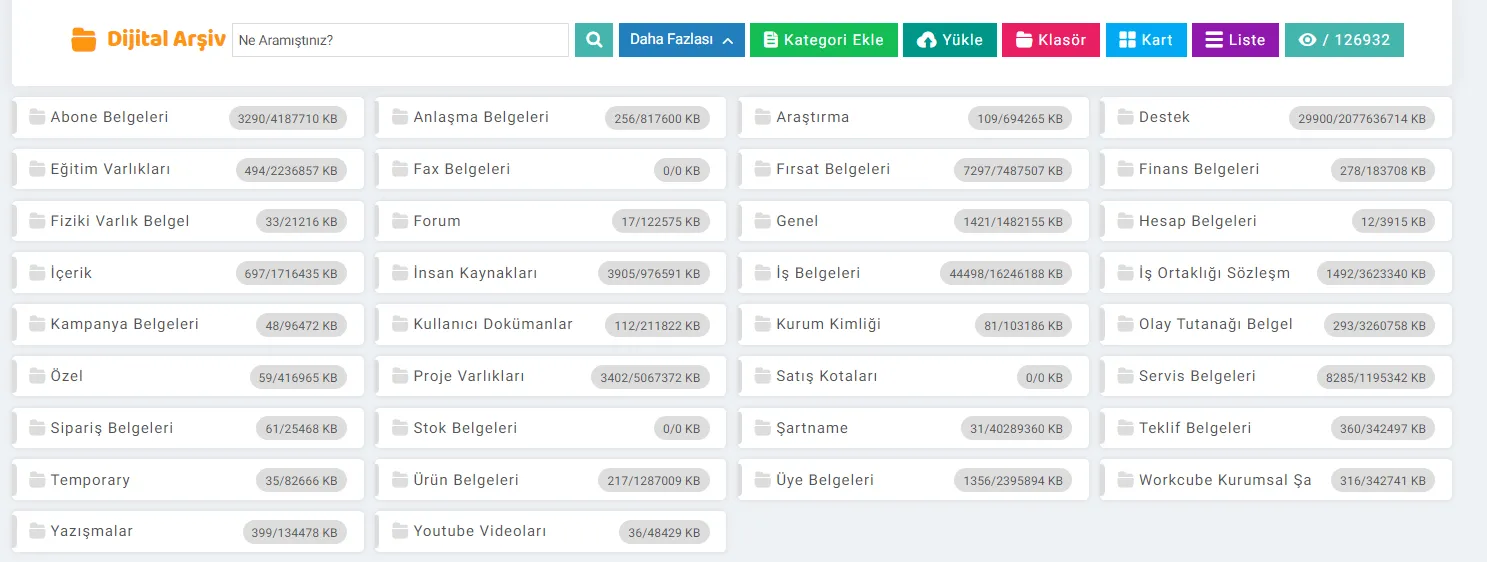
You can reach the Digital Archive main screen by arranging access rights. The Digital Archive main screen will appear as follows.
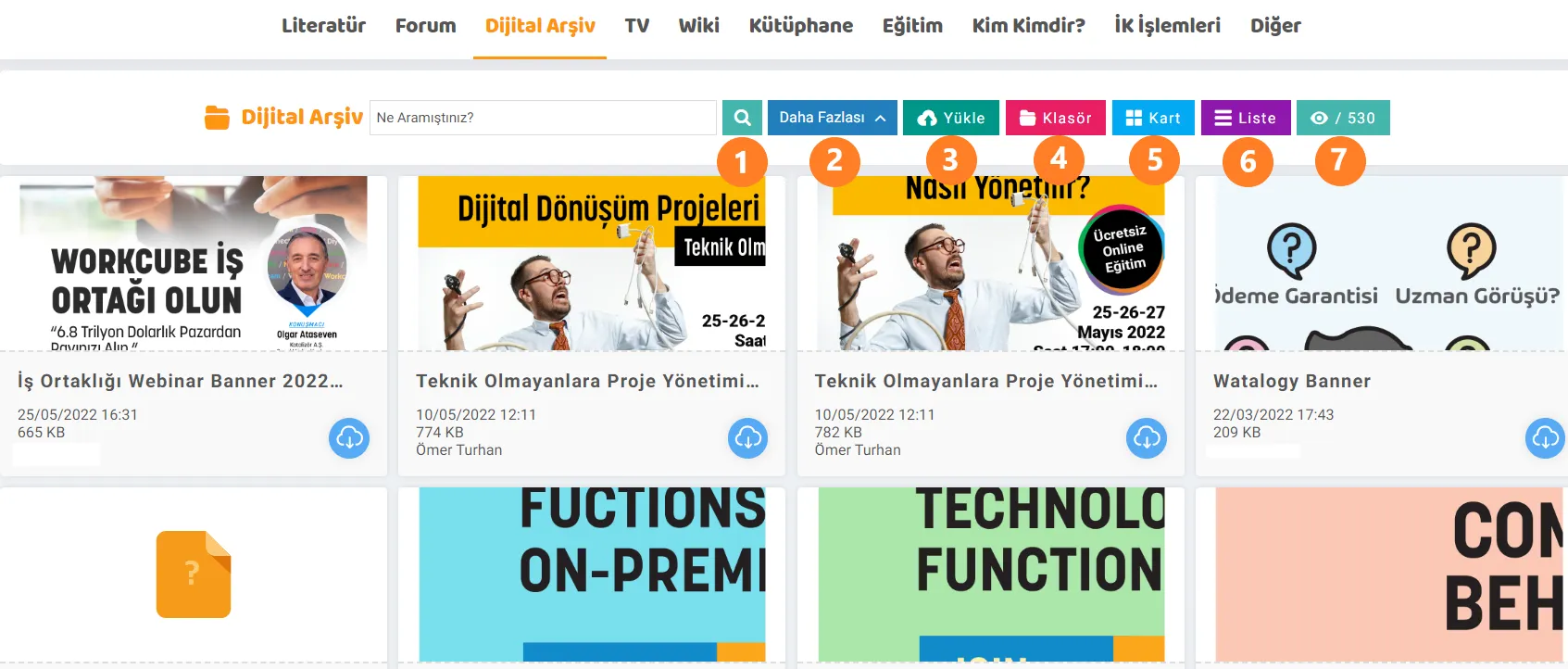
- The content can be searched by entering the keywords related to the content you want to search in the Digital Archive here.
- Listing and search can be customized by making various filters with the More button.
- Digital Archive with the Download button. New content is added to the Archive.
- The Folder button lists the categories in the Digital Archive.
- With the Card button, the contents can be listed in the form of cards.
- The List button allows the contents to be sorted in rows.
- This button shows the number of contents in the Digital Archive.
Adding Digital Assets

When you come to the Digital Archive main screen, there is an "Upload" button next to the search button. By clicking this button, any desired document, video, document or image can be added to the Digital Archive.
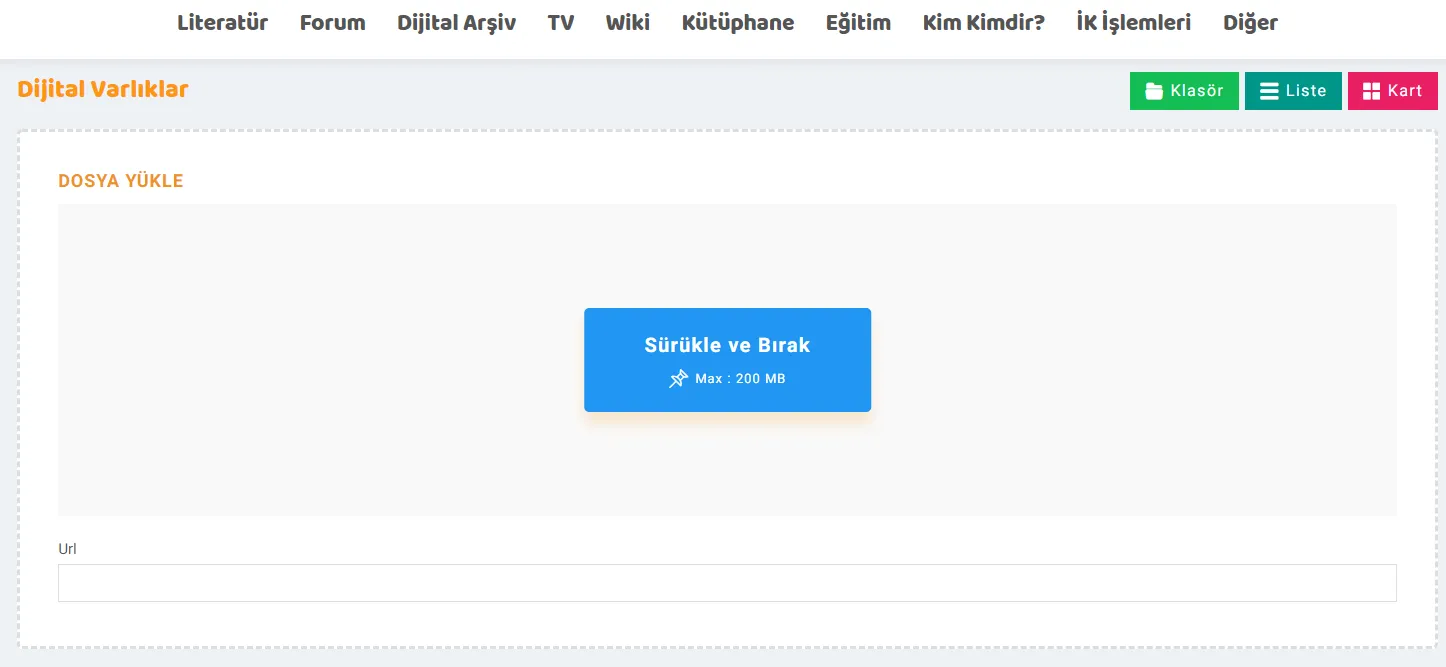
On the Digital Assets New Record screen that opens, you can drag the document you want to add and drop it into the relevant area, or you can create a record by adding the URL information of the document to the box below. For example; In Google Drive; Sheet, Document, Slides etc. links and also Youtube video links can be stored in a central structure to be included in the digital archive.
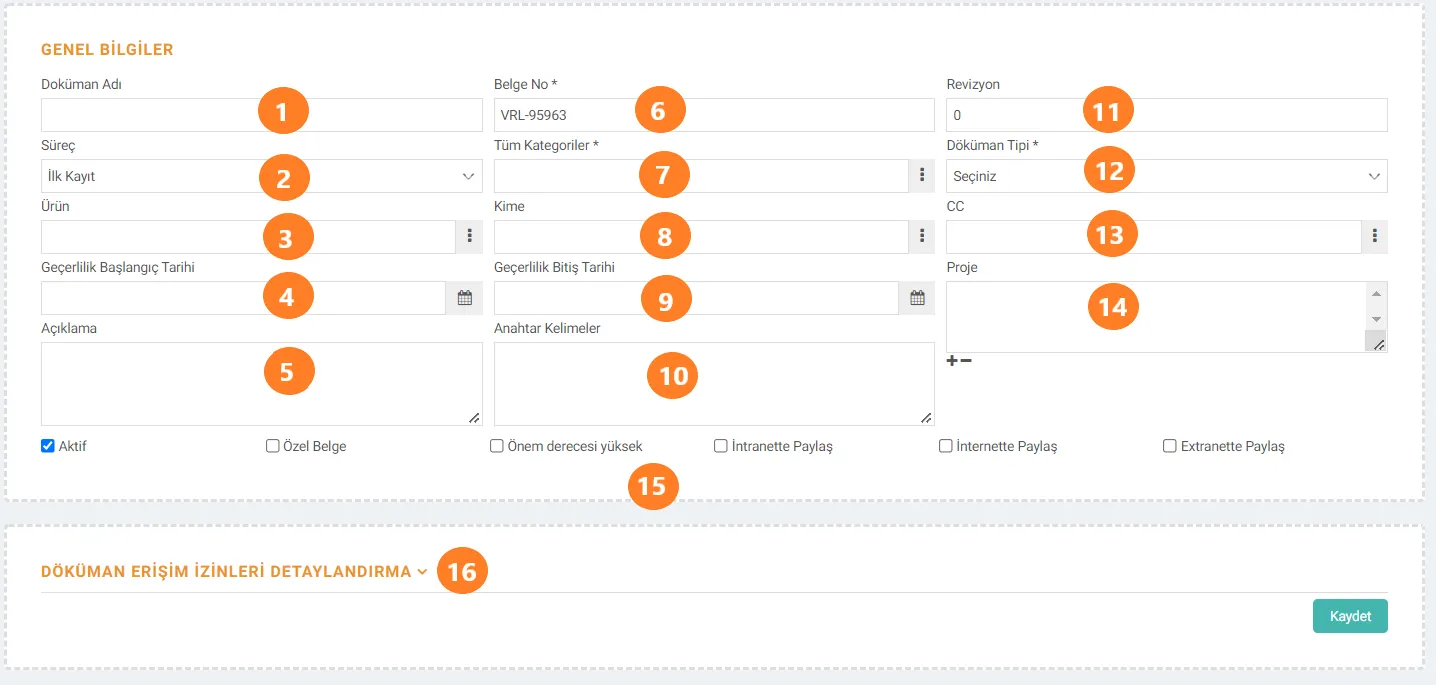
After the Digital Asset is added as a document or url, you can continue by filling in the registration information at the end of the Digital Asset adding screen.
- Document. Name:The name of the document to be added as a Digital Asset is entered in this field.
- Process: The Process status of the document added to the Digital Archive is specified in this section. Also, Process stages can be diversified by searching with Digital Asset filtering on the Control Panel > BPM > Processes screen.
- Product: If there is a product that the document is related to, the information is here. is entered.
- Validity Start Date: The starting date for which the document will be valid is entered in this field.
- Description: Explanations, if any, regarding the Digital Asset are entered in this field.
- Document. No: The document number of the added document is entered in this field.
- All Categories: All categories in the Digital Archive can be accessed in this field.
- To: With whom the document will be shared. The information on which the document will be created is entered in this field.
- Expiration Date:The date on which the document will expire is entered in this field.
- Keywords:In order for the document to be easily accessible in searches, related keywords are entered in this field. is entered.
- Revision: The revision status of the document is included in this box.
- Document Type: The added document type is selected in this box. Document Types are added from the Content Document and Types field in the parameters.
- CC:The people who will be informed and informed while adding the document are selected from this field. If selected, an e-mail will be sent to the person.
- Project: The project information to which the document belongs is entered in this field.
- Selection Boxes: The selection boxes in the Digital Asset listing are selected during registration depending on whether the added document is related or not.
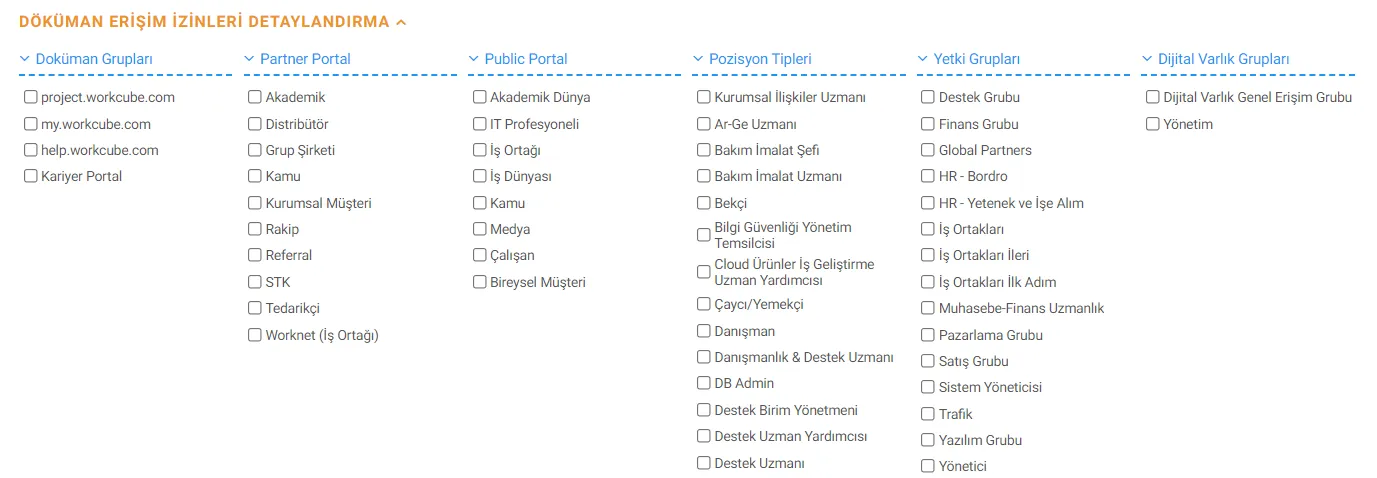
- Document Access Permissions Detailing:Sharing restrictions of the added document can be adjusted in detail from this field. Its detail will look like below. At the same time, descriptions and titles specific to your company can be added to these access details as follows:
Partner Portal: A title can be added from the ERP > Sales-Distribution > Customer-Supplier > Individual Member Categories screen.
Public Portal: ERP > Title can be added from the Sales-Distribution > Customer-Supplier > Corporate Member Categories screen.
Position Types: Diversifications can be made by selecting Position Types under the HR-HR heading on the Control Panel > System > Parameters screen.
Authority Groups: The title can be added by going to the Control Panel > System > Security > Authorization Groups screen.
Digital Asset Groups: By clicking on Digital Asset Groups under the BPM heading on the Control Panel > System > Parameters screen. can be added.
How to Display Digital Archive Documents
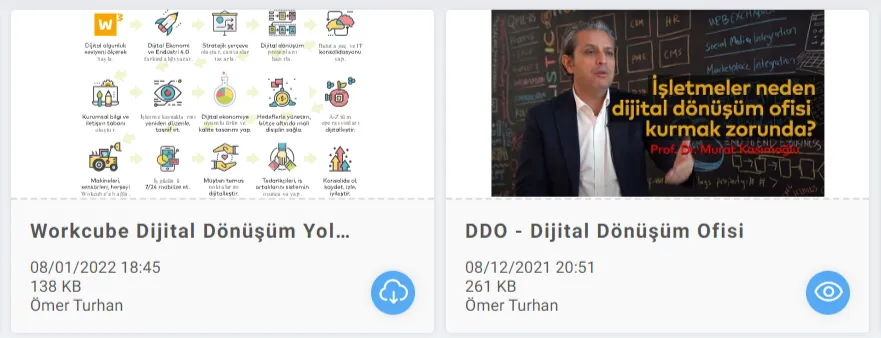
After the Digital Assets are listed, there are two separate icons under the documents. The document is opened and downloaded to your computer with the cloud sign on the left. Sthe document can be viewed by clicking on the eye mark on the network. For example; By clicking on the eye symbol of the "DDO - Digital Transformation Office" digital asset, this content can be watched on Youtube.
Digital Assets as a Folder Viewing


Workcube'e eklenen dijital varlıkları sınıflandırmak için kullanılır.
Eklenen dijital belgeler doküman tipleri ile ilişkilendirilerek dokümanlara erişecek kullanıcılar gruplandırılır. Bu sayede doküman veya doküman tipi bazında yetki kontrolleri yapılmış olur.
Sisteme yüklenen dijital varlığın hangi dosya formatında olduğu bu sayfada yapılan parametre tanımlamasına göre seçilir. Format eklerken maksimum dosya boyutu da eklenebilir.
Eklenen dijital belgeler doküman tipleri ile ilişkilendirilerek dokümanlara erişecek kullanıcılar gruplandırılır. Bu sayede doküman veya doküman tipi bazında yetki kontrolleri yapılmış olur.
Görüntüler, videolar, ses dosyaları ve belgeler gibi dijital varlıkların depolanmasını, düzenlenmesini, paylaşılmasını ve yönetilmesini sağlar.
İş süreçlerinin tasarım ve akışlarını oluşturur.
x_google_refresh_token_mail Google Refresh Token Mail
Feedback
13.1.5. Content Management Parametric Definitions
There are Content Management and Digital Archive modules under the CMS solution. Parametric definitions of these modules vary depending on each business.
CMS - Intranet, Content Management
CMS - Content Management solution includes Content Management and Digital Archive modules. With Content Management functions, written and visual content can be managed on many subjects such as internal news, declarations, publications and training content.
Digital Archive - TV
TV, which is a part of the Workcube Digital archive, functions as a video storage tool. You can separate your videos according to document types and categories and use different filtering options.
13.1.1. Contents
Content is produced to be published on intranet and extranet.
intranet
Regardless of the size of the company, with the Workcube intranet application, employees can follow the company's vision online on the same platform, make transactions and help it gain a social identity with its shared structure.
Digital Assets - Page Designer
Edited Function: CMS > Digital Archive > Improvements have been made in the Page Designer search form tab according to the more options available in the digital assets listing business function.
Contents and Google CDN
If the contents are published on the internet, you can make the websites created with Protein run faster by sending the borders you added in the HTML editor to the CDN.
First of all, you should start by purchasing the Google CDN service and integrating this service into your Workcube. You can receive service from experienced Workcube experts during the integration process.
Google Cloud and CDN Bucket
Google Cloud can be used to add CDN - Content Delivery Network to Workcube. This feature sends images and videos added to the digital archive a copy of the document to the CDN bucket if the "sharing on the internet" box is selected. On sites built with protein, images and videos can be distributed via CDN. Using CDN on medium and large-scale B2B, B2C or websites for different purposes increases the performance and security of Workcube servers. You must have a Google Cloud account for CDN Bucket integration.
Workshare with html2canvas
Added/Edited Function:Creating a pdf on Workshare with html2canvas and encrypting this created pdf has been introduced.
Usage: After filling in all fields on Workshare, click Get Snap. It creates a pdf and file path to the worksnap file located under Documents. Access code and password must be entered before creating a file with Snap. If you click Share, the password and link information will be sent via e-mail. The pdf detail is displayed with the incoming password information. For detailed information, you can review the "Workshare with HTML2canvas" wiki document.
Protein - Corporate Member Documents
With this widget, Protein B2B customers and suppliers can upload self-service documents such as Trade Registry Gazette, Tax Certificate, Signature Certificate.