Workcube BPM
Process - Workflow Management
At the core of Workcube is BPM - Business Process Management, which organizes workflows and distributes functions to users according to authority and responsibilities. BPM tools ensure that every module and function of the Workcube application works in accordance with the processes. It also regulates process transitions between modules and functions. It integrates with 3rd party software and applications. It allows the expansion of your application.
What is Workflow Designer?
On each business function screen in Workcube, a selectbox labeled "Process" appears in the forms, usually in the first row of form elements. This selectbox is the most critical element in Workcube forms. It controls the transaction you will perform, determines the direction it will take, makes warnings, sends e-mails, triggers another machine, makes a query for you from another server, and decides whether you can perform the transaction or not. In short, this selectbox is the process core of Workcube that is visible to the user and contains a comprehensive approach and logic behind it.
In institutions; There are those who do the work, those who control, those who approve, those who supervise, and those who make the final decisions. In organizations; procedures, company rules, limits, limits, rewards and sanctions. The workflow designer provides opportunities for the business to adapt to changing conditions.
3 sample cases below will guide you to explain what the Workflow Designer does and how to use it.
Example 1
A customer representative in the sales team visits a new customer. It records the customer information with the "FIRST REGISTRATION" stage in the process selectbox on the relevant screen. With the save process, a warning is sent to the risk control specialist in the Finance department. The expert performs risk control in accordance with the procedure. There are two stages in the process selectbox on the customer screen. If "APPROVAL and REJECTION" is selected, the customer representative will be notified that you can make deferred sales up to 10,000 TL. If REJECT is selected, the information that you can only make cash sales will be displayed.
With the approval from the risk unit, the customer representative brings the selectbox on the customer screen to the "SALE" stage and the accounting account connections are made automatically and the accounting unit is informed that a code has been assigned for a new customer in the chart of accounts.
Example 2
The customer representative receives a new order from a customer. When you want to save with the "CHECK" stage in the process select box on the order screen, it warns the customer that the order amount is higher than the customer's free risk limit and that the customer must notify this situation. It indicates that one of the products requested in the order is not in the warehouse and production will be required. In this case, the customer representative saves the order with the "ORDER PENDING PAYMENT" selectbox status.
Example 3
When the bank transfer from the customer is recorded, the workflow designer automatically updates the customer's free limit and the order with the "ORDER PENDING PAYMENT" status is activated. It reaches the "SHIPPING - PRODUCTION" stage. On the production planning screen, the missing product in the Production Orders list is included and the Production team is notified. It detects missing materials so that production can be carried out.
As you can see in the examples above, there may be many different workflow cases in businesses. It is designed to meet different needs that occur in Workcube workflows.
To design a workflow, you must understand the following 6 definitions.
- Work Object: These are business objects defined as "Fuseaction="" in the URL section of your browser. Each business object has events such as Add, Upd, List depending on its structure. For example, the total of 3 screens consisting of adding, updating and listing employees is the "Employee" business object.
- Process:It is a basic structure that can be used in one or more business objects and provides the document flow, preliminary control ability to the business object during registration, update or deletion of business objects, and causes a series of additional actions sequentially when a transaction is performed.
- Process Phase: While a transaction is being performed, the document flow to which logical workflow setups such as approval, rejection, partial approval, control and warning can be added by different users or departments.
- Control Code/File: It is a short or long code snippet (depending on its function) that performs checks before the completion of the process, that is, when the "SAVE" or "UPDATE" buttons are pressed, and can give warnings accordingly and decide whether to terminate the process or not at any stage of the process.
- Action. Code/File: It is a short or long (depending on its function) code snippet that performs additional functions after the transaction is completed in the whole or at a stage of the process, that is, when the "SAVE" or "UPDATE" buttons are pressed.
- Roles: Role-authority describes who is authorized at which stage of the process and who should be warned or asked for approval information.
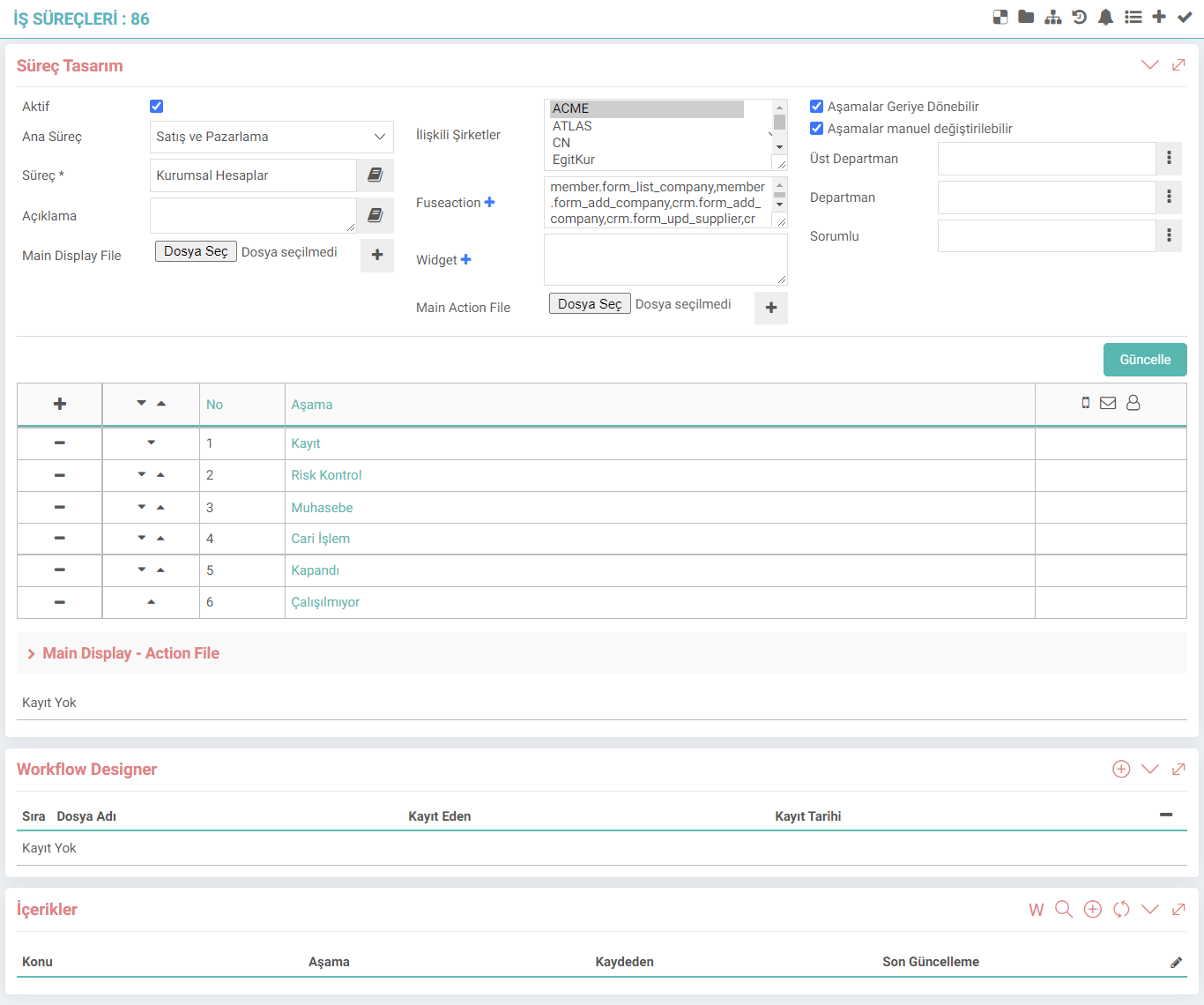
A new "stage" can be added to the process by clicking on the + button, or the stage can be updated by clicking on the Stage column.
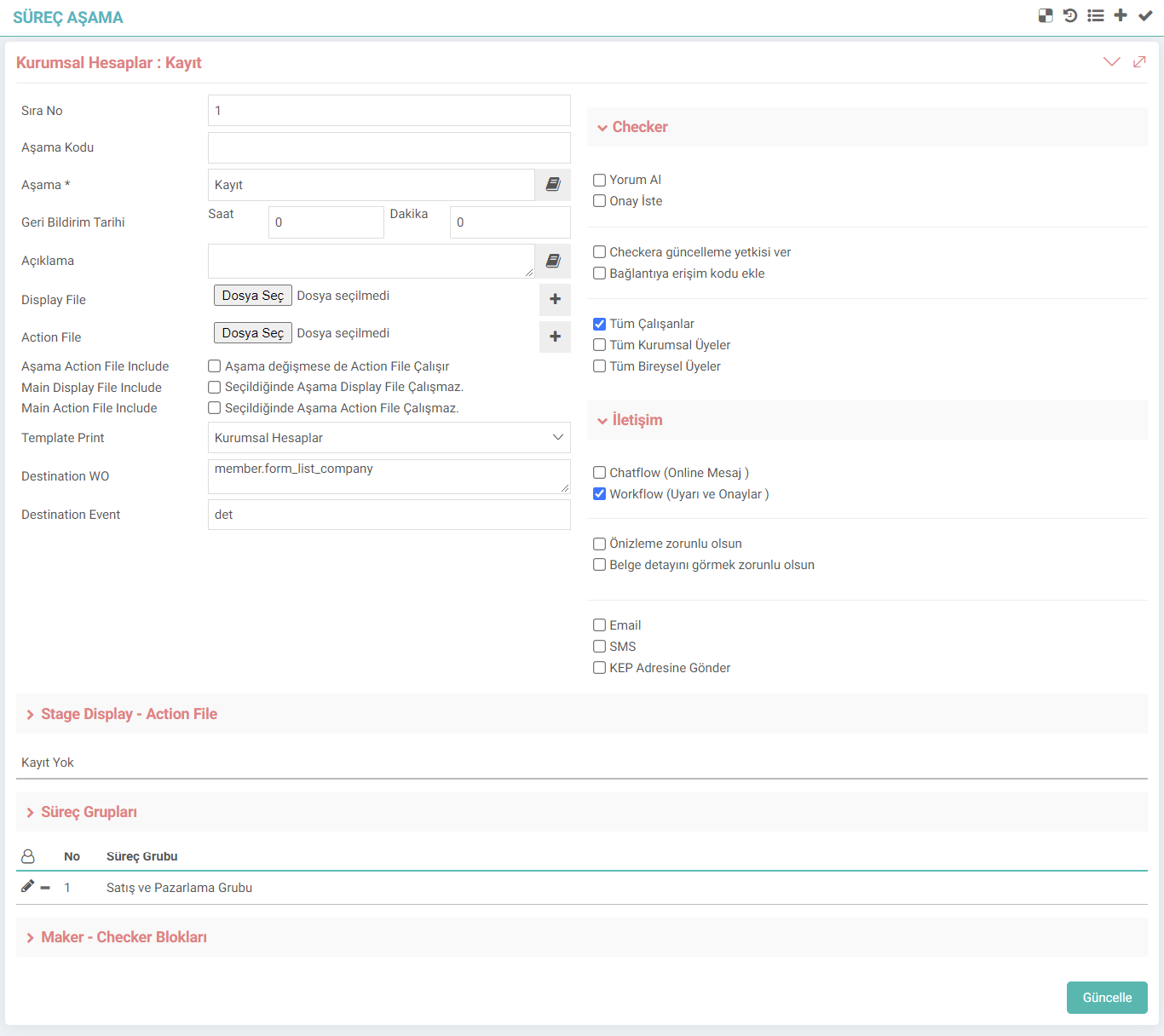
Recommendation
Analyze your organization and business processes before designing a workflow. Review your control and audit approaches. Identify roles within your business. Try to build your workflow structure logically on the list of W3 job families and business objects. “Who should take on which roles in which transactions?” Let the question be your basic perspective.
Note
You can find Workflow designs suitable for your business in the ecosystem of Workcube employees, business partners and customers.

Çalışana gönderilen onay veya uyarılarda geri dönüşlerin sınıflandırılması için kullanılır.
Çalışana gönderilen onay veya uyarıların sınıflandırılması için kullanılır.
İş süreçlerinin tasarım ve akışlarını oluşturur.