Incoming and Outgoing Documents and Cargo Transactions
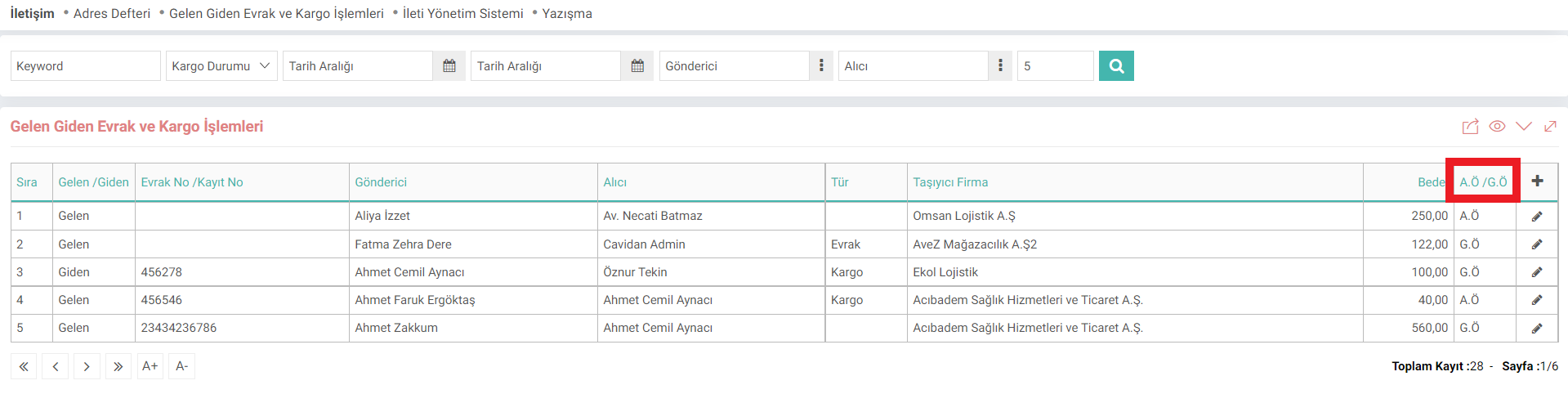
Workcube groups your company's cargo and documents and saves them with the Incoming and Outgoing Documents and Cargo Transactions screen.
Path: Intranet > MyPortal > Contact > Incoming and Outgoing Documents and Cargo Transactions
In the list, the information whether the cargo should be paid by the Buyer or the Sender should be paid is displayed. New registration, control and editing operations are performed on the list page.
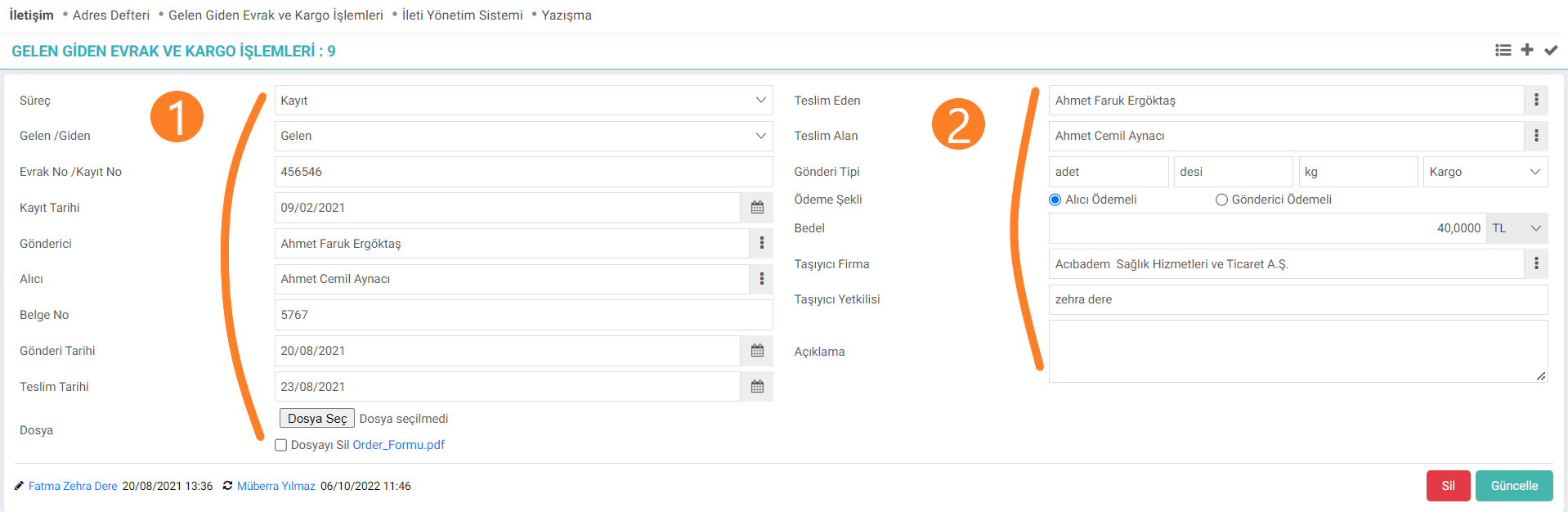
1. Section;
The registration process is selected.
Note: You must be authorized to the processes for registration. You can add new processes and authorize existing processes with the Control Panel > BPM > Processes screen.
The status of the document or cargo is determined. Employees select the recipient and sender information. Date information is entered. If you want to add a document or photo for recording, the relevant file can be added and deleted with the Select File icon.
2. Section;
The person who delivers and receives the cargo or document must be selected. The weight of the shipment and the type are selected. The method of payment for the cargo is determined.
Note: Contacts are added via HR - HR > Planning > Employee Information.
The company that will deliver the cargo is selected.
Recommendation: You can read the "Corporate Accounts" and "Individual Accounts" documents for company registrations in the system.