Documents and System Document Numbers
Document definitions are made for many processes on Workcube and system numbers are given to these documents. When a document wants to be registered, the system automatically gives the registration document number. Thus, the numbers proceed sequentially in the same directory for all users.
Path: Control Panel > System > General Settings > Document Numbers
Document Numbers
The system is made from finding general document numbers. General page numbers are divided into sections, such as financial page numbers. The serial and starting number are given here. According to the series and number given here, the relevant records are fed from here and continue one by one. In this way, issuance of the same document number is prevented. The document numbers given here are valid system-wide, that is, for all users.
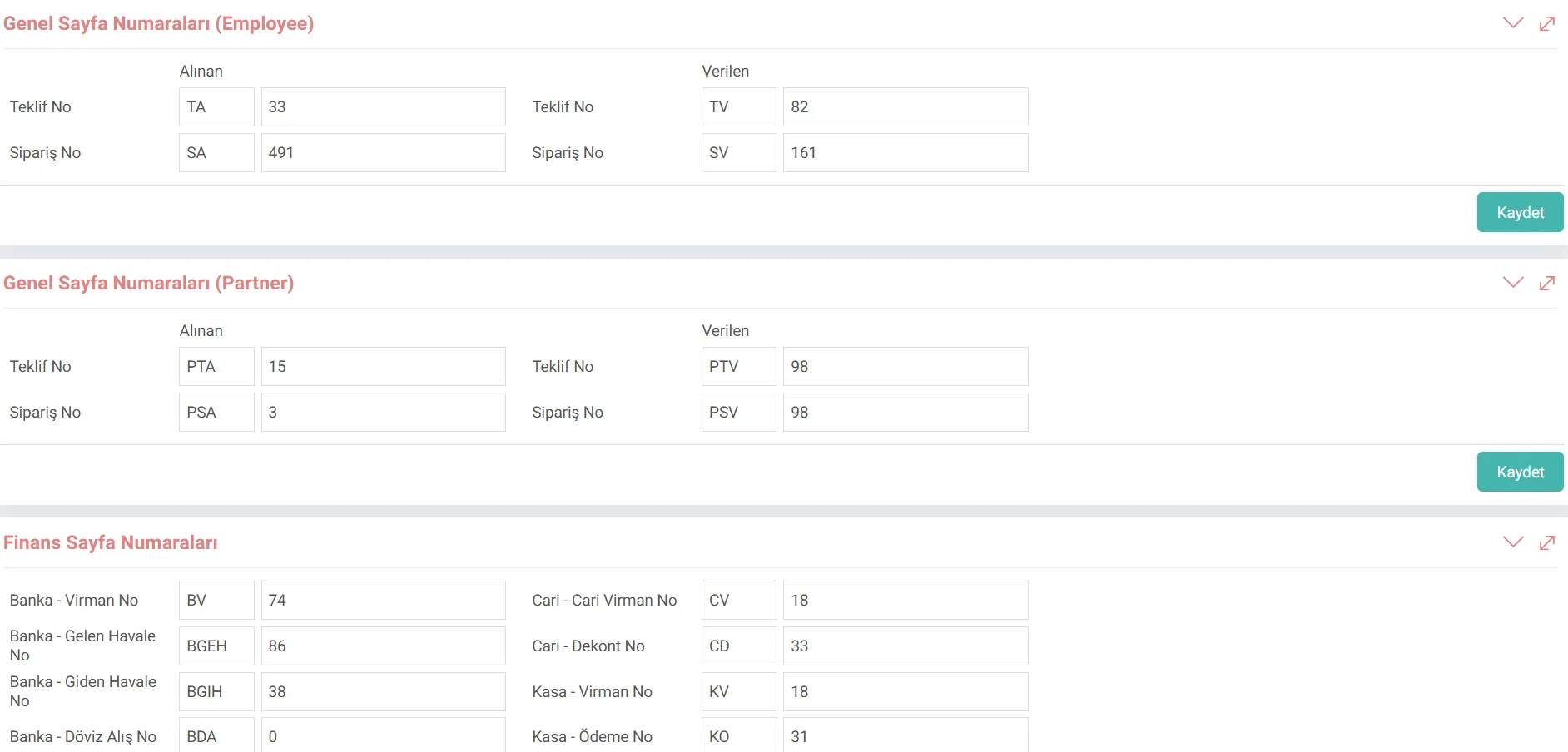
Attention: Each part works separately. For this reason, it is necessary to fill in all the fields on the page and click on the save button under each heading instead of the save button at the end.
Hint: The numbers under Control Panel > Settings > Document Numbers are person-based. This process can be compared to delivering these documents with a stub to an employee who issues an invoice, collection receipt or delivery note.
Document Types
Path: Control Panel > System > General Settings > Document Types
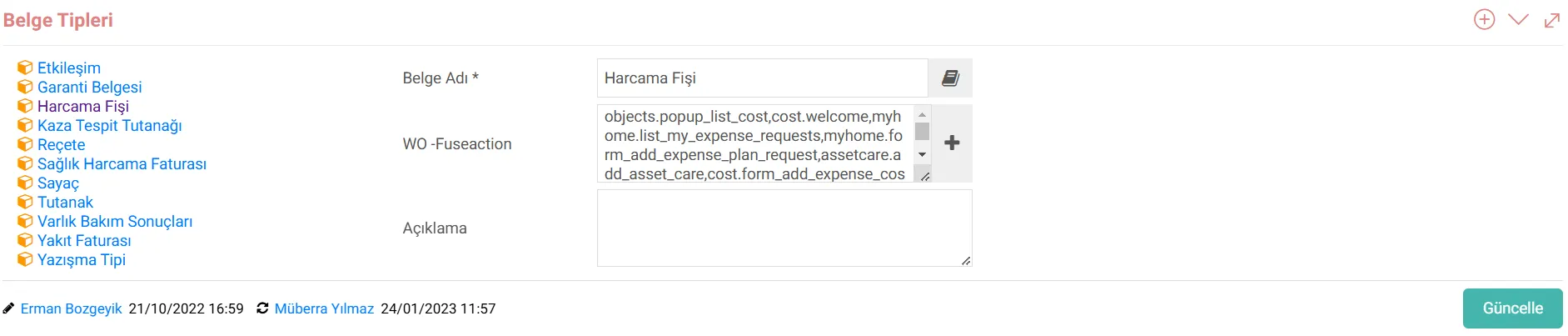
Document type The concept is basically used to classify and track the source documents on which any record made on Workcube is based.
Document types can also be used for legal records. For example; You do not receive an invoice for expenses such as tax payments, insurance payments, chamber and association membership payments, you receive different types of documents such as tax payment receipt, chamber receipt. However, these are all legal expenses and they need to be recorded in the system as Expense Receipts. But on the other hand, you may want to keep track of what document this expense is based on. You can also track the type of the source document by defining these document types.
When defining Document Types, adding the Fuseaction information of that screen (the area between "=" and "&" signs in the URL of the screen) to the document type definition screen in which Workcube screens are desired to be used. must. Fuseactions should be added one after the other with a comma between them.
Document Templates
Path: Control Panel > System > General Settings > Document - Form Templates
Document templates enable fast, easy and standard quality entry of information recording, addition, reply and follow-up notes. It is used for. For example; If a template is selected by entering a job record, the designed template will automatically appear in the "html text area" fields. In this way, information can be entered easily. A template is created by selecting the documents using the template in the "Module" selectbox.
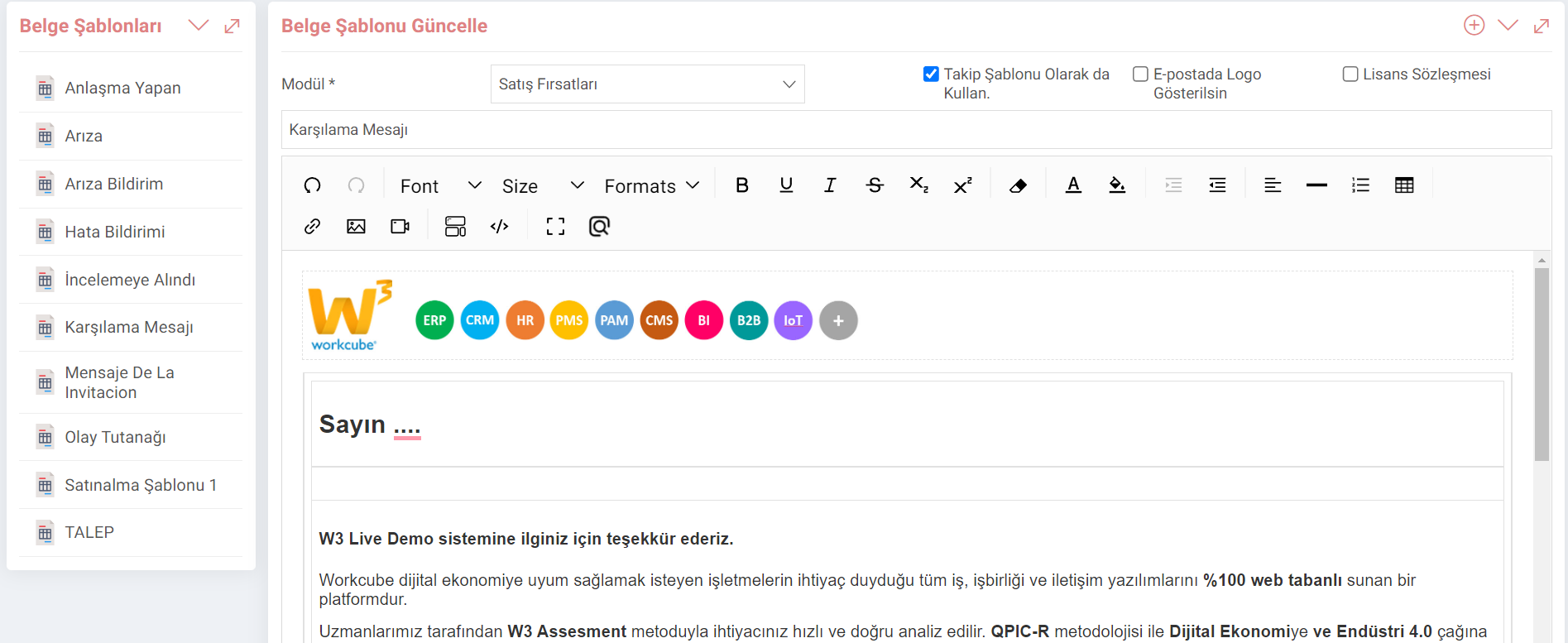
- Also Use as a Tracking Template: When this box is checked, it allows the prepared template to be used as a ready-made template when sending follow-up notes to the relevant people in the Call Center Application detail.
- Logo in E-Mail. Send: Checking this box allows the company logo to be added when the prepared template is sent as e-mail.
- License Agreement: When this box is checked, the prepared template appears on the screen when users log in to the system. Users cannot take action on the system unless they tick the "I have read, I approve" box and save.