Who's Who?
With the Who's Who page, you can access the contact information of company employees, customers, business partners and suppliers in your company's communication network. This page provides communication and job sharing.
Path: Intranet > MyPortal > Literature > Who is Who?
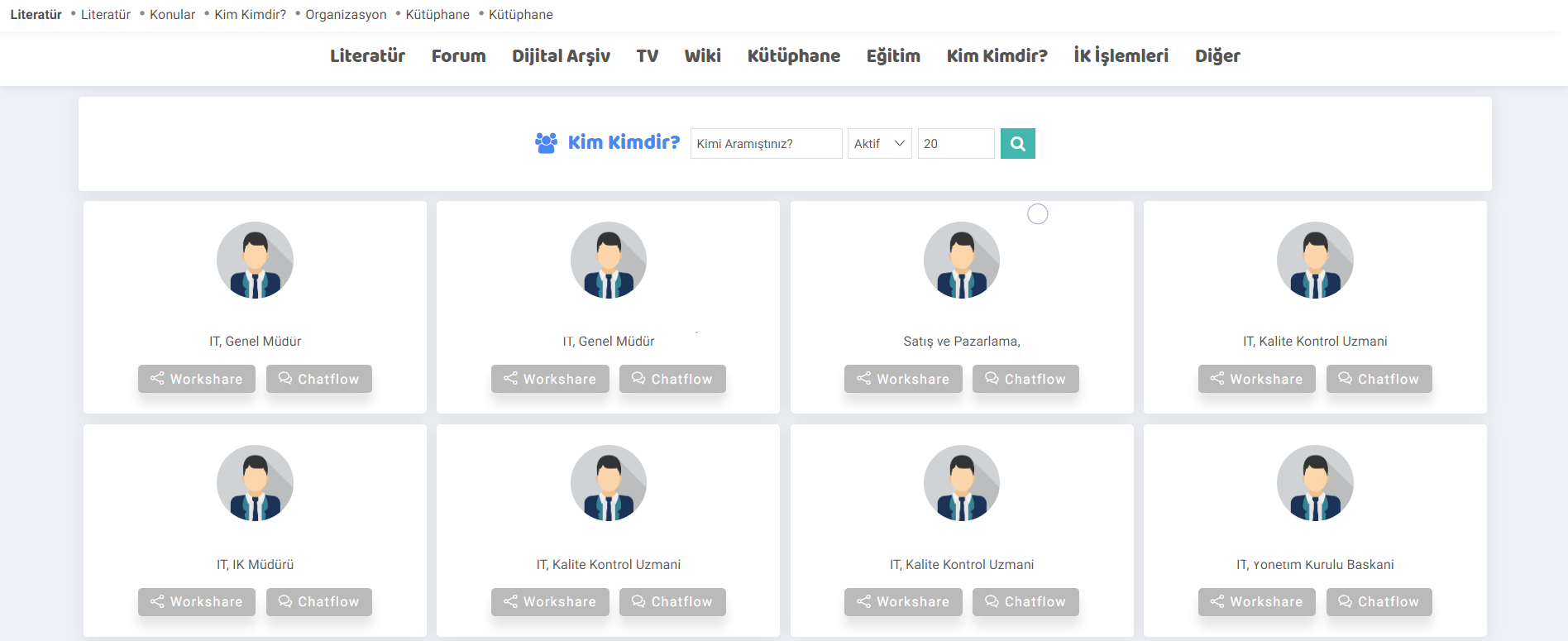
Attention: The information of the people we have saved on the Employees screen is displayed on the Who's Who screen. You can read the document called "Employees" to get detailed information about registering employees to the system.
Direct messaging is provided via the Chatflow screen. Recommendation: You can read the "Chatflow" document to get detailed information about the screen.
Workshare screen is the manual notification creation screen. You can also create a personalized notification and save it in the agenda.
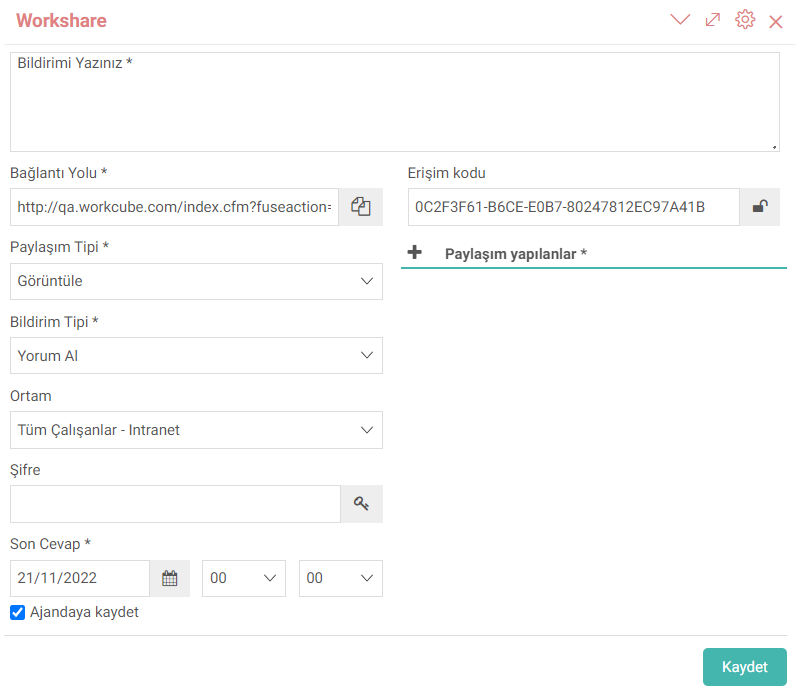
- The path to the page on which you created the notification is automatically sent to the system.
- If the sharing type requires the person to be notified to be updated, the Update option can be selected. If the View option is selected, for example, the Update and Delete buttons will not be seen on the notification screen.
- If the Get Comment option is selected in the Notification type field, only the Comment button will be visible to the person who is notified. If the Request Confirmation option is selected, the approval and rejection buttons become active.
- Who can perform these operations in the environment area is selected in this area.
- The password can be generated by clicking the password button more than once.
- The system gives the access code automatically, it cannot be entered manually. Note: Access code allows sending the Workflow notification with an encrypted code. It adds an automatically generated code to the end of the notification link and blocks page access to links that do not send this code.
- The person or people to be notified is selected in the Shared areas.
- The notification is displayed on the workflow screen.
- The password is sent to the person via e-mail.
Note: You can read our article titled "Warnings and Approvals" to get information about the Workflow screen.
Person Details
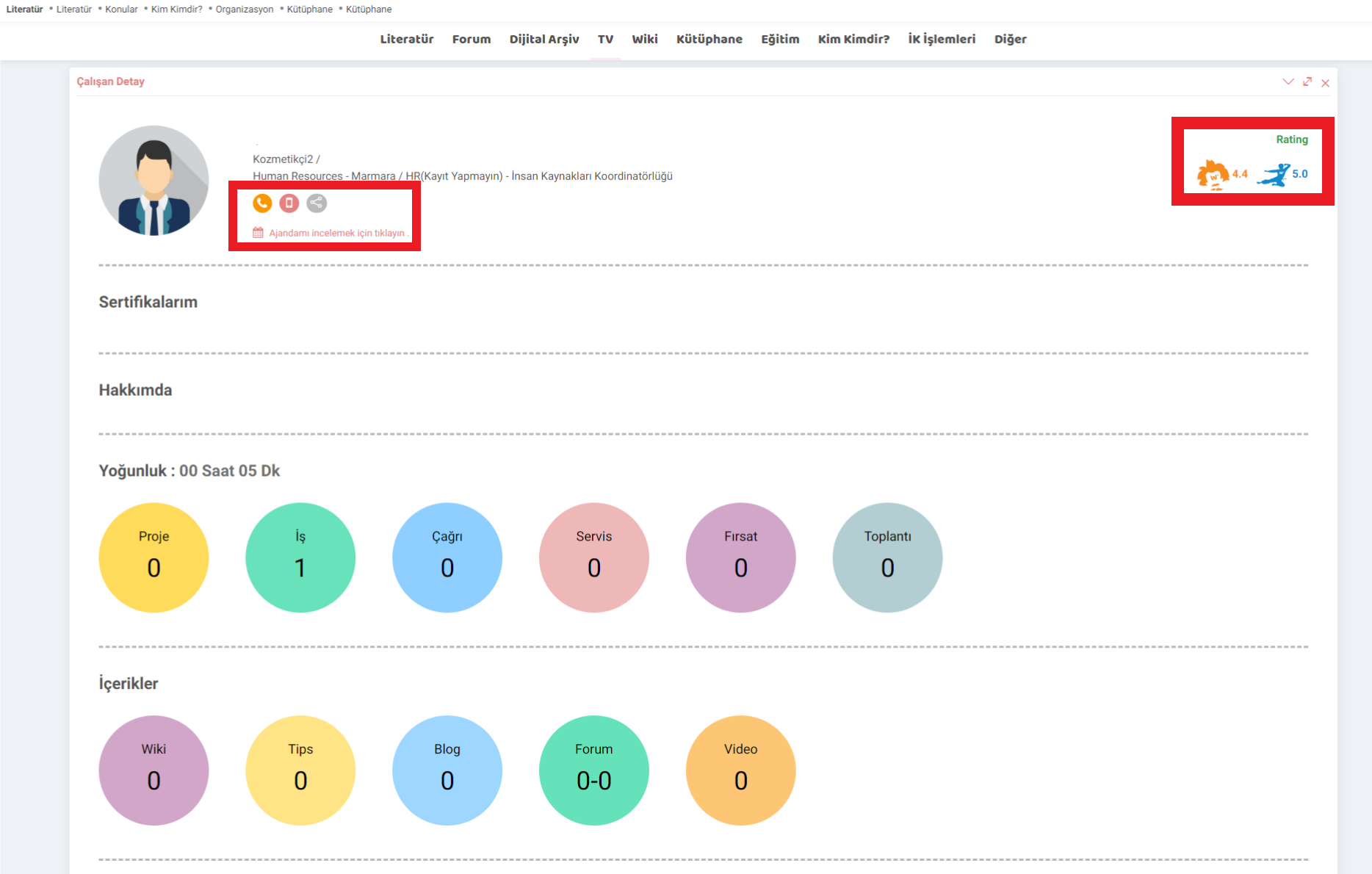
Contact can be established with the contact icons in the contact details.
The number of jobs the person has worked on, projects, the number of content he has written, certificates he has, etc. details are displayed.
By clicking on the agenda, work intensity is displayed.
The person's Einstein score and Bruce Lee score are displayed. Einstein score is analysis score and Bruce Lee score is speed score.
xml_process_stage Yayınlanan İçerik Süreç
xml_mail E-Posta Görüntülensin mi?
xml_wiki_cat_id Wiki Kategori Id
xml_blog_cat_id Blog Kategori Id
Hakkımda bölümüne ekleme yapamak veya güncellemek istiyorum. Kalem ikonuna tıkladığımda yetkiniz yok yazıyor.
Özgeçmişiniz ile çalışan kaydınız arasında ilişki kurulmamıştır.
Academy.workcube.com'a üye olduğunuzdan ve CV'nizin olduğunda emin olunuz.
Acadeny'de CV'niz var ise İş Ortakları Program Yöneticisinden CV'niz ile Networg'deki çalışan kaydınız arasında bağlantı kurmasını isteyiniz.
Yoğunluk Saati nasıl hesap edilir?
Çalışan'ın görevli olduğu aktif işlerde İşler upd ekranında görünen öngörülen sürelerin toplamı olarak çalışan kartına yoğunluk saaati yansır.
Kim Kimdir sayfasında neler yapılabilir?
Kim Kimdir sayfasından sistem kayıtlı çalışanların bilgilerine ve bu zamana kadar yaptıkları işlerle ilgili bilgiye ulaşılabilir. İstenirse iş paylaşılabilir ve Chatflow ile mesajlaşılabilir.
Geri Bildirim
ChatFlow
Workcube kullanıcıları ve ziyaretçilerinin, mesajlaşarak haberleştiği ve bildirimler aldığı ekrandır.
Uyarı ve Onaylar
Workcube süreç bazlı bir yapıya sahiptir. Bu süreçlerde kullanıcılar rol ve yetkilerine göre maker veya checker (Yapan veya Kontrol Eden) olarak yer alırlar. Süreç aşamalarının sağlıklı bir şekilde ilerlemesi ve tamamlanması için uyarı - onay mekanizması kritik bir öneme sahiptir.
Literatür
İletişim ve haberleşmeyi sağlayan şirket içi özel ağ veya özel web olarak tanımlayabileceğimiz İntranet içinde yer alan Literatür uygulaması şirket kültür ve değerlerini ortaya koymanızı, öncelikleri ve şirket politikalarını hızlı ve etkili biçimde çalışanlarınıza, partnerlerinize ve müşterilerinize aktarmanızı sağlar.
Kütüphane
Intranet içinde bulunan Kütüphane bölümü şirketinizde bulunan kitapları, dergileri ve benzeri varlıkları dijital olarak ekleyebileceğiniz, kullanım için rezerve edebileceğiniz bir bölümdür. Kütüphane sayesinde şirketinizin kültürüne katkıda bulunacak yardımcı içerikleri depolarsınız.