Stock Opening (Transfer) Voucher
When moving to a new period, the opening voucher is used for the stocks remaining from the previous period.
PATH: ERP > Sales-Distribution > Shipment-Logistics> Add Stock Opening Voucher
You will see “Stock Opening Voucher The Add” screen will appear.
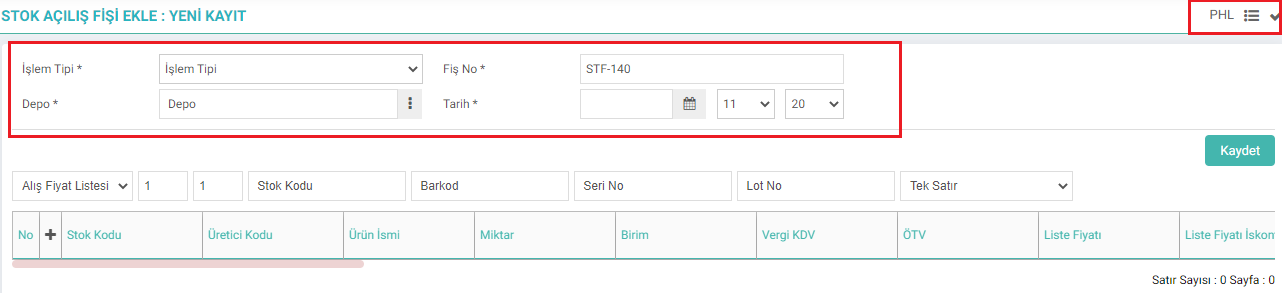
On the screen that appears;

By clicking this icon, you can go to the "Data Import" screen. Import operation is performed from this screen.

This icon directs you to the Stock Transactions listing screen.

You can save your opening receipt with this icon.
- Transaction Type: Select the transaction type for the stock opening voucher you prepared in this field. These fields can be reproduced parametrically. To add additional transactions;
PATH: BPM> Transaction Categories - Warehouse: Select the warehouse where the products for which you recorded the opening slip will be located. To select the warehouse, click on the icon on the right side of this field and click on the link of the relevant warehouse from the list of warehouses that appear.
- Receipt No: The opening voucher document number is created by the system and displayed in the voucher no field.
- Date: By clicking the icon next to the date field, the voucher issuance date is displayed.
Product Basket
Used to select the products to be included in the stock opening voucher. To add products to the basket, click on the "+" icon at the beginning of the basket row. A list of products will appear. Select the received products one by one from here.
You can also add products to the basket by typing the stock code, barcode or serial number and pressing “enter” . For help on using the Product Basket, you can review the Basket Settings and Usage document.
After making the necessary definitions, Click the “Save” button. The stock opening voucher information line you added will be added to the “Stock Transactions” list as “Transfer Slip” .
Updating Stock Opening Slip Screen
PATH: ERP > Sales-Distribution > Shipment-Logistics > Stock Transactions

On this screen, change/update the desired information Click the “Update” button. Additionally, you can perform the following operations with the help of the icons on this screen;
Warnings:You can view the added confirmations and warnings regarding the opening stock voucher.
Warranty Serial Numbers: By clicking this area, you can access the "Serial and Lot Transactions" screen.

Yeni bir döneme geçerken bir önceki dönemden kalan stoklar için stok açılış fişi kaydedilerek stoklar manuel aktarılır.
İş süreçlerinin tasarım ve akışlarını oluşturur.
Bu sayfanin cf_big_list_search'ü olusturulmustur.
Kaydedilen belgelerin çıktılarının alınması için kullanılır. Standart şablonlar seçilebilir ya da özel şablonlar eklenebilir, ayrıca şablonlar yetkiye bağlanabilir.