WOC - Workcube Output Center
In addition to producing a document in Workcube, printing that document, easily archiving it on the cloud server and sending it to relevant people via e-mail is also a very important process. Especially multiple processes can strain performance on unscaled infrastructures. WOC queues multiple output tasks, whether PDF, Excel, DOC, or print. Thus, while thousands of printouts are produced, archived and sent by e-mail, it uses the processor, memory and bandwidth at an optimal level. It also logs all output transactions, increasing information security.
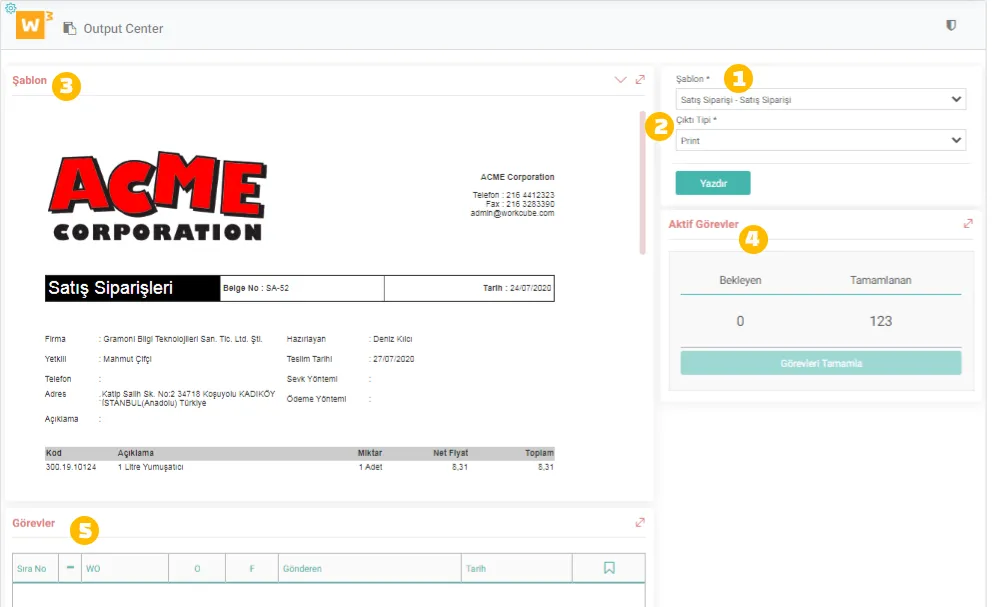
WOC Fields
- Template: A template that can be used for the relevant function in the in-system printer documentation or is specially designed is selected.
- Output Type: What action the template will take. is selected. There are 4 options.
- Printer: Sends the template directly to the printer.
- Mail: Sends the template via e-mail.
- Download: Downloads the template to the user's computer by choosing one of the PDF, Excel and DOC formats.
- Archive: Sends the template in one of the PDF, Excel and DOC formats. is selected and saves it to DAM - Digital Archive.
- Template View: Returns the proof view of the selected template.
- Active Tasks: Shows the status of output transactions sent by multiple users to the WOC.
- Tasks: Lists the senders of the next output transactions. In this way, users can follow the status of their own submissions.
What Does It Do?
WOC allows you to preview your documents before printing, download your previewed document directly in the file format you want (pdf, word, excel), archive the relevant document in the digital archive and send the document to the people you want or corporate or individual accounts associated with the document. It is a tool that allows you to send e-mails.
For example, let's take an invoice process.
You have issued more than one invoice in Workcube. You want to archive these invoices in the digital archive or send them by e-mail.
You can send them to WOC collectively or each invoice separately from the invoice list.
After selecting the output type and format for the invoices received in WOC, you must fill in and save the requested information according to your output type selection.
After the registration process, the documents will be added to the task list and will be placed in the queue behind the previously added records.
By clicking the Complete tasks button. It will start running the tasks in the list one by one and give you small reports about the submission.
An error in any of the processes in the list will not affect the operation of the others and you will be able to receive the return regarding the error immediately.
How to Use?
- Send the documents you want to WOC in bulk or one by one.
- To send documents one by one to WOC, you can click on the print icon, usually in the last column of the relevant line on the list pages, or on the print icon in the tab menu on the detail or update page of the relevant record.
- To send documents to WOC in bulk, you must select the records you want to send to WOC from the list pages and then click on the export icon and select Send Selected to WOC.
- Select and preview one of the documents you have previously defined from Control Panel > System > General Settings > Woc Documents page.
- Select Output Type.
- Print: This is the default option when WOC is first installed. You just have to select this expression to send it to the printer and then click the Print button.
- Download: Allows you to download the document displayed in the preview directly in the file format you want.
- Mail: Allows you to send the document displayed in the preview, in the file format you want, to the corporate or individual accounts associated with the document, or to the e-mail addresses you specify.
- Archive: Allows you to archive the document displayed in the preview in your digital archive, in the file format you want.
- Select Format: Choose the format (pdf, excel, doc) in which you want to produce the document displayed in the preview.
- Enter File Name: Specify the name of the file to be produced.
Note: As explained above, some form elements will be shown or hidden depending on the selections you make. The great thing about WOC is that it only asks you for as much information as it needs.
In cases where the output type is mail or archive, some additional information is requested, you can fill in these and add them to the task list after saving the WOC. Then, you can run the tasks one by one by clicking on the Complete Tasks button, and you can see whether the task can be run by the color of the flag icon in the task list, and if not, the reason why by clicking on the red flag.
Frequently Asked Questions
- WOC template display I get the warning Unable to Preview in the field, what should I do?
This problem may occur due to 2 different situations.
1. Output Templates may not have fuseaction added for the relevant screen in the template.
2. There is a template file, but there is an error in it. In this case, you need to examine the codes of the template file.
Important Warning!
If you receive this warning in the template, you cannot do any saving or output!
To watch the video on WOC interface introduction, sending documents to WOC one by one or in bulk, and recording and running tasks on WOC, follow the link below. You can click.
https://www.loom.com/share/378b2554ca8845a99634b9274d963908
x_control_earsiv E-Arşiv Faturalar Yazdırım Kontrol Tipi
x_control_efatura E-Fatura Yazdırım Kontrol Tipi
x_mail_list Gönderim Yapılacak Mail Adresi
Feedback
Print Center Sender Email Information
Added/Edited Function: When sending an e-mail from the print center, the sending e-mail address information can be changed manually.
With the XML settings, the company option uses the e-mail address in the company definitions, the branch option uses the e-mail address in the branch definitions, the department option uses the e-mail address in the department definitions, and the employee option uses the e-mail address in the employee card. If the selected e-mail address is not defined, it directly returns the company e-mail.

Shall we talk about Workcube?
Call duration has expired.