Place Bulk Order
Purchasing module is the module where all purchases of goods and services within the organization are recorded and managed. When different orders are received from the same supplier, you can create a bulk order from the "Place Bulk Order" screen in the Purchasing module.
Path: ERP > Sales-Distribution > Purchasing > Place a Bulk Order
Using the filtering area on this screen, you can filter the orders created for products to be supplied from the same supplier.
Bulk Order Listing Screen
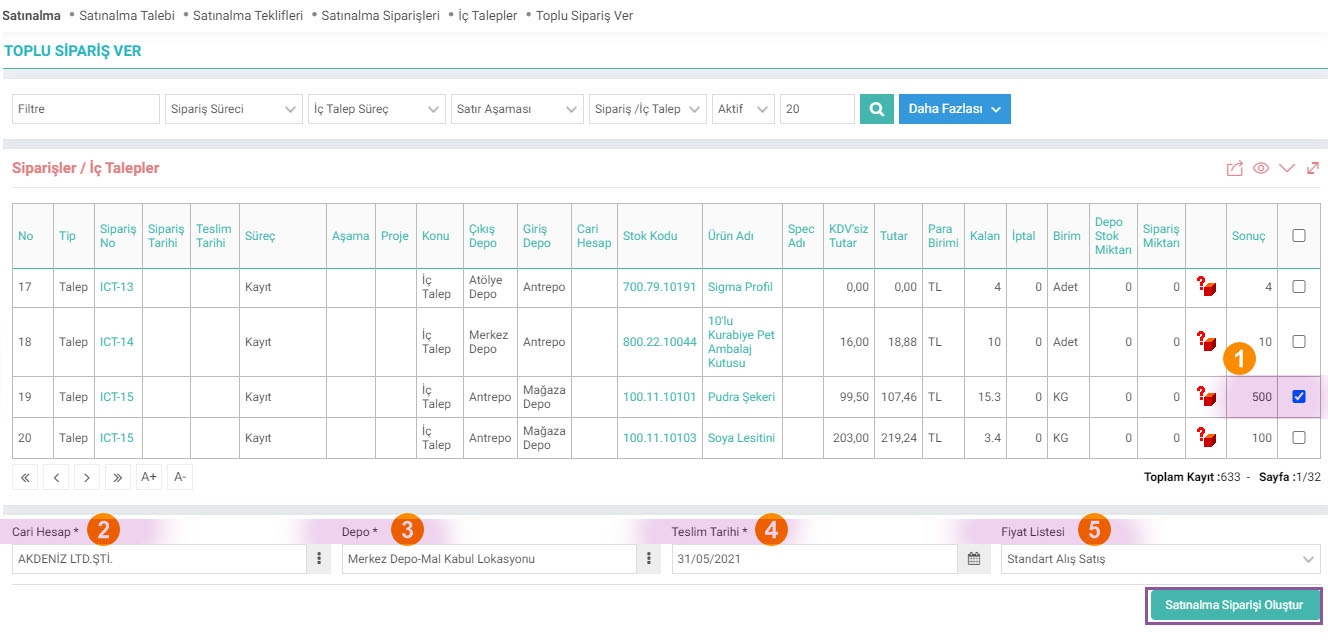
- First of all, enter the order quantity you will place for the product in this line in the result column and check the box on the line so that the product in this line is included in the order.
- After determining the product and product quantities you will order; Select the supplier from which you will supply these products.
- Select the location where the products you have selected will be delivered.
- Specify the delivery date.
- Select the price list to be applied to the products you have specified. Price lists must be defined. For detailed information, you can review the "Price Lists" document.
Attention: The products you have selected must be included in the price list you specified. Otherwise, the system will warn you.
After specifying the necessary information, click the “Create Purchase Order” button. You will see the "Ordering" screen.
Note:For detailed information about the Purchase Order screen, you can read our article "Purchase Orders" in the related content.
Depending on the selection you make, the relevant information will automatically appear on the ordering screen. After specifying other necessary information, click the "Save" button.

Farklı siparişlerin aynı tedarikçiden alınma durumu söz konusu olduğunda Toplu Sipariş Ver ile gönderilir.
x_show_stock_amount Sipariş ve İç Talep Listesinde Depo Stok Miktarı Gelsin mi?
x_show_sale_amount Sipariş ve İç Talep Listesinde Sipariş Miktarı Gelsin mi?
x_show_deliver_date Sipariş ve İç Talep Listesinde Teslim Tarihi Satır Bilgisinden Gelsin mi?
x_show_price_list Fiyat Listesi Seçimi Zorunlu Olsun mu?
Feedback
2.2.9.6. Purchase Request
The purchasing module is the module where all purchases of goods and services within the organization are recorded and managed. The "Purchase Request" screen in this module is used to submit a new purchase request to the purchasing department.
Purchase Offer
With Workcube purchase offers, offers can be requested from multiple suppliers through a single offer record. Requested and received offers are tracked from a single center.
2.2.9.1. Purchasing Parametric Definitions
The purchasing module is the module where all purchases of goods and services within the institution are recorded and managed.
Purchasing Management
With the Workcube Purchasing Module, you can manage all purchases within your business more easily and effectively. In addition to improving your relationships with your suppliers, it significantly reduces your purchasing costs. Your employees can see all order details from the date the order was placed to the payment date on a single page.
2.2.9.2. Purchasing XML Settings
The purchasing module is the module where all purchases of goods and services within the organization are recorded and managed.
Bulk Orders
Added/Edited Function:ERP > Sales-Distribution > Purchasing > Place Bulk Order
When the Corporate Account filter is selected in the Current Account selection pop-up in the Bulk orders business function, the problem of the price list defined in the risk study information not being reflected in the selection box has been fixed.