5.5.Subscription Service and Pricing (Payment Plan)
Payment plans are created for all payments you make, whether in fixed amounts at fixed intervals or variable amounts at variable intervals, such as support services, school installments, maintenance services. Based on the agreements made, monthly, quarterly or annual payment options can be created.
Payment plans are saved on the Subscriber Detail > Other > Payment Plan screen.

The "Create Payment" in the payment plan is used for planning, the lines are created according to this plan. Rows are created as many times as the number of repetitions entered according to the desired period, payment plan, quantity, amount and product on the relevant start date. Checks are made after the rows are formed. If desired, line-based changes can be made. After the final check, the payment plan created is saved with the save button at the bottom right at the end of the lines.
Fields to be Considered When Creating a Payment Plan
Quantity: This is the field where the amount of the defined product or service is provided in the specified period is entered.
Unit: Related to the product.
Discount: If applied, the discount percentage is defined in this field.
Period: This is the field in which the cycle in which the payment will be received is added. Period definitions appear automatically.
Payment Method: Transactions such as invoicing, provisioning and automatic payment are processed according to the payment method. .
Repeat: Repetitions are specified based on the contract made.
For example;
-If you select annual in the period and enter 1 again, you will receive a single invoice annually.
-If you select annual in the period and enter 12 again, you will be invoiced monthly for 12 months.Bulk Invoicing: Invoicing in which different products within a period are collected in a single invoice.
Group Billing: This billing method should be chosen when we want to collect all products of a subscriber in different periods in a single invoice. If group invoicing is desired, this box must be checked.
Let Campaign Operation Rules Work: When you select Let campaign operation rules work, rules will be run only for the product selected on the payment plan page, if it is included in the campaign.
Note: Bulk Invoice and Group Invoice are issued separately. Here, lines will appear in Bulk Invoice transactions and invoicing will be done according to the criteria specified in the Subscriber detail.
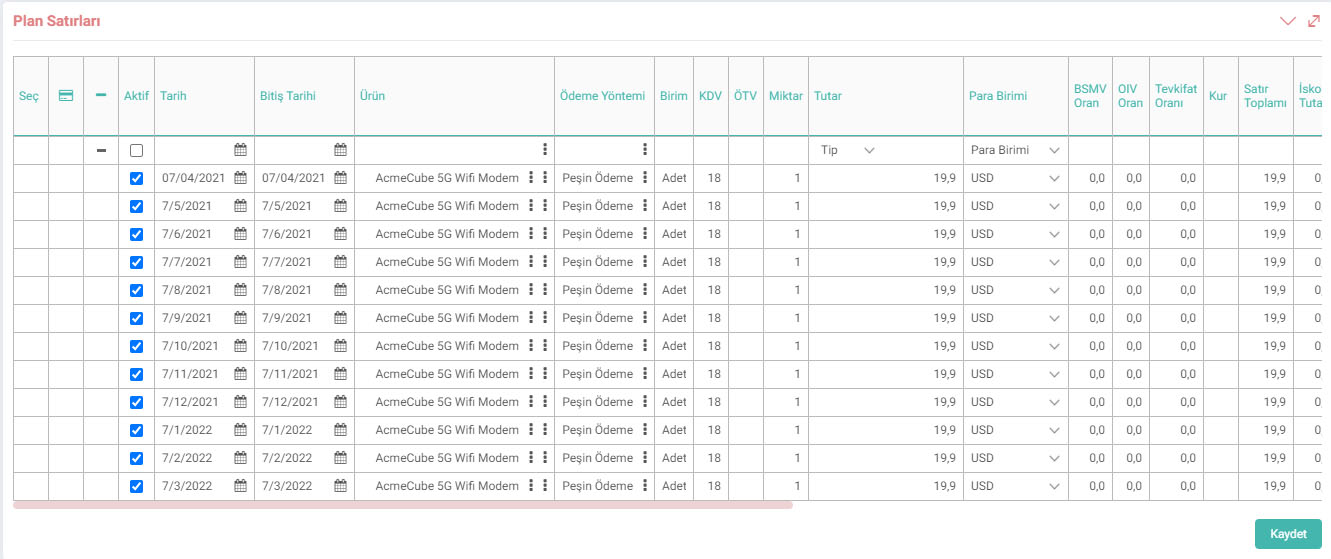
Attention: As soon as create payment is clicked, it adds the subscriber payment plan lines and shows them to you as a preview. Unless the "Save" button is clicked, the added lines will not be saved in this payment plan.
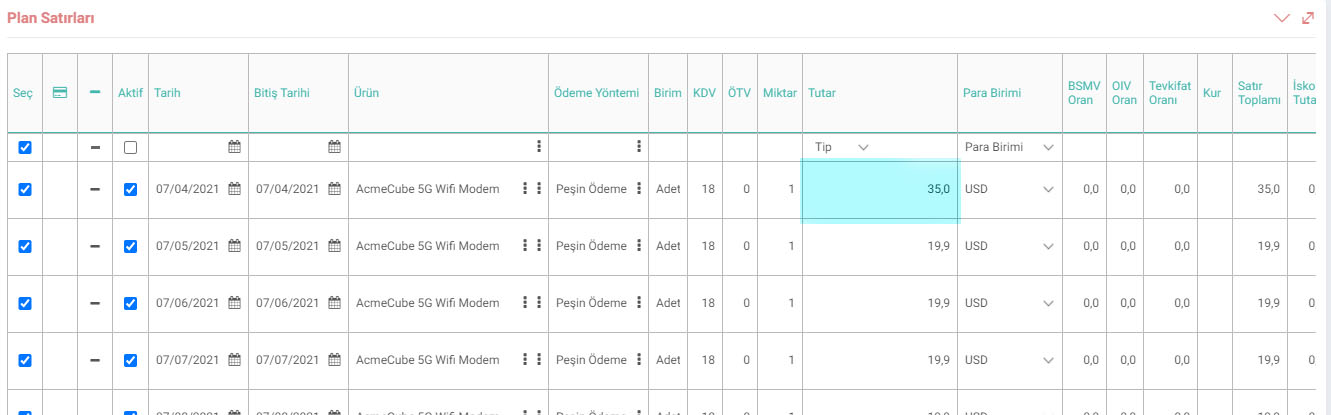
Tip: In a situation where you need to invoice different amounts in one or more invoices while you are going to invoice the same amounts in each period, first add the standard amounts to the payment plan and then change the amounts in the different invoiced lines and click on the "Save" button. For example; in a situation where a deposit will be taken in the first month of payment, you can manually change the amount of that month in the "Amount" column after standard invoicing is created.
GF: To send the invoice of different months (periods) as a single invoice, you can go to the Payment Plan page and check the "GF" boxes in the relevant lines where the invoice has not been issued and save it as a single invoice.
Invoice ID: When bulk invoicing is done through subscriber payment plans, the system automatically sends the issued invoice. associates it with the relevant payment plan line and assigns the Invoice ID automatically.
In cases where a Bulk Invoice is not made, if a manual invoice has been entered, you can associate that line with the issued invoice from the popup in the Invoice ID column.
Collection ID: If Virtual POS, Provision is used, the value is automatically entered here. If it is not used, the collection made for the invoice can be selected from the collection ID popup.
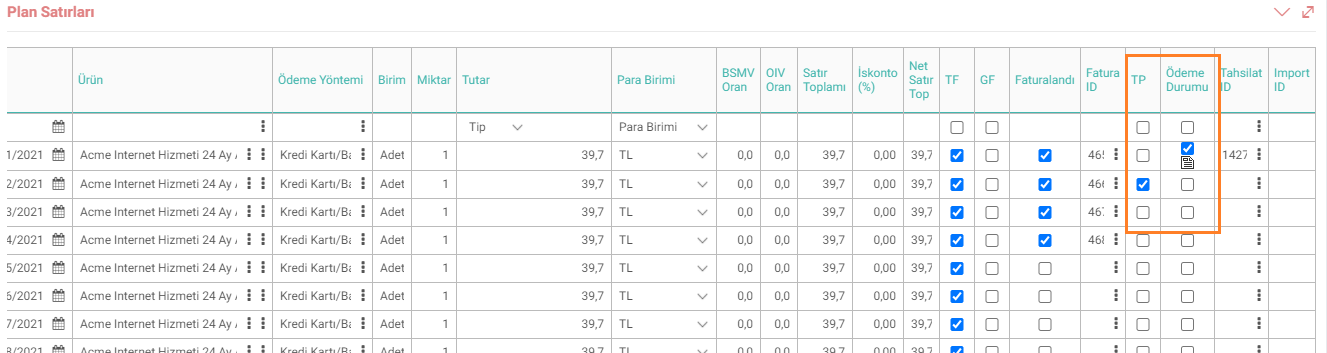
Bulk Provision: This field is selected if a bulk provision file has been created for the relevant payment plan line. Subsequently, in a transaction that has received approval on the provision return, the paid information will also be selected, but if it is a transaction that has not received approval, the Bulk Provision Created information will be removed. Thus, the lines can be sent to provision again.
Paid: This field is selected if the provisioning process has been approved and the credit card transaction has been recorded in the system. If the incoming transfer transaction is among the approved transactions from the automatic payment transaction and is recorded, it will be selected. This field can also be set as paid with a manual payment. Thus, it will not be processed in the new provision-automatic payment screens.
Type: If you say yes to the Bulk Change Option in the Rows in the Payment Plan XML settings, you can change the rows in bulk after saving the payment plan.
Note: The stages can be followed and customization can be made with the process in the payment plan. History information based on Date-Amount and Transaction Person is kept for all transactions made on this screen.
With the "Clear" button, all untransacted payment plan lines (not invoiced, unpaid, provision not created, reference system not selected) after the date entered on the screen that opens can be deleted.
Payment plan lines set as Paid or Invoiced cannot be changed/deleted. Rows are shown as disabled. However, if the user is an admin or has superuser privilege on a module basis, he/she can make the necessary updates.
Feedback
14.3.11. Subscriber Payment Plan Transfer
Workcube Subscription Management allows you to create a payment plan based on the contract content and make automatic periodic invoicing based on this plan. Subscriber payment plans can be transferred in bulk via the page.
5.8. Collection and Automatic Payment Receipt
Automatic Virtual POS was designed to collect customer invoices from credit cards in companies operating with a subscription system.
5.6.1. Campaign Management with Subscription Commitment
Subscriber Commitment Campaign Management is used to reflect the conditions of the companies working with the subscription system regarding the campaigns they organize, to the customer's payment plan.
Subscriber Management
In order to perform transactions in the subscription module, you must have authority in the module, processes and transaction categories.
5.2. Subscriber Page Settings
Workcube Subscription Management ensures that business processes are accelerated and information is managed in the most effective way in order to produce fast and effective solutions to customer needs.