Self Service HR Transactions
In the Self Service HR application, personal information, pay slips, viewing expenses, requesting leave, etc. Transactions such as these are easily provided here.
Path: Intranet > HR Transactions
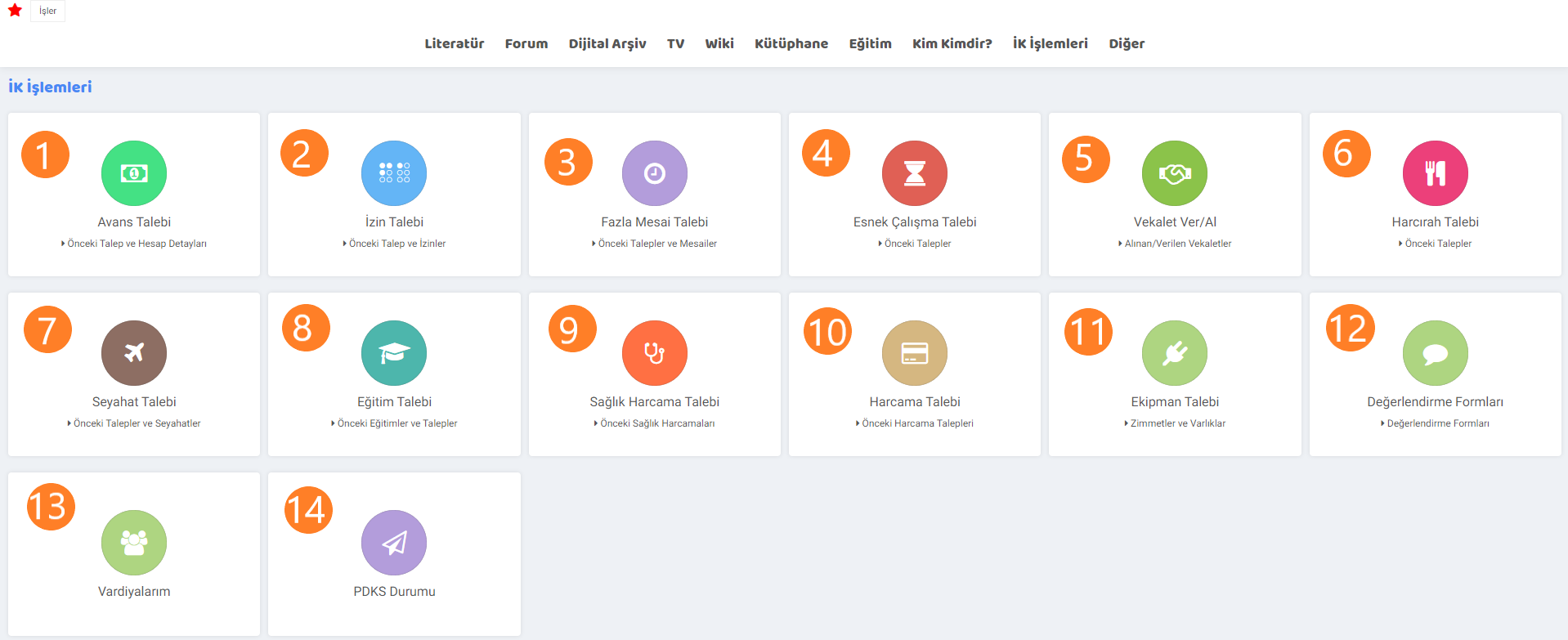
1. Advance Request: By requesting an advance from the administrator via this page, the advance can be tracked in the workflow. There are two options on the advance request page: "Advance" and "Advance in Installments". In order to request an advance payment on these pages, you must first specify the reason, subject, date and amount.
- On the previous request and account details page, the incoming account statement shows incoming and outgoing transfers. The Payroll section shows employee payrolls between the specified dates. The advance and installment advances you have requested will be displayed.
2. Leave Request: We can create a leave request using the leave request tab. On the page that opens, the permission type is selected in the category section. Leave and excuse categories are defined on the parameters page. After the start and end dates of the leave are entered, the start date of work is determined and the leave request is created.
- Previously used leave information is displayed on the previous request and leaves page. If there is used annual leave, it is listed. Annual leave progress payments are checked. Permission agreements are checked.
3. Overtime Request: Work exceeding 45 hours per week within the framework and conditions determined by the labor law. On the overtime page, a request is created by selecting the working person, the process, and specifying the overtime compensation (Free Time, Wage added), the dates on which he worked, and on which day (Working Day, Weekend, Public Holiday, Night Work).
- If overtime has been worked before on the previous requests and overtime page, the working day, duration and date are listed here.
4. Flexible Working Request: Flexible working is a type of working in which employees' working hours are different from standard working hours. After selecting the process, (Unit Approval, Manager Approval, Acceptance, Rejection), date, applicant, branch and department on the flexible work request page, a request can be created by entering the year, month, day and time range in the box or by simply entering the date and time range.
- If there is a previously created request on the previous requests page, it will be seen on this page.
5. Give/Receive Power of Attorney: Power of attorney is the authority given by one person to another person to do business on his/her behalf. There are two fields in the tab menu of the page. The request is created by selecting the process on the "Give Power of Attorney" and "Get Power of Attorney" pages, the person receiving Power of Attorney/Giving Power of Power, and entering the start and end dates.
- The powers of attorney created previously are seen on the Power of Attorney Received/Given page.
6. Allowance Request: Allowance is the payments made to civil servants and servants who are transferred from their original location to other places on a temporary or permanent basis, in return for the additional expenses they will incur due to moving to their assigned places or to their new places of duty. The request is made after specifying the type and amount by selecting the process, document type, start and end dates and associated travel on the page, going to the basket section.
- Requests created on the previous requests page can be accessed.
7. Travel Request: It is considered as a travel on duty, provided that the person is on duty for domestic/international courses, seminars, conferences, panels, fairs etc. for business reasons. There are seven boxes on the travel request page.
- Personal information appears automatically in the travel information box. The country or city to be visited is specified. The reason for the assignment, the type of travel (duty travels, long-term travels, educational travels) and if the trip is related to a project, are stated.
- Assignment information, including the route, start/end dates, number of days on duty, are stated if there is a vehicle request, visa requirement and hotel request.
- Advance information, travel advance request, hotel advance request, if international exit fee needs to be paid, this is stated.
- Event information start and end dates are entered.
- Personal travel preference, departure/return dates of the flight are specified.
- The means of transportation to be used for/during the travel is selected.
- The conference, meeting address and website to be attended. The website is specified.
- Requests created in the previous requests and travels section are listed.
8. Training Request: Requests are made to participate in trainings such as conferences, fairs and seminars for educational reasons. On the training request page, one of the Catalog / Non-Catalog options is selected. The training to be taken is selected from the training catalogue. A request is created by selecting the Start and End dates.
- On the previous training and requests page, trainings attended, trainings that are certain to be attended, training requests created, annual training requests, and training requests awaiting approval can be accessed.
9. Health Expense Request: The employee requests health expenses for himself or his relative. On the page, expenditure information is entered according to the process, document type, transaction date, service provider, person receiving treatment, and the VAT rate related to the expenditure. The invoice amount is specified. Makes a request.
- Health expense requests created on the previous health expenses page are listed.
10. Expenditure Request: Expenditures that are mandatory for the business. On the expenditure request page, the process, document type (Expenditure Receipt, Customer Expense), document date, requester, payment method, if any, maturity date and vendor are entered. A request is created by entering the date and expense amount in the box.
- Previous expenditures are listed on the previous expenditure requests page.
11. Equipment Request: On the equipment request page, the asset type (Vehicle, Computers, Office furniture and supplies, etc.) is selected, the requester, the purpose of use (Consultancy and Support, In-Office, Sales, etc.) and the request date are entered and the request is created.
- The Debits and assets page lists assets and previously claimed assets.
12. Evaluation Forms: The form is filled in by selecting the evaluation form type (Trial Period, Dismissal, Survey) on the evaluation listing page.
13. My Shifts: Working in shifts means fulfilling the assigned task within specified periods.
The person can access shift information by specifying the start and end dates on the page.
14. PDKS Status: Personnel tracking system ensures that entries and exits are made in an orderly manner and prevents errors. PDKS ensures that personnel work in order.
myhome.my_extre Avans Talebi Seçilebilsin
myhome.my_offtimes İzin Talebi Seçilebilsin
myhome.list_my_extra_times Fazla Mesai Talebi Seçilebilsin
myhome.flexible_worktime Esnek Çalışma Talebi Seçilebilsin
myhome.employee_mandate Vekalet Ver/Al Seçilebilsin
myhome.allowance_expense Harcırah Talebi Seçilebilsin
myhome.list_travel_demands Seyahat Talebi Seçilebilsin
myhome.list_my_tranings Eğitim Talebi Seçilebilsin
myhome.health_expense_approve Sağlık Harcama Talebi Seçilebilsin
myhome.list_my_expense_requests Harcama Talebi Seçilebilsin
myhome.list_assetp Ekipman Talebi Seçilebilsin
myhome.list_employee_detail_survey_form Değerlendirme Formları Seçilebilsin
myhome.list_my_pdks PDKS Durumu Seçilebilsin
Feedback
my permissions
With Workcube My Leaves, employees in the organization can view their leave application status, approved annual leaves, the leaves they use by categories, their annual entitlements, and their leave days and remaining days.
My Flexible Working Requests
With Workcube Flexible Working Requests, employees in your organization can apply for, control and track any changes in working hours with flexible working hours, as well as the opportunity to work outside standard working hours.
My Portal
The My Portal business family falls under Intranet. Information on the intranet is managed and transactions are carried out through the modules under this job family.
3.4.1.2. Health Expenditure Vouchers
Health Expenditure Vouchers provide company employees and their relatives with the opportunity to make transactions within a limit for health expenses. Invoices of health expenditures are recorded and controlled through the Workcube interface.
14.4. utility
Utility screen; It is a process accelerator page that makes it easier to perform useful operations faster and more practically, such as branch copying, mass authorization on processes and transaction categories, task transfer and definitions, template definitions, and assigning admin authority to employees.