Repair-Maintenance Receipts
Maintenance Receipt is the page where the expenses incurred as a result of maintenance are recorded. Costs are measured with the maintenance voucher, which is extremely simple to use. In this way, the maintenance performed is reported based on expenses.
Path: PAM > Assets > Repair-Maintenance > Add Repair-Maintenance Receipt
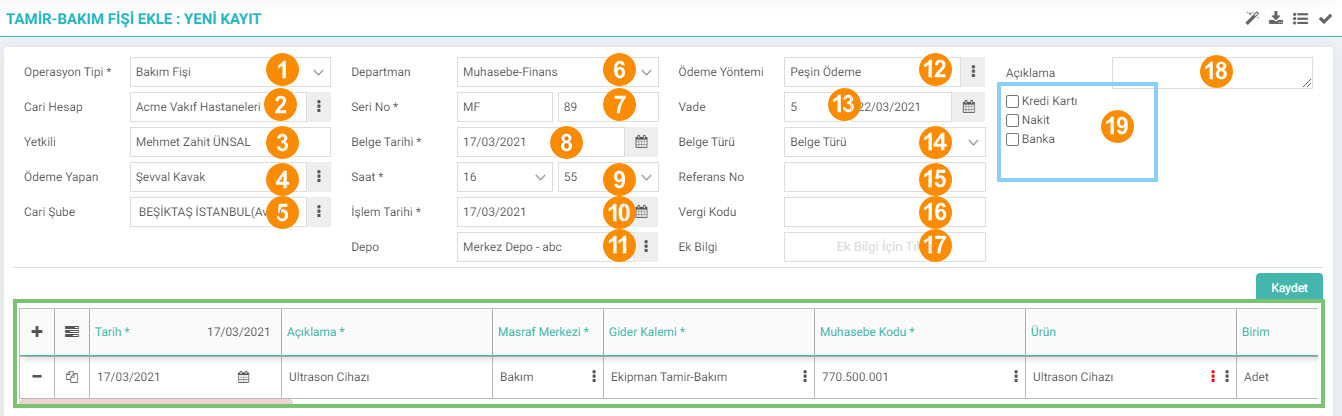
1-Operation Type: Operation from this field You must determine your type.
2-Current Account: You can select the current account from which the maintenance voucher will be issued.
3-Authority: Depending on the selected current account, the authorized person will appear automatically.
4-Payer: The person who created the document will appear automatically. You can use the icon next to it to make changes.
5-Current Branch: You can select the branch of the selected client from this field.
6-Department: You can select the department.
7-Serial Number: The system will automatically assign a serial number to the cut maintenance ticket.
8-Document. Date: The date you edit the document.
9-Time: You can choose the time the transaction will take place.
10-Transaction Date: You can choose the date the transaction will take place.
11-Warehouse: You can select the warehouse where the transaction will take place here.
12-Payment Method: Cash, Deferred, etc. You can choose the payment method as follows. Payment Methods are defined in Control Panel > System > Parameters > Payment Methods.
13-Maturity: Maturity depends on the payment method you have selected.
14-Document Type: You can select the document type of the maintenance voucher from this field. Document Types are set in Control Panel > System > General Settings > Document Types .
15-Reference No: Additional description information
16-Tax Code: You can define a tax code from this field.
17-Additional Information: Additional information about the voucher from this field. You can choose the description. Additional information is defined in Parameters > Additional Information.
18-Description: You can enter a description about the issued maintenance voucher.
19- You can choose how the payment will be made from this field. If you select Credit Card or Cash, fields will open where you can select the safe and card information.
Repair-Maintenance Receipt Update Screen
You can list the repair-maintenance receipts on the "Expense and Income Receipts" page and click the "Update" icon next to it. You can go to the update screen by clicking.
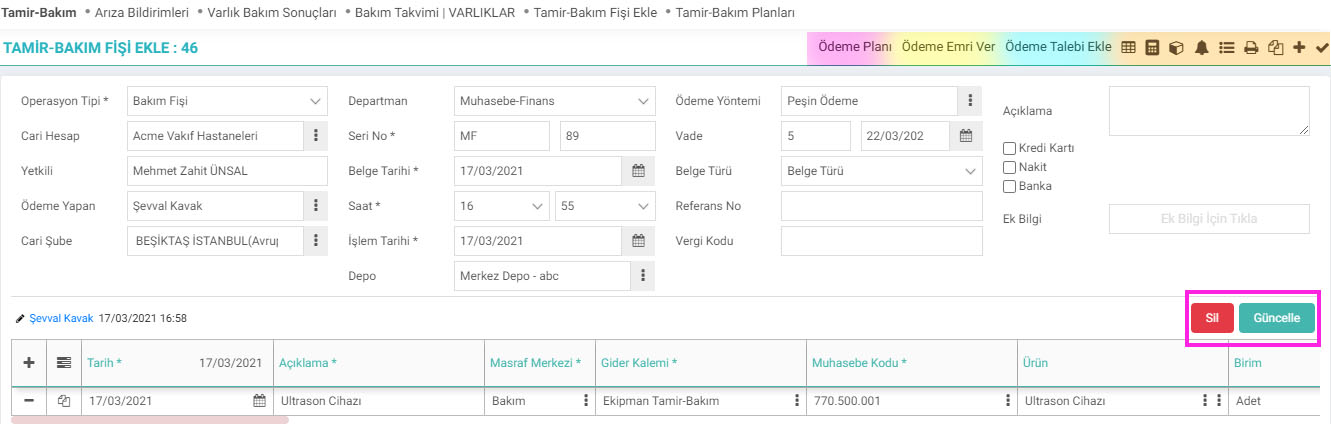
Payment Plan
You can create a payment plan for your document by clicking on this icon.

Give Payment Order
If you click on this icon, the system will direct you to the Payment Orders screen.

On this screen; If you wish, you can list the documents for which a payment order is expected to be issued for the selected client, by filtering them or by clicking on the "DÖK" button without filtering if you want to see all of them.
Then check the box at the beginning of the document for which you want to place a payment order. In the Financial Summary area, you will see the financial summaries of the selected document. If you want to associate it with the order or description etc. If you want to add it, fill in the required information and click the "Issue Payment Order" button. A payment order for your document will be issued.
Add Payment Request
The Payment Request screen is the same as the Payment Order screen. Follow the same steps in the Payment Order section and press the "Create Request" button. Your Payment Request will be created.
With the help of other small icons at the top right of the update screen, you can view Accounting Vouchers, Account Statement, Document Details, Alerts and print, copy, etc. the document. You can easily perform the operations.
Note: It is mandatory to select a budget item to record the Repair-Maintenance Receipt. For example, when saving an invoice, a budget item is not selected. It is made from the details of the products included in the invoice, that is, from the definitions in the background. However, recording a Repair and Maintenance voucher means recording the expenses, that is, entering a result record directly into the budget.

Bakım sonucu çıkan masrafların kayıt altına alınması için kullanılır.
Bakım sonucu çıkan masrafların kayıt altına alınması için kullanılır.
Bu sayfanin cf_big_list_search'ü olusturulmustur.
Kaydedilen belgelerin çıktılarının alınması için kullanılır. Standart şablonlar seçilebilir ya da özel şablonlar eklenebilir, ayrıca şablonlar yetkiye bağlanabilir.
İş süreçlerinin tasarım ve akışlarını oluşturur.
x_select_branch Şube Seçilebilsin
x_select_project Proje Seçilebilsin
xml_acc_department_info Departman Seçilebilsin
x_is_required_physical_asset Fiziki Varlık Seçimi Zorunlu Olsun
x_is_project_priority Proje Öncelikli İşlem Yapılsın
x_is_add_position_to_asset_list Varlık Sorumlusu Harcama Yapan Olsun
x_row_copy_asset_info Satır Kopyalanırken Fiziki Varlık Bilgileri Taşınsın
x_row_copy_product_info Satır Kopyalanırken Ürün Bilgileri Taşınsın
x_row_project_priority_from_product Satırda Proje Seçilmeden Ürün Seçilemesin
x_row_workgroup_project Satırda Proje Seçilince İş Grubu Otomatik Gelsin
x_is_project_select Satırda Ürün Varken Proje Değiştirilebilsin
x_is_change_stopaj Stopaj Tutarı Değiştirilebilsin
xml_order_list_rows Satırlarda Öncelik Sıralaması
xml_tax_rate KDV %
xml_paper_no_control Aynı Seri-No Farklı Cariler İçin Kullanılsın mı?
x_kdv_add_to_otv ÖTV oranı, KDV Matrahına Eklensin
xml_satir_number Satırlardaki Tutarların Yuvarlama Sayısı
xml_genel_number Genel Toplam Alanındaki Tutarların Yuvarlama Sayısı
xml_control_payment_plan_status Ödeme Planı Otomatik Güncellensin
xml_exp_center_from_assetp Masraf Merkezi Fiziki Varlık Sorumlusundan Gelsin
is_default_employee Ödeme Yapan Alanına Sistem Kullanıcısı Gelsin
is_product_cost_default Ürün Fiyatı Ürün Maliyet Tutarından Gelsin
xml_upd_row_project Belgedeki Proje Satırlara Yansıtılsın
xml_upd_row_expense_center Satırlardaki Masraf Merkezi Projeye Bağlı Olarak Getirilsin
xml_discount İskonto Oranı ve İskonto Tutar Göster
xml_expense_center_budget_item Masraf/Gelir Merkezi Bütçe Kalemi İlişkisi Kullanılsın Mı
x_authorized_branch_department Masraf Merkezleri Yetkili Olunan Şubeler ve Departmanlara Göre Gelsin
xml_show_process_stage Süreç Gösterilsin mi?
xml_budget_row_date Bütçe işlemi satırdan yapılsın
xml_money_type Kur Tipi
x_kdv_add_to_oiv OIV Kdv matrahına dahil edilsin mi?
xml_row_project_is_required Satırda Proje Seçimi Zorunlu Olsun mu?
xml_row_work_is_required Satırda İş Seçimi Zorunlu Olsun mu?
xml_show_asset İlişkili Belgeler Görüntülensin
xml_show_warnings İlişkili Süreçler Görüntülensin
xml_invoice_mail WAI - Fatura E-Postası
xml_invoice_mail_folder_id WAI - Faturalar Google Drive Klasör ID
xml_drive_file_extensions WAI - Faturalar Google Drive Dosya Uzantıları
xml_copy_emails_to_drive WAI - Gmaildeki E-Postaları Google Drive'a Kopyala
xml_cari_autocomplete Cari Hesap AutoComplete Aktif Olsun
Feedback
6.3.1. Fault Notifications
Fault Notifications include maintenance and repairs that are not periodic maintenance and are performed when a fault occurs. Monitoring the problems experienced in Physical, IT Assets or Vehicles is very important, especially on the Production Station side.
6.3.2.Repair-Maintenance Plan and Results
Repair-Maintenance Plans and Results allow you to make and manage regular maintenance plans for your physical assets. It allows you to easily view and monitor your maintenance plans from the maintenance calendar.