Course
You can add training from the course screen and determine the people who can access your training.
Registered trainings are listed on the course screen, you can add a new training by clicking the "+" icon. The usage of the sections and fields on the "Add Course" page is as follows;
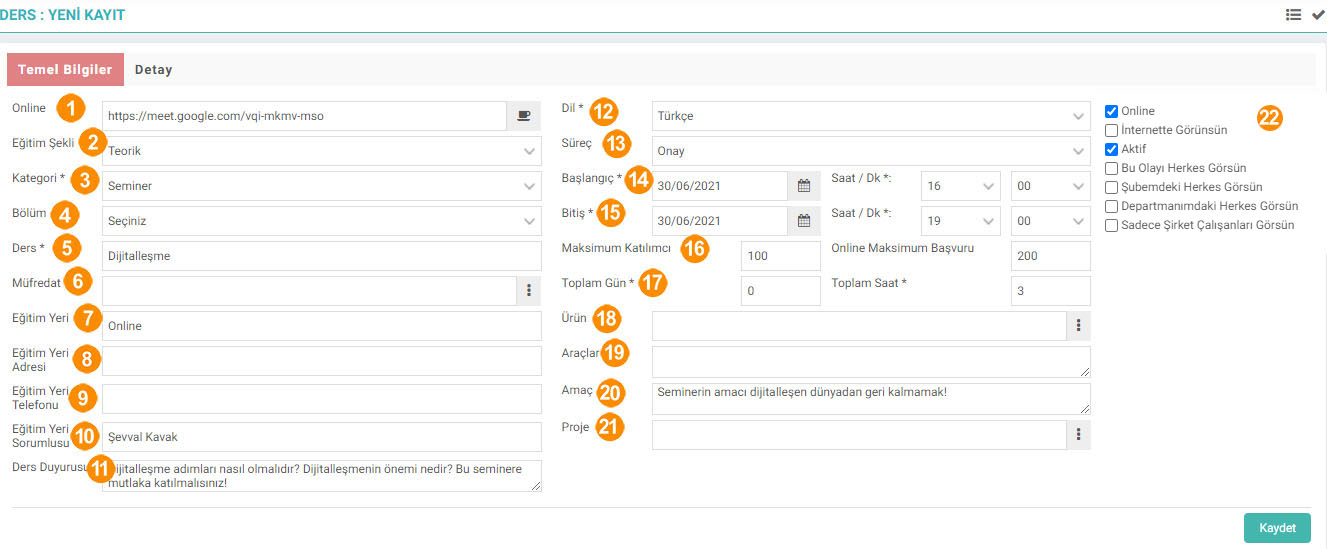
- Online: When the "Online" box on the bottom of the screen is checked, this field opens and the meeting link where the course will take place is entered.
- Education Mode: Enter mode of education. Training modes are done from the Control Panel > System > Parameters page.
- Category: Enter the category of the training. Categories are defined from parameters. The trainings to be added can be classified under headings. This definition will constitute the main headings of the training catalogue. (For example; SoftSkills Trainings, Vocational/Technical Trainings, etc.).
- Section: Enter the section of the training. Sections are defined from parameters.
- Course: Enter the name of the course.
- Syllabus: Select syllabus. Curriculums are defined on the LMS > Training > Training Management > Curriculum page.
- Training Place: Write the place where you will provide training.
- Training Place Address: Write the full address of the training place.
- Training Place Phone: Enter the phone number of the training place.
- Training Site Responsible: Write the person responsible for the training place.
- Course Announcement: If an announcement will be made for the participants regarding the course, it can be written in this field.
- Language: The language of the training.
- Process: If a process related to training has been created, a description of the process can be made in this field.
- Start:Enter the start date and start time in the field next to it.
- End: Enter the end date and end time in the field next to it.
- Maximum participants: Used to determine the maximum number of people who will participate in the training. The number of participants cannot exceed this number.
- Total Day-Hour:The total day and time of the training are entered in this field.
- Product: It is used in the pricing and online sales of scorm content to individual members. In the training where scorm content is attached, the product belonging to scorm content is taken from this field.
- Tools:Tools to be used in the course can be written in this field. In this way, users can be prepared for the training.
- Purpose:You can write the purpose of the course.
- Project: If the training is related to a project, you can select the project from this field.
- The following operations are performed with the boxes on the right side of the screen. It is done.
- Online: If you are going to give the training live, you should select this box.
- Visible on the Internet: If the training will be published on websites managed by Workcube, this box is selected. Training announcements and contents are published on the sites selected under the "sites to be published" heading on the right.
- Active: Indicates that your training is active.
- Let Everyone See This Event: When this box is checked, the training can be viewed by everyone.
- Everyone in My Branch. Let it See: When this box is checked, only those in the registrant's branch can see the training.
- Let Everyone in My Department See it: When this box is checked, only those in the registrant's department can see the training.
- Only Company Employees Can See it: When this box is checked, only company employees can see the training.
You can write education-related content from the "Detail" section.
After clicking the "Save" button, the Course Details screen will open. The following operations are performed with the help of the extra fields on the screen;
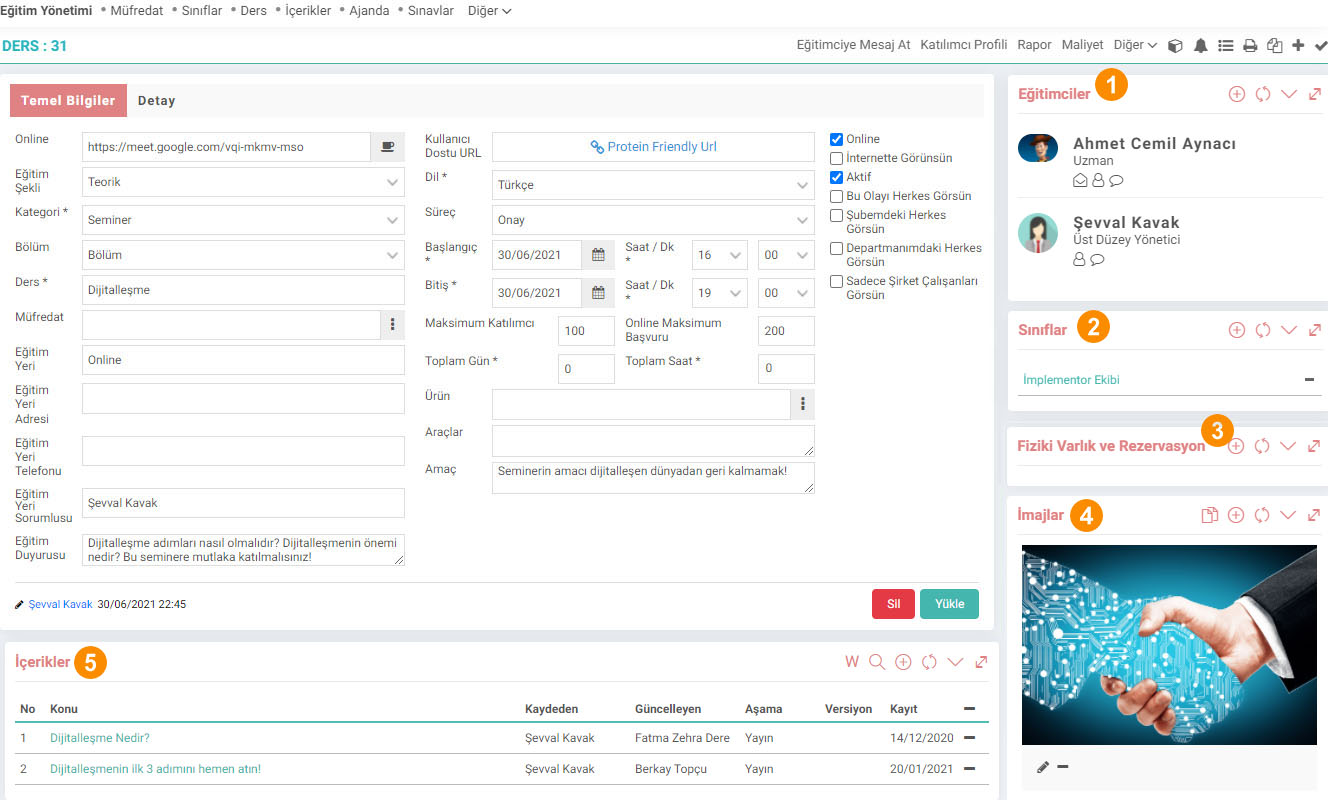
- Educators: You can define educators from this field..
- Classes: Classes from LMS > Education > Education Management > Classes page. defined.
- Physical Presence and Reservation: You can associate a physical asset from this field.
- Images: You can add product images from this field.
- Content: You can add product-related content. Product contents are published on B2B, B2C sites. can be used as content.
- Documents:You can add a document related to the product or associate it with a document in the digital archive.
- Scorm Contents:SCORM is the abbreviation of Shareable Content Object Reference Model. It creates a framework for content management to run e-learning content in different educational software by generating user data. You can upload education-related scorm content from this area.
The following operations can be done with the help of the links at the top right;

- Send a Message to the Educator: Send a note to the educator with the help of this link.
- Participant Profile: You can set a participant profile.
- Report: You can enter a report after the training from this link. You can send feedback such as post-training evaluations, thoughts, and suggestions in the report. Note: Write the number of the page you want to appear opposite the parts you want to see in the report.
- Cost: The cost of the training is checked.
- Attendance: The status of the participants is entered in this field. Excuses of those who did not participate, etc. definitions are made.
- Add Scorm Compatible Content: When you click on this link, you will see the screen where you can upload Scorm compatible content.
- Scorm Report: This link directs you to the Scorm Results screen.
- Suggest Training: From this link. You can recommend the training to someone else, along with the person and description to be recommended.
- Print Participant: You can print the participant list.
- Mail: You can send the training by e-mail.
With the help of other links, you can reach the detail page with the training evaluation forms, warnings about the training, and the course list.

CV Sınav sonuçları için eklenen sınav tipleridir.
Yapılan eğitimlerin masraflarında kullanılmak üzere gider kalemleri girilir.
Eğitim içerisinde yer alan derslerin anlatılacak olan konular ile birlikte kaydedilmesi ve takip edilmesi için kullanılır.
Eğitim içerisinde yer alan derslerin anlatılacak olan konular ile birlikte kaydedilmesi ve takip edilmesi için kullanılır.
İş süreçlerinin tasarım ve akışlarını oluşturur.
İş süreçlerinin tasarım ve akışlarını oluşturur.
Kaydedilen belgelerin çıktılarının alınması için kullanılır. Standart şablonlar seçilebilir ya da özel şablonlar eklenebilir, ayrıca şablonlar yetkiye bağlanabilir.
Eğitim içerisinde yer alan derslerin anlatılacak olan konular ile birlikte kaydedilmesi ve takip edilmesi için kullanılır.
Açık uçlu, tek cevaplı, çok cevaplı, görüntülü cevap seçenekli vb. farklı formatlarda süreli veya online sınavların oluşturulmasını sağlar.
xml_is_scorm_content_upload En fazla 1 adet scorm içerik yüklenebilsin?
xml_is_survey_add En fazla 1 adet Değerlendirme Formu eklenebilsin veya ilişkilendirilebilsin?
xml_is_quiz_add En fazla 1 adet test eklenebilsin veya ilişkilendirilebilsin?
xml_is_related_class İlişkili Eğitimler Gelsin?
xml_is_module Modül Seçeneği Gelsin?
xml_multiple_comp Sadece Şirket Çalışanları Görsün Seçeneğinde Çoklu Şirket Seçeneği Gelsin mi?
xml_portal_url Çalışan dışındaki kursiyerler için Eğitim Portali URL gelsin mi?
Feedback
9.12. Training Requests
Training Requests are used so that personnel who want to benefit from training within the business can request training and follow the training processes.
9.11. Education Import
Screens that allow companies to collectively transfer orientation training to their employees, participants to be trained, and general training in the system are gathered under the heading of Training Import. These screens aim to transfer training quickly and accurately.
9.9. Education Agenda
The Training Management module within Workcube enables institutions to centrally manage all their training activities and carry out their training easily. Thanks to the Education Agenda screen in this module, users can make plans by following course and exam dates.
9.7. classes
With Training Management, trainings are planned for employees, partners and even customers. Classes where training will be given are created.
Education
There is a training section within the intranet. From here the user can access the training curriculum, contents, classes, lessons, exams and control panel. It is used to provide in-house training.
Assignments Job Function added
Added/Edited Function:Assignments job function added under LMS > Education > Training Management
Benefit:Assignments in the course details were made as a separate page. In this way, assignments can be added independently of the course and an assignment pool can be created. Search has been added to the assignment widget in Curriculum, Course and Class details. Details were linked to existing assignments.
Lesson Copy Function
Added/Edited Function:In the LMS > Education > Education Management > Courses job function, basic information about the content was obtained in course copying.
Benefit: In courses belonging to a curriculum, the course subject, date and time may change, but the training location, address, etc. some information may be the same. Ease of use was achieved by transferring basic information in the course copying function.