Ders
Ders ekranından eğitim ekleyebilir, eğitimlerinize ulaşabilecek kişileri belirleyebilirsiniz.
Ders ekranında kayıtlı eğitimler listelenir, "+" ikonuna tıklayarak yeni bir eğitim ekleyebilirsiniz. "Ders Ekle" sayfasında yer alan bölüm ve alanların kullanımı aşağıdaki gibidir;
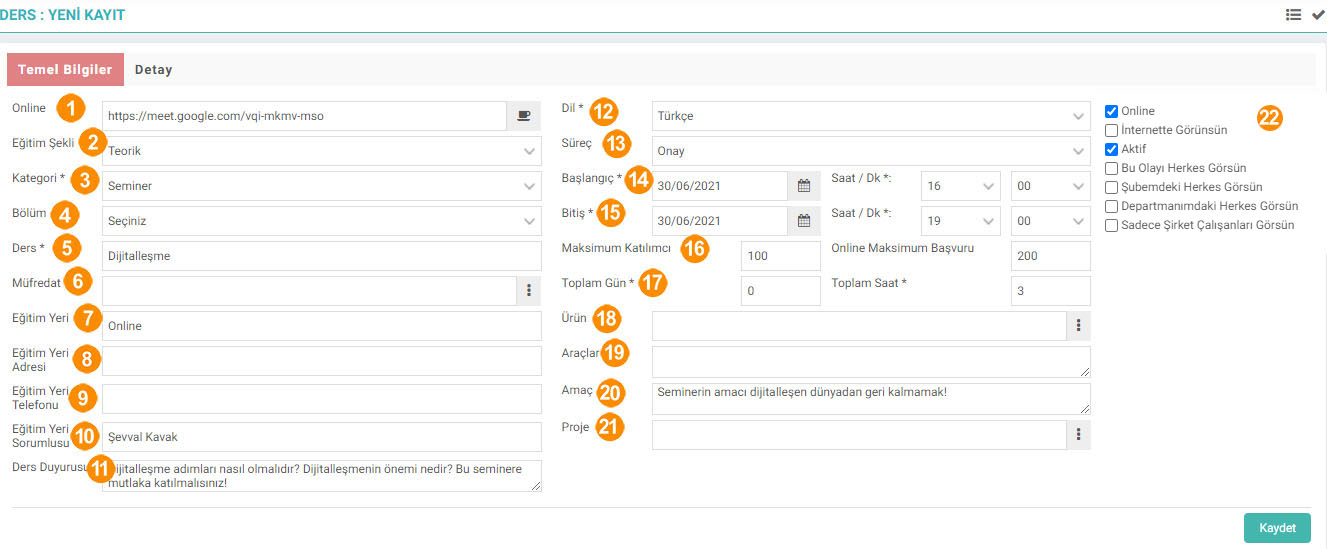
- Online: Ekranın sap tarafında bulunan "Online" kutucuğu işaretlendiğinde bu alan açılır ve dersin gerçekleşeceği toplantı linki girilir.
- Eğitim Şekli: Eğitim şeklini girin. Eğitim şekilleri Kontrol Paneli > System > Parametreler sayfasından yapılır.
- Kategori: Eğitimin kategorisini girin. Kategoriler parametrelerden tanımlanmaktadır. Eklenecek eğitimler üstbaşlıklarla sınıflandırılabilir. Bu tanımlama eğitim kataloğunun ana başlıklarını oluşturacaktır. (Örneğin; SoftSkills Eğitimler, Mesleki/Teknik Eğitimler gibi).
- Bölüm: Eğitimin bölümünü girin. Bölümler parametrelerden tanımlanmaktadır.
- Ders: Dersin adını girin.
- Müfredat: Müfredat seçin. Müfredatlar LMS > Eğitim > Eğitim Yönetimi > Müfredat sayfasından tanımlanır.
- Eğitim Yeri: Eğitim vereceğiniz yeri yazın.
- Eğitim Yeri Adresi: Eğitim yerinin açık adresini yazın.
- Eğitim Yeri Telefonu: Eğitim yerinin telefon numarasını girin.
- Eğitim Yeri Sorumlusu: Eğitim yerinden sorumlu olan kişiyi yazın.
- Ders Duyurusu: Dersle ilgili olarak katılımcılara yönelik bir duyuru yapılacak ise bu alana yazılabilir
- Dil: Eğitimin dilini seçin.
- Süreç: Eğitimler ile ilgili bir süreç oluşturulmuş ise, bu alandan süreçle ilgili tanımlamayapılabilir.
- Başlangıç: Başlangıç tarihini ve yanındaki alandan başlangıç saatini girin.
- Bitiş: Bitiş tarihini ve yanındaki alandan bitiş saatini girin.
- Maksimum katılımcı: Eğitime katılacak maksimum kişi sayısının belirlenmesine yarar. Katılımcı sayısı busayıyı aşamayacaktır.
- Toplam Gün-Saat: Bu alana eğitimin toplam günü ve saati yazılır.
- Ürün: Scorm içeriklerin fiyatlandırılması ve bireysel üyelere online satışı süreçlerinde kullanılır.Scorm içeriğin ekli olduğu eğitimde, scorm içeriğe ait ürün bu alandan ilişkilendirilir.
- Araçlar: Derste kullanılacak araçlar bu alana yazılabilir. Böylelikle kullanıcıların eğitime hazırlıklıgelmeleri sağlanabilir.
- Amaç: Dersin amacını yazabilirsiniz.
- Proje: Eğitim bir proje ile ilgiliyse bu alandan projeyi seçebilirsiniz.
- Ekranın sağ tarafından bulunan kutucuklarla şu işlemler yapılmaktadır.
- Online: Eğer eğitimi canlı verecekseniz bu kutucuğu seçmelisiniz.
- İnternette Gözüksün: Workcube ile yönetilen internet sitelerinde eğitim yayımlanacaksa bu kutucukseçilir. Sağ tarafta açılan “yayımlanacak siteler” başlığının altından seçilen sitelerde eğitim duyurusu veiçerikleri yayımlanır.
- Aktif: Eğitiminizin aktif olduğunu gösterir.
- Bu Olayı Herkes Görsün: Bu kutucuk işaretlendiğinde eğitim herkes tarafından görüntülenebilir.
- Şubemdeki Herkes Görsün: Bu kutucuk işaretlendiğinde eğitimi sadece kaydeden kişinin şubesindekiler görebilir.
- Departmanımdaki Herkes Görsün: Bu kutucuk işaretlendiğinde eğitimi sadece kaydeden kişinin departmanındakiler görebilir.
- Sadece Şirket Çalışanları Görsün: Bu kutucuk işaretlendiğinde eğitimi sadece şirket çalışanları görebilir.
"Detay" bölümünden eğitimle ilgili içerik yazabilirsiniz.
"Kaydet" butonuna tıkladıktan sonra Ders Detay ekranı açılacaktır. Ekranda bulunan ekstra alanlar yardımıyla şu işlemler yapılır;
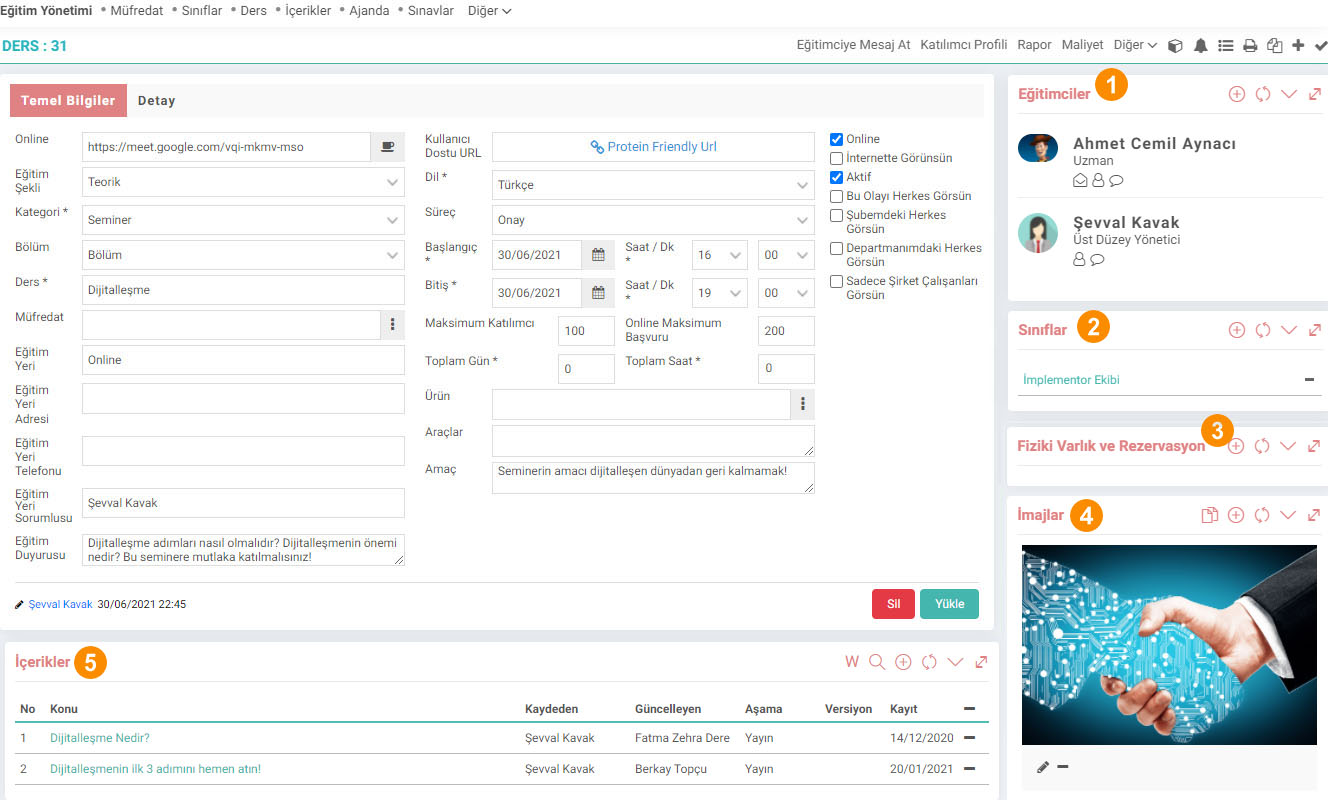
- Eğitimciler: Eğitimcileri bu alandan tanımlayabilirsiniz..
- Sınıflar: Sınıflar LMS > Eğitim > Eğitim Yönetimi > Sınıflar sayfasından tanımlanır.
- Fiziki Varlık ve Rezervasyon: Bu alandan bir fiziki varlık ile ilişkilendirme yapabilirsiniz.
- İmajlar: Bu alandan ürün görseli ekleyebilirsiniz.
- İçerikler: Ürün ile ilgili içerik ekleyebilirsiniz.. Ürün içerikleri B2B, B2C sitelerde yayın içeriği olarak kullanılabilir.
- Belgeler: Ürün ile ilgili bir belge ekleyebilir veya dijital arşivde yer alan bir belge ile ilişkilendirebilirsiniz.
- Scorm İçerikler: SCORM, Shareable Content Object Referans Model (Paylaşılabilir İçerik Nesne Referans Modeli) sözünün kısaltmasıyla oluşur. E-öğrenme içeriklerini farklı eğitim yazılımlarında kullanıcı verisi üreterek çalışması için, içerik yönetiminde bir iskelet oluşturur. Bu alandan eğitimle ilgili scorm içerik yükleyebilirsiniz.
Sağ üstte bulunan linkler yardımıyla şu işlemler yapılabilir;

- Eğitimciye Mesaj At: Bu link yardımıyla eğitimciye bir not bırakabilirsiniz.
- Katılımcı Profili: Bir katılımcı profili belirleyebilirsiniz.
- Rapor: Eğitim sonrasında bu linkten rapor girebilirsiniz. Raporda eğitim sonrası değerlendirme, düşünce, öneri gibi geri bildirimler gönderebilirsiniz. Not: Raporda görmek istediğiniz kısımların karşısına görünmesini istediğiniz sayfanın numarasını yazınız .
- Maliyet: Eğitimin maliyeti kontrol edilir.
- Yoklama: Katılımcıların durumu bu alandan girilir. Katılmayanların mazeretleri vb. tanımlar yapılır.
- Scorm Uyumlu İçerik Ekle: Bu linke tıkladığınızda Scorm uyumlu içerik yükleyebileceğiniz ekran karşınıza gelecektir.
- Scorm Raporu: Bu link sizi Scorm Sonuçları ekranına yönlendirir.
- Eğitimi Öner: Bu linkten önerilecek kişi ve açıklama ile birlikte eğitimi bir başkasına önerebilirsiniz.
- Katılımcı Yazdır: Katılımcı listesini yazdırabilirsiniz.
- Mail: Eğitimi mail olarak gönderebilirsiniz.
Diğer linkler yardımıyla eğitim değerlendirme formlarının yer aldığı detay sayfasına, eğitimle ilgili uyarılara, ders listesine ulaşabilirsiniz.

CV Sınav sonuçları için eklenen sınav tipleridir.
Yapılan eğitimlerin masraflarında kullanılmak üzere gider kalemleri girilir.
Eğitim içerisinde yer alan derslerin anlatılacak olan konular ile birlikte kaydedilmesi ve takip edilmesi için kullanılır.
Eğitim içerisinde yer alan derslerin anlatılacak olan konular ile birlikte kaydedilmesi ve takip edilmesi için kullanılır.
İş süreçlerinin tasarım ve akışlarını oluşturur.
İş süreçlerinin tasarım ve akışlarını oluşturur.
Kaydedilen belgelerin çıktılarının alınması için kullanılır. Standart şablonlar seçilebilir ya da özel şablonlar eklenebilir, ayrıca şablonlar yetkiye bağlanabilir.
Eğitim içerisinde yer alan derslerin anlatılacak olan konular ile birlikte kaydedilmesi ve takip edilmesi için kullanılır.
Açık uçlu, tek cevaplı, çok cevaplı, görüntülü cevap seçenekli vb. farklı formatlarda süreli veya online sınavların oluşturulmasını sağlar.
xml_is_scorm_content_upload En fazla 1 adet scorm içerik yüklenebilsin?
xml_is_survey_add En fazla 1 adet Değerlendirme Formu eklenebilsin veya ilişkilendirilebilsin?
xml_is_quiz_add En fazla 1 adet test eklenebilsin veya ilişkilendirilebilsin?
xml_is_related_class İlişkili Eğitimler Gelsin?
xml_is_module Modül Seçeneği Gelsin?
xml_multiple_comp Sadece Şirket Çalışanları Görsün Seçeneğinde Çoklu Şirket Seçeneği Gelsin mi?
xml_portal_url Çalışan dışındaki kursiyerler için Eğitim Portali URL gelsin mi?
Feedback
Eğitim Talepleri
Eğitim Talepleri, işletme bünyesindeki eğitimlerden yararlanmak isteyen personellerin eğitim için talepte bulunabilmesi ve eğitim süreçlerini takip edebilmesi için kullanılır.
Eğitim Import
Şirketlerin çalışanlarına vereceği oryantasyon eğitimlerinin, eğitimlere tabi tutulacak katılımcıların ve sistemdeki genel eğitimlerin toplu olarak aktarılmasına imkan veren ekranlar Eğitim Import başlığı altında toplanmıştır. Bu ekranlar eğitimlerin aktarılmasını hızlı ve doğru bir şekilde yapabilmeyi hedefler.
Eğitim Ajandası
Workcube bünyesinde bulunan Eğitim Yönetimi modülü, kurumların tüm eğitim faaliyetlerini merkezi olarak yönetmesini ve eğitimlerini kolaylıkla gerçekleştirmelerini sağlar. Bu modüldeki Eğitim Ajandası ekranı sayesinde kullanıcılar, ders ve sınav tarihlerini takip ederek planlama yapabilirler.
Sınıflar
Eğitim Yönetimi ile çalışan, partner ve hatta müşteriler için eğitimler planlanır. Eğitimlerin verileceği sınıflar oluşturulur.
Eğitim
Intranet içerisinde eğitim bölümü bulunmaktadır. Buradan kullanıcı eğitim müfredatına, içeriklere, sınıflara, derslere, sınavlara ve kontrol paneline ulaşabilir. Kurum içi eğitimin sağlanması için kullanılır.
Ödevler İş Fonksiyonu eklendi
Eklenen/Düzenlenen Fonksiyon: LMS > Eğitim > Eğitim Yönetimi altına Ödevler iş fonksiyonu eklendi
Fayda: Ders detayında yer alan ödevler ayrı bir sayfa olarak yapıldı. Bu sayede dersten bağımsız olarak ödevler eklenebilir ve bir ödev havuzu oluşturulabilir. Müfredat, Ders ve Sınıf detaylarında yer alan ödev widgetına arama eklendi. Detaylar var olan ödevlerin ilişkilendirilmesi sağlandı.
Ders Kopyalama Fonksiyonu
Eklenen/Düzenlenen Fonksiyon: LMS > Eğitim > Eğitim Yönetimi > Dersler iş fonksiyonunda ders kopyalama da içeriğe ait temel bilgilerin alınması sağlandı.
Fayda: Bir müfredata ait derslerde Ders konusu, tarih ve saat değişebilir ama eğitim yeri, adresi vb. bazı bilgiler aynı olabilir. Ders kopyalama fonksiyonunda temel bilgilerin taşınması sağlanarak kullanım kolaylığı sağlandı.