ChatFlow
This is the screen where Workcube users and visitors communicate by messaging and receive notifications.
Path: Top Menu > Message > ChatFlow

When you click on the smile icon in the image in the top menu, the active people in the system are shown, and the chat records are displayed in the conversation icon.
On the Workflow page on the Chatflow screen, you will receive warnings and notifications depending on your authority. is displayed. For detailed information, you can read our "Warnings and Approvals" article.
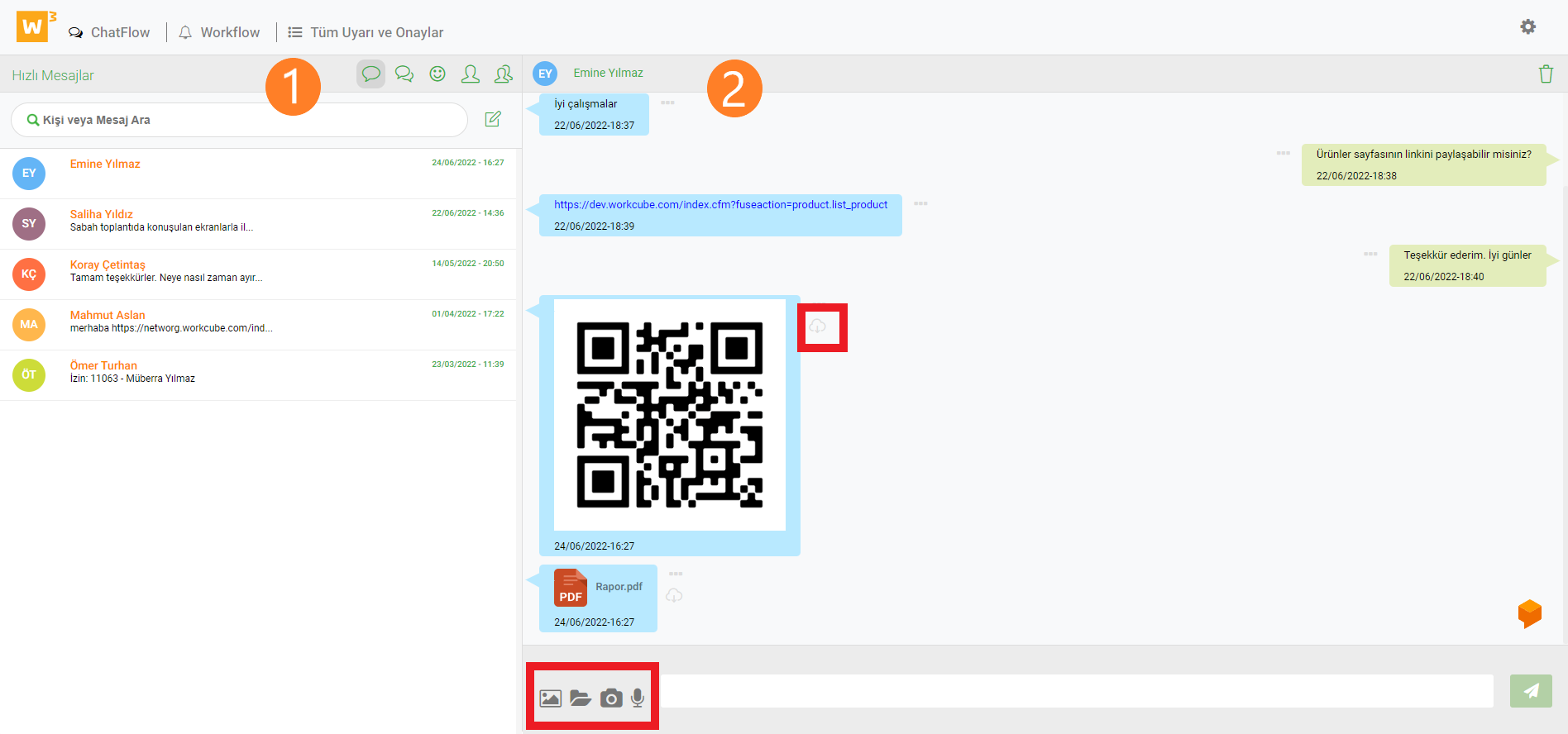
1. In this section, you can see online users and which page they are working on, and remove them from the system if desired. Correspondence with users is provided. Users can reach quick messages, group calls and visitors with the help of icons.
2. Photos, files, voice recordings and snapshots can be sent in the message area. When the file and image icons are clicked, the sending process is completed by adding the documents and images to be sent to the screen that opens. Downloading is done by clicking on the cloud icon next to the incoming images and documents.
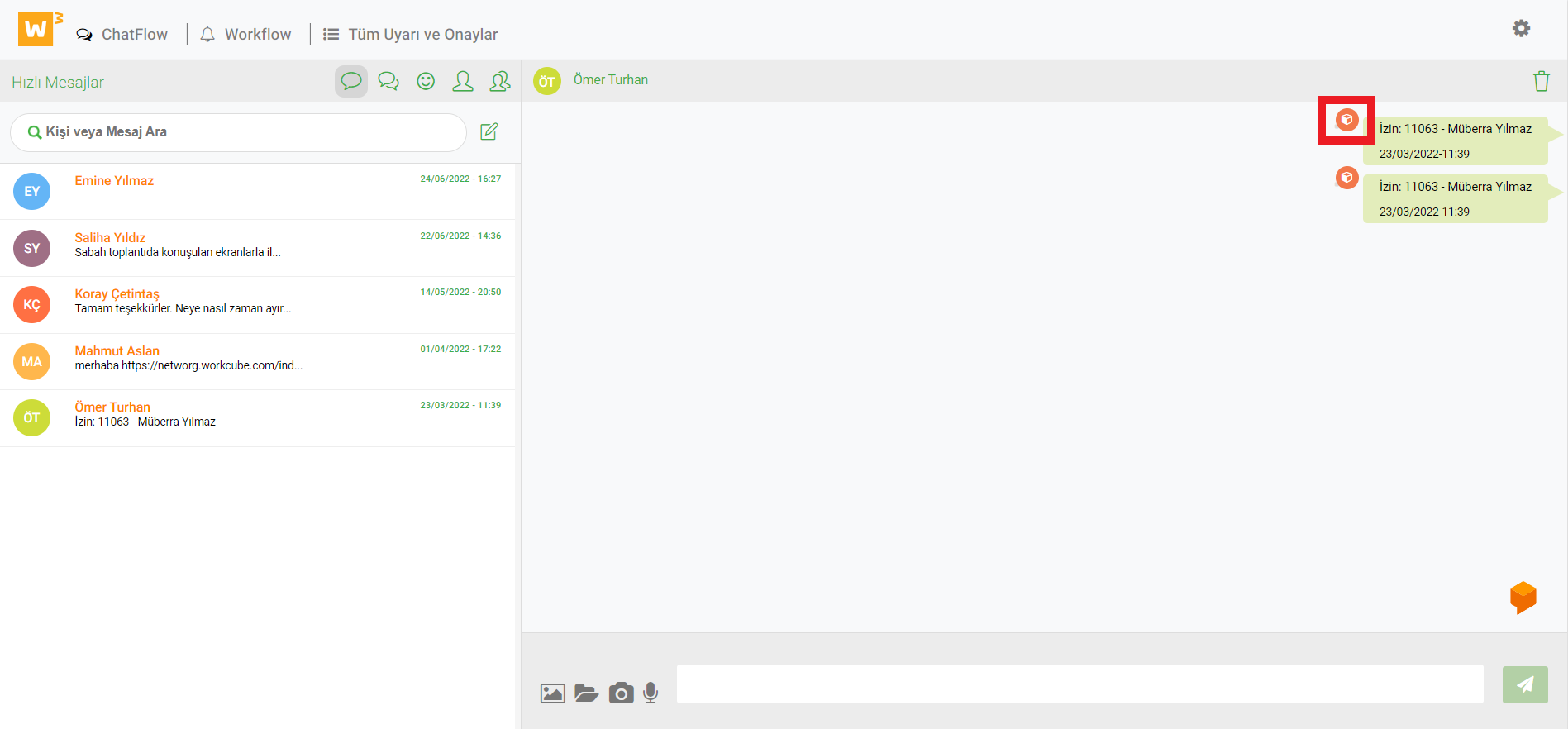
Clicking on the process detail icon next to the messages sent about the process goes to the process detail.
The process and stages organize the document records. The preparation, approval and rejection mechanisms of documents process-stage selection box appears. On the other hand, operations are carried out according to stages. Workflow records are created. Notifications are created via e-mail or in-system online notifications or Chatflow.
Feedback
Who is Who?
With the Who's Who page, you can access the contact information of company employees, customers, business partners and suppliers in your company's communication network. This page provides communication and job sharing.
Workflow Designer
Workflow Designer; It is a drawing tool with which businesses can visualize their goals, sectors and ways of doing business, and define their workflow processes.
Warnings and Approvals
Workcube has a process-based structure. In these processes, users take part as makers or checkers according to their roles and authorities. The warning - approval mechanism is of critical importance for the healthy progress and completion of the process stages.
Favorites - Responsive
The favorites on the Chatflow screen are no longer visible on mobile.