Warnings and Approvals
Workcube has a process-based structure. In these processes, users take part as makers or checkers according to their roles and authorities. The warning - approval mechanism is of critical importance for the healthy progress and completion of the process stages.
Path: Top Menu > Warnings
In all institutions, there are those who do the work, control, approve, audit and decide within the processes. In processes on Workcube, process stages are recorded or approved depending on whether the user is a maker or checker.
Let's take a look at how alerts and approvals can be defined in the process stages on the Control Panel > BPM > Processes page:
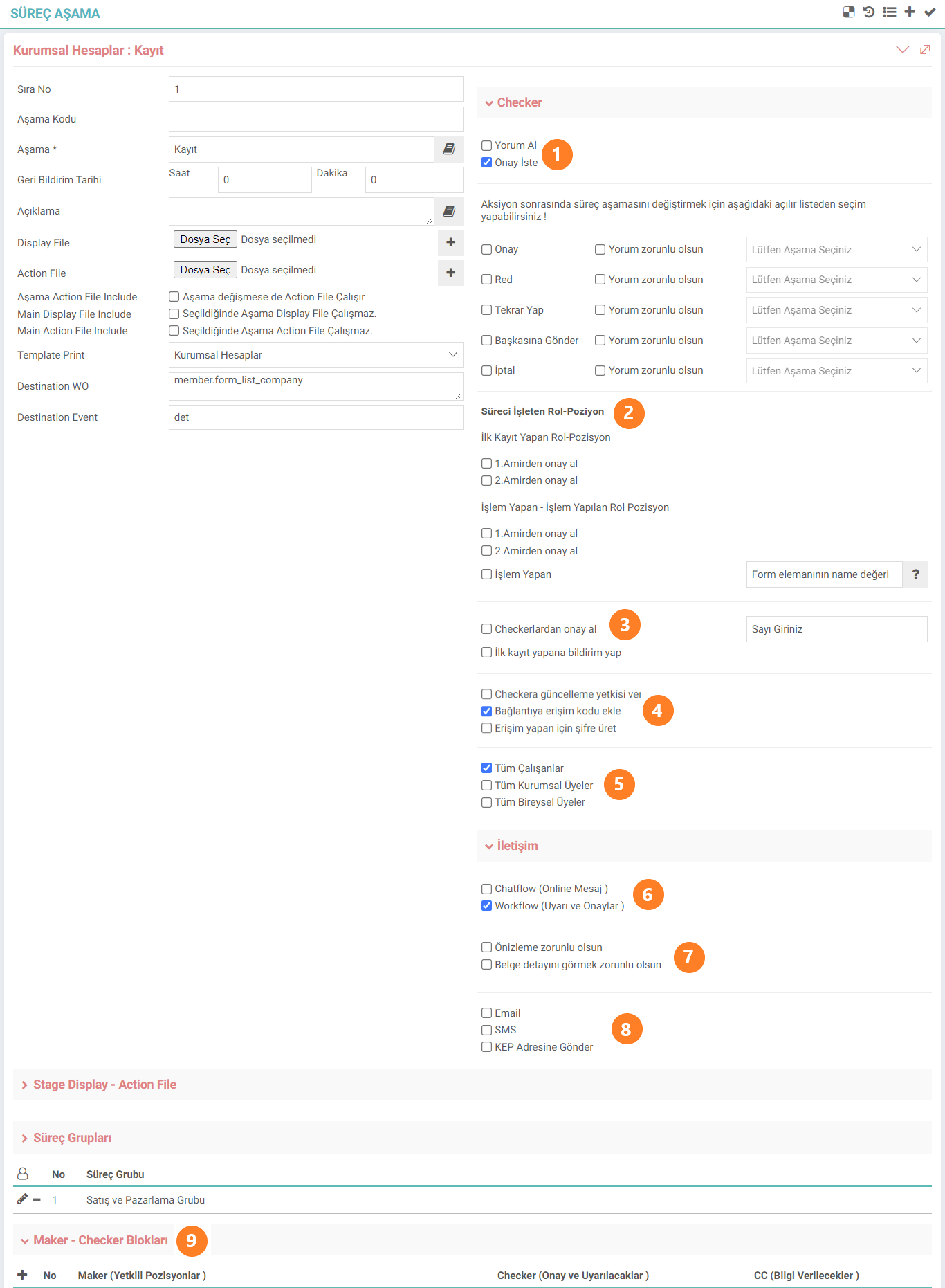
- There are two options in Checker definitions, "Get Comment" and "Request Approval". If "Request Approval" is selected, approval and comments may be required for each stage. In order for the stage to proceed, the user defined as Checker must give approval. Example: Corporate Accounts At the "Registration" stage, the checker may be asked for approval and comments after the maker's registration process. The workflow progresses in a healthy way, nourished by feedback.
- Approval can be obtained from the first supervisor and/or the second supervisor defined for the role-position that registers first. The same situation applies to the trading role position. By entering the name value of the form element, the process record is created with the entered form value. What is meant here is the person's position code information. Attention: First supervisor and/or second supervisor must be selected from the definition screen for the role - position card.
- After selecting the "Get Approval from Checkers" button, this value is entered as a number of how many checkers are required to pass this stage. If the first registrant is to receive notifications, the selection box must be selected.
- By giving update authority to Checker, that user can normally make updates even if no update authority is defined on that page. If the "Add Access Code to Link" selection box is checked, a personalized notification code is generated in the notification or e-mail, and the notification source link can only be opened when this URL is clicked.
- Those who can register at this stage are selected.
- After registration, the notification can optionally be sent via message from Chatflow or via alert from Workflow.
- Previewing and/or seeing document details can be optionally selected. In this way, stage approval is prevented without examining the details.
- Notification; It can be sent as E-mail, SMS and KEP as desired.
- From the Maker - Checker Blocks field, those who are authorized as Maker at the process stage will be approved and warned as Checker, and they will be informed as CC. After this is done, you can go to the page related to the process stage. In the details of the page, click on the bell icon at the top right and then the details about the notification will be displayed:

Note: There is this icon on most form pages. For example, Corporate Accounts, Sales Opportunities, Invoices, etc.
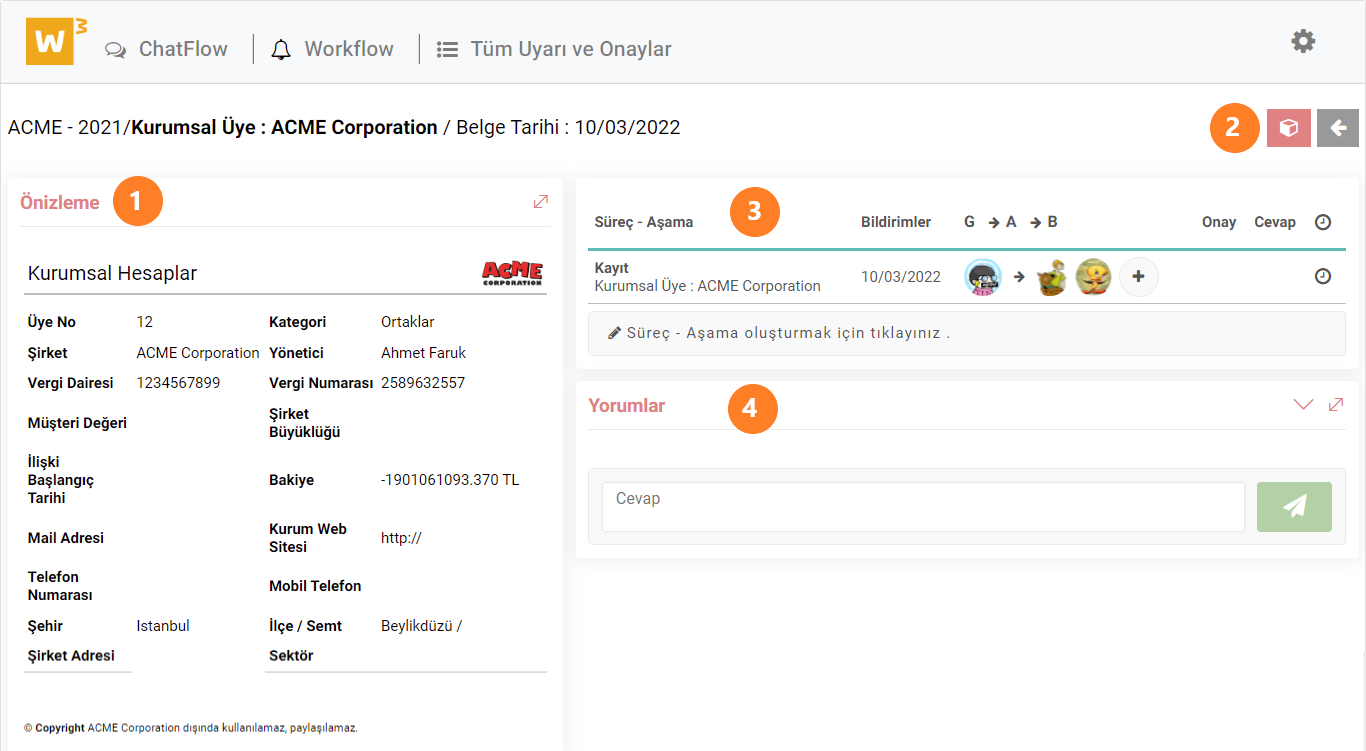
- With the preview, summary information can be accessed without going into the record detail.
- When the preview is not sufficient, detailed review and changes can be made by going to the record detail.
- The current stage of the process, notification date, users who sent and received the notification and the users who were informed are displayed in detail. If desired, registration can be made by clicking on the process - stage button, quickly entering a description, and selecting checker and stage.
- Comments about the process stage are located here.
Attention: When you go to the warnings screen from the update screen of the screens, all warnings and approvals made with the workshare for the relevant page are in the Process-Stage field.
All Alerts and Approvals
So, where does the checker see how many notifications he has received, how does he view all approvals and warnings, and how does he approve or reject the process stage?

Top The bell icon at the top right in the menu shows the alerts and notifications the user receives. When this icon is clicked, all warnings and confirmations received by the user can be displayed.
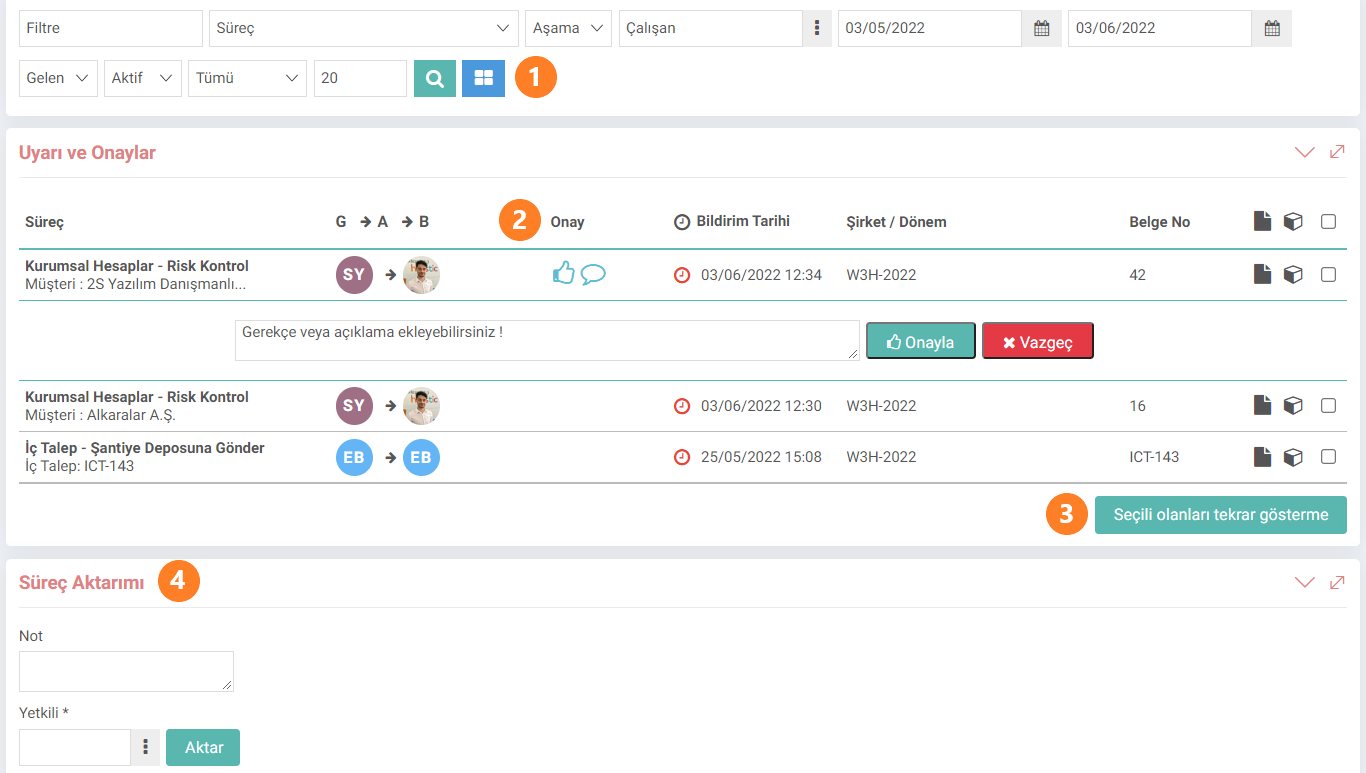
- From the filter option, filtering can be done by selecting processes, stages, employees, date ranges, incoming - outgoing, active - passive, individual - collective process.
- The details of the process are included in the list. Selection and comments can be made under "Approval". Before this approval process, summary information can be examined with a preview on the right-most side, all details can be viewed and updates can be entered by clicking on the source document.
- Selected notifications are removed by pressing the "Do Not Show Selected Items Again" button.
- The process phase can be transferred to another authorized person from the process transfer area.
Feedback
Who is Who?
With the Who's Who page, you can access the contact information of company employees, customers, business partners and suppliers in your company's communication network. This page provides communication and job sharing.
My Portal
The My Portal business family falls under Intranet. Information on the intranet is managed and transactions are carried out through the modules under this job family.
My information
With the My Information module, the employee can enter information about himself/herself that is of interest to HR into the system.
ChatFlow
This is the screen where Workcube users and visitors communicate via messaging and receive notifications.
Process Management and Workflows
At the core of Workcube is BPM - Business Process Management, which organizes workflows and distributes functions to users according to authority and responsibilities.