Agenda
Agenda use is of great importance as it increases the level of productivity. Agendas, which are ideal for periodic planning, can also be used for many other purposes.
Path: Intranet > MyPortal > Agenda
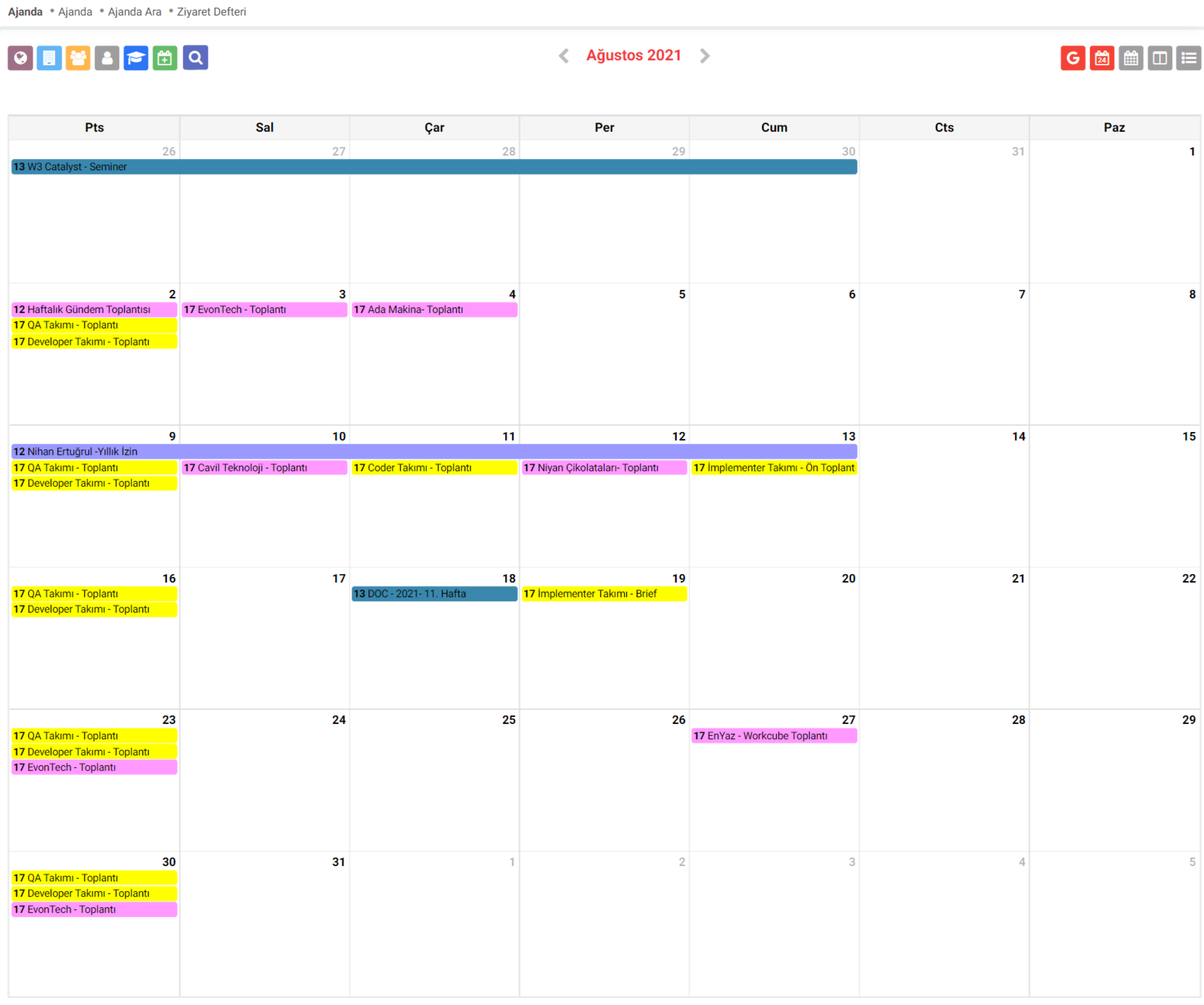
On Workcube, you can view your calendar entries in 4 different listing types: daily, weekly, weekly list and monthly, and you can associate your calendar entries with your Google account.
Note: The Google icon lists events in Google calendar. When you click it, it asks for permission. When you log in to your Google account, events in the Google calendar are listed on the agenda.
You can review our attached content to get more information about Google Calendar. Please:
>>click
On the same screen, you can list the agenda entries categorized as network agenda, branch agenda, department agenda, personal agenda and training agenda.
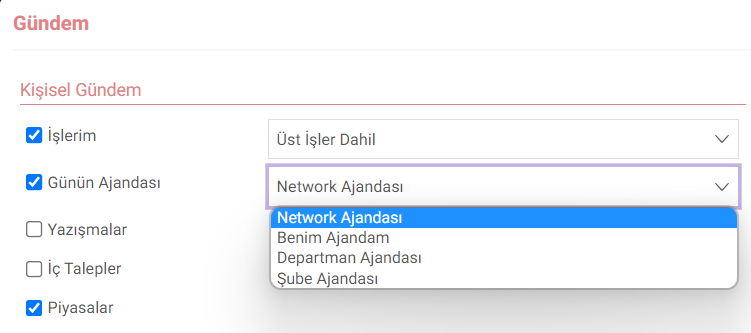
Note: You can view your saved calendar entries on your home page.
To do this, the "Agenda of the Day" checkbox must be ticked in the Control Panel > Settings > Agenda box. The agenda category to be published on the home page (networg agenda, my agenda, department agenda, branch agenda) can be selected via the select box.
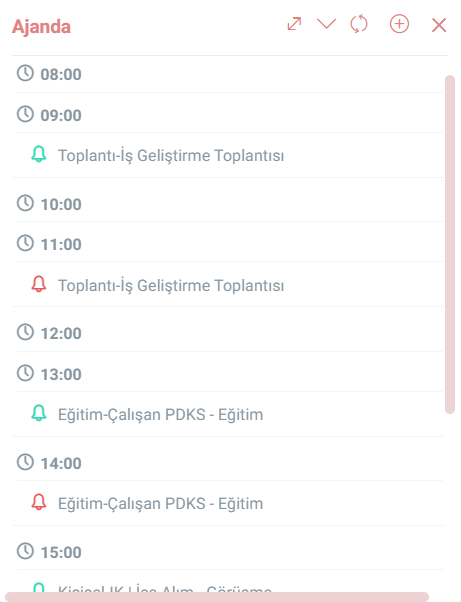
If these operations are performed, the Agenda box will appear on your home page as attached. You can create an agenda entry and update the created agenda entry via this box.
Calendar Search and Agenda Det.
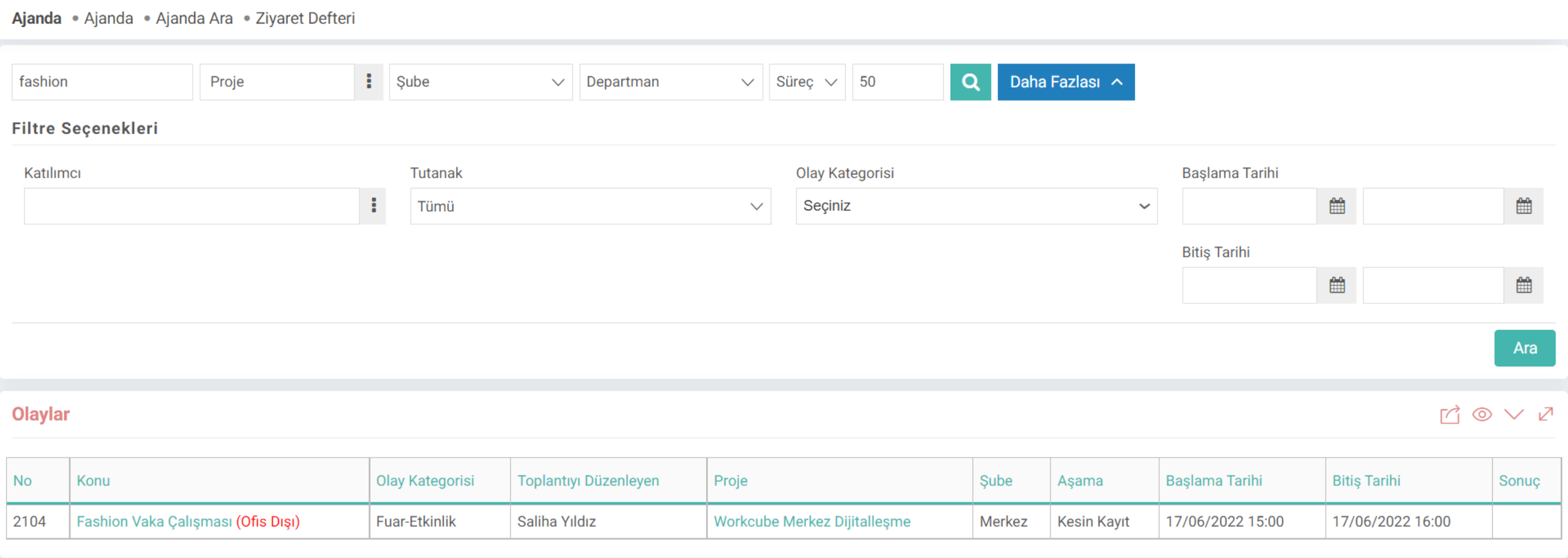
You will be presented with many filtering options on the "Search Agenda" listing screen. Project, branch, department, process, participant, minutes, event category, start and end date filters can be listed according to the saved agenda.
Note: You can also register your calendar via the input opened with the search button on the "Agenda" screen. If you search, you will be directed to the "Search Agenda" listing screen.
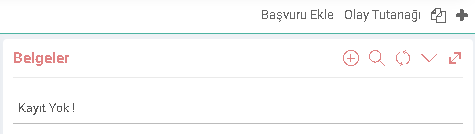
Note: When you go to the saved agenda details, in the tab menu you will see "Add Application", "Event Report", "Copy" and "New Record" buttons are available.
The "Add application" button directs you to the "Service Applications: New Registration" screen. In this way, a service application associated with the agenda entry can be created.
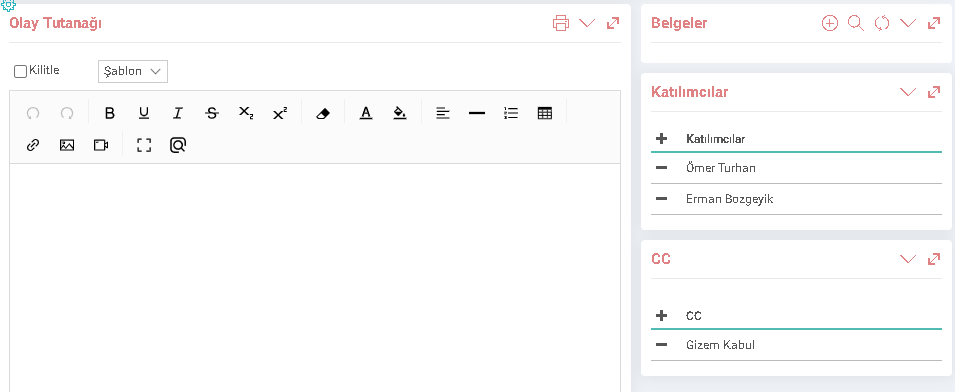
Documents can be added to the e-calendar entry or related to existing documents via the Documents box.
Note: When the "Event report" button is clicked, the event report popup screen opens. On this screen, an event report related to the agenda entry can be prepared. If a template has been prepared, it is loaded by selecting it in the template select box. The prepared minutes can be sent by e-mail to the Participants and users defined in the CC field. The effort spent between calendar event dates and times is recorded as time expenditure and can be documented in the event report.
Also, the prepared incident report can be printed out via the output center.
Add Event to Calendar
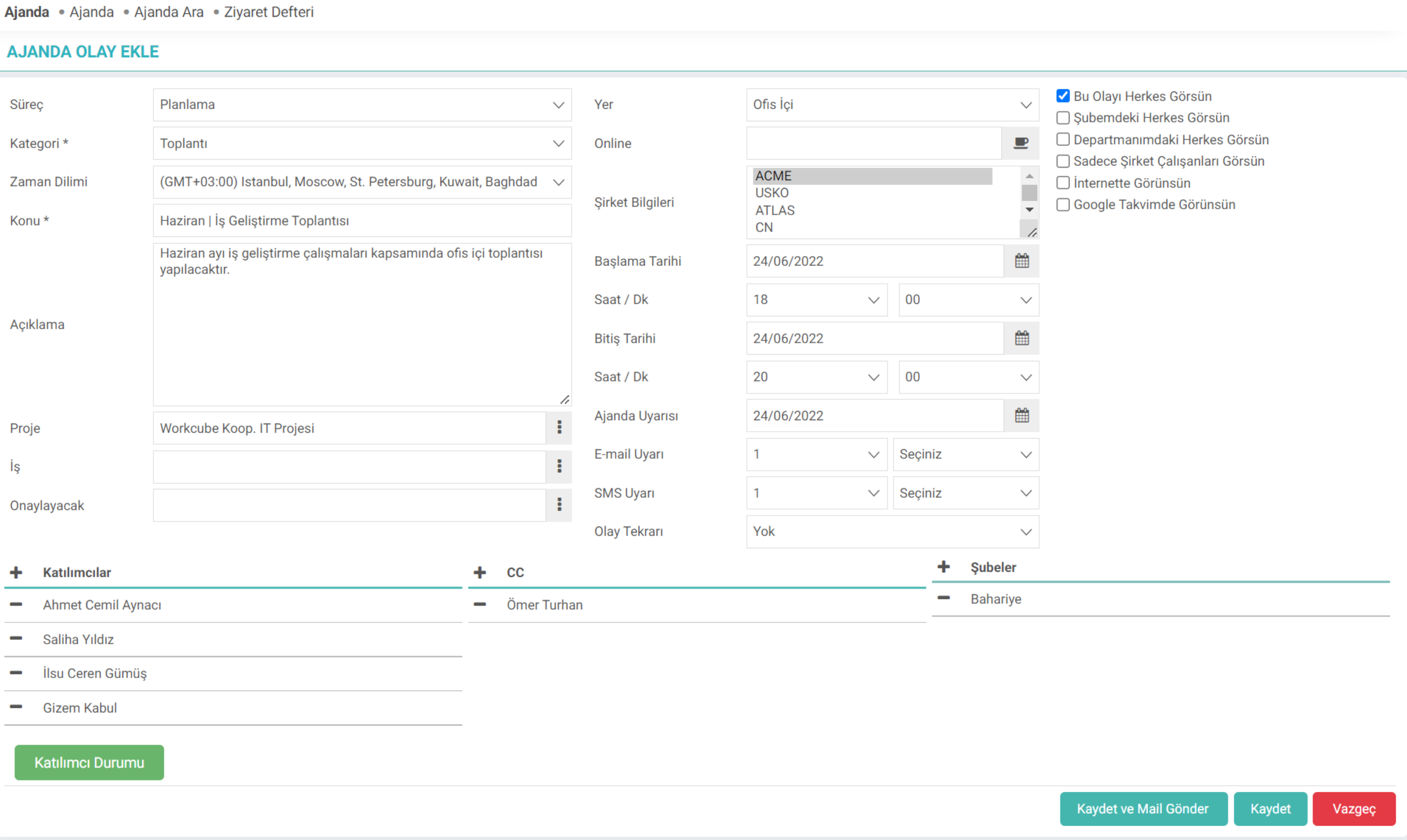
Calendar entries in Workcube can be made via the "Add Event to Calendar" screen. is carried out.
Process: The process defined for the agenda is selected.
Category:Agenda event category is selected. In Workcube, "Event Categories" are defined via the Parameters > Intranet > Event Category screen.
Time Zone: Agenda time setting is selected.
Subject: Agenda topic is entered.
Description: Agenda description is entered.
Project: The project associated with the calendar entry selection is provided.
Job: The job selection associated with the calendar entry is provided.
To Approve: The user selection to approve the calendar entry is provided.
Location: The location where the calendar event will take place is selected.
Online: If the agenda event will take place online, the relevant address is entered.
Note: In order for the Google meet link to arrive automatically, you must have an e-mail address with the workcube.com extension. The Appear in Google Calendar box should be checked and Online should be selected as the Location. When the Save button is pressed, the Google login screen appears. If you log in with an e-mail with workcube.com extension, the meet link is created automatically.
Company Information: The company selection associated with the agenda event is provided.
Start/End Date: Agenda event start/end date. is entered.
Hour/Min: Agenda event start/end date hour/min information is entered.
Agenda Warning: Agenda warning date is entered.
E-mail Alert: Number of calendar event e-mail alerts is selected.
SMS Alert: Agenda event SMS alert number is selected.
Event Recurrence: If the calendar event is periodic;
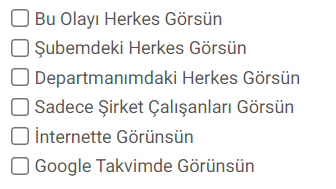
Note:Users to whom the agenda event will be displayed can be selected via the checkboxes in the right menu of the agenda recording screen.
The Show in Google Calendar box is only visible to the person who created the calendar entry. This is because anyone can edit the Google side of the event, which will cause an error.
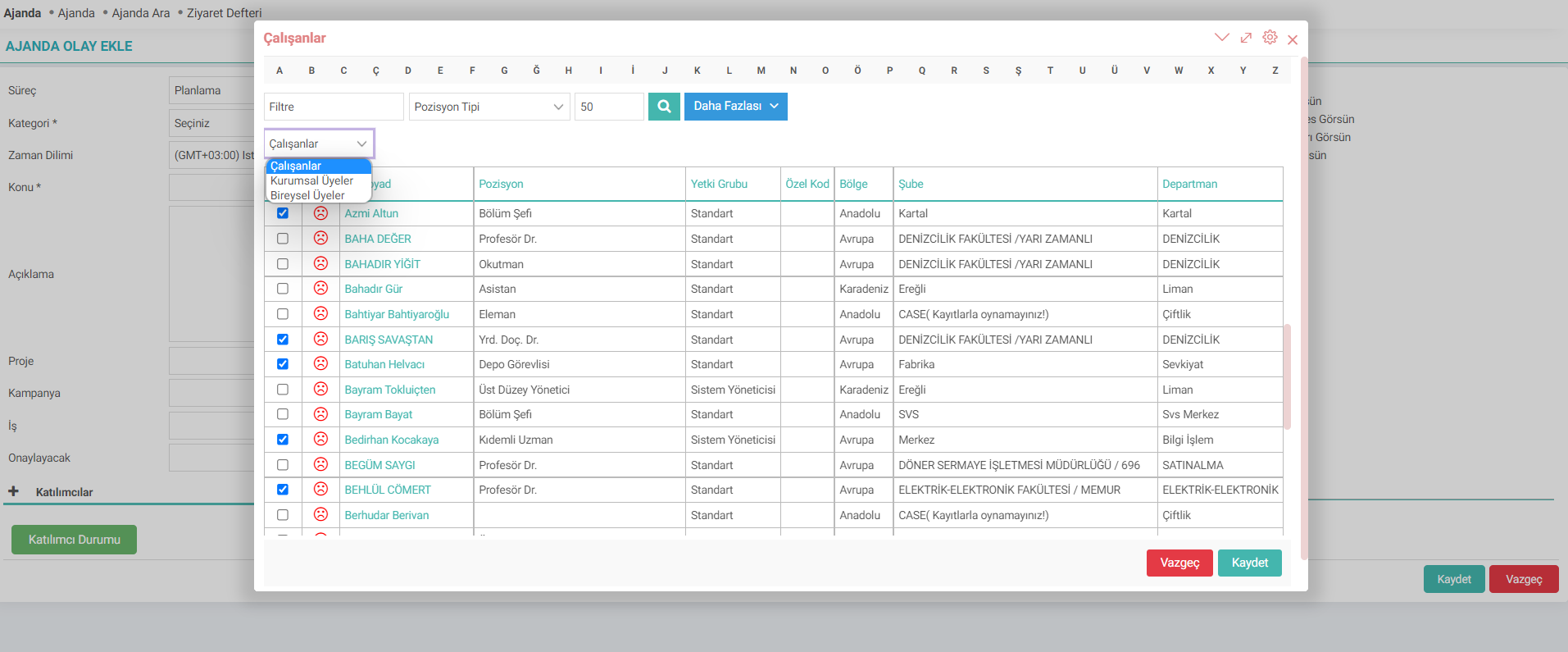
Attention: You can go to the "Employees" box via the + button under the "Participants" heading in the submenu. In this box, participants can be selected from the "employees", "corporate members" and "individual members" lists. When adding participants from customers, suppliers, etc., the "corporate members" option must be selected and listed. If you want to add participants through employees within the company, the "employees" select is selected and listed. Participants defined in the individual accounts category are selected and listed via the "individual members" select.
For each selected participant, the checkbox next to the participant's name must be marked and then recorded. If the page is changed via paging or a different select is selected for the selected participants without clicking the "save" button, the selections made will be lost.
The CC heading in the submenu also works in the same logic. This field allows the selection of users who will be informed about the agenda event.
If the agenda event will be created specifically for a branch, you can list and select the branches created on W3 via the + button next to the "Branches" heading.
"Add Event to Agenda" XML Settings
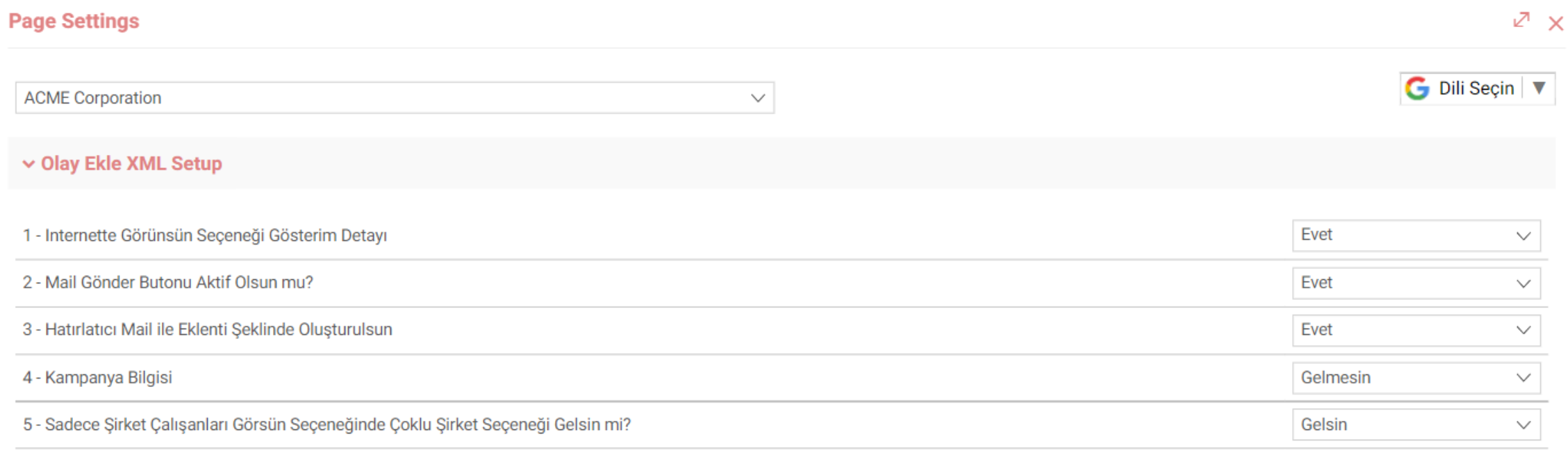
Via Control Panel > System > Page Settings box on the Add Agenda Event screen You can edit your XML settings specifically for the registration screen.
- "Visible on the Internet Option Display Detail": If selected as "Yes", the relevant checkbox will be added to the "Add Event to Calendar" screen.
- "Should the Send Email Button Be Activated?": If selected as "Yes", the relevant checkbox will be added to the "Add Event to Calendar" screen.
- "Create Reminder as an Attachment with Mail": If "Yes" is selected, the reminder will be created as an attachment with e-mail.
- "Campaign Information": If selected as "Yes", the "Campaign" popup will be added to the "Add Event to Calendar" screen.
- "Should there be a Multiple Company Option in the Only Company Employees Can See Option?": If selected as "Yes", the "Company Information" selectbox will be added to the "Add Event to Calendar" screen.