Linux - Docker installation, Lucee and Apache Container Management
Docker is a software platform that allows rapid building, testing and deployment of applications. Docker; packages software into standard units called containers, which have everything the software needs to run, including libraries, system tools, code, and runtime. This article describes how to install Docker on Linux Ubuntu, manage Lucee and Apache containers with the Docker Compose file, and install them with Workcloud.
Docker Installation
Before starting the work, if there is a previous Docker installation on the server, this installation should be removed. The following command can be run for this.
Command:
for pkg in docker.io docker-doc docker-compose docker-compose-v2 podman-docker containerd runc; do sudo apt-get remove $pkg; done
For Docker installation, the following commands must be run respectively.
1. Docker packages are downloaded with the apt package manager.
4. A webroot folder is created in the same directory and a folder named workcloud is opened in this folder to clone the workcloud repo.
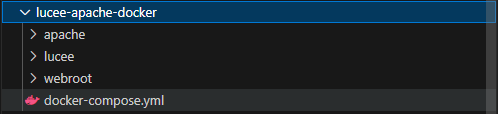
After these operations are completed, the directory structure will be as follows.
Apache Settings
1. Apache DockerFile is created: DockerFile content should be as follows;
According to the following code; Apache2 latest version docker image is installed. apt, ca-certificates, curl and git packages are installed. mod_cfml files are copied into the container. a2enmod, ssl, rewrite, proxy and mod_cfml packages are activated.
2. By creating an apache2.conf file, a standard apache2.conf file is written to the contents of this file.
3. Apache2 Lucee proxy settings are made: The following codes are added to the bottom of the apache2.conf file.
ProxyPreserveHost On ProxyPassMatch ^/(.+\.cf[cm])(/.*)?$ http://lucee-app:8888/$1$2 ProxyPassMatch ^/(.+\.cfml)(/.*)?$ http://lucee-app:8888/$1$2
ProxyPassReverse / http://lucee-app:8888/ RequestHeader set DockerFile content should be as follows.
According to the code below; Lucee version 6.0 is installed. apt, ca-certificates, curl and git packages are installed. Lucee tomcat configuration settings are copied into the container.
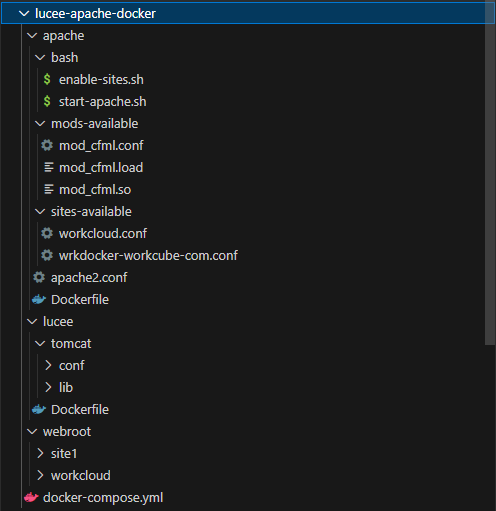
The directory structure resulting from all foldering and filing should be as follows.
Linux - Docker installation, Lucee and Apache Container Management
Docker is a software platform that allows rapid building, testing and deployment of applications. Docker; packages software into standard units called containers, which have everything the software needs to run, including libraries, system tools, code, and runtime. This article describes how to install Docker on Linux Ubuntu, manage Lucee and Apache containers with the Docker Compose file, and install them with Workcloud.
Docker Installation
Before starting the work, if there is a previous Docker installation on the server, this installation should be removed. The following command can be run for this.
Command:
for pkg in docker.io docker-doc docker-compose docker-compose-v2 podman-docker containerd runc; do sudo apt-get remove $pkg; done
For Docker installation, the following commands must be run respectively.
1. Docker packages are downloaded with the apt package manager.
4. A webroot folder is created in the same directory and a folder named workcloud is opened in this folder to clone the workcloud repo.
After these operations are completed, the directory structure will be as follows.
Apache Settings
1. Apache DockerFile is created: DockerFile content should be as follows;
According to the following code; Apache2 latest version docker image is installed. apt, ca-certificates, curl and git packages are installed. mod_cfml files are copied into the container. a2enmod, ssl, rewrite, proxy and mod_cfml packages are activated.
2. By creating an apache2.conf file, a standard apache2.conf file is written to the contents of this file.
3. Apache2 Lucee proxy settings are made: The following codes are added to the bottom of the apache2.conf file.
ProxyPreserveHost On ProxyPassMatch ^/(.+\.cf[cm])(/.*)?$ http://lucee-app:8888/$1$2 ProxyPassMatch ^/(.+\.cfml)(/.*)?$ http://lucee-app:8888/$1$2
ProxyPassReverse / http://lucee-app:8888/ RequestHeader set DockerFile content should be as follows.
According to the code below; Lucee version 6.0 is installed. apt, ca-certificates, curl and git packages are installed. Lucee tomcat configuration settings are copied into the container.