WAI Form Data Mapping
Thanks to WAI's Form Data Mapping tool, you can easily print content to artificial intelligence using the information on your page. In this way, you can speed up your content production process and make it more efficient.
How to Use Form Data Mapping?
For Form Data Mapping to work, you must first be on the update (upd) page of the page where the content will be produced. After logging in to the page, open the WAI Chat home page by clicking on the WAI icon in the upper right corner. Open the "Form Data Mapping" box by clicking the "+" icon to the right of the WAI header.
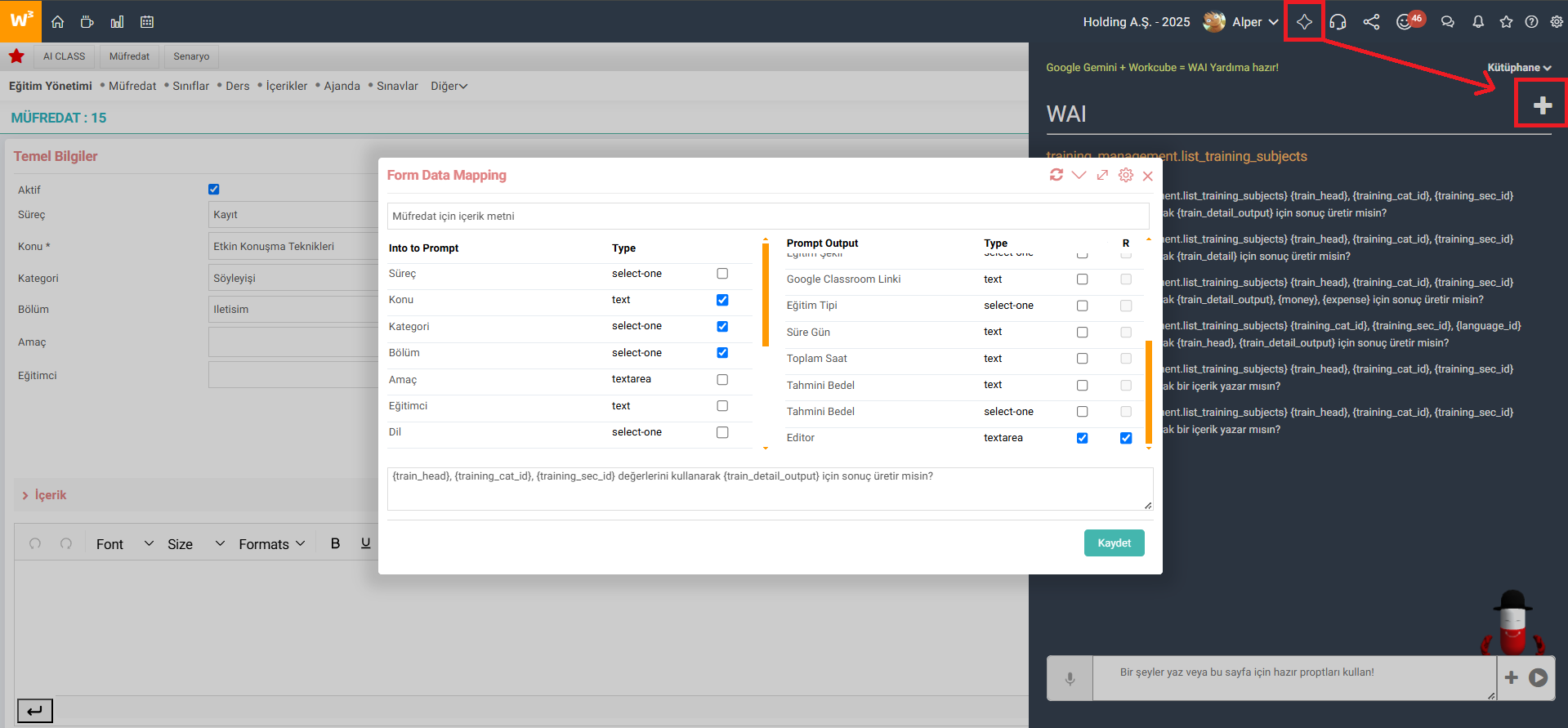
- Prompt description: At the top of the pop-up box, enter a description for the prompt to be created. This explanation will help you remember the prompt later. The information on the page is included under the description.
- Selecting the information to be used: In the "Into to Prompt" section on the left, select the values to be used in content production. Determine what information you want to produce content using here.
- Selecting the fields to use: In the "Prompt Output" section on the right, select where the produced content will be used. You can select any area on the page that you want to fill with an editor or artificial intelligence. Check the "R (required)" box for the fields you definitely want the result to return. If it is unchecked, it may not return results.
- Prompt Preview: A preview of the prompt that will be created based on the information you selected is displayed at the bottom. If you wish, you can make edits on the prompt in this field.
- After filling in all fields, save "Mapping".
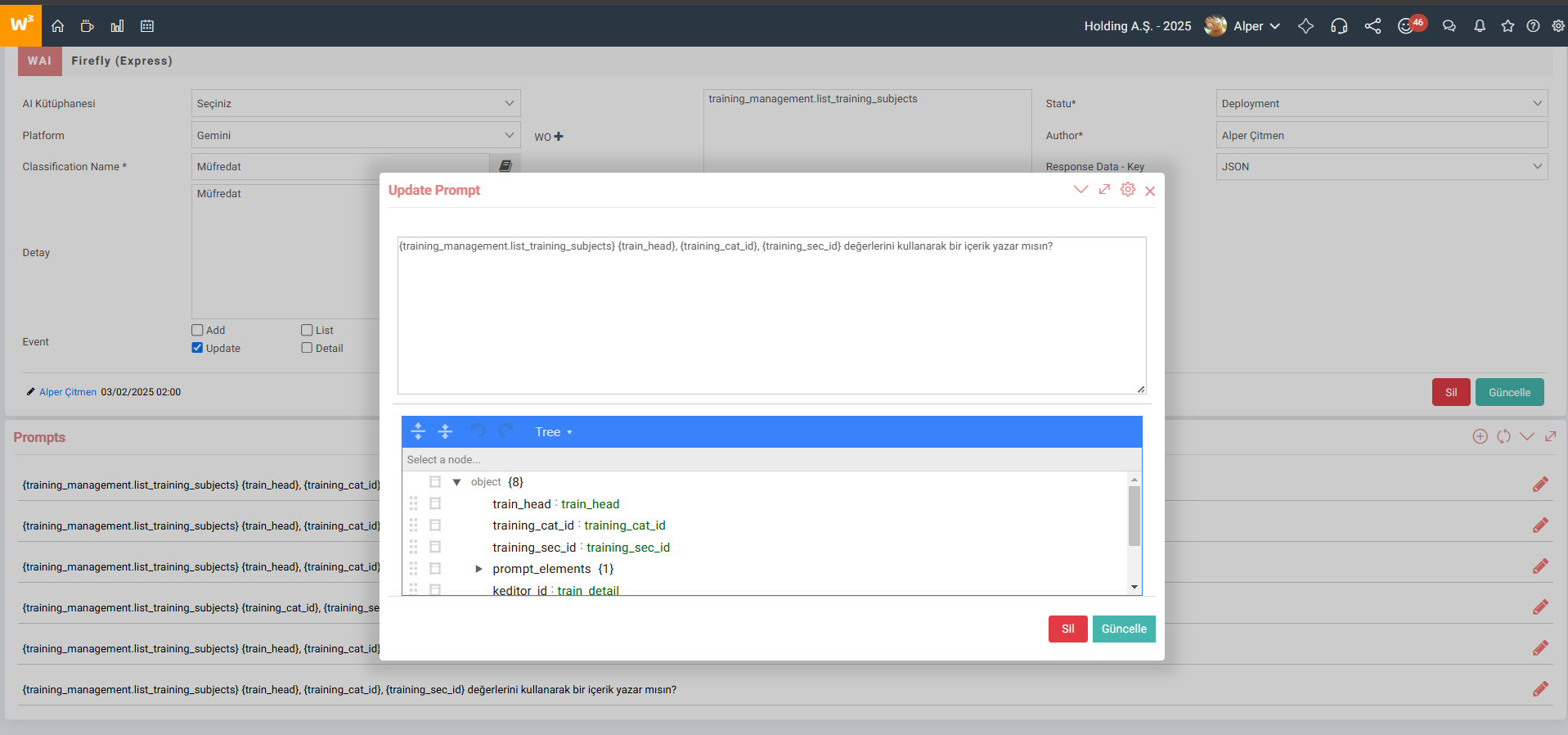
- AI Class Detail: After the registration process is completed, if there is a record for the WO being processed on the AI Classification page, the newly added prompt will be added to this record. If there is no registration, a new AI Class is created and the prompt is saved here.
- When you open the AI Class detail, a JSON content consisting of the prompt created during mapping and the information used is displayed and can be edited.
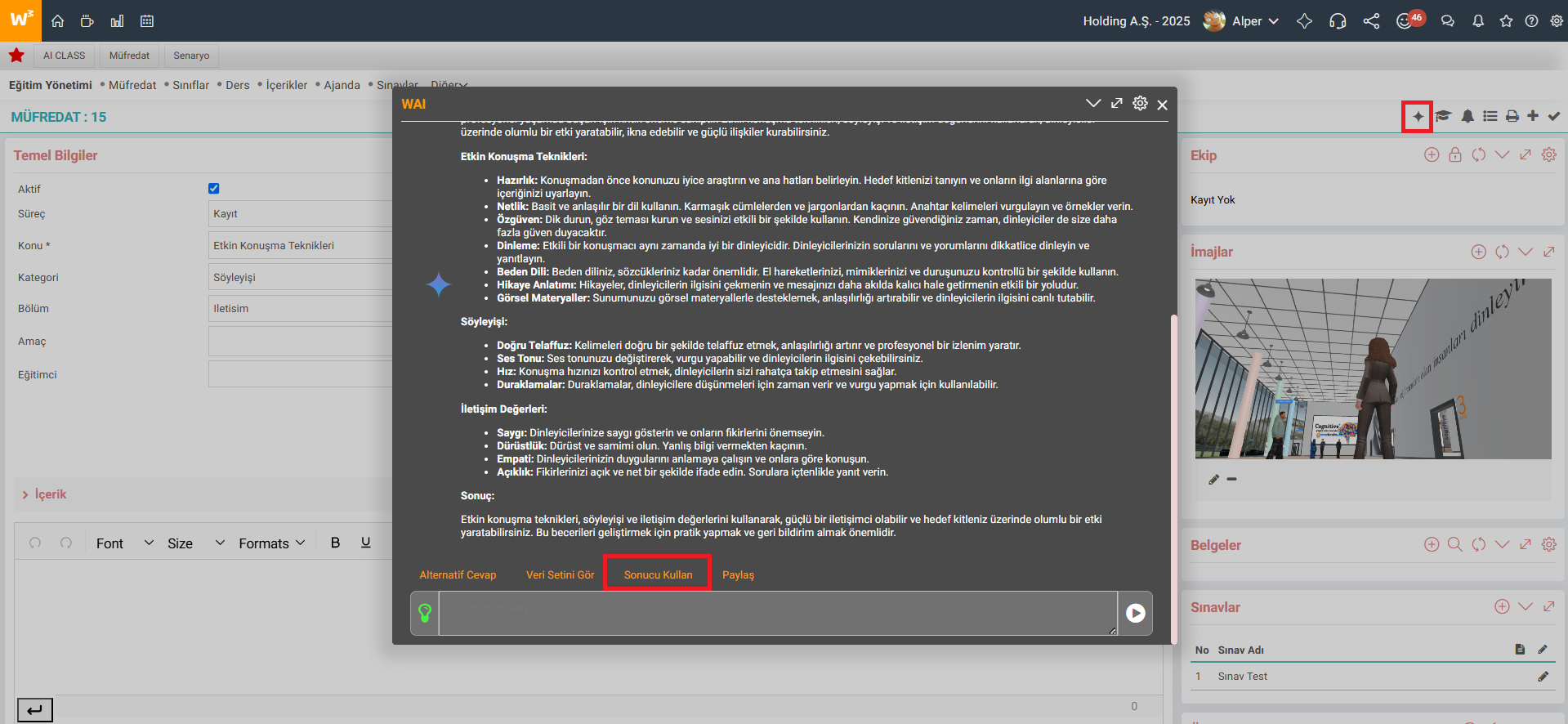
- Creating and Using Content: After completing the mapping process, open the WAI box by clicking the WAI icon in the tab menu on the same page. You can produce content using the prompt you created and fill in any space you want on the page using the "Use Result" link.
Feedback
WAI Row Data Mapping
WAI allows the columns in the baskets to be filled with the received data via artificial intelligence.
WAI General Settings
AI, or artificial intelligence, are systems that enable machines to perform human-like tasks, learn from experience, and adapt to new inputs. Workcube AI (WAI) works integrated with Google Gemini.
How to Use WAI?
AI, or artificial intelligence, are systems that enable machines to perform human-like tasks, learn from experience, and adapt to new inputs. Workcube AI (WAI) works integrated with Google Gemini Ultra.
WAI (Workcube Artificial Intelligence)
AI, or artificial intelligence, are systems that enable machines to perform human-like tasks, learn from experience, and adapt to new inputs. Workcube AI (WAI) works integrated with Google Gemini Ultra.