Workcube CDN - Google Cloud Integration
Using CDN is critical for performance in Workcube. CDNs copy the static contents of websites (images, videos, CSS files, JavaScript files) to servers (PoP - Point of Presence) located in different geographical regions of the world and deliver them quickly to end users from the nearest server.
At this point, "Google Cloud CDN" comes into play. Google Cloud CDN provides high-performance content distribution using Google's global infrastructure. In Workcube, you can integrate static content with Google Cloud CDN. It ensures that files are delivered to users faster and more reliably and reduces the server load significantly.
Setup and Configuration
For the integration to work, the necessary parameter settings must first be made.
- Google Cloud Platform
- Having a Google Cloud Platform account and project.
- A Cloud Storage Bucket must be created under the project. This bucket is the area where the files will be stored.
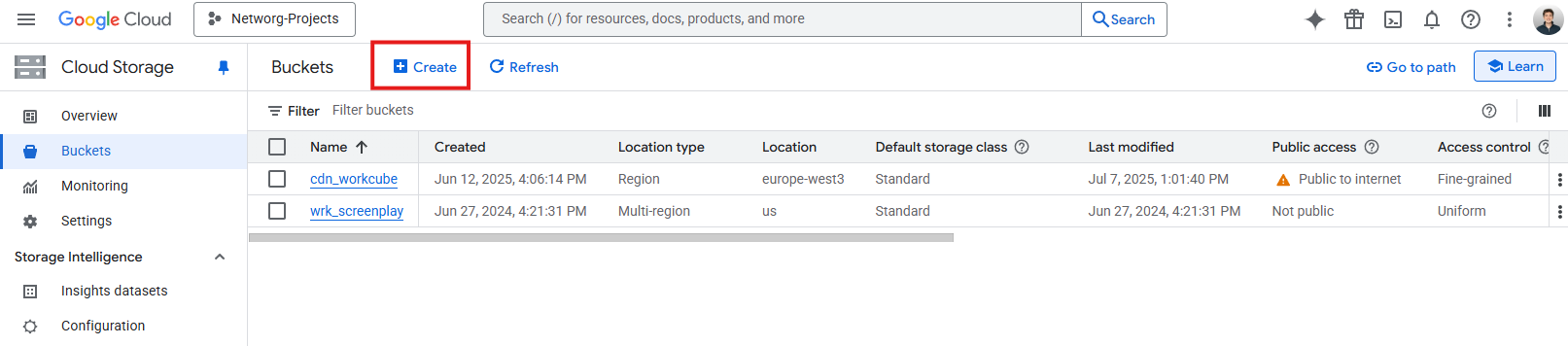
- Buckets are created by performing the following steps according to needs and requests.
- A globally unique bucket name should be chosen.
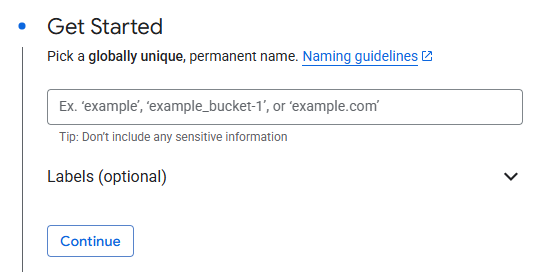
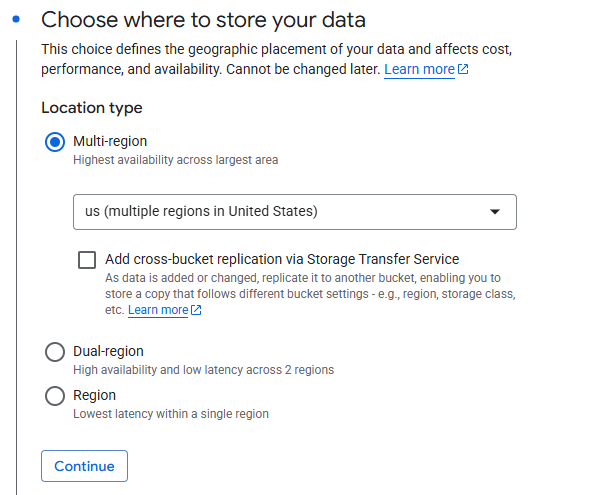
- One must choose where the data will be stored.
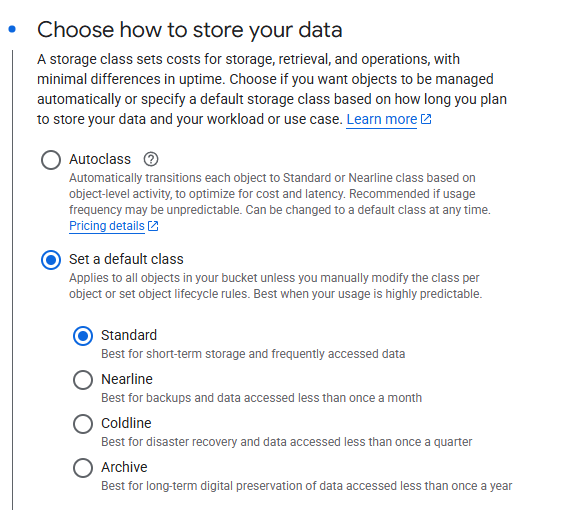
- The type in which the data will be stored must be selected.
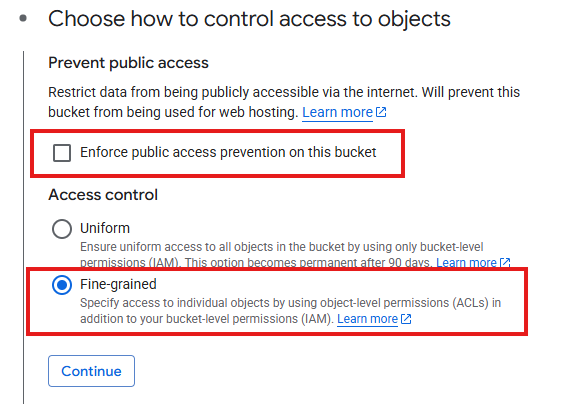
- How to access objects must be chosen. In this section, it is important to make the bucket public and select object-specific access as shown in the image.
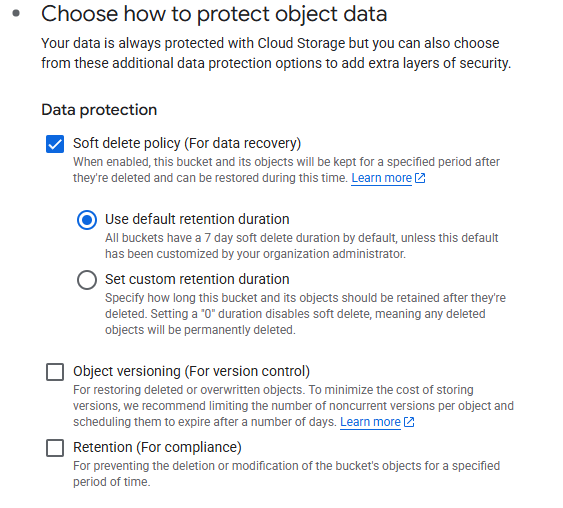
- How to protect data with Cloud Storage should be chosen.
- A globally unique bucket name should be chosen.
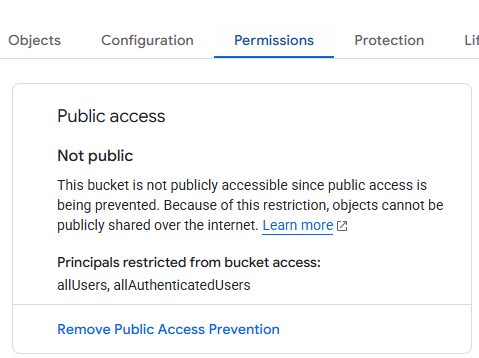
- Bucket must be public accessible. These files are required to be viewed on the web. If it has been created before, public access blocking can be removed from the section in the image.
- Company Flow Parameters
- Google CDN Namespace field must be filled with the desired directory name in the bucket.

- Google Client fields must be filled.
- Google CDN Namespace field must be filled with the desired directory name in the bucket.
- System Parameter Settings
- google_bucket_name field should be filled with the created bucket name.
- google_cdn_domain field should be filled with the domain name of the load balancer to which the bucket is connected. must be filled in.

- google_bucket_name field should be filled with the created bucket name.
Process Flow
- Content Go to Administration or Digital Archive pages.
- Add a new file or edit an existing file.
- Found in the form "Online Check the "Share" checkbox.
- When the file is uploaded, it is added to Google Cloud.
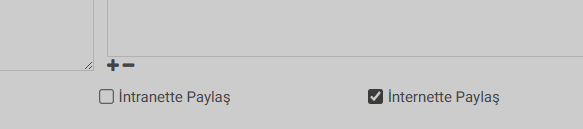
Note: As long as Share on the Internet is selected for adding, updating and deleting files, you can also share files via the Cloud. is managed.
The files can be accessed at https://google_cdn_domain/namespace/bucket_name
Feedback
Google Workspace and Coldfusion Server SMTP Settings
Let's look at how to make the necessary SMTP Settings for an e-mail on Google Workspace to be used with Coldfusion Server.
Workcube - How to Use Google Integration?
What needs to be done to use Google applications integrated with Workcube? What steps should be followed?
7.5. Google Drive - Workcube Integration
A Google Drive folder can be created for projects on the Workcube platform. By checking permissions for access, shared use can be achieved with the project team.