Stock Receipts
Stock Receipts are the screen where entry/exit delivery notes for stocks are processed.
Path: ERP > Sales-Distribution > Shipment-Logistics > Add Stock Receipt

All stock receipts can be recorded from the “Add Stock Receipt” screen opened here. The following stock receipts can be recorded in the
Transaction Type field;
- Warehouse Receipt (Inter-Warehouse)
- Ware Receipt
- Consumption Receipt
- Counting Receipt
- Production Entry Receipt
- Production Issue Receipt (Disassembly)
Receipt No: The system will automatically assign a number to the receipt no field.
Reference: The document number of the previous process is displayed in this field. For example, if this stock voucher was created directly from a production result screen, the relevant production result number is directly displayed by the system in this field.
Job: If there is a job record in the Job field that this inventory voucher is related to, it can be selected. Click on the three dots icon next to this field to select the relevant job, click on the link of the relevant job from the list of jobs that appears.
Additional Information: If you want to add additional information about your stock receipt, you can use this field. To define additional information;
Path: System > Parameters > System Management > Additional Information
Date: The Date field refers to the date on which the delivery note was prepared. The date the recording was made is displayed here. If the delivery note date belongs to another date, enter the date using the icon next to the field.
Entry Project: If the products included in the stock receipt are products to be used in a project, you can select the relevant project in this field. To select the entry project, click on the icon next to this field, and click on the link of the relevant project from the list of projects that appears.
Entry Warehouse: In this field, the warehouse where the products in the stock receipt will be kept is selected. To select the input warehouse, click on the icon next to this field, and click on the link for the relevant warehouse from the list of warehouses that appears.
Production Order Number: If the stock slip is created as a result of the production order, the relevant production order is automatically displayed here. To select another production order, click on the icon next to this field and click on the link of the relevant production order from the list of production orders that appears.
Output Project: If the product to be included in the stock receipt is the product used in another project, you can select the relevant project in this field. To select the output project, click on the icon next to this field, click on the link of the relevant project from the list of projects that appears.
Output Warehouse: The warehouse containing the product(s) to be included in the stock receipt is selected. To select the exit warehouse, click on the icon next to this field, and click on the link for the relevant warehouse from the list of warehouses that appears.
Subscriber Number: If your stock receipt is associated with a subscriber, you can select the relevant subscriber from here.
Receiver: Used to add the person who received the order. Click on the icon on the right side of this area and click on the link of the relevant member from the list of members that appears.
Service: For products used in service transactions (when a consumable voucher is created), the service application number used is displayed.
Description: You can add a description about the stock voucher.
The usage of the basket area is as follows;
It is used to select the products to be included in the stock opening slip. To add products to the basket, click on the "+" icon at the beginning of the basket row. A list of products will appear. Select the received products one by one from here.
You can also add products to the basket by typing the stock code, barcode or serial number "enter" For help on using the Product Basket, you can review the Basket Settings and Usage document.
After making the necessary definitions, Click the "Save" button. The stock opening voucher information line you added will be added to the “Stock Transactions” list as “Transfer Slip”
Stock Update Receipt Screen
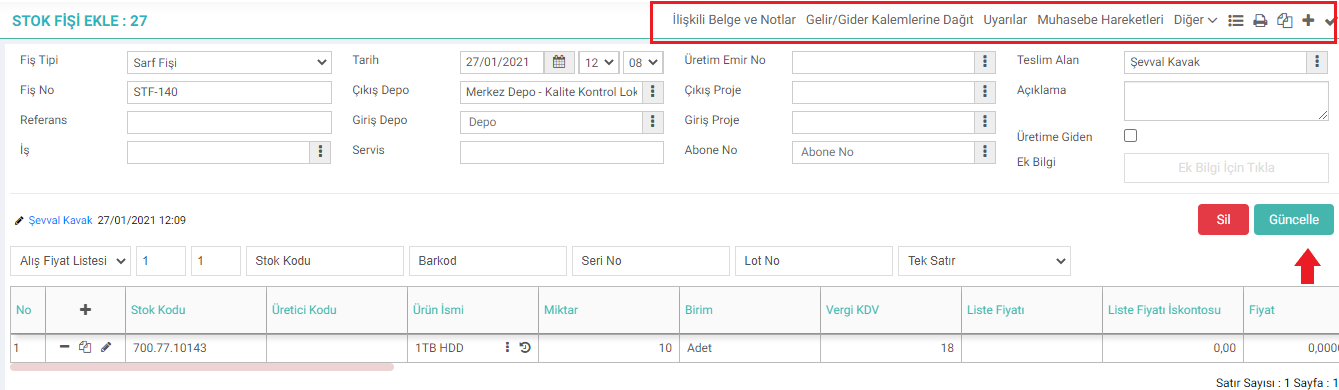
On this screen, change/update the information you want and click the “Update” button. Additionally, you can perform the following operations with the help of the icons on this screen;
Related Documents or Notes: You can add documents or notes related to the delivery note. To do this, click on the "Related Document or Notes" button in the upper right corner of the stock receipt update page.
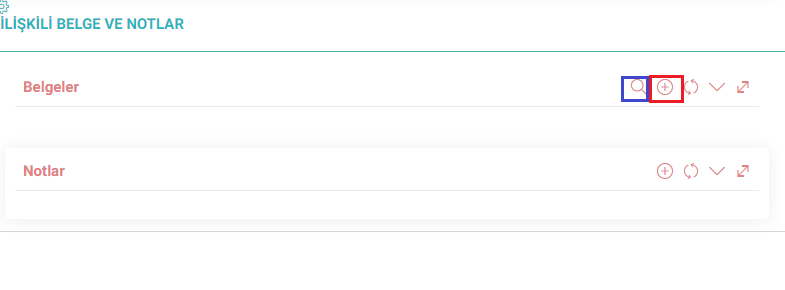
Click the “+” button to add a document. You will see the digital asset adding page. After filling in the required fields on this screen, click the “Save” button.
To associate the stock voucher with a registered document, on this screen, click on the "search" icon in the dark line that says documents. The digital assets page will appear. You can select the relevant document and associate it with the stock voucher.
Distribute to Income/Expense Items: It is possible to distribute the stock cost to cost centers and budget items in stock vouchers such as consumption or waste vouchers whose records are entered. When you click on this area on the stock voucher screen, you will see the “Distributing the Invoice to Cost Centers” screen.

When you click on the icon shown on this screen, you will see the “Detailed Cost Distribution” screen.

To add cost information on this screen, click on the “+” icon in the dark line. A new line will be added where you can add cost information. This line contains the following fields;
- Cost Center: You can select the defined cost center for the cost you will add. To select the cost center, click on this field and select the relevant cost center from the drop-down submenu.
- Expense Item: You can select the defined income/expense item for the cost you will add. Click on this field to select the revenue center and select the relevant income/expense item from the drop-down submenu.
- Activity Type: You can select the defined activity type for the cost you will add. To select the activity type, click on this field and select the relevant activity type from the drop-down submenu.
- Work Group: If you are a business that tracks activity-based costs, select the work group defined to distribute and track the cost you will add by activity type. To select the business group, click on this field and select the relevant business group from the drop-down submenu.
- Expenser: For the cost you will add, select the person who made the expense. To select the person making the expense, click on the icon next to this field, and click on the link for the relevant employee from the list of employees that appears.
- Physical Asset: If the cost is related to a physical asset (such as the product that will be put into stock from production, the fuel expense for which was transported by the company's vehicle), select the relevant physical asset in this field. To select the physical asset, click on the icon next to this field and click on the link for the relevant asset from the list of assets that appears.
- Subscriber Number: You can associate the subscriber from here.
- Project: If the cost is related to a project, the relevant project should be selected in this field. To select the relevant project, click on the icon next to this field and click on the link of the relevant project from the list of projects that appears.
- Rate and Amount: Add the rate and amount information of the product cost to be used for production.
Warnings: Added confirmation and You can view the warnings here.
Accounting Transactions: You can view the accounting transactions for the transaction you selected from this field.
Guarantee Serial Numbers: By clicking this field, you can access the "Series and Lot Transactions" screen.
After making the necessary definitions, click the “Save” button. Otherwise, your transactions will not be recorded.

İşleyişe bağlı olarak sevklerin nasıl yapılacağını belirlemek için sevk yöntemleri tanımlanır.
Bu sayfanin cf_big_list_search'ü olusturulmustur.
Bu sayfanin cf_big_list_search'ü olusturulmustur.
Bu sayfanin cf_big_list_search'ü olusturulmustur.
Bu sayfanin cf_big_list_search'ü olusturulmustur.
Bu sayfanin cf_big_list_search'ü olusturulmustur.
Bu sayfanin cf_big_list_search'ü olusturulmustur.
Kaydedilen belgelerin çıktılarının alınması için kullanılır. Standart şablonlar seçilebilir ya da özel şablonlar eklenebilir, ayrıca şablonlar yetkiye bağlanabilir.
x_cost_acc Muhasebe Hareketi Maliyet Değerlerine Göre Yapılsın mı?
x_employee_name Teslim Alan Kısmı Boş Gelsin
x_departman_out Proje Deposu Seçili Gelsin mi?
xml_serialno_control Seri No Kontrolü Zorunlu Olsun mu?
xml_multiple_counting_fis Aynı Günde Aynı Depoya Birden Fazla Sayım Fişi Girilebilsin mi?
xml_location_auth_entry Giriş Depo Lokasyon Yetkisi
xml_location_auth_outer Çıkış Depo Lokasyon Yetkisi
xml_show_warnings İlişkili Süreçler Görüntülensin
xml_show_asset Belge Boxı Görüntülensin
Feedback
2.2.7.18. Seriennummer-Garantieverfolgung über Lieferschein
Die Verfolgung von Seriennummer und Produktgarantie kann anhand der vorbereiteten Kauf- und Verkaufslieferscheine erfolgen. Wenn die Produkte, bei denen in den Produktdetails das Kästchen „Serial Number Tracking“ ausgewählt ist, zum Produktkorb auf den Kauf- und Verkaufslieferscheinen hinzugefügt werden, wird oben rechts auf dem Bildschirm das Barcode-Symbol mit den Garantieinformationen dieses Produkts angezeigt.
2.2.2.1.15. Seriennummer und Chargenverfolgung
Die Chargennummer wird verwendet, um den Lebenszyklus eines Produkts in den Produktions-, Einkaufs-, Verkaufs- und Serviceprozessen zu verfolgen und zu überwachen, und die Seriennummer wird verwendet, um jedes Produkt eindeutig zu kennzeichnen.
Wareneingang – Warenkorbeinstellungen
Bearbeitete Funktion:ERP > Vertrieb > Versandlogistik > In der Warenkorbstruktur zum Hinzufügen und Aktualisieren von Wareneingängen wurden im Vergleich zur filialbasierten Arbeit Verbesserungen vorgenommen.