Internal Demand Listing
Within the organization, your employees can create internal demand for the products and services they need.
Path: ERP > Sales-Distribution > Purchasing > Internal Demands
When listing on the Internal Demands page, "Document Based", "Line Based" and The choice is made as "Based on Planning". There will be differences on the screen depending on the selection made.
When selected on a document basis, the screen will be listed as follows.
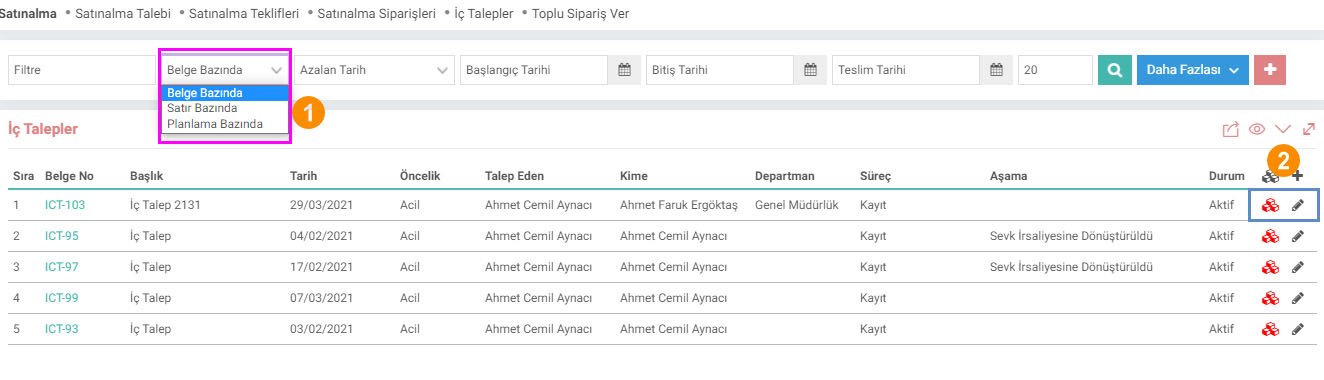
1- No matter how many lines there are in the document, the relevant domestic demand will be brought in a single line and action can only be taken on the line.
2-With the help of the icons in this area, you can go to the "Domestic Demand Update" screen and select "Domestic Demand Meeting Report" you can view.
Type: When you click More, other selection criteria will also appear. If there is more than one line in the document and not all of them have been processed, it will still appear in the "those that turned into orders/those that turned into a consumable voucher/those that turned into an offer" field in the Request type field.
For example; There are 20 lines in the internal request. 10 of them turned into orders. When you select and list those that turn into orders on a document basis and in the request type filter, all lines will be sent even if they do not turn into orders. For the correct result, you should get it on a row basis.
When selected on a row basis, the screen will be listed as follows.
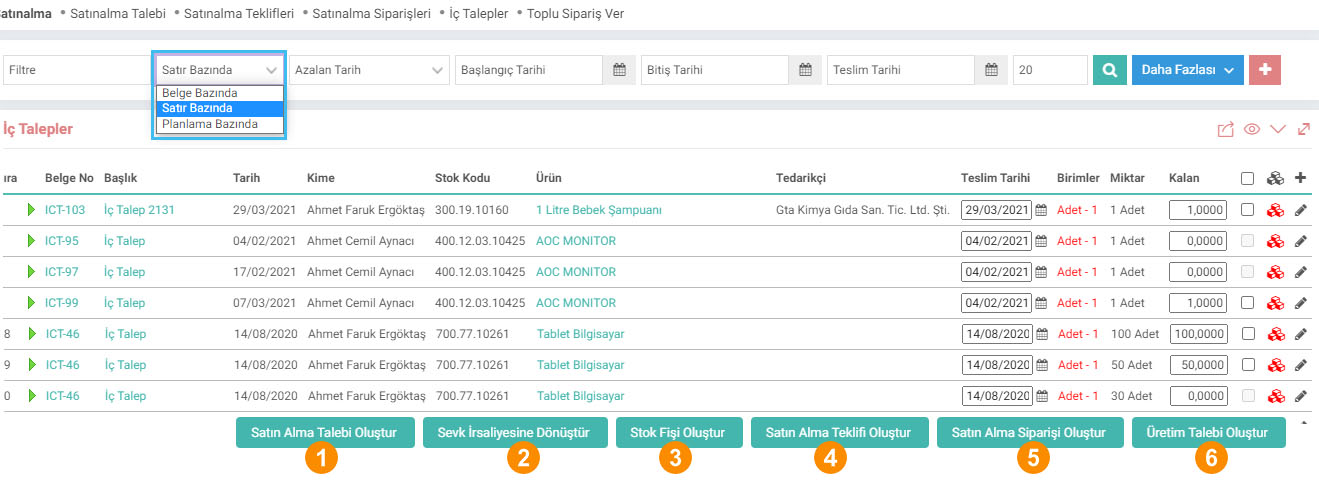
You can perform the following operations by selecting the box at the end of the line of the internal requisition;
1-Create a Purchase Request: You will be directed to create a purchase requisition. For detailed information, you can review the "Purchase Request" document.
2-Convert to Shipment Note: You can convert the internal requisition into a shipment note. For detailed information, you can review the document "Inter-Warehouse Delivery Note" .
3-Create Stock Receipt: You can create a stock receipt. For detailed information, you can review the "Stock Receipts" document.
4-Create Purchase Offer: You can create a purchase offer.
5-Create Purchase Order: You can create a purchase order. For detailed information, you can review the "Purchase Order" document.
6-Create Production Request: You can create a production request. You can review the "Production Requests" document for detailed information.
When selected on a planning basis, the screen will be listed as follows:

1-You can create an internal demand by selecting the box at the end of the line of the relevant domestic demand and clicking the "Create Internal Request" button.
Feedback
Purchasing Management
With the Workcube Purchasing Module, you can manage all purchases within your business more easily and effectively. In addition to improving your relationships with your suppliers, it significantly reduces your purchasing costs. Your employees can see all order details from the date the order was placed to the payment date on a single page.
Purchase Offer
With Workcube purchase offers, offers can be requested from multiple suppliers through a single offer record. Requested and received offers are tracked from a single center.
Purchase Request
The purchasing module is the module where all purchases of goods and services within the organization are recorded and managed. The "Purchase Request" screen in this module is used to submit a new purchase request to the purchasing department.
Purchasing Parametric Definitions
The purchasing module is the module where all purchases of goods and services within the institution are recorded and managed.
Purchasing XML Settings
The purchasing module is the module where all purchases of goods and services within the organization are recorded and managed.
Internal Demands
Within the organization, your employees can create internal demand for the products and services they need. To create internal demand, click on the “+” icon on the listing screen.
Purchase Orders
When an order is placed, supplier current account control, product stock control, purchase discount accounts, etc. transactions can be done easily. Promotions and special discounts calculated in the order detail are automatically displayed by the system.
Health and Safety Procedures
With the Health and Safety Procedures module, internal and external audit procedures and follow-up, health procedures suitable for the use of the workplace physician, health records, health report and detailed examination results are entered into the system and all health reports and examination history of an employee are displayed on a single screen.

Shall we talk about Workcube?
Call duration has expired.