تفاصيل المنتج والمعلمات العامة للمنتج
يمكن لشركات المجموعة التي تدير أكثر من شركة واحدة على Workcube إجراء إدارة مشتركة للمنتج. في الإدارة المشتركة للمنتجات من الممكن ضبط الإعدادات العامة للمنتج بشكل منفصل لكل شركة.
المسار: ERP > توزيع المبيعات > المنتج والأسهم > المنتجات
على الجانب الأيسر من شاشة تسجيل المنتج، توجد مربعات تحدد سلوك المنتجات ومميزاتها. على الجانب الأيمن توجد حقول يتم فيها إدخال المعلومات التعريفية للمنتج.
عند إضافة منتج إلى النظام، يتم تنفيذ العمليات التالية بالمربعات الموجودة على الجانب الأيسر من الشاشة؛
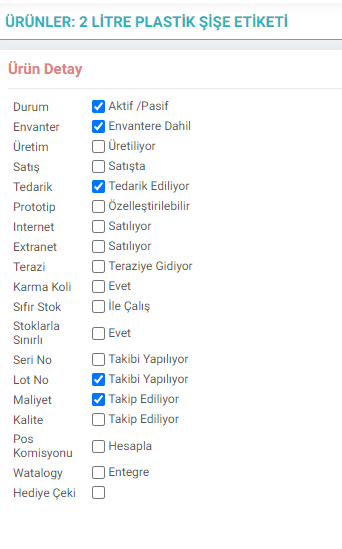
الحالة: يتم تحديد الطبيعة النشطة أو السلبية للمنتج. لا يمكن حذف المنتج المحدد في النظام في Workcube. لا يمكن إلغاء تنشيطه إلا.
مضمن في المخزون: يتم تسجيل كل من المخزون وعناصر الخدمة في صفحة المنتجات. من أجل الاحتفاظ بسجلات المخزون الفعلي للمنتجات، يجب تحديد المربع "مضمن في المخزون". لم يتم تحديد هذا المربع في تعريفات الخدمة.
الإنتاج: يجب تحديد هذا المربع للمنتجات التي تنتجها الشركة. لا يمكن معالجة المنتجات التي لم يتم تحديد صندوق إنتاجها في وحدة الإنتاج. لا يمكن تعريف أشجار المنتجات.
للبيع: مختارة للمنتجات والخدمات المباعة. إذا لم يتم تحديد هذا المربع، فلن يتم عرض المنتج أو الخدمة في قوائم المنتجات في أوامر البيع والفواتير وعروض أسعار المبيعات.
المزودة: تستخدم للمنتجات والخدمات المشتراة. إذا لم يتم تحديد هذا المربع، فلا يمكن تحديد هذا المنتج أو الخدمة في قوائم المنتجات في عروض أسعار الشراء وأوامر الشراء والفواتير.
النموذج الأولي - قابل للتخصيص: يجب تحديد هذا المربع للمنتجات المنتجة أو المباعة في تكوينات مختلفة. على سبيل المثال ؛ إذا كنت تنتج أريكة وتبيعها بأغطية قماش مختلفة، وأنواع مختلفة من الأرجل، وأنواع مختلفة من الخشب، فيجب عليك تحديد هذا المربع لهذا المنتج. بفضل خياره القابل للتخصيص، يسمح Workcube لمستخدميه بتنفيذ الإنتاج والمبيعات عن طريق إنشاء أشكال متعددة في أشجار المنتجات الخاصة بهم دون فتح منتج جديد أو بطاقة مخزون.
-
الإنترنت: إذا كنت تريد إنشاء هذا المنتج وبيعه على Workcube على موقع التجارة الإلكترونية (B2C)، فيجب التحقق من ذلك.
-
الشبكة الخارجية: إذا كنت تريد إدارة مواقع B2B مثل بوابة الوكيل على Workcube وتريد أن يتم عرض هذا المنتج على بوابة B2B تلك (على سبيل المثال، على شاشة تلقي الطلب)، فيجب التحقق من ذلك.
-
الميزان: يجب اختيار هذا الصندوق للمنتجات التي تُباع بالوزن. إذا لم يتم تحديد هذا المربع، فلا يمكن إرسال معلومات السعر الخاصة بذلك المنتج من النظام إلى الميزان.
-
الطرود المختلطة: وهي عبارة عن منتج واحد يتكون من أكثر من منتج. على سبيل المثال ؛ باقة رمضان، باقة الكمبيوتر. انقر للحصول على معلومات مفصلة حول الكرمة الطرود.
-
صفر مخزون: يجب تحديد هذا المربع للمنتجات المعدة للبيع حتى لو لم تكن متوفرة في المخزون. لا يتم عرض المنتجات التي لا يوجد بها مخزون في قائمة المنتجات عند تلقي الطلبات. عند تحديد هذا المربع، يتم عرض المنتجات في القائمة ويمكن أخذ الطلبات.
-
محدود في المخزون: إذا كنت تريد قصر المنتجات المباعة على الإنترنت على المخزونات، حدد هذا المربع. (في هذه الحالة، لا يمكن بيع منتجات أكثر من كمية المخزون المحددة.)
-
الرقم التسلسلي: يجب تحديد هذا المربع للمنتجات التي تتطلب الضمان وتتبع الرقم التسلسلي. عند تحديد هذا المربع، يمكن إجراء عمليات تتبع الطلب والتسليم والضمان عبر الرقم التسلسلي.
-
رقم الدفعة: من أجل تتبع رقم الدفعة للمنتج، يجب تحديد مربع " التتبع ". إذا لم يتم تحديد خانة الاختيار هذه، فلن يكون من الممكن تحديد أو تحديد رقم الدفعة لهذا المنتج على الصفحات الأخرى التي تتطلب تتبع رقم الدفعة.
-
التكلفة: إذا تم تحديد هذا المربع، فسيتم تتبع تكلفة المنتج في حركات المخزون والشراء.
-
مراقبة الجودة: من أجل تتبع معلومات الجودة حول المنتج، يجب وضع علامة على هذا المربع بـ "متابعة".
-
عمولة نقاط البيع: لا ينبغي تحديد هذا الخيار للمنتجات التي لا تريد أن يتم احتساب رسوم عمولة نقاط البيع لها لمبيعات بطاقات الائتمان. بهذه الطريقة، يمكن منع حساب العمولة لمنتجات الخدمة التي قد تكون ثابتة، مثل تكاليف الشحن، والتي لا يلزم حساب عمولتها، ولكن يجب تضمينها في الفواتير والأوامر. في تفاصيل المنتج. إذا تم اختيار الصندوق المتكامل، فسيتم إدراجه في مشروع الواتولوجي الذي يتم العمل عليه وطرحه للبيع في الأسواق.
-
شهادة الهدية: يتم تسجيل شهادات الهدايا كمنتجات في النظام. بعد تسجيله كمنتج، يتم تحديد هذا المربع، يليه حقل تاريخ الصلاحية. يتم هنا تحديد عدد الأيام التي ستكون قسيمة الهدية صالحة لها. إذا لم يتم إدخال اليوم، فإن شهادة الهدية ستكون غير محددة.
المعلمات العامة للمنتج
يمكن استخدام معلمات المنتج في Workcube بشكل مختلف لكل شركة. للقيام بذلك، يجب عليك أولاً تحديد شركتك في لوحة التحكم > النظام > الإعدادات العامة > معلمات تدفق الشركة وحفظ الخيار " هل يجب عرض معلومات معلمة المنتج اعتمادًا على الشركة؟ " كـ " نعم ".
ملاحظة : إذا كنت تريد الاحتفاظ بالمنتجات بشكل منفصل في كل شركة، سيتم إجراء هذه الترتيبات بشكل فردي. لا يتعين عليك القيام بذلك في شركة واحدة، بل في جميع الشركات.
وبعد ذلك، عندما تذهب إلى تفاصيل المنتج، سترى التحذير " يجب عليك حفظ التغييرات في هذا الحقل في معلمات المنتج! " في المنطقة التي توجد بها المعلمات. يخبرك هذا التحذير أنه يجب عليك الآن إجراء التعديلات من المعلمات العامة للمنتج، وليس من شاشة تفاصيل المنتج.
بعد ذلك، افتح صفحة أخرى > المعلمات العامة للمنتج في الروابط الموجودة أعلى يمين تفاصيل المنتج وقم بإجراء التعديلات اللازمة.
على سبيل المثال، ؛ إذا كان المنتج المسجل في النظام يتم إنتاجه في شركة الإنتاج ولم يتم إنتاجه في الشركة التجارية بل يتم بيعه فقط، فيجب تحديد خانة "المنتج" عن طريق اختيار شركة الإنتاج. وفي شركة تجارية لا ينبغي اختياره.
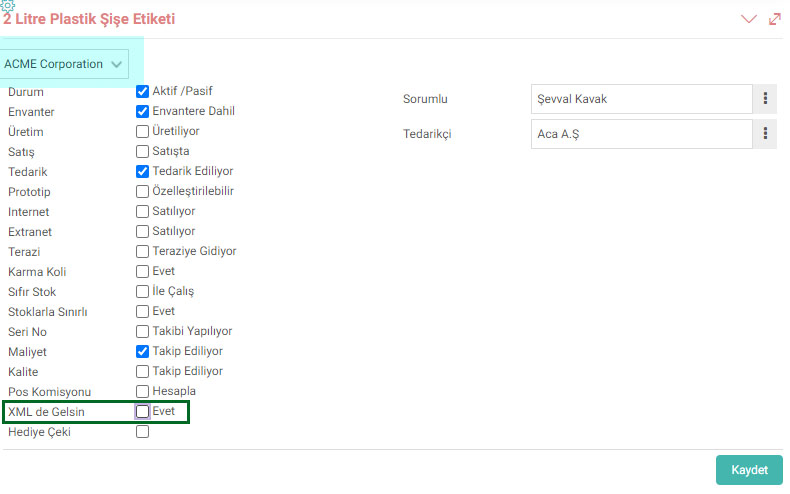
في هذه الشاشة، على عكس معلمات تفاصيل المنتج، يوجد مربع " Come in XML ". يستخدم هذا الصندوق لتصدير المنتجات. على سبيل المثال ؛ عندما تبيع منتجاتك على مواقع التجارة الإلكترونية، فإنك ترسل لهم المنتجات كرمز، أي XML.
?
2.2.2.1.21. قائمة المنتجات
هذه هي الشاشة التي تعرض جميع المنتجات المسجلة في النظام عن طريق تصفيتها بالطرق المطلوبة.
2.2.2.3.5. مبادئ عمل المخزون الصفري
الغرض الرئيسي من مراقبة المخزون هو توفير المواد في العمل بكميات مثالية. تختلف الكميات المثالية هنا حسب خصائص الأعمال وكثافتها ومعدل استهلاك المواد وسرعة الوصول إلى المواد.
2.2.2.1.9. أوصاف المنتج الأساسية
وحدة إدارة المنتج هي الوحدة التي يتم فيها الاحتفاظ بسجلات المعلومات وإدارتها للمنتجات النهائية و/أو الخدمات المباعة داخل الشركة والمدخلات المقدمة مثل المنتجات النهائية والمنتجات شبه المصنعة وقطع الغيار والمواد الخام والخدمات. وحدة المبيعات والشراء والإنتاج والمخزون والاتفاقية والخدمة والحملة وما إلى ذلك. وهي تعمل بشكل متكامل مع وحدات Workcube الأخرى.
2.2.2.1.3. إعدادات XML للمنتج
وحدة إدارة المنتج هي الوحدة التي يتم فيها الاحتفاظ بسجلات المعلومات وإدارتها للمنتجات النهائية و/أو الخدمات المباعة داخل الشركة والمدخلات المقدمة مثل المنتجات النهائية والمنتجات شبه المصنعة وقطع الغيار والمواد الخام والخدمات.
توظيف
إنها الوحدة التي تتم فيها إدارة عمليات التوظيف والتعيين. في وحدة التوظيف، تتم إدارة الملاحظات والتقييمات والمراسلات والوثائق المتعلقة بكل طلب من مركز واحد.