Stock Transactions
Stock movement of products is provided from purchase-sales invoices and/or delivery notes. However, in order for this movement to be achieved and tracked, the "Perform Stock Movement" box must be checked in the transaction categories of the relevant invoices and delivery notes. The Stock Transactions page is the page where the transactions that move stock are listed.
Path: ERP > Sales-Distribution > Shipment-Logistics > Stock Transactions
On the page that opens, you can filter by Document No and Lot No and list them on a document or line basis. To perform detailed filtering, click on the "More" button on the page.
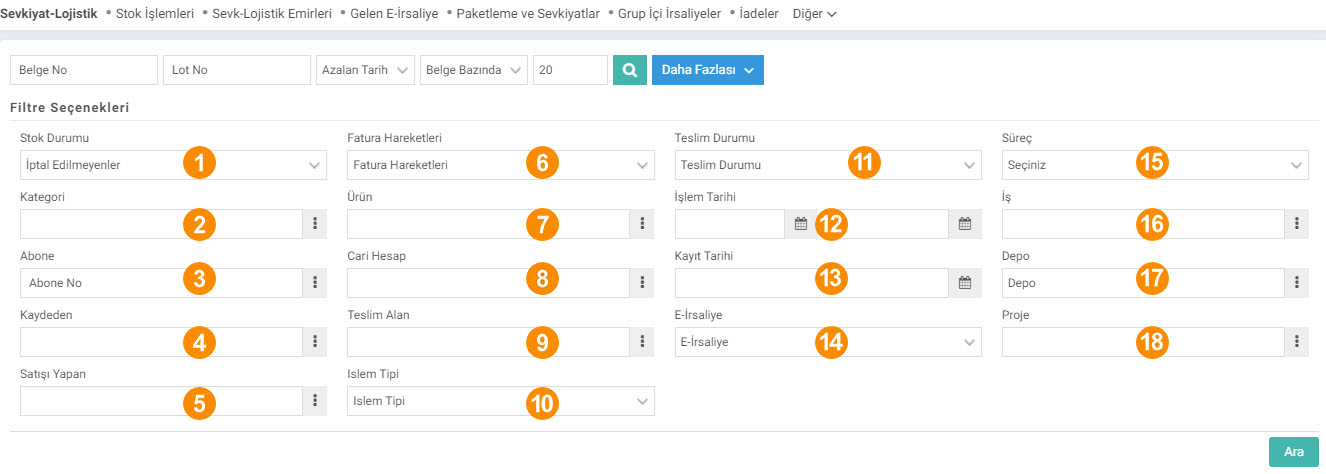
1-Stock Status: Filtering is done in the form of canceled and unregistered delivery notes from the Stock Status field.
2-Category: Filtering is done by selecting the relevant product category.
3-Subscriber Number: Returns records according to the subscriber selected in the relevant documents. It is used to filter the service delivery notes created for subscribers.
4-Registered by: The person who made the relevant record is selected.
5-Sales by: If the sales employee is selected in the relevant document, filtering can be done by selecting it.
6-Invoice Transactions: Separation of Invoiced/Uninvoiced delivery notes.
7-Product: Filtering is done by selecting the product subject to the transaction from this field.
8-Current Account: A search is made based on the current recorded in the transaction.
9-Delivery Area: The "Receiver" person recorded in the transaction
10-Transaction Type: By making a selection, you can ensure that only the documents in the transaction category you want are received. For example; Like Purchase Delivery Notes
11-Delivery Status: There is a "Receive" box in inter-warehouse shipment transactions. This field works depending on it. You can list by filtering as "Delivery received" or "Not Received".
12-Transaction Date: Transaction date is selected.
13-Recording Date: The date on which the transaction is recorded is selected.
14-e-Delivery Note: e-Delivery Note is filtered by selecting "Those to be Sent", "Those Waiting for Approval", "Those to be Sent".
15-Process: You can list the transactions according to the stages you determine yourself.
16-Job: If there is a job that the transaction is related to. Filtering is done by selecting it from this field.
17-Warehouse: The warehouse where the transaction takes place is selected.
18-Project: If the transaction is related to a project, filtering is done by selecting it from this field.
Listing Stock Transactions XML Settings
1 - Detail of Stock Transfer Transactions Can Be Viewed
When selected as Yes, details of transfer slips from transfers made during "Period Maintenance" transactions can be entered on the listing page. Otherwise, only the listing can be displayed.
2 - Transaction Categories Can Be Displayed in Document Type
When selected as Yes, the transaction type and the transaction category to which it is linked are displayed in the "Document Type" column on the listing page.
3 - Reference Number
When selected as Yes, the "Reference No" column opens on the listing page and this column shows which other document the relevant document was created from.
4 - Allow Print Documents to be Selected from the Row
When selected as Yes, a box opens in each row on the listing page so that more than one document can be selected. In this way, transactions can be printed individually rather than collectively.
5 - Net Unit Price Can Be Displayed
When selected as Yes, the "Net Unit Price" column opens and the net unit price of the relevant product is displayed. This XML works on a row basis.
6 - Stock Transactions Listing Option
The listing option is selected as “All”, “Cancelled”, “Not Canceled”.
7 - Show Invoice Relationship in the List
When selected as Yes, the "Invoice" column opens on the listing page and if the relevant document has been invoiced, the invoice number is displayed.
8 - Show Lot Number on a Line Basis in the List
When selected as Yes, if a Row Based listing is made on the listing page, "Lot "No" column opens and the lot number of the relevant product is displayed. This XML works on a row basis.
9 - Show Projects
When selected as Yes, "Input Project" and "Output Project" columns are opened on the listing page. If input-output projects are selected in the relevant document, they are shown in these columns.
10 - Show Locations
When selected as Yes, the locations of the warehouses with input and output are shown in the "Entry Warehouse" and "Exit Warehouse" columns on the listing page.
11 - Cost will not be shown in baskets in position authorizations and production results.
If selected as Yes, "Unit Price" fields will be shown on the listing page. It works on a row basis.
12 - Show Jobs
When selected as Yes, the "Job" column opens on the listing page and the jobs selected in the documents are shown in this column.
13 - Show Actual Shipment Date
When selected as Yes, the "Job" column is opened on the listing page. The "Actual Shipment Date" column opens and the actual shipment date selected in the relevant document is displayed in this column.
14 - Show Recorder
When Yes is selected, the "Registered by" column opens on the listing page and the name of the employee who saved the document is displayed.
15 - Show the Receiver
When selected as Yes, the "Receiver" column opens on the listing page and if the Receiver is selected in the document, it is displayed in this column.
16 - Project Filter
If "Single Delivery" is selected, only the project filter is displayed on the listing page, without separating entries and exits. comes. If “Multiple Income” is selected, two separate filters are opened as input project and output project. If "Do Not Come" is selected, the project filter is removed from the listing page.
17 - Warehouse Filter
If "Let It Come Single" is selected, only the Warehouse filter appears on the listing page, without separating entries and exits. If “Multiple Income” is selected, two separate filters are opened as Input Warehouse and Output Warehouse. If "Don't Show" is selected, the project filter will be removed from the listing page.
18 - Show Process?
If yes, the process filter and process column will be opened. In this way, searching and listing can be done according to stages.

Sistem üzerinde yapılan kayıtların işlem kategorilerinde “Stok Hareketi Yapılsın” kutucuğu işaretli ise stok hareketi yapar. Yapılan bütün işlemlerin listelenmesi ve takip edilmesi için Stok Hareketleri sayfası kullanılır.
Sistem üzerinde yapılan kayıtların işlem kategorilerinde “Stok Hareketi Yapılsın” kutucuğu işaretli ise stok hareketi yapar. Yapılan bütün işlemlerin listelenmesi ve takip edilmesi için Stok Hareketleri sayfası kullanılır.
Bu sayfanin cf_big_list_search'ü olusturulmustur.
is_show_stock_transfer_detail Stok Devir İşlemlerinin Detayı Görüntülenebilsin
x_show_process_cat Belge Tipinde İşlem Kategorileri Görüntülenebilsin
is_show_reference_no Referans Numarası Görüntülenebilsin
x_check_row_print Print Belgeleri Satırdan Seçilebilsin
xml_show_price Net Birim Fiyat Görüntülenebilsin
xml_list_cancel_stock Stok Hareketleri Listeleme Seçeneği
xml_show_invoice Listede Fatura İlişkisi Gösterilsin
xml_show_lot_no Listede Satır Bazında Lot No Gösterilsin
xml_is_project_list Projeler Gösterilsin
x_is_location_info Lokasyonlar Gösterilsin
x_is_rows_per_amount Pozisyon yetkilerindeki basketlerde ve Üretim sonucunda maliyet gösterilmesin
xml_is_work_list İşler Gösterilsin
xml_is_deliver_date Fiili Sevk Tarihi Gösterilsin
xml_is_record_emp Kaydeden Gösterilsin
xml_is_deliver_emp Teslim Alan Gösterilsin
xml_project_filter Proje Filtresi
xml_department_filter Depo Filtresi
xml_show_process_stage Süreç Gösterilsin mi?