Authority Groups
Authority groups are designed to facilitate user management by grouping users. In Workcube, the concept of user means role-position. Users, that is, roles-positions, must be connected to at least one authorization group. If the User-Role is not included in an authorization group, the system cannot access it. A user-role can be included in multiple authorization groups.
Path: Control Panel > System > Security > Authorization Groups
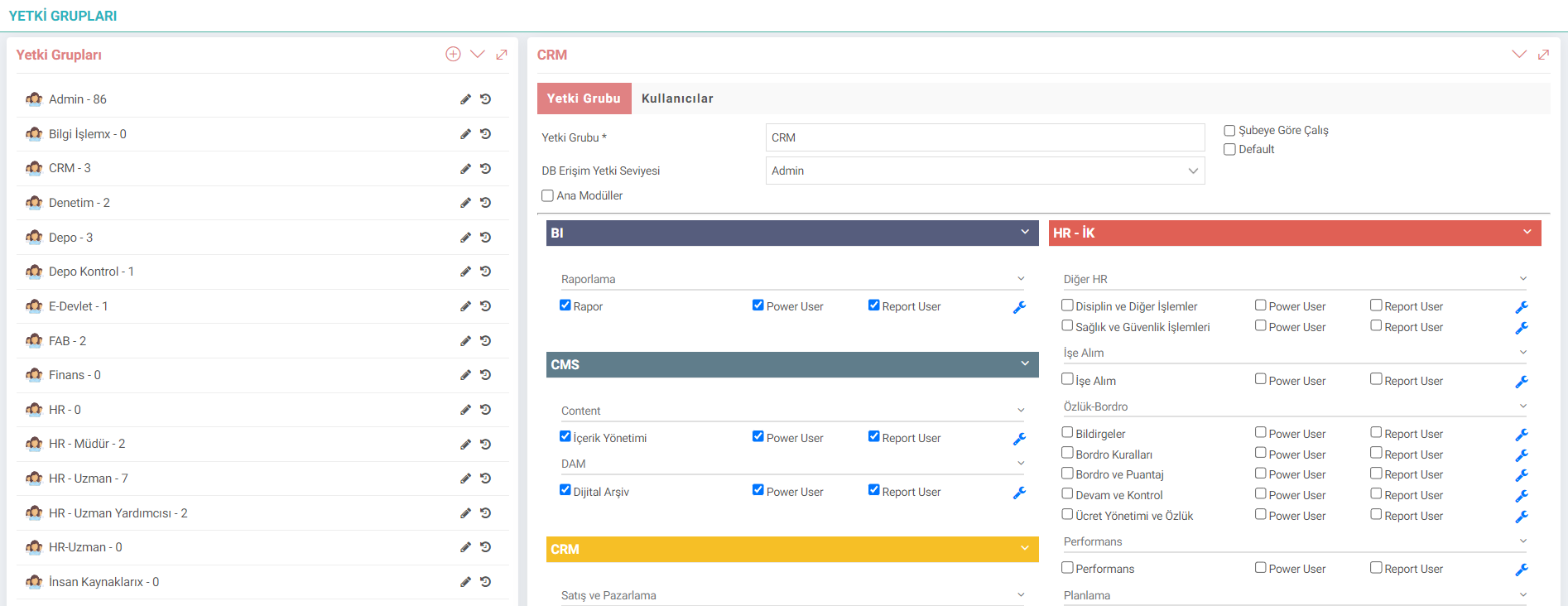
Authority Groups are organized on two levels. The first level is the module level.
Power User: It is the user who can make module settings, add and change parameters and has the authority to edit pages.
Report User: It is the user who has authority to module reports.
Admin User: It is the user who gives all the permissions in the system and has the authority to access everywhere.

Business Objects - Event Based Authorization Control
Each business object can be authorized under the 4 headings listed below. Workcube Business Objects – WBO (Business Objects) consists of functions (events) such as List, New Record, Update, Detail. Event-based authorization is done according to the following rules. Thus, while some authorization groups can make new records or list records, some authorization groups may not be given the authority to update or delete records.
Let the Business Object Be Visible to the User - If Checkbox is selected, it will be prohibited. | |
A New Record Can Be Made. – If Checkbox is selected, it will be banned. | |
Update Record – If Checkbox is selected, it will be banned. | |
Delete Record – If Checkbox is selected is prohibited. |
Personal Data-Top Secret: Employees' salary and advance accounts are monitored in this category. Users who do not have Personal Data-Top Secret authorization see their salary accounts masked in the debit and receivable statement.
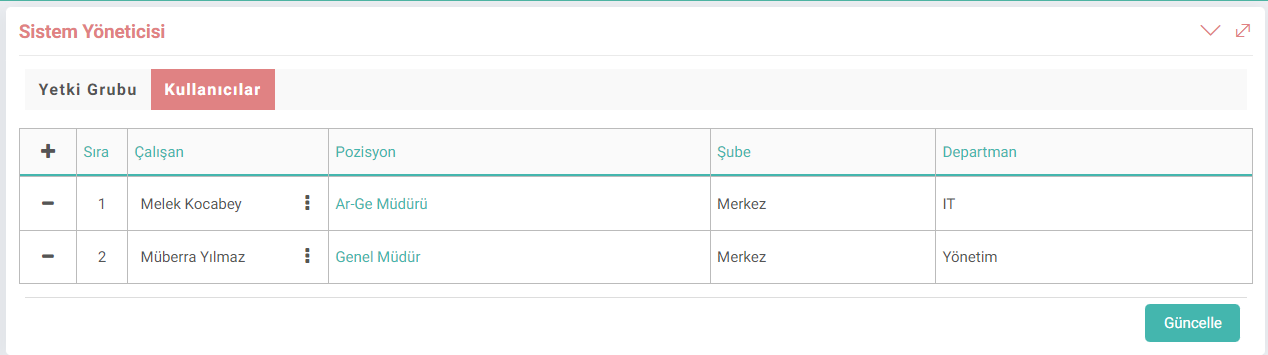
To list the users connected to the Authorization Group, they are listed by clicking on the "user" icon in the right corner. A new user is added with
+. The user is removed from the authorization group with the x icon.
When the relevant position is clicked in the Position column, the Roles-Positions update screen is accessed and the position is updated by making changes. can be done.
Caution: Be careful when defining Workcube authorization groups and associating users with authorization groups. Link authorization groups according to the user's role in the organization. A person can be linked to more than one authority group. Get help from Workcube experts when necessary to design authorization groups for your business.

Kullanıcı gruplara yaratarak modül, iş fonksiyonu ve detay kırılımlarının yetkilendirmeleri (görme, güncelleme ve silme) için kullanılır. Kullanıcıların yetkileri dahilinde işlem yapmalarını sağlar.
module_lang_type Çalışan Yetki Grubu için Modül Dil Seçimi
Feedback
14.4.1. Processes Collective Authorization
Workcube works with modules that work with processes, and therefore it is necessary to be authorized in the processes to use the modules. Employees are provided with access rights to processes on a company basis via the Processes Collective Authorization screen.
17.1. User Authorization Reports
In the User Authorization Management module, users' authorization reports and reports containing their authorizations based on module, process and transaction category can be obtained. Thanks to these reports, it can be learned which users have what kind of privileges on the system. Users with less or more authority are identified and the authority of the users is arranged accordingly.
14.4.2. Position Types Bulk Transaction Authorization
Workcube offers its users the opportunity to bulk authorize on a position basis with the Position Types Bulk Transaction Authorization screen.
14.6. Security
Transactions, especially related authorizations and restrictions, can be made for the management of the system through the security page.
17. User Authorization Management
What users can do on Workcube varies depending on the permissions given. Thanks to User Authorization Management, an entry-level employee, a senior manager, as well as external users can work together in a common area.
Authorization group-Users
Branch and department columns have been added to the table on the authorization group users screen. When you click on the position, you can go to the role-position details in a new tab.
ENG
Branch, department column has been added to the table in the authorization group users screen. When the position is clicked, it is provided to go to the details of the roles-position in a new tab.