Bulk Invoicing Transactions
With Subscription Management, you can automatically create invoices for more than one subscriber at once. Likewise, these invoices can be issued collectively as e-Invoice or e-Archive invoice with a single step. All these transactions carried out through subscribers save the business serious time. In order to manage bulk billing transactions, payment plans must be predefined.
Billing Transactions are divided into two as Bulk Invoice and Group Invoice.
Bulk Billing
Subscriber Bulk Invoice Creation screen; It works in relation to subscription. Among the payment plans defined in the subscribers, the active payment plan lines of the active subscribers whose amount is greater than zero and who are not billed and selected for bulk invoicing come from the payment plan lines on the date that falls between the start and end date selected in the filter.
Filtering can be done according to Customer Type and Payment Method. The resulting list lists which subscribers can be invoiced for which payment plans and under what conditions. Invoicing is done by entering the invoice date, transaction type and exchange rate information based on the selected lines.
The batch operation performed here assigns an invoicing record and information to the bulk invoicing list, but may create a different number of invoices depending on the conditions. In the bulk invoicing list, you can track how many invoices were issued and under what conditions.
In a bulk invoicing process, invoices are created according to some conditions;
From the payment plan lines listed, the date is first checked, and if a different payment plan line belonging to the same system is received - if their dates are different-, a separate invoice is created for each line.
A new invoice is created for each payment plan line whose payment method and currency are different. However, for example, multiple lines in the same currency with the same payment method for the same subscriber on the same date can form the lines of the same invoice.
Group Billing
Uses the same screens as Bulk Billing. If Group Invoicing is selected, the client to whom invoicing will be made must be selected. Based on this, the billing company receives the lines that can be billed for these current subscribers (invoiced information is not set and group billing options are selected). Invoicing is done by grouping these lines according to product, unit, description, currency and discount. The amount can also be included in the grouping according to the "Do not calculate the average price in group billing" option.
Billing
The Bulk Billing function is an important component of the Subscriber Management module. When you want to invoice periodically and in bulk, the required fields are filled in the screen that opens by clicking on the "+" icon from the SUBO > Subscription > Subscriber Management > Billing Transactions screen.
In the Invoice Date field, you select the date in which you will invoice the registered subscriber. The system lists all subscriber payment plan lines that have not been invoiced until that day between the start and end date you selected, taking into account your selections in other fields.
For example; If you forgot to send the invoice dated 01/11/2021 within the payment plan, you can list and send it in the Invoicing Transactions.
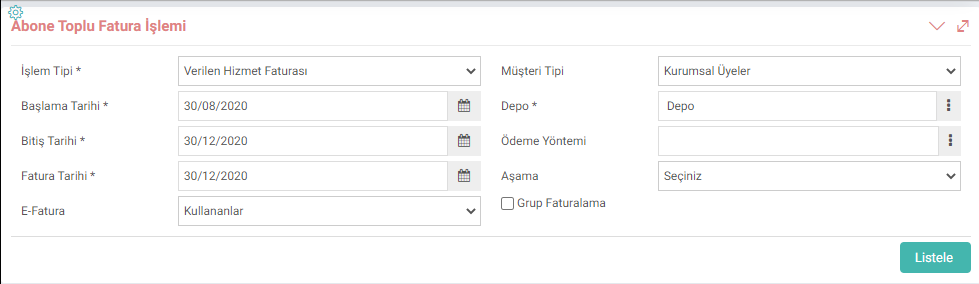
Transaction Type: Bulk invoicing transaction type is selected here. For example; Different transaction types can be defined, such as Wholesale Invoice - Retail Sales Invoice. In order for the transaction type to appear in this list, the Subscriber management fuseaction must be added to the definitions screen. You can multiply the transaction types according to usage needs. It is recommended to define a separate transaction type for Bulk Invoicing Transactions because action and display files are used in Invoice Transaction Types and the invoice screens issued one by one are different from Bulk Invoice. If users are selected, you can issue e-Invoice, if non-users are selected, you can issue e-Archive invoices.
If Group Invoicing is desired, this box must be checked. If checked, Current Account must be selected.
Note: In order to perform group billing, the GF box must be previously ticked in the relevant subscriber's payment plan lines subject to the invoice. Listing is made after optionally determining fields such as
Start Date, Warehouse, Stage, Payment Method All invoices that were not created within the selected date range are listed. When you select the subscriber and payment information to be billed from this list and click on the "Create Invoice" button, the system automatically creates invoices for all selected subscribers and payment plan lines.
Different functions such as exchange rate type and minimum price can be selected in Invoicing Transactions.
After creating your invoices, you can view how many invoices you have issued and the total amount of these invoices by clicking the "Search" button on the "Invoicing Transactions" page. By clicking on the blue "e" or "a" icon next to the invoices, you can send them in bulk as e-Invoice or e-Archive invoice. By clicking on "-", all related invoices will be deleted.
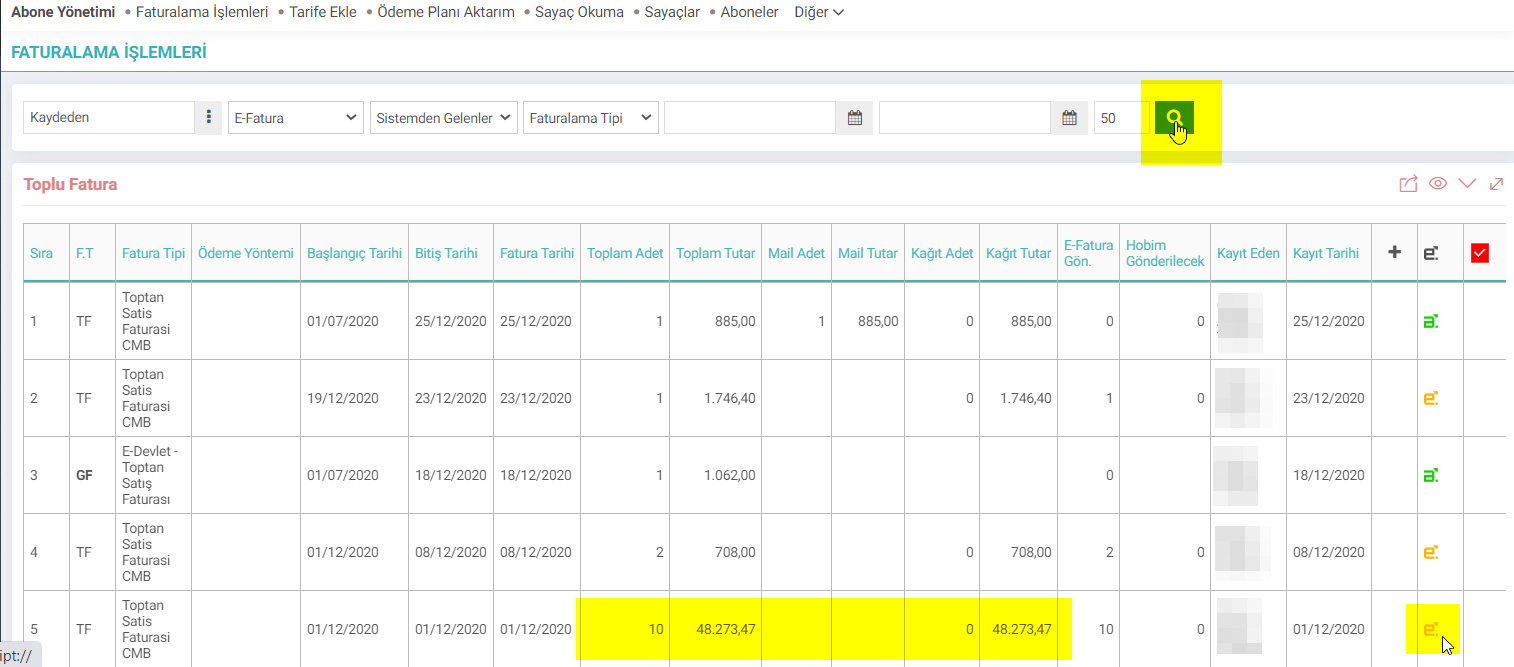
If you send the invoices you have created, the "-" delete button will not appear.
Type: Before sending the invoices If you want to check, you can check it from ERP > Sales Distribution > Invoices , make and save any special changes you want on each invoice, and then click on the bulk invoice sending icon. The updates you make are preserved even when bulk billing is done. If you wish, you can send your invoices one by one by clicking on the blue "e" icon in the resulting invoices.
Type: If you are going to invoice for a single subscriber, you can invoice by clicking the "Invoice" icon at the top right of the Payment Plan page. When you select the payment plan lines you want to cut and click save, it automatically brings you to the Sales Invoice screen.

When you perform bulk billing transactions for subscribers, the Subscriber Payment Plan line appears as invoiced.
You can also access the relevant invoice from the payment plan details. You can also access the e-Invoice or e-Archive invoice image in detail.


Birden fazla aboneye aynı anda toplu fatura ya da birden fazla aboneye eğer cariler aynı ise tek fatura da gruplama yaparak faturalın kesilmesini ve e-fatura/e-arşiv fatura olarak gönderilmesini sağlar.
Bu sayfanin cf_big_list_search'ü olusturulmustur.
x_hobim_stage_id Kaydedilecek hobim dosyasının hangi aşamada kaydedileceğini belirtir.
x_hobim_using Dış Kaynak Faturalama kullanılıyor
Feedback
2.2.11.8. Bill Payment Plan Import
When companies want to transfer the Payment Plans to the system for the invoices they have created, the transfer is made via the Invoice Payment Import screen.
5.8. Collection and Automatic Payment Receipt
Automatic Virtual POS was designed to collect customer invoices from credit cards in companies operating with a subscription system.
5.6.1. Campaign Management with Subscription Commitment
Subscriber Commitment Campaign Management is used to reflect the conditions of the companies working with the subscription system regarding the campaigns they organize, to the customer's payment plan.
Subscriber Management
In order to perform transactions in the subscription module, you must have authority in the module, processes and transaction categories.
5.6. Subscription Service and Pricing (Payment Plan)
Payment plans are created for all payments you make, whether in fixed amounts at fixed intervals or variable amounts at variable intervals, such as support services, school installments, maintenance services. Based on the agreements made, monthly, quarterly or annual payment options can be created.