Purchase Request
Purchasing module is the module where all purchases of goods and services within the institution are recorded and managed. The "Purchase Request" screen in this module is used to submit a new purchase request to the purchasing department.
Path: ERP > Sales-Distribution > Purchasing > Purchase Request
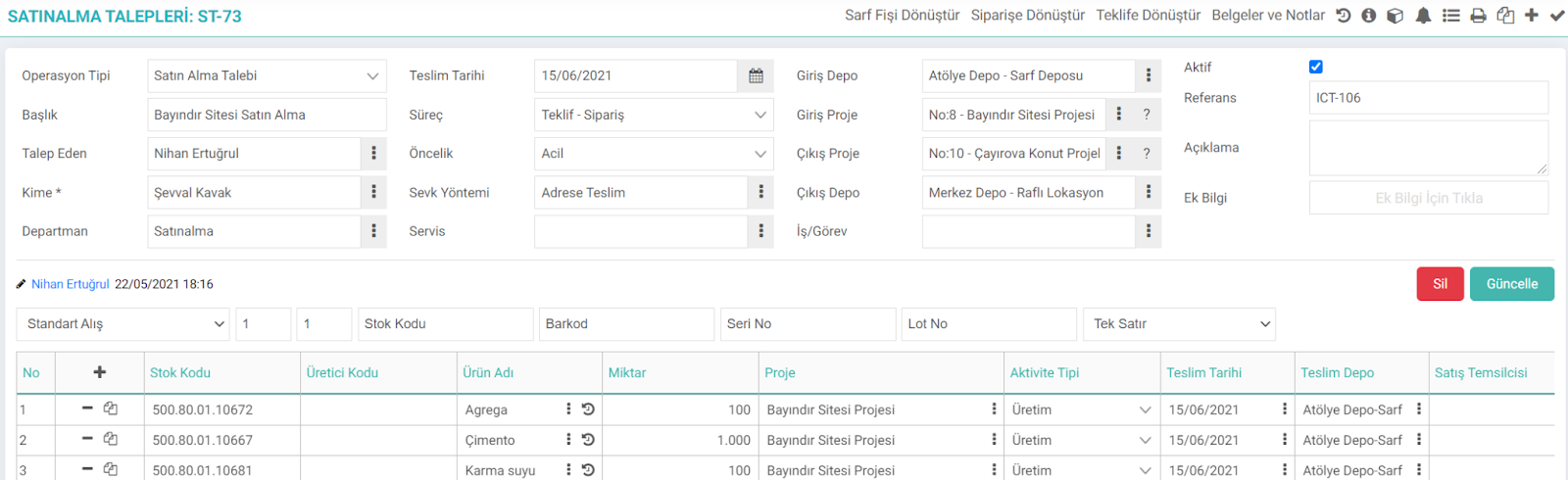
- Transaction Type: Transaction type as "Purchase Request" will appear.
- Department: Relevant department is selected from this field.
- Title: Write the subject title for the purchase request.
- Requester: The user information that displays this screen will automatically appear in the requester section. If the requester is different, you can change it from the popup.
- To: Select the user who will evaluate the request in this field. User information in this field can also be specified from the XML setting. "User to be the default in the To field" Write the position ID of the user you want to be the default in the
- Priority: Specify the priority status of your purchase request.
- Process: Indicate at which stage the request is in this field.
- Reference: In the reference field, if you came to the purchase request from another screen For example; On the Internal Requests page. When you click "Convert to Purchase Request", the number of the relevant internal request will appear.
- Delivery Date: Specify the delivery date for the products in question in the delivery date field.
- Service: If the product you have requested is related to a service application, specify the relevant service application in this field.
- Explanation: With the purchase request. You can specify the relevant explanation/detailed information.
- Additional Information: You can enter additional information for your request in this field.
- Entry Warehouse: In the entrance warehouse field, indicate in which warehouse you will keep the product you have requested when you receive it.
- Entry Project: If the product you have requested will be used for a project, project the relevant project in this field. specify.
- Exit Project: If the requested product has already been purchased for a different project in stocks, it can be exited from that project and entered into the new project by selecting the exit project.
- Exit Warehouse: If the requested product is in stocks, it can be entered to a different location by selecting the exit warehouse.
Usage of the basketball area is as follows
You can change the quantities manually. Then click the "Save" button.
Recommendation: For detailed information about basket usage, you can review the "Basket Settings and Usage" document.
On this screen, you can click the "Update" button to change/update the information you want or click the "Delete" button to delete the request. You can also perform the following operations using the icons in the upper right corner of this screen.

- Convert Consumption Receipt: You can click on this link to convert the products you have requested into a consumption receipt.
- Convert to Order: You can click on this link to convert the internal request you are on the update screen into an order.
- Convert to Offer: You can click on this link to convert the internal request you are on the update screen into a quote.
- Documents and Notes: You can add documents and notes related to the purchase request from this area.
Purchase Request Details: When you click on this icon, if you are making a budget movement in the transaction type, you can view the budget compliance check and access the demand fulfillment report.
With the help of other links, you can view the additional information of the request, the relevant relevant information. you can view alerts and perform operations such as printing, saving, copying.
Creating a Purchase Request via Data Transfer
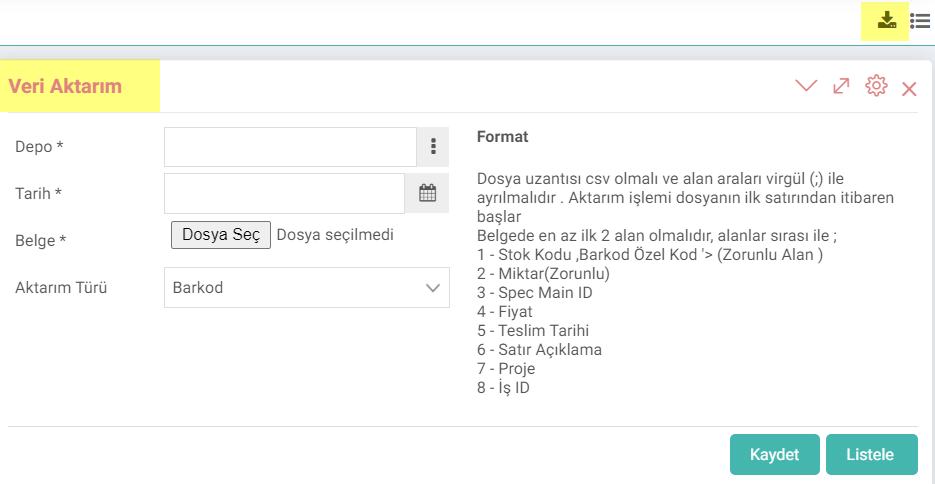
Document: In this field, select the document that contains the product information. The format of your document must be as stated above.
Transfer Type: Make the relevant selection according to the code in your document (stock code, barcode or special code).
After specifying the necessary information, when you click on the "Save" button, you will be directed to the order adding page. You can proceed with the order after detailed selections.
When you click on the “List” button, you can list the products in the document you have added. You can also turn it into an order after listing it.

Kurum içerisindeki tüm mal ve hizmet satın almaları önce talep olarak kaydedilir. Talep sonrası onay ve red ile sarf fişine, teklife ya da siparişe dönüştürülebilir.
Kurum içerisindeki tüm mal ve hizmet satın almaları önce talep olarak kaydedilir. Talep sonrası onay ve red ile sarf fişine, teklife ya da siparişe dönüştürülebilir.
Kurum içerisindeki tüm mal ve hizmet satın almaları önce talep olarak kaydedilir. Talep sonrası onay ve red ile sarf fişine, teklife ya da siparişe dönüştürülebilir.
İş süreçlerinin tasarım ve akışlarını oluşturur.
Bu sayfanin cf_big_list_search'ü olusturulmustur.
Kaydedilen belgelerin çıktılarının alınması için kullanılır. Standart şablonlar seçilebilir ya da özel şablonlar eklenebilir, ayrıca şablonlar yetkiye bağlanabilir.
x_show_authorized_stage Filtrede ve Listede Sadece Yetkili Olunan Süreçler Gelsin
x_row_stage Satır bazında listelendiğinde süreç gösterilsin mi?
x_list_is_from_employee_id Talep Eden Alanında Sistemdeki Kullanıcı Gelsin
x_list_deliverdate_row Satır Bazında Filtrelendiğinde Satır Teslim Tarihi Göster
x_is_show_unit Satır Bazında Filtrelendiğinde Ürün Birimlerini Göster
x_is_show_spec Satır Bazında Filtrelendiğinde Spec Adı Göster
x_is_work Satır ve Belge Bazında Listelenirken İş Sütunu Gelsin
x_is_statu Satır ve Belge Bazında Listelenirken Durum Sütunu Gelsin
x_show_project_in Giriş Depo / Proje Filtresi Görüntülensin Mi ?
x_show_project_out Çıkış Depo / Proje Filtresi Görüntülensin Mi ?
x_basket_row_add_definition Satır Bazında Listeleme Yapıldığında Ek Tanımlar Gelsin.
x_to_position Satır Bazında Kime Alanı Gelsin
x_order_list Projeye ve Ürün Kategorisine Göre Sıralama Filtresi Görünsün
xml_to_position_code Kime Alanına Sistemdeki Kullanıcı Gelsin mi?
xml_change_to_position_id Kime Alanında Değişiklik Yapabilecek Pozisyonlar
x_order_by Sıralama Tipi
xml_sarf_fis_button Sarf Fişi Oluştur Seçeneği Gelsin mi?
xml_purch_order_button Satınalma Siparişi Oluştur Seçeneği Gelsin mi?
xml_purch_offer_button Satınalma Teklifi Oluştur Seçeneği Gelsin mi?
x_kalan_hesap Kalan Hesabı
x_list_is_from_department Departman Alanında Sistemdeki Kullanıcının Departmanı Gelsin
xml_purch_order_process_code Satır bazında işlem yapılabilir süreç aşamaları
Feedback
Purchase Offer
With Workcube purchase offers, offers can be requested from multiple suppliers through a single offer record. Requested and received offers are tracked from a single center.
2.2.9.1. Purchasing Parametric Definitions
The purchasing module is the module where all purchases of goods and services within the institution are recorded and managed.
Purchasing Management
With the Workcube Purchasing Module, you can manage all purchases within your business more easily and effectively. In addition to improving your relationships with your suppliers, it significantly reduces your purchasing costs. Your employees can see all order details from the date the order was placed to the payment date on a single page.
2.2.9.2. Purchasing XML Settings
The purchasing module is the module where all purchases of goods and services within the organization are recorded and managed.
2.2.9.4. Internal Demands
Within the organization, your employees can create internal demand for the products and services they need. To create internal demand, click on the “+” icon on the listing screen.
Purchase Requests
Edited Function: The issue where department definitions were not displayed correctly when written with commas on the ERP > Sales-Distribution > Purchasing > Purchase Requests listing page was fixed.
Purchase Request Approved Process XML parameter
Added/Edited Function: "Process stages actionable on a row basis" ID values must be entered for both listing and adding/updating. If no ID value is entered, it works with its standard function without being subjected to any controls.
Benefit:In this way, it was possible to convert desired requests at certain stages into orders.